



To DJ entirely in headphones without external speakers, turn on your mixer’s headphone master switch so you hear the live outgoing track, press the headphone cue button on the incoming channel to preview the next song, use the cue/master mix dial (or split-cue mode) to beatmatch both tracks, and switch off the channel cue as you bring the incoming volume fader up. Practicing headphone-only transitions lets you mix late at night with your monitor speakers turned off while training your ear to hear subtle beatmatching, EQ, and effect changes before the crowd ever hears the incoming track.
How to Mix Entirely in DJ Headphones: The 4-Step Cue & Master Workflow
When beginners search for how to dj in headphones or how to mix in headphones dj, the biggest hurdle is routing both the outgoing song and the incoming song into the ear cups without losing track of which deck is live. According to Club Ready DJ School’s guide to using DJ headphones like a pro, learning how to mix solely with your DJ headphones (or in-ear monitors) lets you hear everything much better for greater control of your EQ, FX, and overall mix sound, while allowing you to turn off your speakers at home and play all night without concern of noise complaints.
As Andrew Duffield at Club Ready DJ School outlines, mixing entirely inside your headphones follows a four-step controller workflow:
- Engage the headphone master switch: Turn on the headphone master switch on your mixer or controller so you can hear the track currently playing out loud with its channel volume fader up.
- Press the incoming channel’s headphone cue button: Press the headphone cue button—usually located above each channel volume fader—for the new track you are preparing to mix in.
- Balance both tracks with the cue/master mixer dial: Adjust the headphone cue/master mixing dial to control the relative levels of the live track and the cued incoming track while you beatmatch.
- Release the channel cue as you bring the volume fader up: Once your tracks are in sync, turn off the channel cue button for the incoming deck and bring its volume fader up so you hear the new song enter the master mix inside your headphones just as it would on external speakers.
According to Club Ready DJ School, using DJ headphones this way also lets you get your songs in sync without everyone hearing the beatmatching process, hear how both songs sound together before introducing the new track, and prepare your EQ pre-mix so the incoming song enters subtly for a seamless transition.
| Controller Control | Typical Location on Mixer | Role When DJing in Headphones Only |
|---|---|---|
| Headphone Master Switch / Cue | Master section or headphone monitor panel | Routes the live outgoing mix (decks with volume faders up) into your headphones |
| Channel Headphone Cue Button | Above each channel volume fader | Routes the incoming track (with its volume fader still down) into your headphones for previewing |
| Cue / Master Mix Dial | Headphone monitor section | Blends the balance between the cued channel(s) on the left and the master output on the right |
| Channel Volume Fader | Lower mixer strip per deck | Brings the incoming track into the live master mix once you turn off its channel cue button |
Why Headphone-Only Mixes Sound Muddy (And How ‘Split Cue’ Fixes It)
Even when your controller routing is set up properly, blending two full stereo tracks inside closed ear cups can feel disorienting at first. Without the physical room separation of external speakers in front of you and a single headphone cup on one ear, two overlapping basslines and vocal stems competing in both ears at once can sound cluttered.
In an r/Beatmatch discussion asking whether beginners need dedicated DJ headphones, a beginner DJ using a Pioneer DDJ-SB3 with Serato Pro and Bose QC over-ear headphones noted that while their headphones were adequate when mixing with output through speakers, practicing with the master output routed through the headphones (to avoid driving their husband insane) made the sound mix sound pretty bad.
In that r/Beatmatch thread, an experienced commenter pointed out that if your mixer or software has a “split cue” setting, enabling it puts the main master mix in one ear and the cued incoming mix in the other ear, which is very helpful while mixing in headphones only.
| Headphone Monitoring Mode | Left Ear Cup Signal | Right Ear Cup Signal | Best Scenario |
|---|---|---|---|
| Standard Stereo Cue / Master Blend | Stereo blend of Cue + Master controlled by the mix dial | Stereo blend of Cue + Master controlled by the mix dial | Hearing how EQ transitions, stereo effects, and vocal phrasing blend together |
| Split Cue Mode | Mono Cued Track (incoming deck) | Mono Master Mix (live outgoing deck) | Separating two busy drumbeats in your head when beatmatching with speakers turned off |
If your controller does not have a physical split-cue button on the faceplate, you can achieve similar mental separation during beatmatching by turning the cue/master dial slightly toward the incoming cue track while matching tempo, then turning the dial back to the center (or switching off the channel cue button as Club Ready DJ School recommends) right before you raise the incoming volume fader.
Do You Need Dedicated DJ Headphones for Home Practice vs Club Booths?
Shoppers comparing dj headphones against everyday over-ear headphones often wonder whether they need to buy a specialized pair just to practice bedroom sets. As another commenter in the r/Beatmatch thread (zas7kh) explained, dedicated DJ headphones probably do not make a big difference if you are mixing at home, whereas in a loud club environment, DJ headphones can make a big difference because they are designed specifically for high-volume booths.
When you practice at home or choose a versatile pair of over-ear headphones for controller sessions and daily music, three hardware details matter most:
- Always use a physical 3.5 mm wired connection for beatmatching: Wireless Bluetooth audio introduces digital encoding delay that throws off manual beatmatching between your hands on the jog wheel and the sound in your ears. Always plug into your DJ controller’s headphone jack with a 3.5 mm cable.
- Swiveling ear cups for one-ear monitoring: When you eventually practice with external speakers turned on, rotating ear cups let you pivot one pad off your ear to hear the room speakers while keeping the other cup on your ear for the cue channel.
- Cushioned closed-back comfort for long sessions: Practicing transitions for hours requires soft ear pads and an adjustable headband that stays comfortable without excessive clamping force. For a broader look at over-ear cup geometry and headband fit, see our over-ear headset and headphone guide.
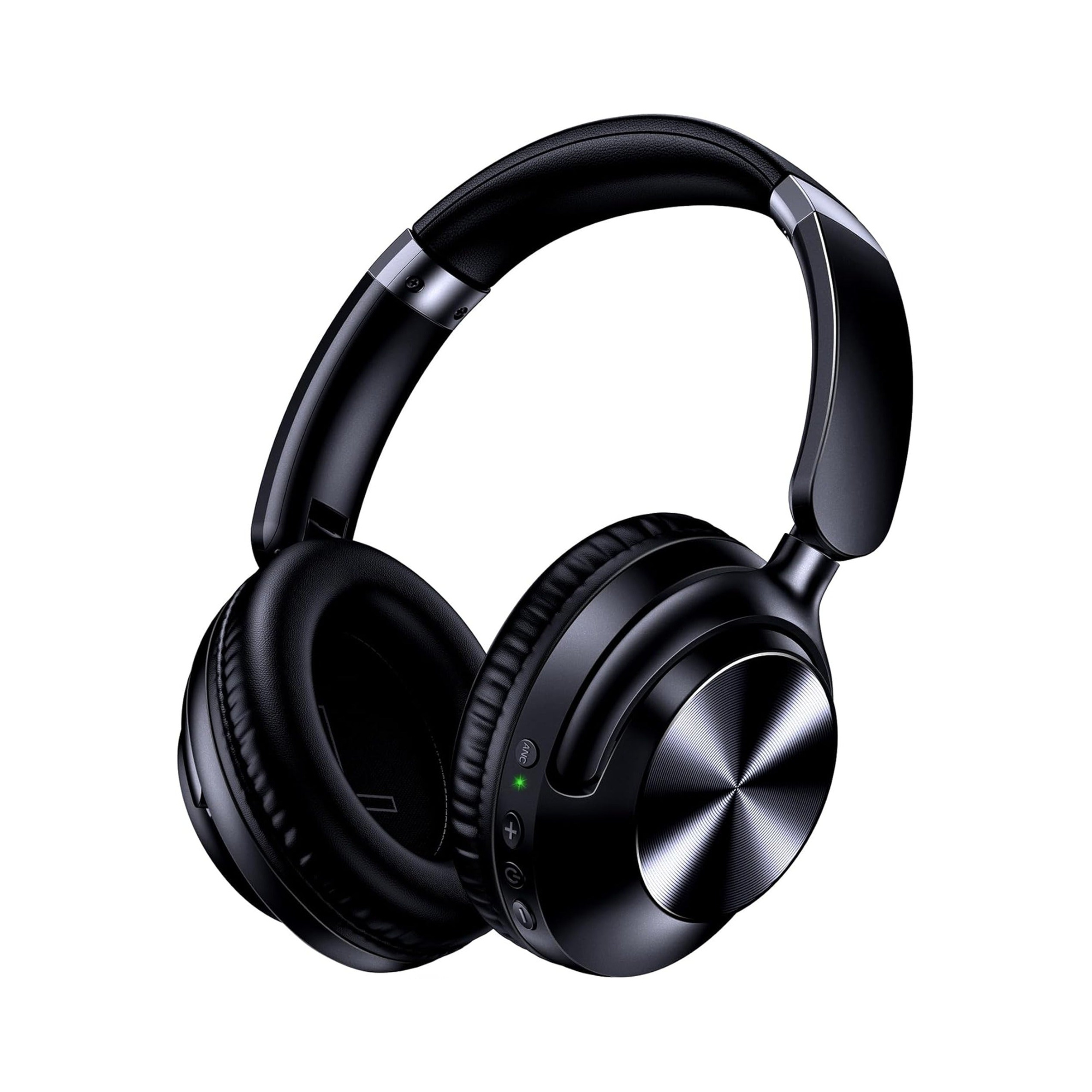
For beginners who want one pair of over-ear headphones that handles wired home controller practice and unplugs for wireless daily commuting, the product listing for the EARSOLE Series 127 Noise Cancelling Over-Ear Headphones states that the headphones switch between wireless Bluetooth connectivity and a 3.5 mm AUX wired connection using the included 47.2-inch audio cable. The EARSOLE Series 127 listing also states ultra-soft protein leather ear cups that rotate up to 105 degrees, an adjustable headband, Active Noise Cancellation (stated up to 95% ambient noise reduction), up to 100 hours of playtime on a single charge, and an included travel pouch.
- For home DJ controller practice: Connect the included 47.2-inch 3.5 mm AUX cable directly to your controller’s 3.5 mm headphone cue jack (or a 1/4-inch adapter) for wired cue/master monitoring, and use the 105-degree rotating ear cups whenever you switch between two-ear headphone mixing and one-ear speaker monitoring.
- For everyday travel and listening: Unplug the 3.5 mm cable, fold the headphones into the included travel pouch, and use wireless Bluetooth mode on commutes or flights.
Frequently Asked Questions
How do you DJ using only headphones without speakers?
According to Club Ready DJ School, you can mix solely in DJ headphones with your speakers turned off by turning on the headphone master switch to hear the live track playing out loud, pressing the channel headphone cue button above the volume fader for the incoming track, balancing the levels of both tracks with the mixer’s cue/master dial, and then turning off the channel cue button as you bring the incoming track’s volume fader up. As r/Beatmatch commenters also note, if your setup includes a split-cue setting, it can route the main mix to one ear and the cue mix to the other ear to make headphone-only mixing easier to separate.
Do I need DJ-specific headphones to practice mixing at home?
As experienced commenters in r/Beatmatch (thread zas7kh) point out, dedicated DJ headphones probably do not make a big difference when you are mixing at home in a quiet room, though they make a big difference in a loud club environment for which they are specifically designed. For home controller practice, any comfortable closed-back over-ear headphone used over a physical 3.5 mm wired cable—such as the EARSOLE Series 127 connected via its included 47.2-inch 3.5 mm AUX cable—lets you practice cue/master mixing without Bluetooth wireless delay.
What does split cue do when DJing in headphones?
As explained in r/Beatmatch (thread zas7kh), a split-cue setting puts the main master mix in one ear cup and the cued incoming mix in the other ear cup, which is very helpful when mixing in headphones only because it keeps the two tracks acoustically separated in your head during beatmatching.
