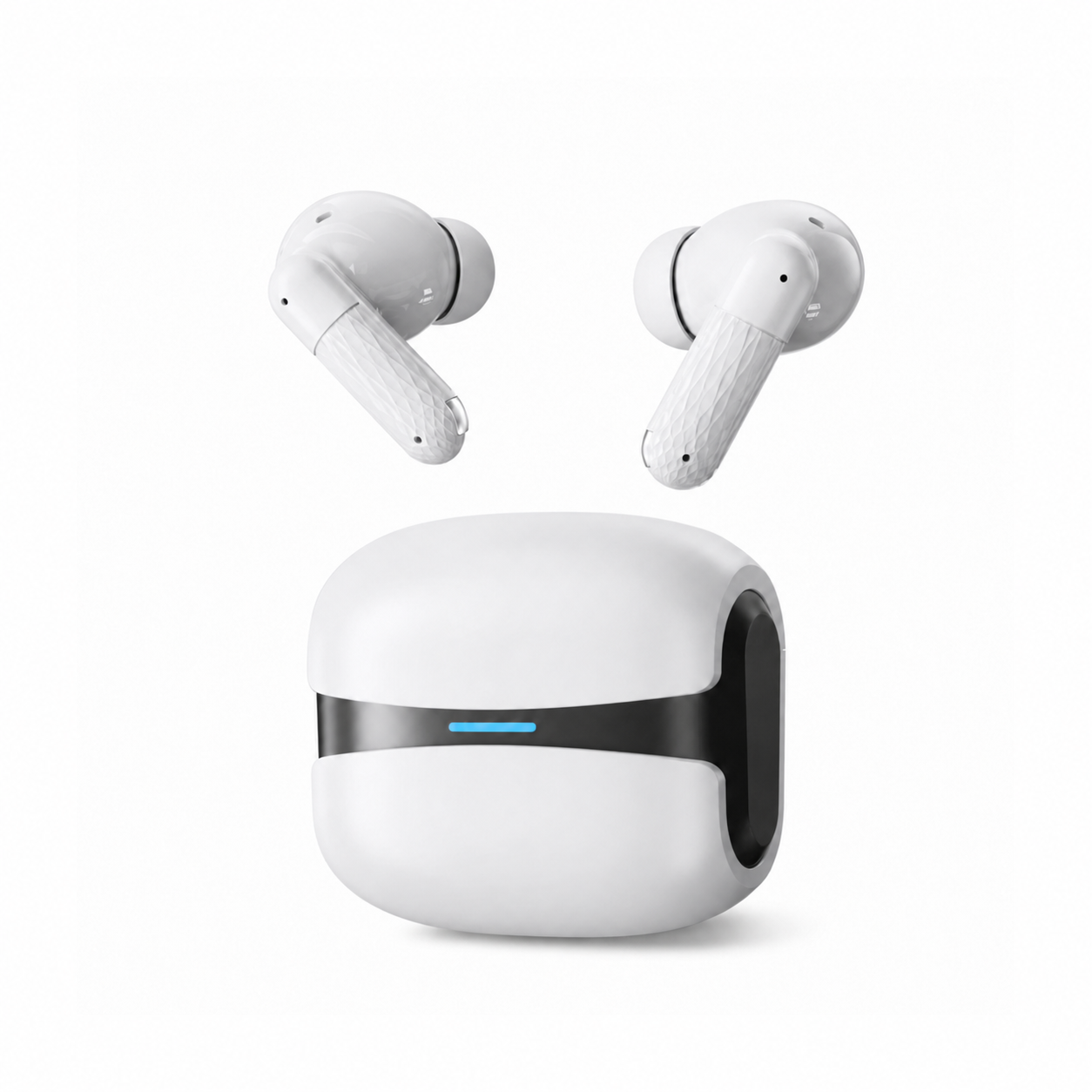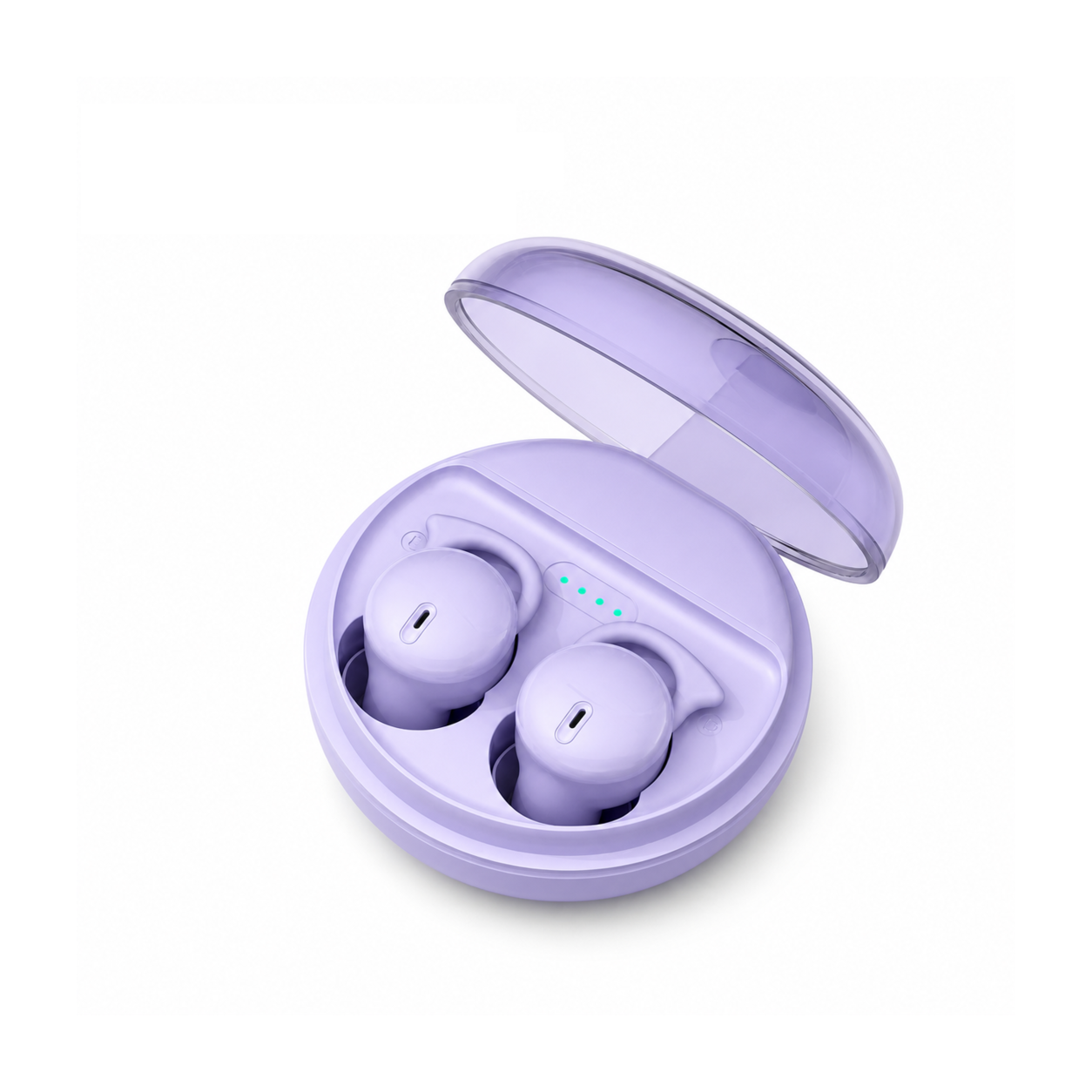
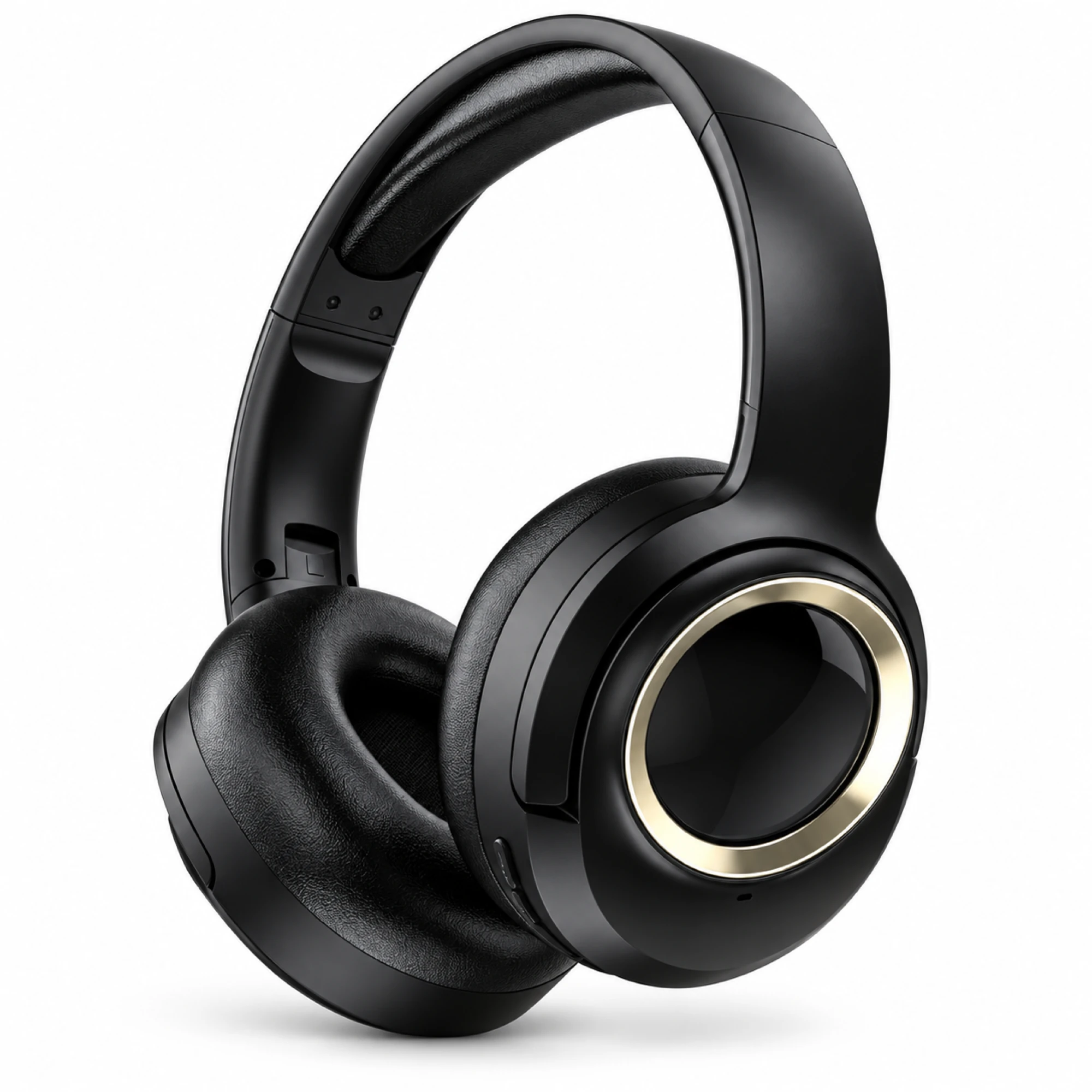
 MX-21 Black and Gold Wireless Headphones
 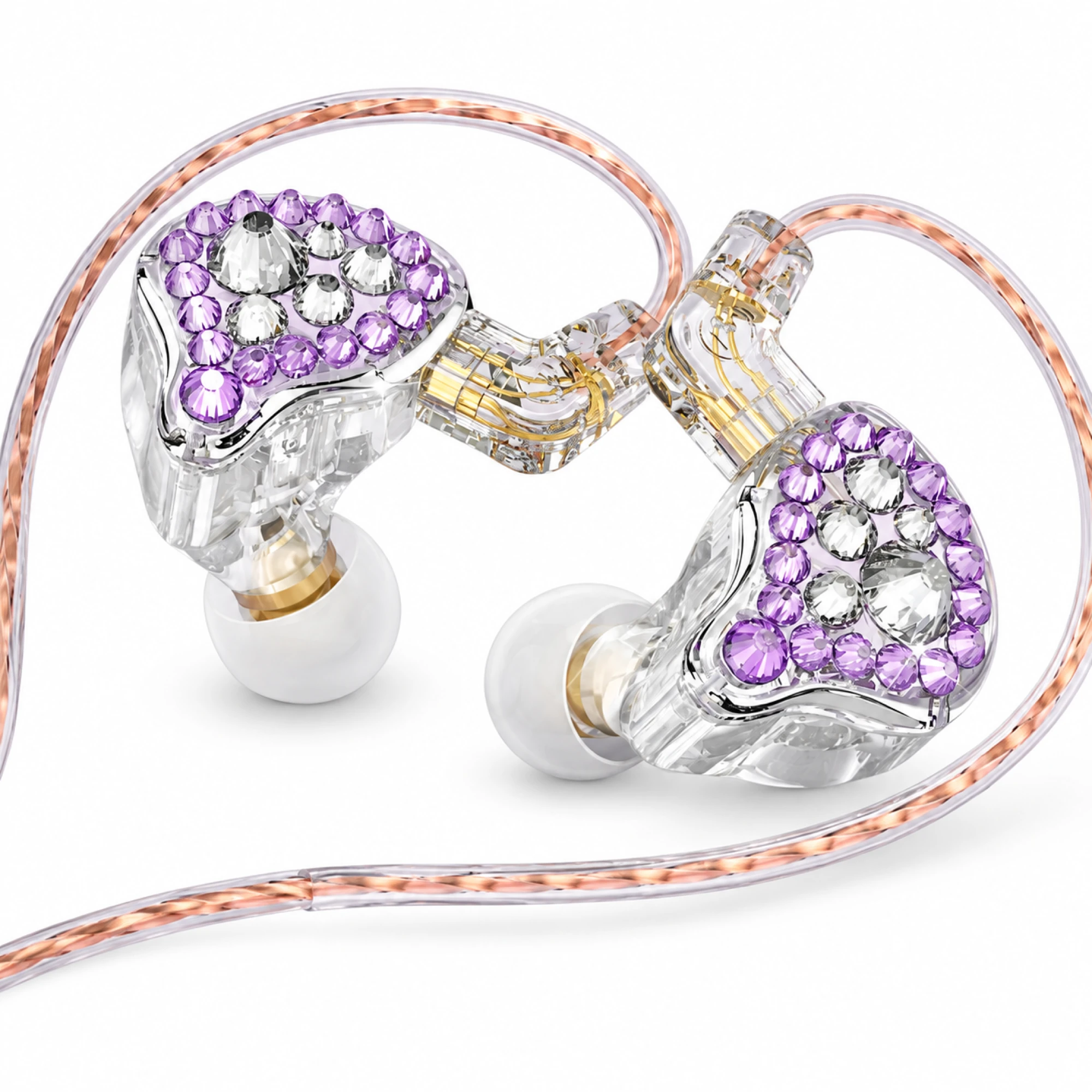 Q2 Pro Purple Crystal In-Ear Monitors
 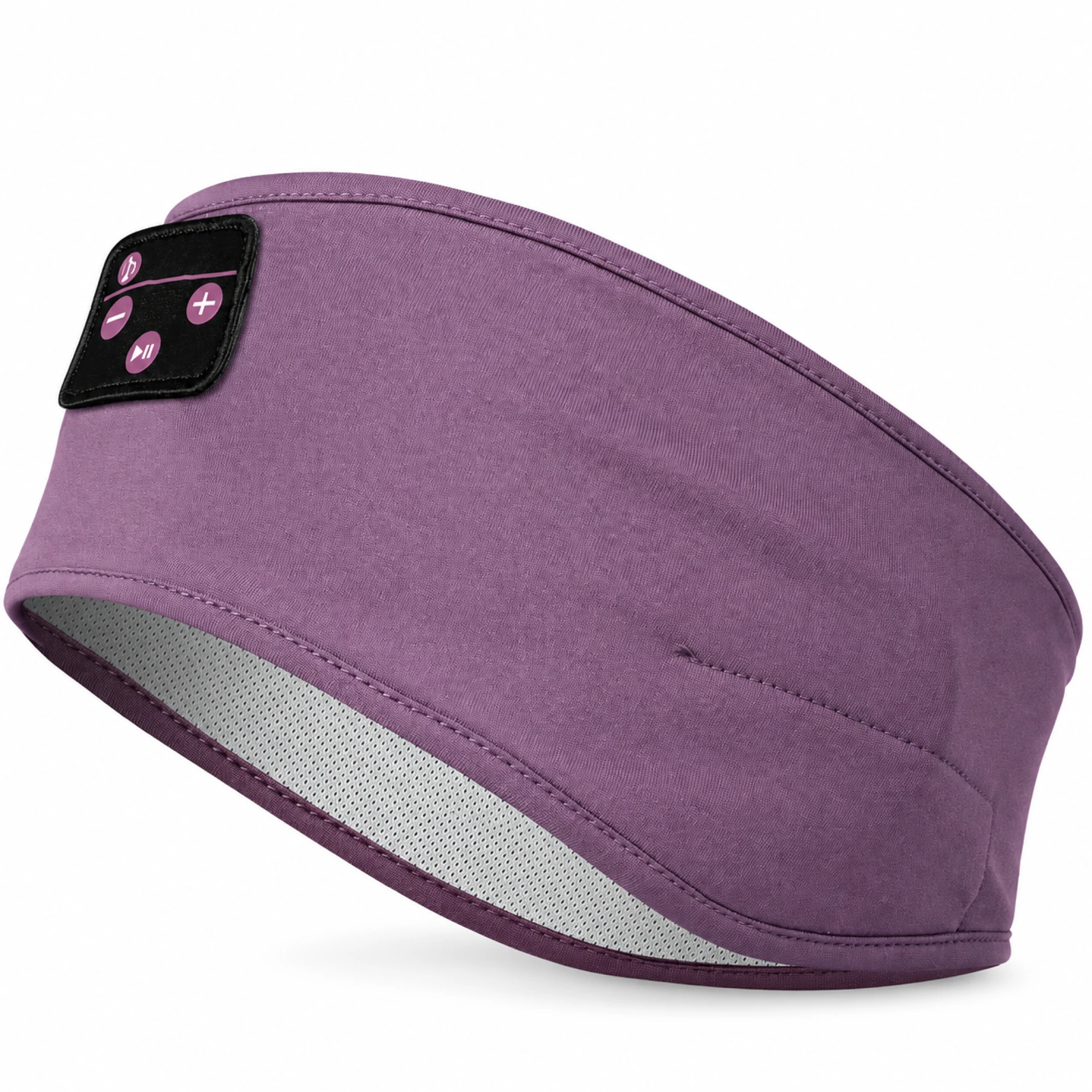 Purple Sleep Headband Headphones with Triangle Controls
 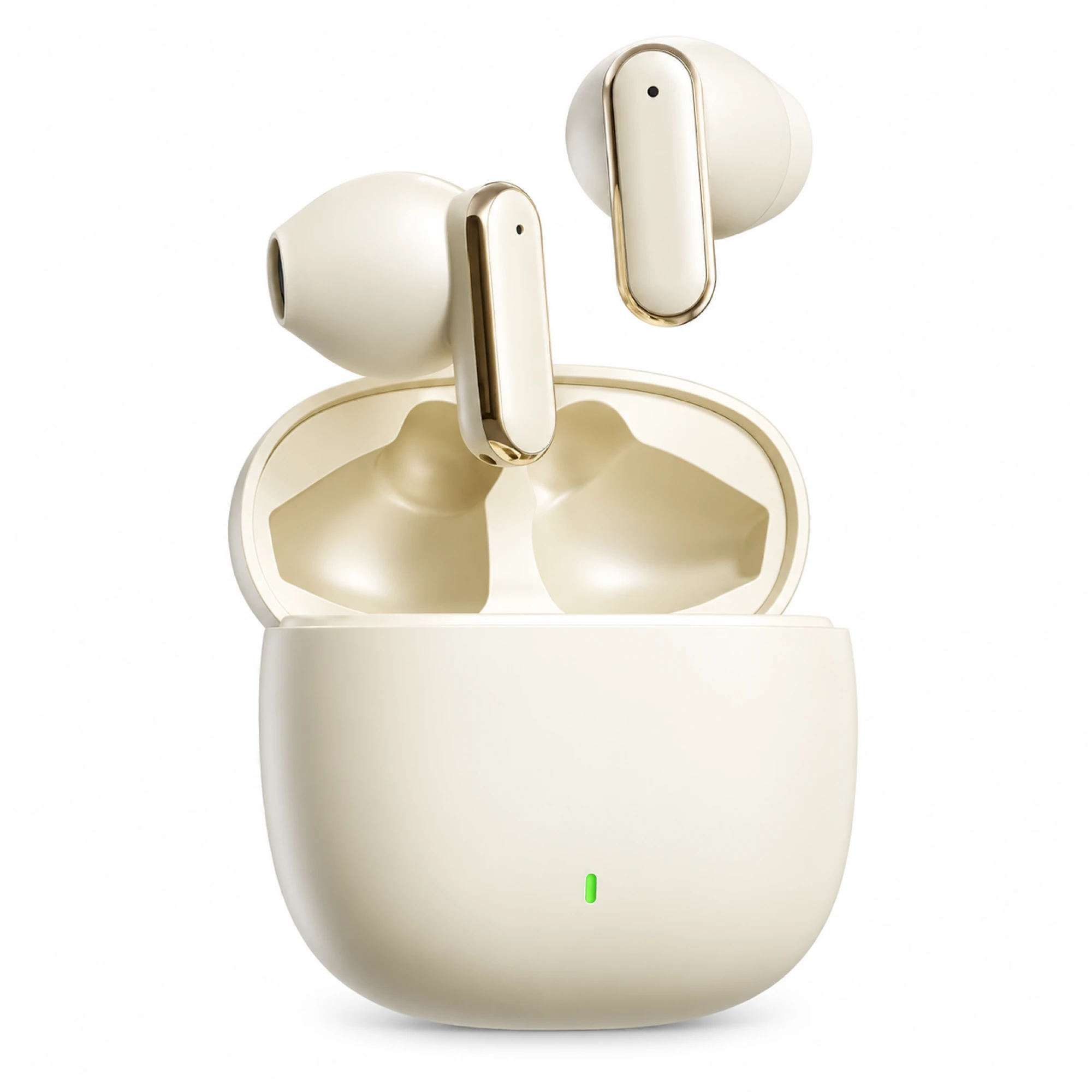 Cream Reflective-Stem Wireless Earbuds
 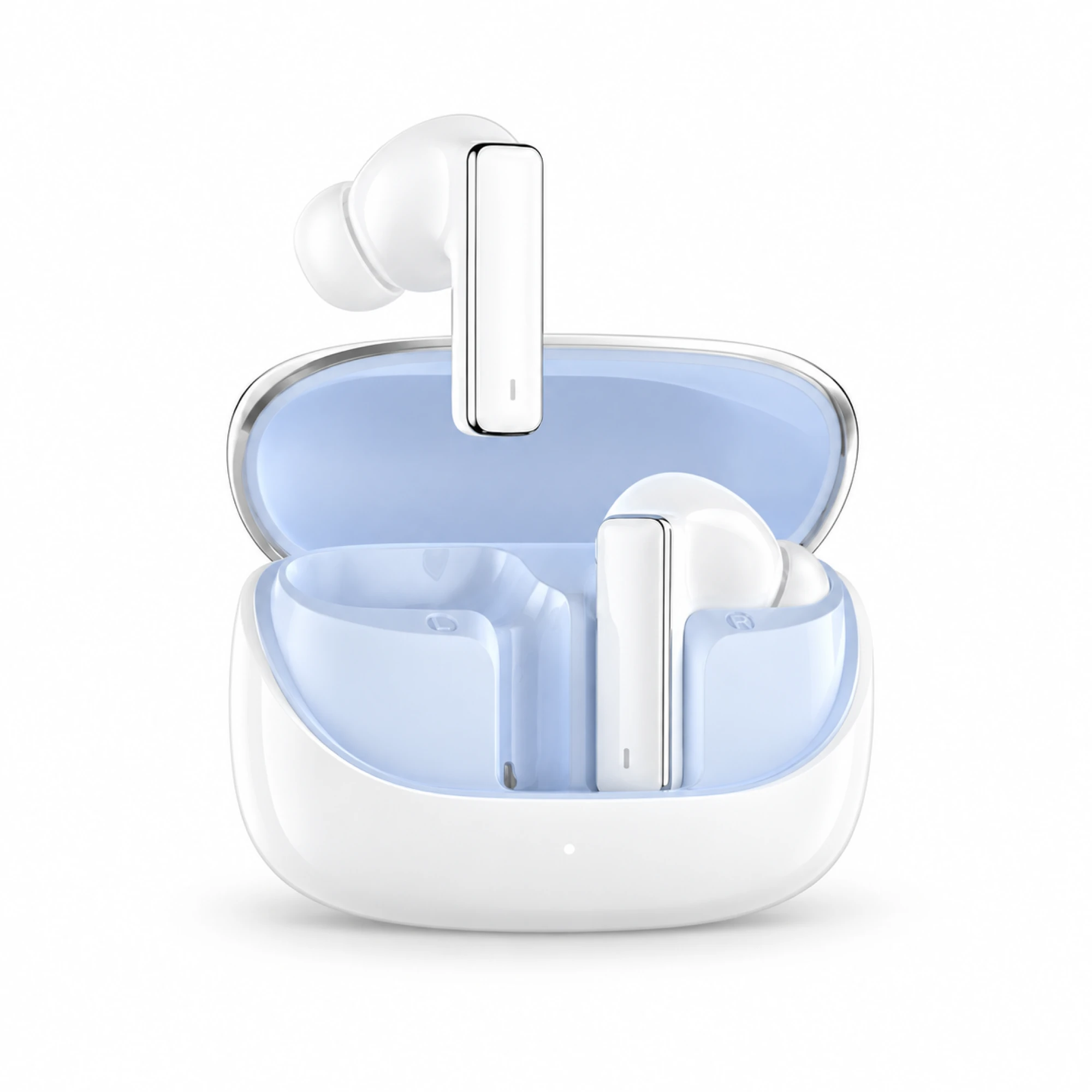 IN-01 White ANC Earbuds with Pale Blue Case Interior
 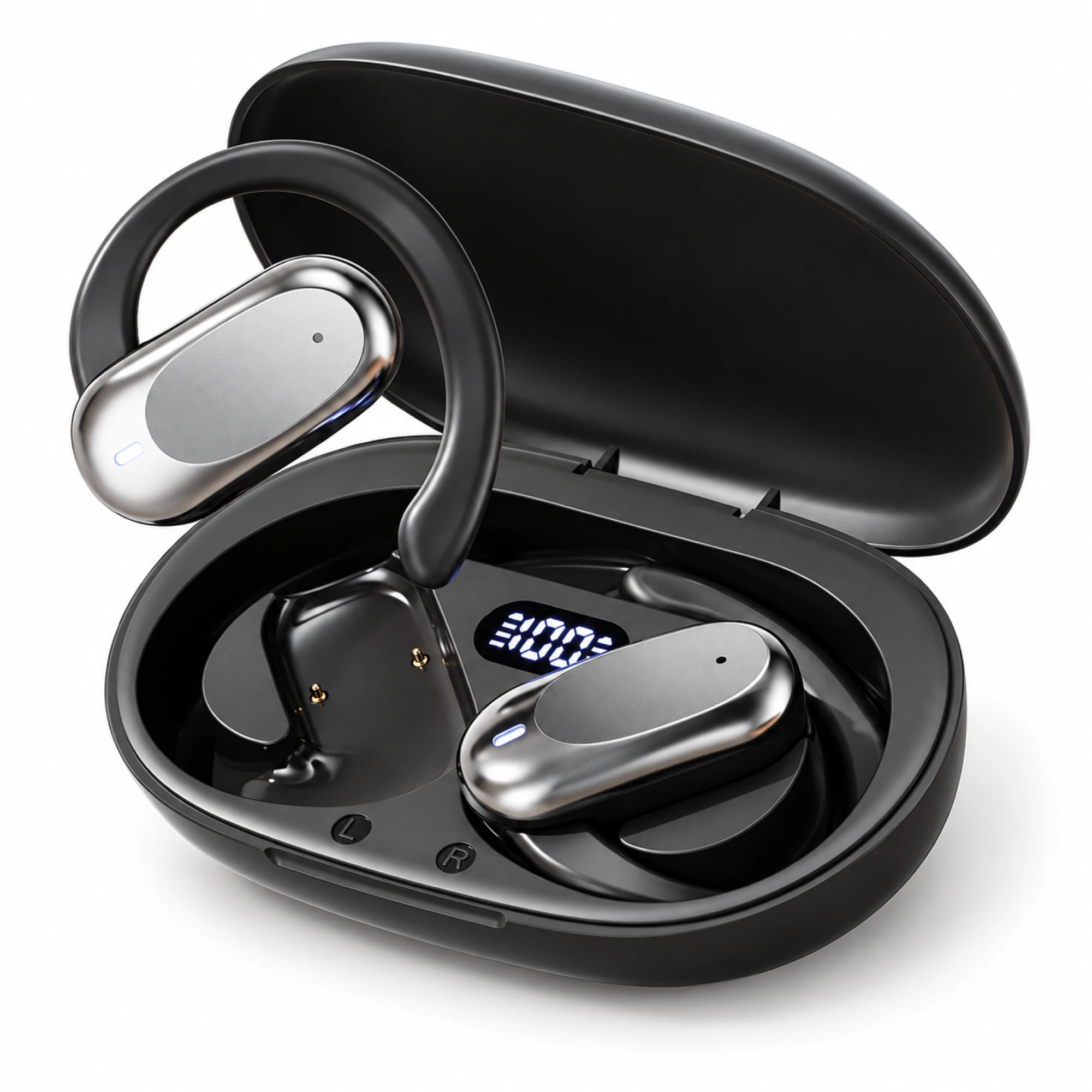 Silver Capsule Open-Ear Earbuds
 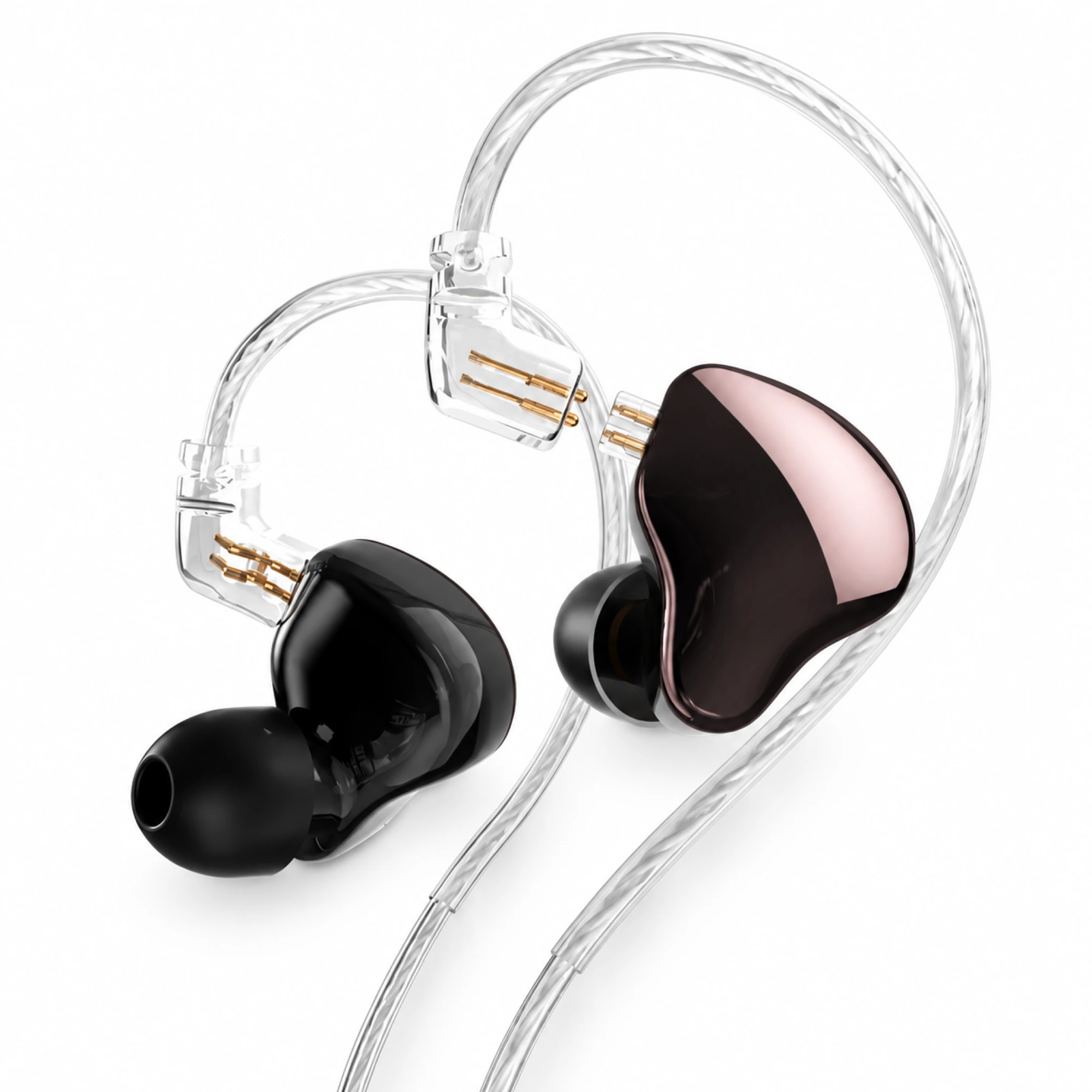 MN Rose-Metallic Detachable In-Ear Monitors
 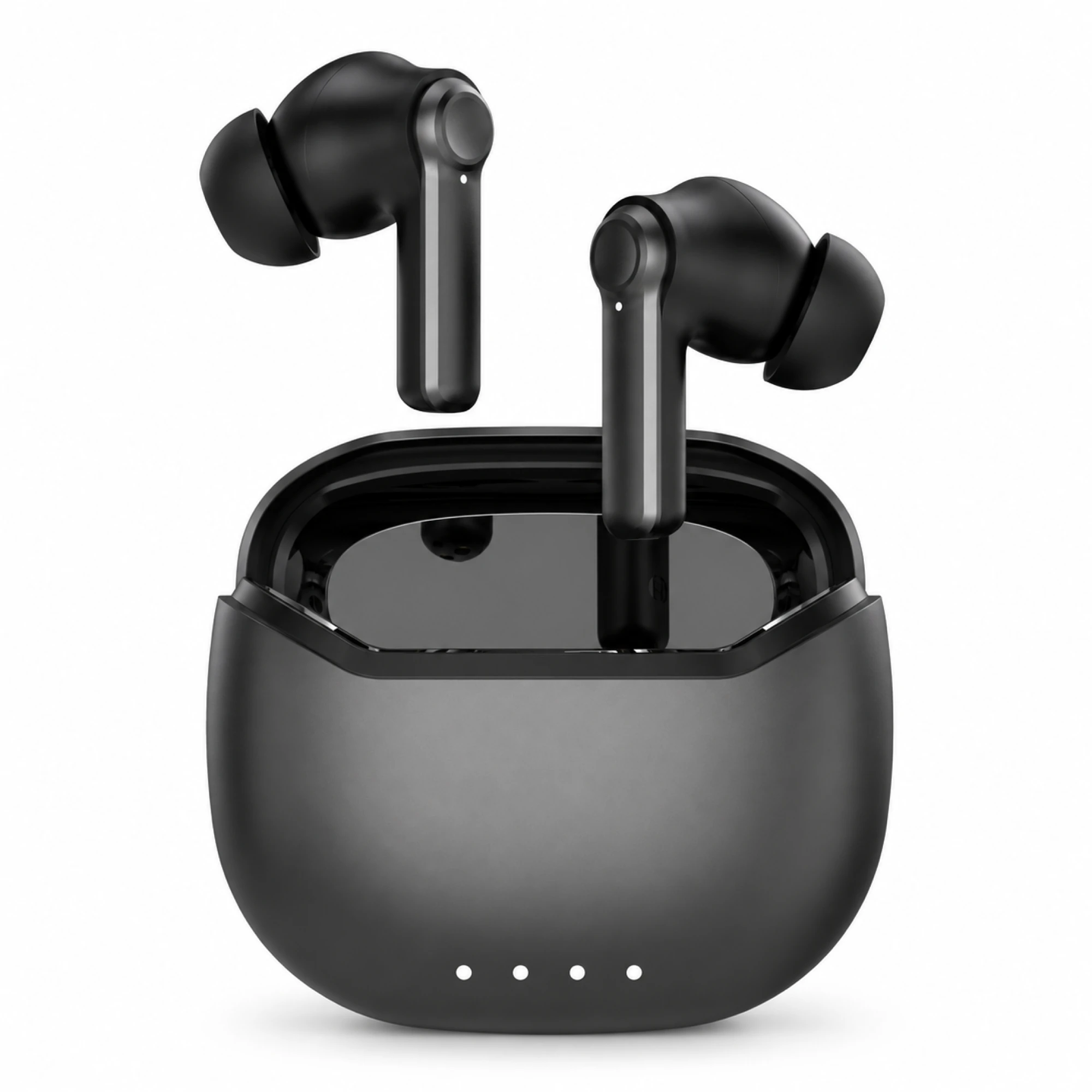 Black ANC Earbuds with Four-Indicator Case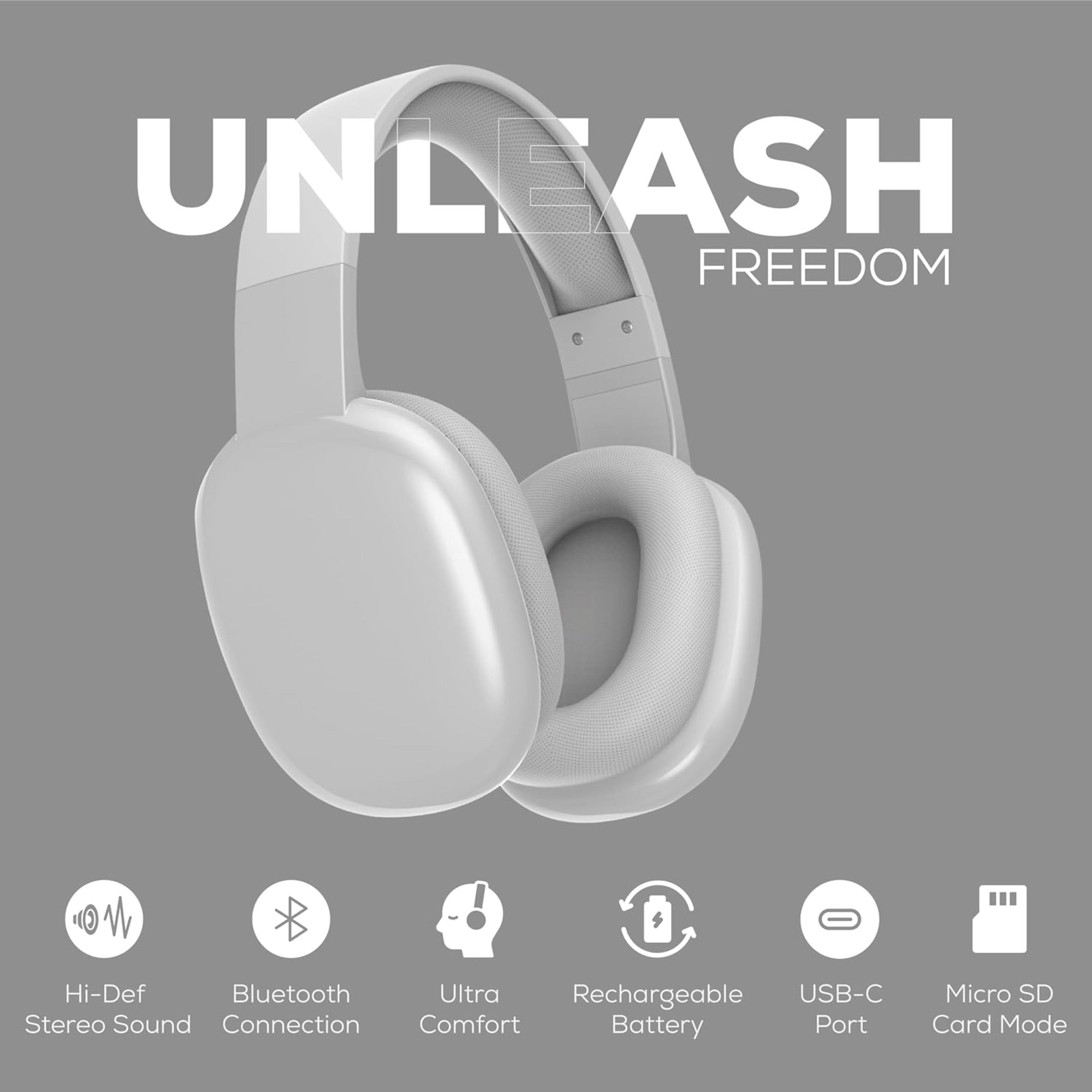
A good PC headset is only half of what decides your sound on Windows; routing is the other half. Windows keeps two separate default audio devices, every voice app can override both, and a call turns every other sound down by 80 percent unless you change one setting. The hardware matters. It is just not the part that usually goes wrong.
Windows keeps two default devices
Microsoft's Device Roles documentation describes three roles an audio endpoint can hold, Console, Communications and Multimedia, and states that at any time each role is assigned to one rendering device and one capture device. Windows exposes that to you as two separate assignments.
| Assignment | What it normally carries | Where it is set |
|---|---|---|
| Default Device | Media playback, browser video, games, system sounds | Settings > System > Sound, or Sound control panel > Playback |
| Default Communications Device | Anything opened as a communications stream, which covers most meeting and voice apps | Sound control panel > Playback or Recording > Set as Default Communication Device |
They can point at different hardware, and often do, because Windows tends to give a newly connected headset the communications role while leaving speakers as the media default. That explains the most common complaint about a headset with PC audio: music keeps playing from the desk speakers while the meeting arrives in your ears, or the reverse. Nothing is broken; two roles point at two devices.
Why Teams, Zoom and Discord disagree about the same headset
Once you know there are two defaults, the app inconsistency stops being mysterious. Four layers of routing apply, and the topmost one that is set wins.
- The application's own device picker. Teams, Zoom and Discord each keep an independent list of input and output devices, which usually overrides everything below. Discord separates the two, so one can be your headset and the other your monitor.
- The Windows per-app assignment. Settings > System > Sound > Volume mixer in Windows 11 pins a different output and input to individual running apps. Easy to set by accident and forget.
- The Default Communications Device, used when an app opens a communications stream instead of a plain playback stream.
- The Default Device, for everything else.
The picture also drifts, because apps remember a device by name or identifier. Unplug a USB headset, move it to another port, or let a wireless PC headset reconnect on its voice profile, and the endpoint the app was pointed at may not be the one that comes back. It falls back to the current default, and your settings appear to have changed themselves. The Bluetooth profile switch that narrows playback the moment a mic opens is covered in why Bluetooth earbuds sound bad on Windows calls.
The volume drop nobody configured
This behaviour sends people shopping for a new headset when the one they own is fine: Windows deliberately turns everything else down when it detects a call.
Microsoft's stream attenuation documentation describes it directly. When a communications stream opens, the system reduces the volume of other audio; on the Communications tab of the Sound control panel the user can choose an attenuation level, and the documented default value is 80%. When all communication streams close, the system restores the volume of the streams it attenuated. The same tab lets you mute other sounds, reduce them, or do nothing.
The failure mode is a stream that does not close cleanly: a browser tab still holding the microphone, a meeting app minimised to the tray. The system believes a call is running, so music, game and video stay attenuated, and the headset gets blamed. Setting that tab to "Do nothing" removes the whole class of problem, at the cost of riding your own levels during calls, which is usually the right trade on a desk machine.
Front jack, rear jack, or USB
On a desktop the connector is not cosmetic. Each route reaches the sound hardware differently, and the difference shows up as noise, detection quirks and where the controls live.
- Rear 3.5 mm jacks sit directly on the motherboard, usually as separate green output and pink mic jacks. Generally the shortest analogue path; awkward to reach, but a two-plug headset needs no adapter.
- Front-panel 3.5 mm jacks run through an internal header cable across the chassis to the same board. Convenient, but that extra run sits near other components, so hiss is more likely here than at the rear.
- A laptop or front combo jack is one four-conductor TRRS socket carrying stereo out and mic in together. A two-plug headset needs a combiner; a single-plug one needs a splitter for separate desktop jacks.
- A USB headset or adapter is its own audio device with its own converter, bypassing the motherboard codec. Immune to analogue noise inside the case; it appears and disappears as a whole device, which triggers the app re-routing above.
Nobody can tell you how a specific case wires its front panel without seeing your machine. The test takes two minutes: plug the same headset into the front, then the rear, record silence on each, and listen back loud. Interference is audible immediately.
Enhancements and exclusive mode, the two quiet sound-changers
A good headset for PC use rarely sounds the way its designer intended, because two software layers process the signal first.
The first is enhancements. Microsoft's audio troubleshooting guidance lists turning off audio enhancements as a standard step, reached through Settings > Sound. Many desktops also ship with a motherboard audio suite adding equalisation, virtual surround and mic processing on top, enabled out of the box. If a headset sounds hollow or over-bassy only on this machine, look there first.
The second is exclusive mode. Microsoft's exclusive-mode documentation warns that such a stream seizes the audio endpoint, so all system sounds, notifications and audio from other applications are silenced, and that exclusive-mode access is enabled by default in Sound settings and can be disabled per device. If one application reliably kills every other sound, that is the mechanism; switch it off in the device's advanced properties.
A ten-minute setup order
Do this once, in order, before blaming the hardware.
- Open the Sound control panel and check both Playback and Recording tabs. Note which device holds the default role and which holds the communications role.
- Set both roles to the same headset, unless you have a reason to split them.
- On the Communications tab, choose the 80 percent reduction or "Do nothing" deliberately.
- In Settings > System > Sound > Volume mixer, clear per-app overrides you did not mean to create.
- In each meeting or chat app, set input and output explicitly instead of "Same as system".
- Turn off audio enhancements and any motherboard audio suite processing, then listen again.
- Record thirty seconds of your own voice and play it back before a real call, following the pre-call microphone test.
The Series 186 headset and the Cloud White earbuds at a desk
Our range is built around earbuds, so read this as disclosure. Two listings are relevant to a Windows desk.

- EARSOLE Wireless Gaming Headset Series 186, $33.34 as listed today. Listed with 40 mm drivers, foldable cushioned artificial-leather ear muffs, a built-in microphone for hands-free calling, and Bluetooth or a 3.5 mm cable. The name says gaming; the listed capability is an over-ear headset with a mic, and the cable is what makes it workable on a desktop without Bluetooth.
- EARSOLE Cloud White Bluetooth 5.4 Wireless Earbuds with ENC Mic, $25.99 as listed today. Listed with Bluetooth 5.4, ENC call noise reduction with CVC voice processing, a low-latency mode, and pairing with phones, tablets and laptops. Wireless only, so the profile switch above applies to them.
Our Over-Ear Wireless Headphones Series 127 list a 3.5 mm cable but no microphone, so treat them as output only, for focus work. Nothing we list is a USB headset or a 2.4 GHz dongle model; if the routing above has convinced you a dedicated USB device is the cleaner answer for a desktop, and it often is, our range does not contain one. What we stock for a desk sits under gaming earbuds and headsets and everyday wireless earbuds, and the call side is covered in earbuds for work calls. We publish no measured frequency response, latency or microphone results for any of them.