According to Wantek’s guide to using Bluetooth headphones with PS4, PlayStation’s official PS4 FAQ states that standard third-party Bluetooth headsets are not supported as PS4 headsets, so ordinary Bluetooth headphones usually cannot be used as a direct PS4 game-audio device. Instead of trying to pair everyday wireless headphones in the console’s native Bluetooth menu—or gambling on a generic PC Bluetooth USB adapter—Wantek notes that the three reliable routes are a PS4-compatible wireless headset with its own USB transmitter, a wired headset connected through the DualShock 4 controller’s 3.5 mm jack, or an external Bluetooth audio transmitter connected to a supported audio output.
If you are trying to figure out which setup fits the headphones or earbuds sitting on your desk right now, start by deciding whether you need two-way party chat microphone return or listening-only game audio. That single distinction determines whether you should plug a dual-mode headphone cable into your DualShock 4 controller, use an external TV or optical Bluetooth transmitter for solo play, or shop for a dedicated PlayStation USB headset.
Why Won’t Standard Bluetooth Headphones Pair Directly to a PS4?
When players search for how to connect Bluetooth headphones to PS4 or how to connect a Bluetooth headset to PS4, they usually open the console’s Bluetooth device settings and wonder why their wireless earbuds or over-ear headphones fail to connect as an audio output. As Wantek summarizes from PlayStation’s official PS4 FAQ, standard third-party Bluetooth headsets are not supported as PS4 headsets, meaning ordinary Bluetooth headphones cannot connect directly as a native PS4 game-audio device.
Equally important, Wantek warns: do not buy a generic PC Bluetooth USB adapter for PS4 and assume it will work, because console audio compatibility depends on how the adapter presents itself to the PS4 and whether it supports both game audio and microphone chat. An off-the-shelf Bluetooth dongle built to connect a wireless mouse or keyboard to a desktop computer does not automatically register as a PlayStation-compatible audio device.
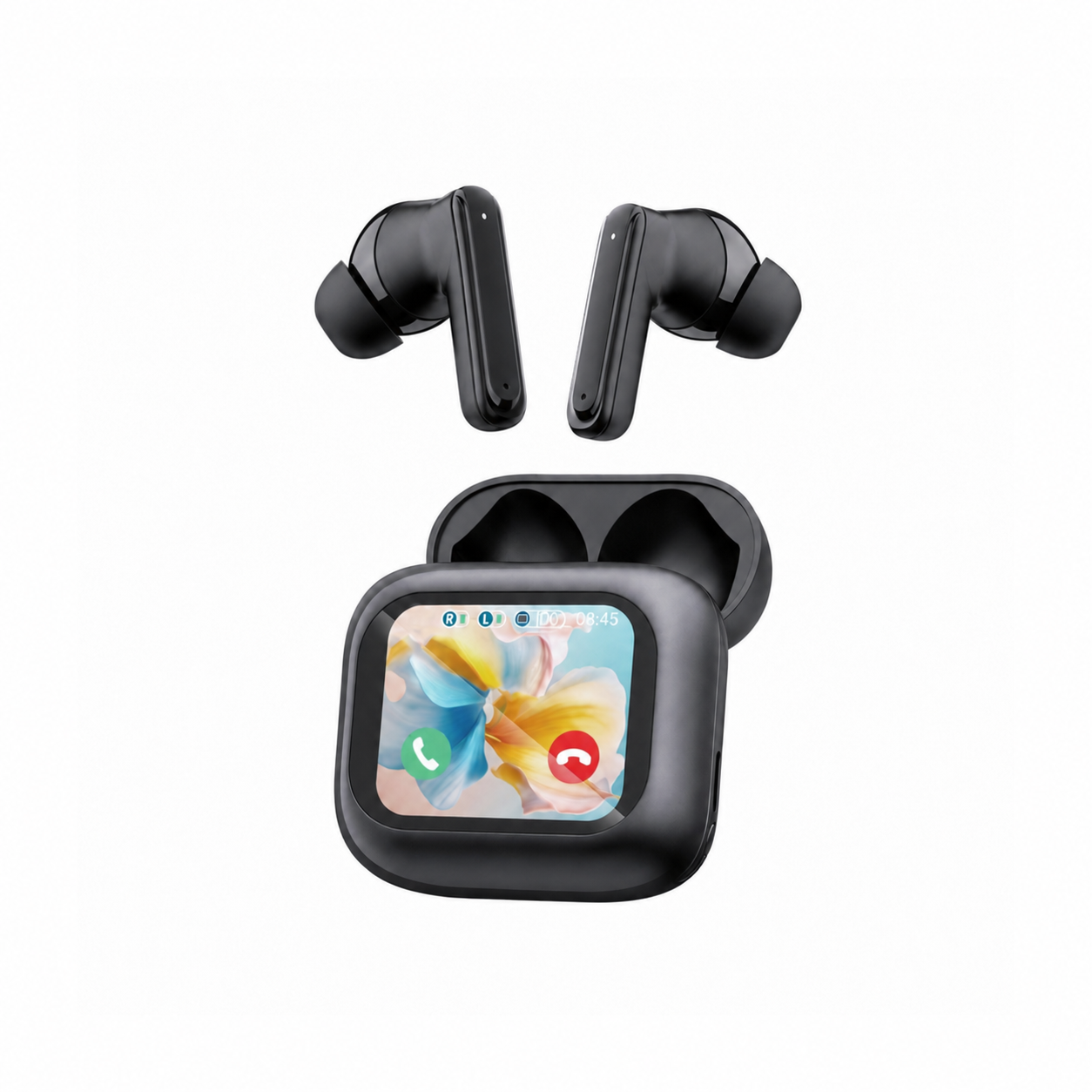
This console restriction applies across everyday true wireless earbuds and portable Bluetooth headphones. For example, according to the product listing for the EARSOLE Smart Wireless Earbuds with LCD Touchscreen Case, the earbuds use a Bluetooth 5.4 connection for smooth music, video, and call playback with compatible devices, pair with a full-color LCD touchscreen charging case that manages music, adjusts volume, handles incoming calls, and navigates settings directly from the case, and include ANC + ENC noise reduction, a built-in microphone, and soft silicone tips (with an honest note that no water-resistance rating is listed for this model). If you are pairing Bluetooth earbuds to a phone, tablet, or computer first, see our step-by-step guide on how to connect wireless earbuds.
Before spending money on extra adapters, use Wantek’s four-path compatibility matrix to see how each PS4 connection route handles game audio and microphone chat:
| PS4 Headphone Connection Path | Game Audio Support (Per Wantek) | Chat Mic Support (Per Wantek) | Setup Complexity & Best Use Case |
|---|---|---|---|
| PS4-Compatible USB Wireless Headset | Yes, when explicitly supported | Usually yes, when the headset is designed for PS4 | Plug the dedicated USB wireless transmitter into the PS4 and select it in audio-device settings |
| DualShock 4 Controller 3.5 mm Jack | Yes | Yes, with a compatible 3.5 mm TRRS headset | Simplest plug-and-play setup with no Bluetooth pairing or separate headset battery required |
| TV / External Bluetooth Audio Transmitter | Often supported via TV, optical, or supported USB audio path | Usually not supported through the same path (many transmitters are output-only) | Good for solo couch gaming with existing Bluetooth earbuds or headphones when you do not need party chat |
| Generic PC Bluetooth USB Dongle | Do not assume support | Do not assume support | High risk of incompatibility, silent pairing, or degraded voice chat unless the device presents a PS4-compatible USB audio path |
Comparing the 3 Working PS4 Headphone Paths (And Why USB Dongle Chat Often Degrades)
Once you know that the PS4’s internal Bluetooth menu blocks standard third-party audio headsets, choosing the right workaround comes down to how the audio signal leaves your console—and what happens to your voice chat along the way.
Path 1: Using a PS4-Compatible USB Wireless Headset
As Wantek explains, gaming headsets designed for PlayStation often use a dedicated USB wireless transmitter rather than ordinary Bluetooth audio; you plug the supported transmitter into the console, then select the headset in the PS4 audio-device settings if it is not chosen automatically. Because the transmitter is engineered specifically to present a PlayStation-compatible USB audio interface, both stereo game sound and party chat microphone routing work without manual Bluetooth workarounds.
Path 2: Using an External Bluetooth Audio Transmitter (And the USB Sound Card Trade-Off)
What if you already own Bluetooth-only earbuds or wireless headphones that lack a 3.5 mm jack? According to Wantek, an external Bluetooth audio transmitter connected to a compatible TV, optical/audio output, or supported USB audio path can send listening audio to Bluetooth headphones, though microphone return is the main limitation because many transmitters are output-only.
Community testing shows why players need to be careful when trying to force unsupported Bluetooth headsets onto a PS4 via USB dongles. In an r/PS4 thread titled “how to use an UNSUPPORTED Bluetooth headset on a PS4”, the original poster explained that a working dongle must act as a USB sound card with Bluetooth built into it so the adapter handles pairing and transmitting while the PS4 thinks it is just a USB headset—and explicitly warned that they could not guarantee Bluetooth USB sound cards in general would pair with a user’s headsets or speakers.
In that same r/PS4 thread (3dpx0d), players shared concrete examples of what goes wrong across different dongles and headsets:
- Adapter misdetection and silent pairing: In r/PS4 thread
3dpx0d, the poster noted that another user confirmed the Creative BT-D1 USB transmitter did not work because the PS4 registered it as a keyboard, while tests with an official PS3 Bluetooth headset (CECHYA-0076) and Beats Studio Wireless paired to a Sennheiser BTD 500 USB dongle resulted in no sound—and another commenter (fgif) reported plugging in a BTD 500, pairing successfully, and getting no audio even when PS4 settings allowed all output to the headset. - Voice chat quality degradation: Even when a Bluetooth headset successfully connects through a USB sound card dongle, another commenter (
mcclanenr1) in r/PS4 thread3dpx0dconfirmed the setup worked with their Turtle Beach XP500 headset but added in an edit that “the chat quality takes a huge downgrade.”
When you want to use wireless earbuds like the EARSOLE Smart Wireless Earbuds with LCD Touchscreen Case for single-player PS4 games without microphone chat, pairing them to a compatible TV Bluetooth output or an output-only external Bluetooth transmitter lets you hear game audio wirelessly. According to the EARSOLE Smart Wireless Earbuds listing, once paired to a compatible device you can manage music, adjust volume, handle incoming calls, and navigate settings directly from the full-color LCD touchscreen charging case (with switchable Chinese and English menus), while keeping in mind that no water-resistance rating is listed for this model.
How to Check PS4 Audio Output Settings After Connecting
Whenever you attach a supported USB wireless transmitter, a USB audio adapter, or a wired headset to your DualShock 4 controller, make sure the console is routing the right channels to your ears:
- Open the PS4 audio settings: According to Wantek, after connecting a supported headset, open the PS4 audio-device settings, select the intended input/output device, and choose whether all audio or chat audio goes to the headphones (noting that menu wording can vary with system software and region).
- Verify whether your path is output-only: If you connected an external Bluetooth transmitter to your TV or optical output, remember that the PS4 itself does not see your Bluetooth headphones as a microphone input device—so keep expectations set to listening-only game audio.
- Avoid blind USB dongle purchases: Before ordering any USB Bluetooth adapter for a PS4, check whether you actually need wireless voice chat or whether a direct 3.5 mm cable into the DualShock 4 controller will give you cleaner, more reliable audio right away.
The Simplest Zero-Lag Option: Plugging Into the DualShock 4 3.5mm Jack
As one frustrated player in r/PS4 thread 3dpx0d asked when comparing Bluetooth dongles against controller cables, why deal with adapter troubleshooting when you can plug a cable into the controller? According to Wantek, a compatible 3.5 mm TRRS headset can connect directly to the DualShock 4 controller, providing a simple path for game audio and microphone chat without Bluetooth pairing or a separate battery in the headset.
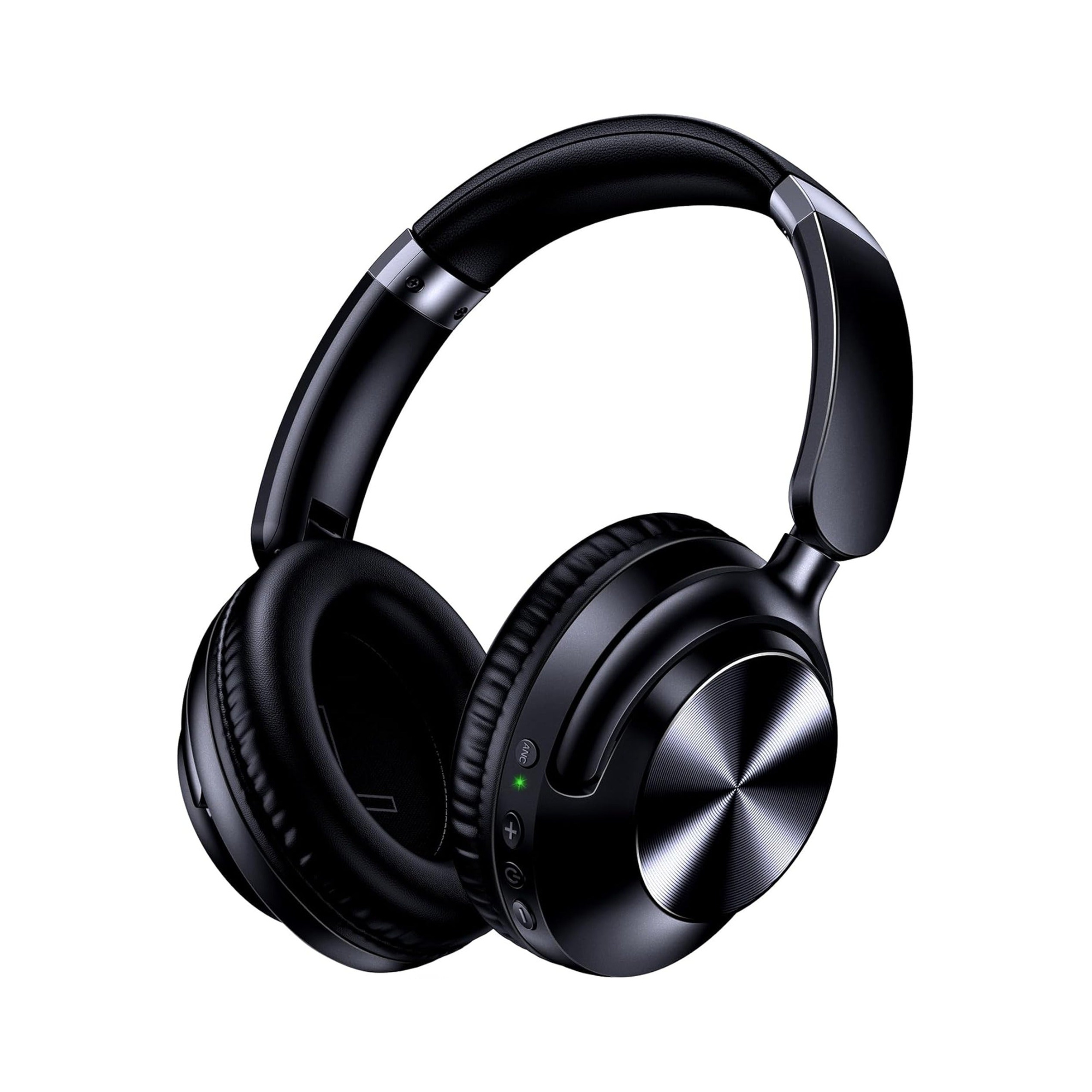
If you want one pair of over-ear headphones that works wirelessly over Bluetooth with your phone and laptop during the day, then switches to a direct 3.5 mm wired connection on your DualShock 4 controller at night, dual-mode headphones eliminate the need for PS4 Bluetooth dongles altogether.
According to the product listing for the EARSOLE Series 127 Noise Cancelling Over-Ear Headphones, the headphones seamlessly switch between wireless Bluetooth connectivity and a 3.5 mm AUX wired connection using the included 47.2-inch audio cable. The EARSOLE Series 127 listing also states Active Noise Cancellation (which reduces up to 95% of ambient noise), up to 100 hours of playtime on a single charge (and 10 hours of music with just a 5-minute fast charge), ultra-soft protein leather ear cups that rotate up to 105 degrees with an adjustable headband, and an included handy travel pouch.
Step-by-Step: Connecting Dual-Mode Headphones to DualShock 4
- Connect the 3.5 mm AUX cable: Plug one end of the included 47.2-inch 3.5 mm audio cable into the EARSOLE Series 127 ear cup and plug the other end into the 3.5 mm headset port on the bottom of your DualShock 4 controller.
- Route all audio to headphones: Following Wantek’s PS4 audio-device check, open your PS4 audio-device settings, confirm the headset connected to controller is selected, and choose whether all audio or chat audio goes to the headphones.
- Unplug and return to Bluetooth after gaming: When your PS4 session ends, unplug the 47.2-inch AUX cable and use the same headphones wirelessly over Bluetooth for commuting, travel, or office listening.
Honest EARSOLE Store Scope & Model Comparison for PS4 Players
To help you pick the right setup without guesswork, here is how the two EARSOLE models mentioned in this guide compare—alongside an honest disclosure of what each listing states and what extra hardware PS4 requires:
| EARSOLE Model | Form Factor | Stated Connectivity | Key Stated Features (Per Listing) | Recommended PS4 Connection Path |
|---|---|---|---|---|
| EARSOLE Series 127 Over-Ear Headphones | Foldable over-ear headphones (protein leather ear cups rotating up to 105° + adjustable headband) | Dual-mode: Wireless Bluetooth + 3.5 mm AUX wired (included 47.2-inch audio cable) | Active Noise Cancellation (up to 95% ambient noise reduction), up to 100 hrs playtime, 5-min fast charge for 10 hrs music, travel pouch | Plug the included 47.2-inch 3.5 mm AUX cable directly into the DualShock 4 controller jack |
| EARSOLE Smart Wireless Earbuds with LCD Touchscreen Case | In-ear sports design with soft silicone tips | Wireless Bluetooth 5.4 only (no 3.5 mm port; no PS4 USB transmitter included) | Full-color LCD touchscreen case (music, volume, calls, settings in Chinese/English), ANC + ENC, built-in mic; no water-resistance rating listed | Pair to a compatible TV Bluetooth output or an output-only external Bluetooth audio transmitter for solo listening |
Frequently Asked Questions
Can AirPods or Bluetooth earbuds connect directly to PS4?
According to Wantek, standard AirPods Bluetooth audio—and ordinary third-party Bluetooth headsets in general—are not a normal native PS4 headset path because PlayStation’s official PS4 FAQ states that standard third-party Bluetooth headsets are not supported as PS4 headsets. To use true wireless Bluetooth earbuds such as the EARSOLE Smart Wireless Earbuds with LCD Touchscreen Case with a PS4, you need to pair them to a compatible external Bluetooth transmitter or supported TV audio output rather than the console’s native Bluetooth menu.
Can I use any generic PC USB Bluetooth adapter on PS4?
No—Wantek explicitly advises not to buy a generic PC Bluetooth USB adapter for PS4 and assume it will work, because the device must present a PS4-compatible audio path and console compatibility depends on how the adapter presents itself to the PS4. As players in r/PS4 (thread 3dpx0d) documented when testing USB Bluetooth adapters and USB sound cards, unsupported dongles can register as a keyboard, fail to output any sound after pairing, or cause a noticeable downgrade in voice chat quality.
Does a Bluetooth transmitter support PS4 party chat, or is DualShock 4 3.5mm better?
According to Wantek, many external Bluetooth audio transmitters connected to a TV, optical output, or USB audio path are output-only and do not support microphone return through the same path, whereas connecting a compatible 3.5 mm wired headset to the DualShock 4 controller is usually the simplest way to get PS4 audio without Bluetooth pairing or adapter issues. If you use dual-mode over-ear headphones like the EARSOLE Series 127—which switches between wireless Bluetooth and a 3.5 mm AUX wired connection using an included 47.2-inch audio cable—plugging directly into the DualShock 4 controller avoids Bluetooth transmitter limitations altogether.