If you opened the Settings menu on an entry-level Roku TV—such as an onn. Roku TV—and could not find a screen to pair your wireless earbuds or over-ear headphones, nothing is broken on your television. According to community troubleshooting in r/Roku (thread 1f3qv72) and Official Roku Support documentation, most standard Roku TVs do not include a built-in Bluetooth audio transmitter inside the television chassis, and that hardware capability cannot be added through a software update.
Instead, Official Roku Support provides three distinct ways to listen to Roku TV audio through headphones without disturbing people nearby:
- Roku Mobile App Headphone Mode (Works on Any Roku TV): Pair your Bluetooth headphones or plug wired headphones into a smartphone or tablet running the free Roku remote app on the same wireless network as your Roku device. When Headphone Mode is active, your TV speakers mute automatically and up to four mobile devices can listen at the same time.
- Direct Host Bluetooth Pairing (Select Roku Models Only): Only eight specific Roku devices—the Roku Streambar SE, Roku Streambar, Roku Streambar Pro, Roku Smart Soundbar, Roku Ultra (models 4800 and 4802), Roku Ultra LT (model 4801), Roku Plus Series TV, and Roku Pro Series TV—are equipped to send Bluetooth audio directly from the Roku hardware to Bluetooth headphones.
- Roku Voice Remote 3.5mm Headphone Jack (Compatible Remotes Only): Plugging a 3.5mm audio cable into a compatible Roku voice remote routes TV audio directly to wired headphones (or dual-mode wireless/wired headphones), though doing so deactivates mobile app Headphone Mode on all connected phones.
Below is the complete hardware compatibility breakdown, step-by-step setup instructions for each listening path, multi-listener rules, and how to choose between true wireless Bluetooth earbuds and dual-mode wireless/3.5mm over-ear headphones for late-night television.
Why Most Roku TVs Don’t Show a Bluetooth Menu (And Which Models Pair Directly)
A common frustration reported by owners in r/Roku (thread 1f3qv72) begins with a simple question: “I have an onn. Roku TV and I want to pair my Bluetooth headphones to it. How do I do that?” After installing or opening Bluetooth settings on their headphones, viewers still do not see a headphone pairing option in the TV’s device menu.
The reason comes down to internal radio hardware. Standard Roku TVs—unlike standalone streaming sticks from other ecosystems that readers often compare when searching for fire tv stick bluetooth headphones—typically use Wi-Fi or infrared remotes and omit a host Bluetooth audio transmitter on the TV mainboard. As community contributors in r/Roku (1f3qv72) point out, Roku devices outside the supported hardware list are not equipped to transmit Bluetooth audio directly, and a firmware update cannot create a physical Bluetooth radio where none exists.
Roku Models That Support Direct On-Device Bluetooth vs. Mobile App Headphone Mode
Before you spend time hunting through submenu screens, check which category your Roku hardware falls into based on the device list cited in r/Roku (1f3qv72) and Official Roku Support:
| Roku Hardware Category | Specific Models Included | Direct On-TV Bluetooth Pairing? | Roku Mobile App Headphone Mode (Over Wi-Fi)? | Compatible Voice Remote 3.5mm Jack? |
|---|---|---|---|---|
| Standard Roku TVs | Entry-level Roku TVs (such as onn. Roku TVs and other standard models outside the Plus/Pro Series) | No (no built-in Bluetooth transmitter; cannot be added by software update) | Yes (connects up to 4 phones/tablets on the same wireless network) | Yes, if paired with a compatible Roku voice remote that has a headphone jack |
| Roku Plus & Pro Series TVs | Roku Plus Series TV, Roku Pro Series TV | Yes (direct Bluetooth audio output to headphones) | Yes (up to 4 mobile devices on the same wireless network) | Yes, with a compatible Roku voice remote |
| Flagship Roku Players | Roku Ultra (models 4800 and 4802), Roku Ultra LT (model 4801) | Yes (direct Bluetooth audio output to headphones) | Yes (up to 4 mobile devices on the same wireless network) | Yes, with a compatible Roku voice remote |
| Roku Soundbars & Streambars | Roku Streambar SE, Roku Streambar, Roku Streambar Pro, Roku Smart Soundbar | Yes (built-in streaming player only; see HDMI limitation below) | Yes (built-in streaming player only; up to 4 mobile devices) | Yes, with a compatible Roku voice remote (built-in streaming player only) |
Important Limitation for Roku Streambar and Smart Soundbar Owners
According to Official Roku Support, if you own a Roku Streambar SE, Roku Streambar, Roku Streambar Pro, or Roku Smart Soundbar, Headphone Mode is only supported when using its built-in streaming player. Official Roku Support explicitly notes that Headphone Mode is not supported on those Streambar and Smart Soundbar products when you are watching an external device—such as a game console, a Blu-ray player, or a cable or satellite set-top box—or when streaming audio from a Bluetooth device such as a smartphone or computer.
How to Use Any Bluetooth Headphones With a Roku TV via the Roku Mobile App (Headphone Mode)
If your television is a standard Roku TV without native Bluetooth menus, the free Roku remote app turns your iPhone, Android phone, or tablet into a wireless audio bridge over your home Wi-Fi network. As users in r/Roku (1f3qv72) summarize, you simply pair your Bluetooth headphones to your phone, open the Roku app, and route the TV’s audio stream through your mobile device while the video plays on the TV screen.
Step 1: Verify Your Network and Broadcast Source
According to Official Roku Support’s guide (“How to use headphones with the Roku remote app for Headphone Mode”), check three prerequisites before starting:
- Latest Roku Remote App: Install the latest version of the Roku remote app on your phone or tablet and connect the app to your Roku device.
- Same Wireless Network: Both your mobile device and your Roku device must be connected to the same wireless network to establish the wireless audio link.
- Digital vs. Analog TV Antenna Broadcasts: In addition to streaming apps, Official Roku Support states that Mobile Headphone Mode works with live digital broadcast television when you have an HDTV antenna connected to your Roku TV. However, Mobile Headphone Mode is not supported with analog over-the-air broadcast television.
Step 2: Pair Your Bluetooth Earbuds or Headphones to Your Phone
Before activating Headphone Mode in the Roku app, Official Roku Support instructs you to make sure your wired headphones are plugged into your mobile device or your Bluetooth headphones are paired and connected to your phone or tablet. (If you are setting up a new pair of wireless earbuds on iOS or Android for the first time, see our step-by-step how to connect wireless earbuds guide.)
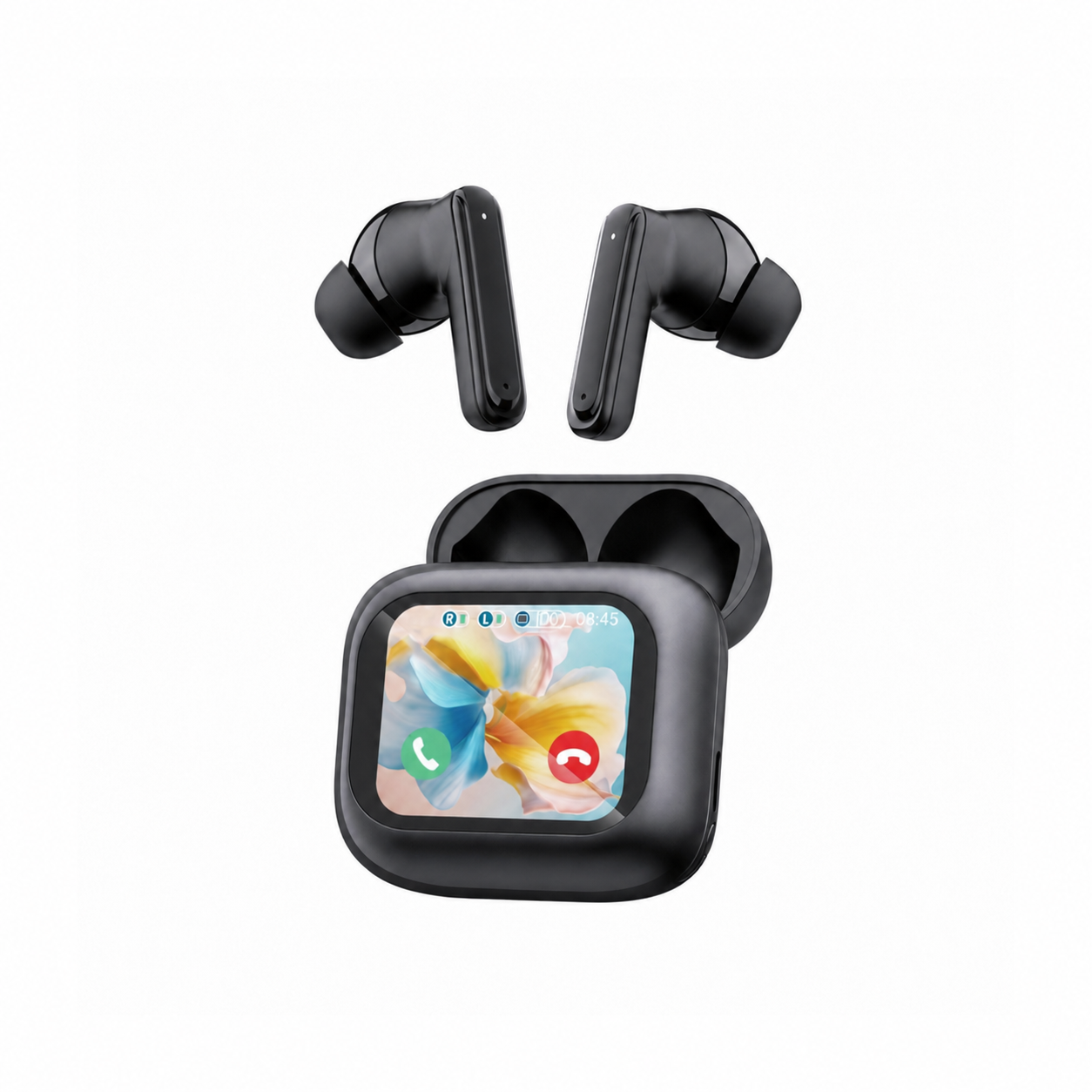
Because your smartphone sits beside you on the couch as the Bluetooth host, compact true wireless earbuds with on-case controls can make late-night TV listening easier without constantly unlocking your phone screen. According to the merchant listing for the EARSOLE Smart Wireless Earbuds with LCD Touchscreen Case – Bluetooth 5.4 ANC/ENC ($49.99, SKU EAR-LCD54-BLK-01), the earbuds pair with compatible phones over Bluetooth 5.4 and include a full-color LCD touchscreen charging case (with switchable English and Chinese menus) that lets you manage music, adjust volume, handle incoming calls, and navigate settings directly from the case. The listing also specifies ANC + ENC noise reduction (where ANC reduces steady background hum while listening and ENC cleans up voice pickup during calls), a built-in microphone, and an in-ear sports design with soft silicone tips. One honest limitation noted directly in the EARSOLE store listing: no water-resistance rating is listed for this model, so they are best suited for indoor couch viewing, travel, and dry environments rather than rain or heavy sweat.
Step 3: Activate Headphone Mode in the Roku Remote App
Once your headphones are connected to your phone, follow the exact activation sequence from Official Roku Support:
- Keep headphones off your ears initially: Official Roku Support includes an important safety reminder not to put your headphones on until the volume is set to a safe level.
- Open the Roku remote app on your phone or tablet.
- Tap
Remotefrom the bottom navigation bar. - Tap the
Headphoneicon on the remote screen to activate Headphone Mode. - Adjust volume and listen: Once Headphone Mode is active, your TV speakers will automatically mute—you will not hear audio from the television speakers. Adjust the volume to a comfortable level and put on your headphones.
- Deactivate when finished: To return audio to your TV speakers, tap the Headphone icon again in the Roku remote app. (Official Roku Support also notes that if you are using wired headphones plugged into your phone while the Roku remote app is open, you can activate and deactivate Headphone Mode simply by plugging in and unplugging the headphone cable.)
Sharing TV Audio: How Up to Four People Can Listen at Once
One major advantage of Roku’s Wi-Fi app architecture over standard single-point Bluetooth is multi-person listening. In response to “Can more than one person use Headphone Mode at the same time?”, Official Roku Support confirms that up to four mobile devices can be connected at the same time for Headphone Mode.
Each listener connects their own Bluetooth or wired headphones to their own smartphone or tablet, joins the same Wi-Fi network as the Roku TV, opens the Roku remote app, and taps Remote > Headphone icon. However, Official Roku Support notes two strict rules for multi-user listening:
- Mobile app only: Headphone Mode by multiple users is only supported on mobile devices running the Roku remote app.
- Voice remote jack override: If anyone plugs wired headphones into a compatible Roku voice remote, Headphone Mode on all connected mobile devices will be deactivated immediately.
Using a Roku Voice Remote 3.5mm Jack or Dual-Mode Headphones for Late-Night TV
While the Roku mobile app solves wireless Bluetooth listening on any Roku TV, some viewers prefer not to rely on their smartphone battery or Wi-Fi network congestion during a long movie. As Official Roku Support notes, Headphone Mode is also available by plugging wired headphones directly into a compatible Roku voice remote equipped with a 3.5mm headphone jack.
How Dual-Mode Wireless + 3.5mm Headphones Bridge Both Setups
If you use the Roku mobile app on your phone some nights, pair directly with a Bluetooth-capable Roku Ultra or Plus/Pro Series TV in another room, and occasionally plug straight into a Roku voice remote’s 3.5mm jack when your phone is charging across the room, a single-mode earbud forces you to switch headsets. Dual-mode over-ear headphones let you handle both wireless Bluetooth and wired 3.5mm listening with one pair.
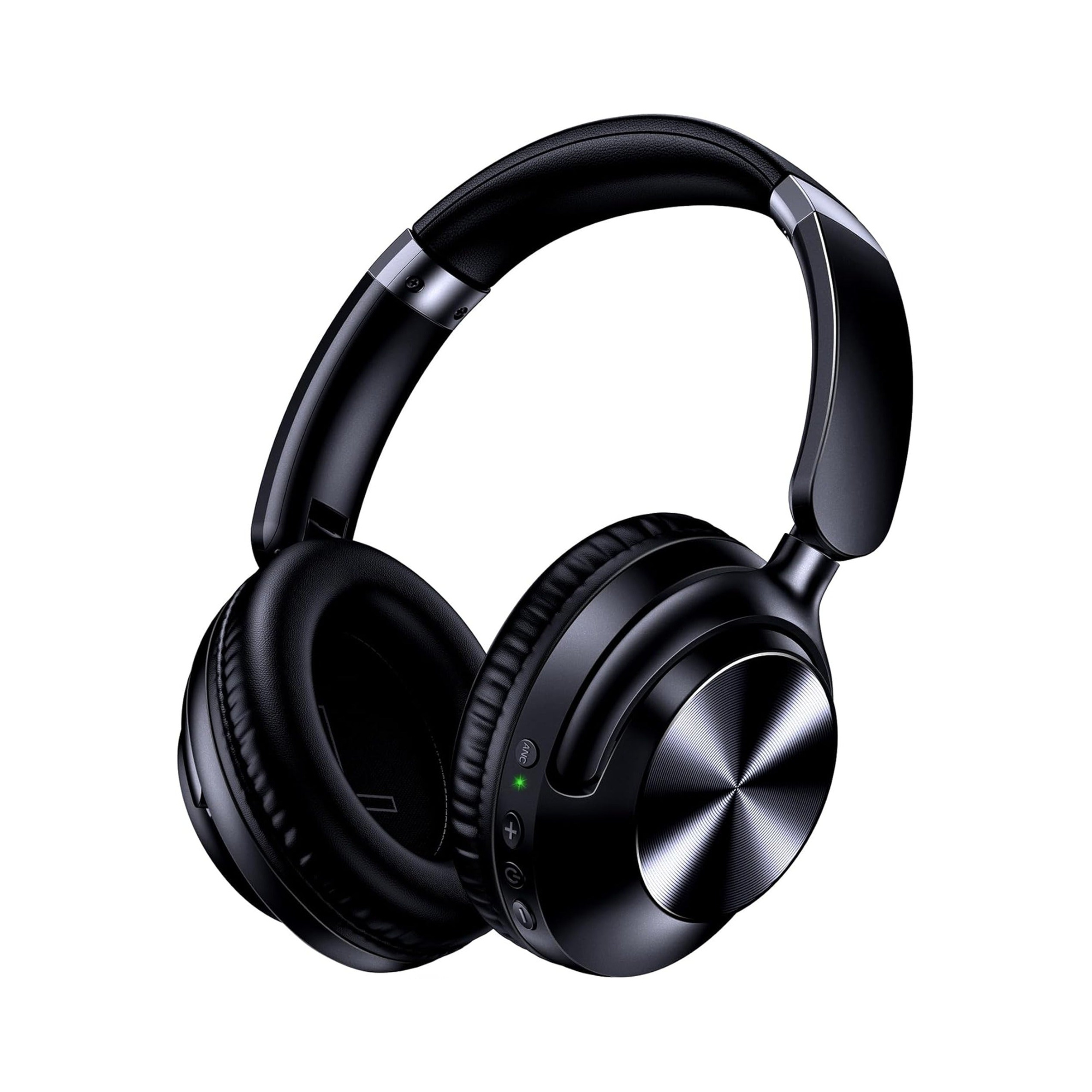
According to the merchant product listing for the EARSOLE Noise Cancelling Over-Ear Headphones, Wireless & Wired – Series 127 ($44.75, SKU EAR-AMZ-WL-127), the headset is built to switch between wireless Bluetooth connectivity and a 3.5mm AUX wired connection using an included 47.2-inch audio cable. According to the EARSOLE Series 127 listing, key specifications include:
- Wireless and 3.5mm Wired Flexibility: Use wireless Bluetooth when connected to your phone for Roku mobile app Headphone Mode (or paired directly to a supported Roku Ultra/Streambar/Plus/Pro Series TV), or plug the included 47.2-inch 3.5mm audio cable into a compatible Roku voice remote headphone jack, home stereo, or airplane entertainment system.
- Listed Battery & Fast-Charge Specs: The listing states up to 100 hours of playtime on a single charge and 10 hours of music from a 5-minute charge, along with active noise cancellation listed at reducing up to 95% of ambient noise. (Note that these battery and noise-reduction figures are merchant listing specifications rather than independent laboratory measurements.)
- Fit & Portability Details: The listing specifies a 0.54 lb weight, protein leather ear cups that rotate up to 105 degrees, an adjustable headband, a foldable frame, and an included travel pouch.
Side-by-Side Comparison: Choosing an EARSOLE Headset for Your Roku TV Setup
| Feature / Roku Listening Scenario | EARSOLE Series 127 Over-Ear Headphones (EAR-AMZ-WL-127) | EARSOLE Smart Wireless Earbuds with LCD Touchscreen Case (EAR-LCD54-BLK-01) |
|---|---|---|
| Store Price (USD) | $44.75 (per EARSOLE store listing) | $49.99 (per EARSOLE store listing) |
| Form Factor | Foldable circumaural over-ear headphones (0.54 lbs listed, ear cups rotate up to 105°) | In-ear true wireless earbuds with soft silicone tips and compact stem profile |
| Roku Mobile App Headphone Mode (via Phone Bluetooth) | Supported (pairs to your phone or tablet via wireless Bluetooth) | Supported (pairs to your phone or tablet via Bluetooth 5.4) |
| Direct Roku Host Bluetooth (Select 8 Roku Models) | Supported via wireless Bluetooth | Supported via wireless Bluetooth |
| Roku Voice Remote 3.5mm Headphone Jack | Supported using the included 47.2-inch 3.5mm AUX audio cable | Not supported (wireless Bluetooth earbuds only; no 3.5mm cable connection) |
| Standout Control / Convenience Feature | Dual-mode wireless + wired switching; lists up to 100 hours playtime and 5-minute fast charge for 10 hours | Full-color LCD touchscreen charging case (English & Chinese UI) to manage music, adjust volume, handle calls, and navigate settings |
| Listed Noise Control | Active Noise Cancellation (listed up to 95% ambient noise reduction) | ANC (for steady background noise) + ENC (for voice call clarity) |
| Key Limitations to Keep in Mind | Merchant listing specs are not independently lab-tested; plugging into a Roku voice remote deactivates mobile app Headphone Mode on phones | Merchant listing specs; no water-resistance rating is listed for this model; charging case touchscreen does not replace the Roku app itself |
Quick Troubleshooting Checklist for Roku TV Headphone Mode
If you follow the steps above and still run into missing icons or audio dropouts, Official Roku Support and r/Roku (1f3qv72) highlight four common causes to check first:
- The Headphone Icon Is Missing or Grayed Out in the Roku App: Confirm that your smartphone or tablet and your Roku TV are connected to the exact same wireless network, and that your Roku remote app is updated to the latest version. Also verify whether someone plugged wired headphones into a Roku voice remote, which deactivates mobile app Headphone Mode.
- No Sound When Using a Roku Streambar with an HDMI Console or Cable Box: Remember Official Roku Support’s hardware rule: on a Roku Streambar SE, Roku Streambar, Roku Streambar Pro, or Roku Smart Soundbar, Headphone Mode only works with the built-in streaming player, not external HDMI inputs (game consoles, Blu-ray players, cable/satellite boxes) or Bluetooth audio inputs.
- No Sound on Over-the-Air TV Channels: Mobile Headphone Mode supports live digital broadcast TV with an HDTV antenna connected to your Roku TV, but it does not support analog over-the-air broadcast television.
- Intermittent Connectivity or Lip-Sync Delay: Because mobile app Headphone Mode streams TV audio from your Roku to your phone over Wi-Fi and then from your phone to your headphones over Bluetooth, heavy Wi-Fi interference can cause intermittent dropouts or lip-sync drift. Keeping your phone close to your seating position and ensuring a stable Wi-Fi link (or switching to a wired 3.5mm connection on a compatible Roku voice remote) helps minimize wireless hops.
Frequently Asked Questions
Why is there no Bluetooth option on my Roku TV?
As discussed in r/Roku (thread 1f3qv72) and Official Roku Support documentation, most standard Roku TVs (such as entry-level onn. Roku TVs) do not have built-in Bluetooth audio transmitters, and that hardware capability cannot be added through a software update. Only select Roku models—specifically the Roku Streambar SE, Roku Streambar, Roku Streambar Pro, Roku Smart Soundbar, Roku Ultra (models 4800 and 4802), Roku Ultra LT (model 4801), Roku Plus Series TV, and Roku Pro Series TV—support direct on-device Bluetooth headphone pairing. On any other Roku TV, you connect Bluetooth headphones by pairing them to your smartphone or tablet and turning on Headphone Mode in the free Roku mobile app.
Can more than one person use Bluetooth headphones on a Roku TV at the same time?
Yes. According to Official Roku Support, up to four mobile devices running the Roku remote app on the same wireless network can connect to Headphone Mode at the same time, allowing up to four people to listen with their own headphones while the TV speakers stay muted. Multi-user Headphone Mode only works through mobile devices running the Roku remote app; plugging wired headphones into a compatible Roku voice remote will deactivate Headphone Mode on all connected mobile devices.
Can I use both wireless Bluetooth and a Roku remote 3.5mm jack with the same headphones?
Yes, if you choose dual-mode headphones that include both Bluetooth and a 3.5mm AUX input. According to the EARSOLE store listing, the EARSOLE Noise Cancelling Over-Ear Headphones, Wireless & Wired – Series 127 switch between wireless Bluetooth (for the Roku mobile app or supported Bluetooth Roku players) and a wired 3.5mm connection using the included 47.2-inch audio cable (for a compatible Roku voice remote headphone jack). If you prefer compact true wireless earbuds for phone-based Headphone Mode, the EARSOLE Smart Wireless Earbuds with LCD Touchscreen Case connect to your phone via Bluetooth 5.4 and provide on-case volume and playback controls, though they do not use a 3.5mm wire and have no listed water-resistance rating.