According to Nintendo Switch Support, any Nintendo Switch, Switch Lite, or Switch OLED running system version 13.0.0 or higher can pair directly with wireless earphones, headphones, and speakers through HOME Menu > System Settings > Bluetooth Audio > Pair Device using the A2DP profile and SBC codec. However, Nintendo’s native Bluetooth audio stack enforces strict hardware boundaries: Bluetooth microphone input is not supported, Bluetooth audio disconnects whenever three or more wireless controllers are connected or when local wireless communication starts, and plugging a wired plug into the console’s 3.5 mm audio jack or USB port overrides the wireless stream.
In real-world handheld play, those official firmware rules meet everyday commuter physics. As documented in a three-month NYC subway commuter review on r/NintendoSwitch (thread rh2p1i) and corroborated by Nintendo Switch Support’s troubleshooting documentation, congested 2.4 GHz wireless environments can cause audio skipping or sudden dropouts, SBC wireless encoding introduces noticeable audio delay, and earbud touch controls may only adjust internal headphone volume rather than the console’s master volume. Below is the complete setup procedure, a hardware-limit decision matrix, commuter troubleshooting steps, and how to choose between true wireless earbuds with case controls and dual-mode over-ear headphones that include a 3.5 mm AUX cable fallback.
Quick Decision Matrix: Native Switch Bluetooth vs. 3.5 mm Wired AUX
Before pairing a headset, match your play mode against Nintendo Switch Support’s documented operating rules and r/NintendoSwitch commuter findings:
| Play Scenario | Recommended Connection Mode | Why It Works (and What Nintendo Switch Support / Commuters Note) | Suitable EARSOLE Form Factor |
|---|---|---|---|
| Solo Couch or Bedside Docked / Handheld Play (1–2 Wireless Controllers) | Native Bluetooth Audio (A2DP / SBC) | Up to two wireless controllers (such as a single pair of Joy-Con controllers or two Pro Controllers) can stay active alongside one Bluetooth audio device in low-interference home environments. | EARSOLE Smart Wireless Earbuds with LCD Touchscreen Case or EARSOLE Series 127 Over-Ear Headphones in Bluetooth mode |
| Subway, Bus, or Congested 2.4 GHz Wi-Fi Commutes | 3.5 mm Wired AUX Jack (or Bluetooth + Airplane Mode with Wi-Fi Off) | Nintendo Switch Support notes that 2.4 GHz Wi-Fi can interfere with Bluetooth communication and cause audio skipping; in r/NintendoSwitch (rh2p1i), commuters report subway dropouts and heavy battery drain when Wi-Fi and Bluetooth run together. | EARSOLE Series 127 Over-Ear Headphones using the included 47.2-inch 3.5 mm audio cable |
| Party Play with 3+ Wireless Controllers or Local Wireless Multiplayer | 3.5 mm Wired AUX Jack | According to Nintendo Switch Support, Bluetooth audio connections are blocked when three or more wireless controllers are connected and automatically disabled during local wireless communication. | EARSOLE Series 127 Over-Ear Headphones in 3.5 mm wired mode |
| Rhythm Games or Frame-Sensitive Action Titles | 3.5 mm Wired AUX Jack | Native Switch Bluetooth only supports the SBC codec (d99c6a4d-9345-4725-98e1-962e2142ac20), and both Nintendo Switch Support and r/NintendoSwitch players note intrinsic wireless audio latency. | EARSOLE Series 127 Over-Ear Headphones via direct 3.5 mm cable |
How to Pair Bluetooth Headphones or Earbuds to a Nintendo Switch (Firmware 13.0.0+)
According to Nintendo Switch Support’s official Bluetooth Audio guide, connecting wireless headphones or earbuds for the first time requires system version 13.0.0 or higher and follows a three-step discovery process. If you are new to putting true wireless buds into discovery mode across phones and tablets first, see our general guide on how to connect wireless earbuds.
Step-by-Step First-Time Pairing Procedure
- Check active controller and wired connections first: Make sure no more than two wireless controllers are connected to the console, local wireless communication is not active, and no wired headphone plug or USB audio device is connected to the console’s 3.5 mm audio jack or dock USB port. Also disconnect the headphones from your smartphone or tablet so the headset is not locked to another host device.
- Put your Bluetooth headphones or earbuds into discoverable (pairing) mode: Follow your headset’s manual so it broadcasts as a new device rather than sitting on standby.
- Open the Switch Bluetooth Audio menu: From the Nintendo Switch HOME Menu, select System Settings, scroll down to Bluetooth Audio, and select Pair Device.
- Wait up to 40 seconds for the device name to appear: According to Nintendo Switch Support, it may take around 40 seconds before your headphone or earbud name is displayed on the screen.
- Select your device name to complete pairing: Highlight your headset’s name and press A. Once paired, the Bluetooth audio device automatically connects to your console, and a check mark is displayed next to the connected device in the Bluetooth Audio menu.
Reconnecting from Sleep Mode and Removing Paired Devices
- Automatic reconnection: According to Nintendo Switch Support, when you power on a previously paired Bluetooth audio device or remove wireless earbuds from their charging case, they automatically reconnect to the console (provided they have not been re-paired to a smartphone in the meantime).
- Manual reconnection from System Settings: If your headset does not auto-connect when removed from its case, open HOME Menu > System Settings > Bluetooth Audio, highlight your saved device name, and select Connect Device.
- Deleting a saved pairing: To clear an old device, go to HOME Menu > System Settings > Bluetooth Audio, select the device name, and choose Remove Device.
Official Nintendo Switch Bluetooth Limits: SBC Codec, No Mic Input, and the 2-Controller Cap
Many frustration points around nintendo switch bluetooth headphones come from assuming the console behaves like a modern smartphone. According to Nintendo Switch Support, the Switch’s internal wireless radio imposes five non-negotiable rules:
1. A2DP Profile and SBC Codec Only (Intrinsic Wireless Latency)
Nintendo Switch Support states that compatible Bluetooth audio devices must use the A2DP profile and SBC codec, explicitly noting that “Profiles and codecs aside from the above are not supported” and that operation guarantees for specific devices are not provided. Because the console does not natively negotiate lower-latency codecs without external hardware, Nintendo Switch Support notes that players may experience audio latency or noise relative to button inputs and on-screen action due to the intrinsic properties of wireless communication. In r/NintendoSwitch (thread rh2p1i), players similarly point out that this SBC audio delay is noticeable during gameplay.
2. No Bluetooth Microphone Input
According to Nintendo Switch Support, Bluetooth microphone input is not supported on the console. Even if your wireless earbuds or over-ear headphones include built-in microphones for phone calls and online meetings, the Nintendo Switch only routes one-way stereo playback (A2DP) over Bluetooth and will not pick up voice chat from a Bluetooth headset mic.
3. The Two-Wireless-Controller Ceiling
According to Nintendo Switch Support, Bluetooth audio connections are not possible when three or more wireless controllers (such as individual Joy-Con controllers or Nintendo Switch Pro Controllers) are connected to the console at the same time. Note that a detached left and right Joy-Con pair counts as two wireless controllers—meaning adding a third wireless controller immediately blocks or drops Bluetooth audio.
- Official Fix: Open HOME Menu > Controllers > Change Grip/Order, and turn off wireless communication for any controllers you are not actively using (or attach the Joy-Con controllers physically to the console rails in handheld mode).
4. Automatic Shutoff During Local Wireless Communication
Nintendo Switch Support states that Bluetooth audio cannot be used during local communication. Whenever you launch a game feature or multiplayer lobby that uses local wireless communication between nearby consoles, connected Bluetooth audio devices are automatically disabled without user intervention. Once local wireless communication ends, you can reconnect your headphones.
5. Wired Audio Override and 2.4 GHz Wi-Fi Interference
- Wired jack priority: Connecting a wired audio device to the console’s 3.5 mm audio jack or the Nintendo Switch dock’s USB port disconnects Bluetooth audio until the wired device is removed.
- 2.4 GHz Wi-Fi conflict: Because Bluetooth operates in the 2.4 GHz band, Nintendo Switch Support explains that when your console’s wireless Internet connection uses a 2.4 GHz frequency, interference can make Bluetooth pairing difficult, cause in-game audio skipping, or even cut wireless access point connections. Nintendo Switch Support recommends switching your console’s Wi-Fi connection to a 5 GHz-compatible access point in Internet settings or switching to a wired audio device.
| Nintendo Switch Hardware Constraint | Official Rule (Nintendo Switch Support) | Practical Fix for Players |
|---|---|---|
| Supported Bluetooth Audio Profile & Codec | A2DP profile and SBC codec only; other profiles/codecs are not supported | Move the console and headset closer with no physical obstacles, or plug into the 3.5 mm jack for zero-latency audio |
| Bluetooth Microphone Input | Not supported over native Switch Bluetooth | Do not rely on Bluetooth headsets for native console voice input |
| Maximum Concurrent Wireless Controllers | Bluetooth audio is blocked when 3 or more wireless controllers are connected | Go to HOME Menu > Controllers > Change Grip/Order to disconnect extra wireless controllers |
| Local Wireless Multiplayer | Connected Bluetooth audio devices are automatically disabled during local communication | Plug a 3.5 mm audio cable into the console jack during local wireless sessions |
| Device Discovery Delay | Device names can take around 40 seconds to appear on screen | Keep the headset in active pairing mode (not standby) and wait at least 40 seconds |
| 2.4 GHz Wi-Fi Interference | 2.4 GHz Wi-Fi can cause pairing failure, audio skipping, or dropped internet | Switch the console to a 5 GHz Wi-Fi access point, enable Airplane Mode (with Bluetooth on) while commuting, or use a wired headphone cable |
Real-World Handheld Commuter Tradeoffs vs. Plugging Into the Switch 3.5 mm Jack
Official spec sheets explain what happens in a living room, but handheld commuters face additional hurdles. In r/NintendoSwitch (thread rh2p1i), a daily New York City subway commuter documented three months of using Bluetooth earbuds with a handheld Switch on crowded trains. Combining those attributed commuter observations with Nintendo Switch Support’s troubleshooting notes highlights four practical fixes:
1. Earbud Touch Volume Controls vs. Switch System Volume
In r/NintendoSwitch (rh2p1i), the commuter noted that using the earbuds’ dedicated touch controls for volume up/down only adjusted the internal volume of the headphones rather than the Nintendo Switch system volume, making it much more reliable to manage sound levels using the physical volume rocker on the console or the in-system Quick Settings menu. Nintendo Switch Support similarly warns that in certain cases Bluetooth audio control buttons may not operate correctly with Nintendo Switch consoles, and advises checking both the console volume (via the physical buttons on the upper-left of the screen or holding the HOME Button to open Quick Settings) and the headset’s own volume if the device does not sync via AVRCP.
2. Phone-to-Switch Re-Pairing Friction on the Train
If you listen to music on your smartphone while walking to the station and then open your Switch on the train, Bluetooth earbuds that are still connected to your phone will refuse to connect to the console. Both Nintendo Switch Support and the r/NintendoSwitch commuter review emphasize that you must first turn off or disconnect the Bluetooth link on your smartphone before selecting Connect Device on the Switch—or keep a dedicated pair or wired cable in your carrying case.
3. Subway RF Congestion and Audio Dropouts
In r/NintendoSwitch (rh2p1i), the reviewer reported that while Bluetooth audio worked without issue at home and in an office, crowded subway rides frequently caused sound to cut out completely even while the Switch still showed the earbuds as connected. Combined with Nintendo Switch Support’s warning about 2.4 GHz interference, dense transit environments are the exact scenario where a 3.5 mm wired fallback eliminates dropouts and mid-commute re-pairing.
4. Handheld Battery Drain When Wi-Fi and Bluetooth Run Together
In r/NintendoSwitch (rh2p1i), the commuter observed minimal additional battery impact on a first-generation Switch when running Bluetooth audio with Airplane Mode turned on (so Wi-Fi stopped scanning), but reported steep battery drain—dropping from 100% to roughly 15% over a commute—when leaving Airplane Mode off with both Wi-Fi and Bluetooth active. When playing offline in handheld mode with wireless earbuds, enable Airplane Mode first and then toggle Bluetooth Audio back on in Quick Settings (hold the HOME Button).
Choosing Your Setup: Dual-Mode Over-Ear Headphones vs. Touchscreen-Case Wireless Earbuds
Because no headphone can bypass Nintendo’s native SBC-only and two-controller firmware rules over Bluetooth, the smartest way to shop for Nintendo Switch headphones is by matching the form factor to where you play.
Option 1: Dual-Mode Bluetooth + 3.5 mm Wired Over-Ear Headphones for Zero-Lag Fallback
If you split your time between solo wireless play at home and handheld commuting, rhythm games, or 3-to-4-player couch sessions, a dual-mode headset lets you switch from Bluetooth to the Switch’s built-in 3.5 mm jack in seconds.
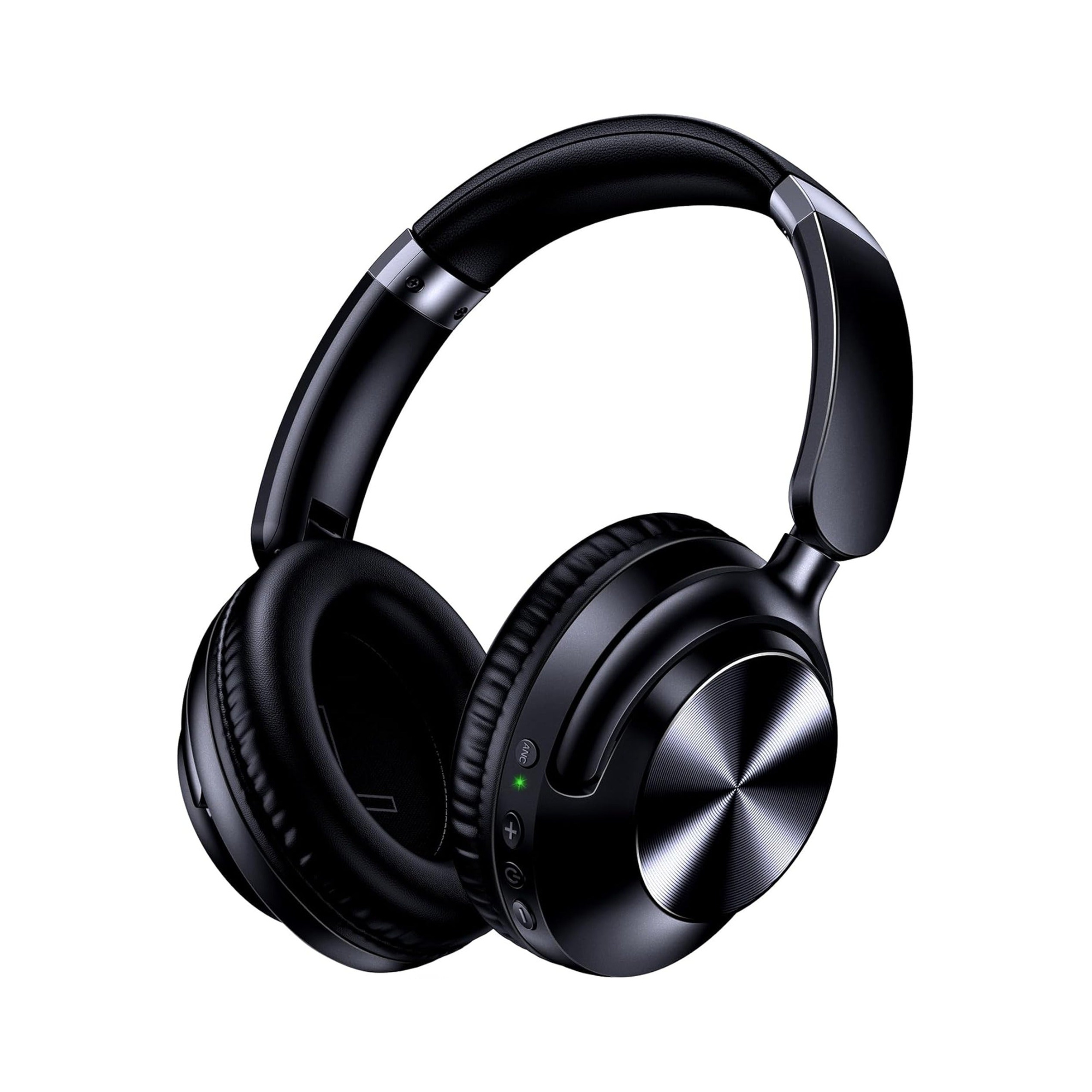
According to the merchant listing for the EARSOLE Noise Cancelling Over-Ear Headphones, Wireless & Wired – Series 127 (SKU EAR-AMZ-WL-127), the headphones are built to switch between wireless Bluetooth connectivity and a 3.5 mm AUX wired connection using an included 47.2-inch audio cable. Key specifications stated on the EARSOLE Series 127 product listing include:
- Wireless + 3.5 mm AUX Dual Mode: Use wireless Bluetooth when playing solo in a quiet room, or plug the included 47.2-inch 3.5 mm audio cable directly into the top of the Nintendo Switch whenever you connect three or more wireless controllers, use local wireless play, or want zero wireless latency on a train or plane.
- Listed Battery Life & Fast Charge: The merchant listing states up to 100 hours of playtime on a single charge and 10 hours of playback from a 5-minute charge in wireless mode.
- Noise Control & Travel Design: Lists Active Noise Cancellation (stated by the merchant to reduce up to 95% of ambient noise from subways, cars, or airplanes), ultra-soft protein leather ear cups that rotate up to 105 degrees, a 0.54 lb foldable frame, and an included travel pouch. (Note: Battery life and ANC percentage figures are merchant listing specifications rather than independent acoustic lab measurements.)
Option 2: Pocketable Bluetooth 5.4 Earbuds with an On-Case Volume Screen
If you primarily play solo in handheld or tabletop mode and prefer compact in-ear buds over a full-size headband, look for wireless earbuds that give you direct volume management without relying on finicky ear-stem touch taps.
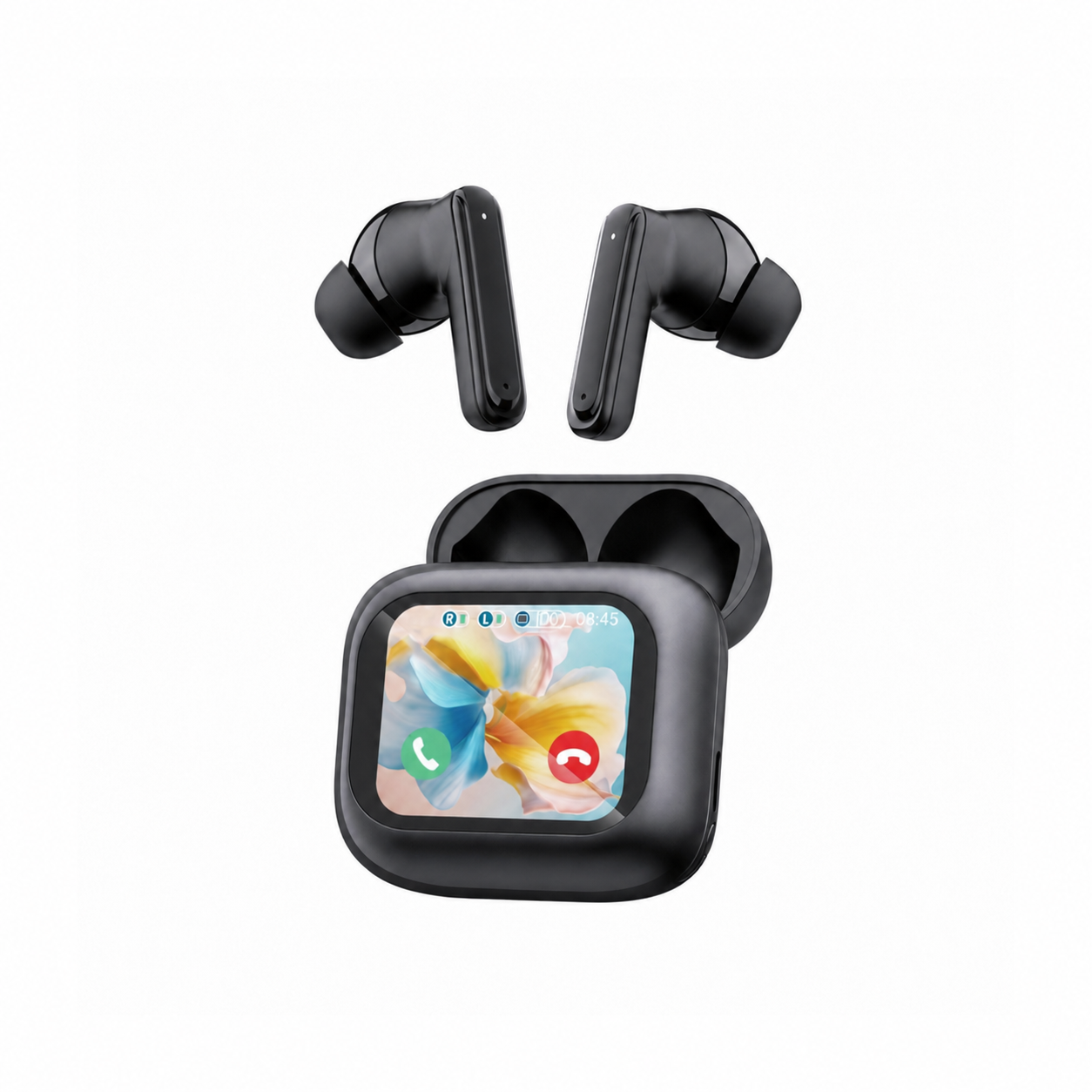
According to the store listing for the EARSOLE Smart Wireless Earbuds with LCD Touchscreen Case (SKU EAR-LCD54-BLK-01, also referenced in catalog links as Smart Wireless Earbuds with LCD Touchscreen Case), the earbuds pair true wireless listening with a full-color LCD touchscreen charging case. Key specifications and disclosures from the listing include:
- On-Case Volume and Playback Control: The full-color LCD touchscreen charging case lets you manage music, adjust volume, handle incoming calls, and navigate settings (with selectable Chinese and English menus) directly from the case screen—helpful when earbud touch stems adjust internal headphone volume independently of the Switch’s top volume buttons.
- Bluetooth 5.4 & ANC + ENC: Lists Bluetooth 5.4 connectivity, Active Noise Cancellation (ANC) to reduce steady background rumble while listening, Environmental Noise Cancellation (ENC) with a built-in microphone for phone calls on smartphones, and an in-ear sports profile with soft silicone tips.
- Important Limitations to Keep in Mind: First, while the earbuds feature a built-in microphone and ENC for smartphone calls, Nintendo Switch native Bluetooth does not support Bluetooth microphone input, so the mic will not function for console voice chat. Second, as the EARSOLE product listing explicitly notes, no water-resistance rating is listed for this model, so you should wipe off sweat after workouts and keep them out of the rain. (All product specifications reflect merchant catalog descriptions rather than independent lab testing.)
| Feature / Constraint | EARSOLE Series 127 Over-Ear Headphones (EAR-AMZ-WL-127) | EARSOLE Smart Wireless Earbuds with LCD Touchscreen Case (EAR-LCD54-BLK-01) |
|---|---|---|
| Form Factor | Foldable over-ear headphones (0.54 lb, 105° rotating ear cups, travel pouch included) | In-ear true wireless earbuds with soft silicone tips and LCD charging case |
| Nintendo Switch Connection Modes | Wireless Bluetooth (A2DP/SBC) plus 3.5 mm AUX wired via included 47.2-inch cable | Wireless Bluetooth (A2DP/SBC on Switch; Bluetooth 5.4 radio) |
| Works with 3+ Joy-Con / Pro Controllers or Local Wireless? | Yes, in 3.5 mm wired mode (bypasses Nintendo’s Bluetooth shutoff) | No (Switch blocks all Bluetooth audio with 3+ wireless controllers or local wireless) |
| Volume Control Convenience on Switch | Physical headphone controls + Switch hardware volume buttons | On-case LCD touchscreen volume adjustment + Switch hardware volume buttons |
| Noise Reduction (Merchant Listing) | Active Noise Cancellation (listed up to 95% ambient noise reduction) | ANC (listening noise reduction) + ENC (for phone calls on compatible mobile devices) |
| Key Limitations | Over-ear bulk compared to pocket earbuds; specs are merchant assertions | Wireless-only (subject to Switch SBC latency and 2.4 GHz limits); no water-resistance rating is listed |
Frequently Asked Questions
Why won’t my Bluetooth headphones show up or connect to my Nintendo Switch?
According to Nintendo Switch Support, device names can take around 40 seconds to appear on the Pair Device screen, and the headset must be in active discoverable (pairing) mode rather than standby. If a previously paired headset refuses to connect, check Nintendo’s four hardware blocks: (1) three or more wireless controllers are connected (reduce to two or fewer via HOME Menu > Controllers > Change Grip/Order), (2) the console is using local wireless communication, (3) another audio device is plugged into the console’s 3.5 mm audio jack or USB port, or (4) your headphones are still actively connected to a smartphone or interfered with by 2.4 GHz Wi-Fi.
Can you use a Bluetooth headset microphone for voice chat on Nintendo Switch?
No. According to Nintendo Switch Support, Bluetooth microphone input is not supported on the console. Native Switch Bluetooth audio only supports one-way stereo output using the A2DP profile and SBC codec, even if your headphones or earbuds have a built-in microphone for phone calls.
How do you avoid Bluetooth audio lag or dropouts on Nintendo Switch?
Because the Nintendo Switch only supports the SBC codec over Bluetooth and shares the crowded 2.4 GHz spectrum, both Nintendo Switch Support and commuters on r/NintendoSwitch (rh2p1i) note that wireless audio delay and 2.4 GHz interference can occur. To minimize dropouts in wireless mode, move the console closer to your headphones, switch your home Wi-Fi from 2.4 GHz to a 5 GHz access point, or turn on Airplane Mode (with Bluetooth re-enabled) during offline commutes. To eliminate wireless latency and subway dropouts completely, plug dual-mode headphones like the EARSOLE Series 127 directly into the Switch’s 3.5 mm jack using the included 47.2-inch AUX cable.