Standard Bluetooth headphones and earbuds cannot pair directly to an Xbox One because the console uses Microsoft’s proprietary Xbox Wireless protocol rather than native Bluetooth audio. If you are searching for how to connect bluetooth headphones to xbox one or asking can you connect bluetooth headphones to xbox one, you still have four working ways to get console audio into your ears: plugging a 3.5 mm AUX cable into the Xbox Wireless Controller, pairing your Bluetooth headphones to a smart TV, routing audio through the Xbox Remote Play mobile app, or attaching an external Bluetooth transmitter.
Why Can’t Bluetooth Headphones Pair Directly to an Xbox One?
When you put a pair of bluetooth headphones xbox one users commonly own into pairing mode, you will not find a Bluetooth audio menu in the Xbox One system settings. According to Wantek’s guide on connecting Bluetooth headphones to Xbox One, standard Bluetooth headphones do not pair directly to Xbox One for console game audio because Xbox uses Xbox Wireless for compatible wireless gaming headsets, while a compatible 3.5 mm headset can connect through an Xbox controller.
As Wantek further notes, Microsoft documents the Xbox Wireless Controller as using Xbox Wireless with Xbox consoles while Bluetooth is used for compatible PCs, tablets, iOS, and Android devices, which is why “Bluetooth headset” and “Bluetooth connection to the console” are not the same thing. Because of this hardware split, Bluetooth-only in-ear models need an audio bridge—such as a smart TV, a mobile device running Remote Play, or a hardware adapter—whereas dual-mode over-ear headphones can bypass the wireless barrier with a 3.5 mm cable.
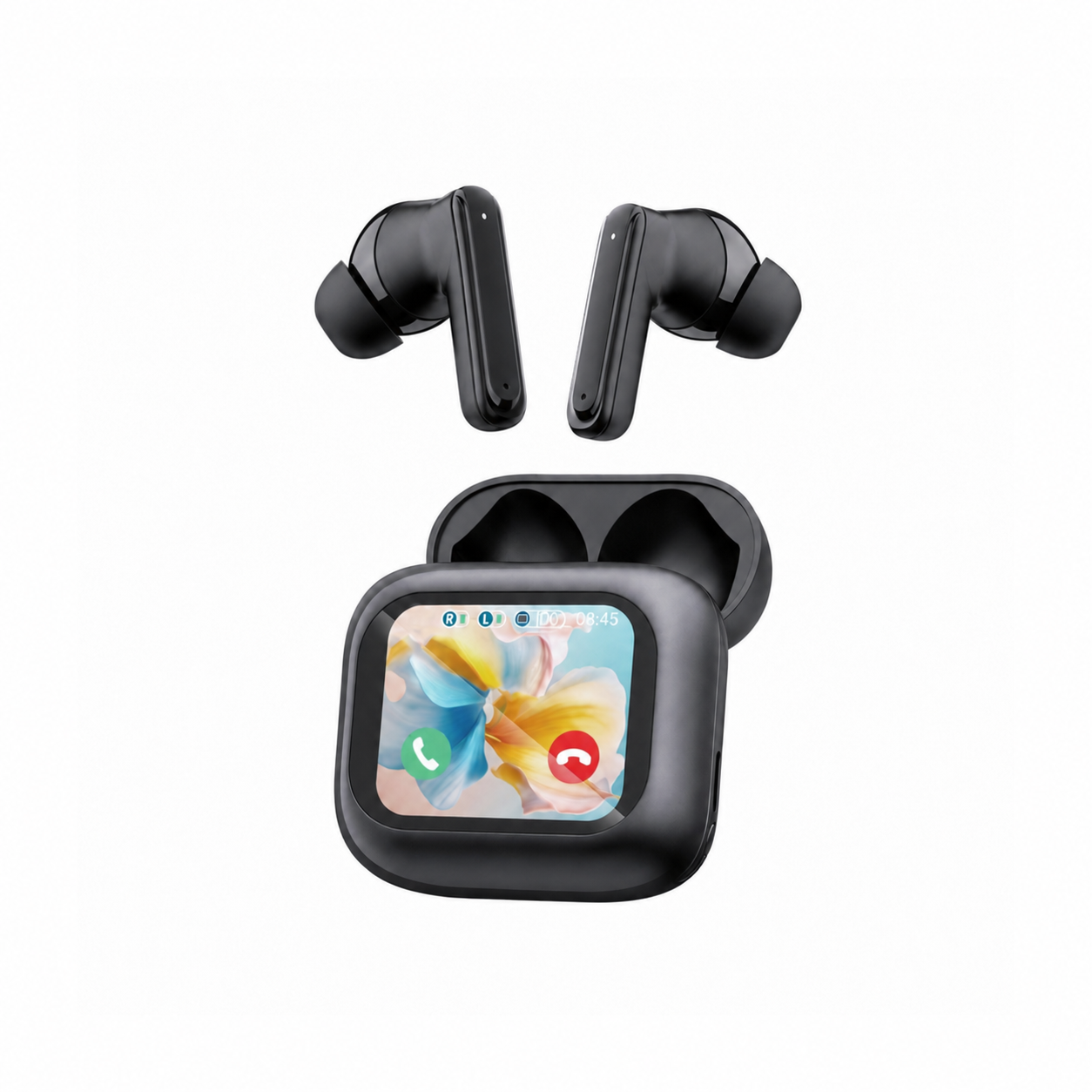
For example, the listing for the EARSOLE Smart Wireless Earbuds with LCD Touchscreen Case states a full-color LCD touchscreen charging case that manages music, volume, calls, and settings, Bluetooth 5.4, ANC + ENC noise reduction, and soft silicone tips, while noting that no water-resistance rating is listed for this model. Because true wireless earbuds like these connect via Bluetooth rather than a 3.5 mm cord, you will use one of the wireless bridge methods below to listen to Xbox One gameplay, or follow our wireless earbud pairing guide when pairing them to your TV, phone, or tablet.
| Xbox One Audio Workaround | Extra Hardware Needed | Audio Latency | Xbox Voice Chat Support | Best Headphone Type |
|---|---|---|---|---|
| 1. Controller 3.5 mm Stereo Jack | 3.5 mm AUX cable (often included with over-ear headphones) | Lowest (direct wired connection to controller) | Supported when using a compatible mic-wired cable or headset | Dual-mode Bluetooth + 3.5 mm over-ear headphones |
| 2. Smart TV Bluetooth Output | Smart TV with built-in Bluetooth audio output | Low to moderate (depends on TV audio processing) | Audio-only (no direct Xbox console chat path) | True wireless Bluetooth earbuds or over-ear Bluetooth headphones |
| 3. Xbox Remote Play Mobile Bridge | Smartphone or tablet with Xbox Remote Play | Moderate (mobile streaming + Bluetooth link) | Mobile app party/chat only; game audio streams via phone | Bluetooth earbuds (like AirPods or LCD touchscreen earbuds) |
| 4. External Bluetooth Transmitter | 3.5 mm controller or optical/TV Bluetooth adapter | Varies by adapter codec and port | Often audio-only; microphone support varies by adapter | Existing Bluetooth-only headphones or earbuds |
Workaround 1 (Lowest Latency): Plugging a 3.5mm Cable Into the Xbox Controller
If your Bluetooth headphones also include a 3.5 mm AUX input jack, you do not need to buy a wireless dongle or deal with audio lag. According to Wantek, connecting a compatible 3.5 mm headset to an Xbox controller that has a stereo headset jack provides a simple, low-latency setup, as Microsoft’s controller documentation identifies the 3.5 mm jack as the wired-headset connection while Xbox Wireless handles the controller’s console connection.
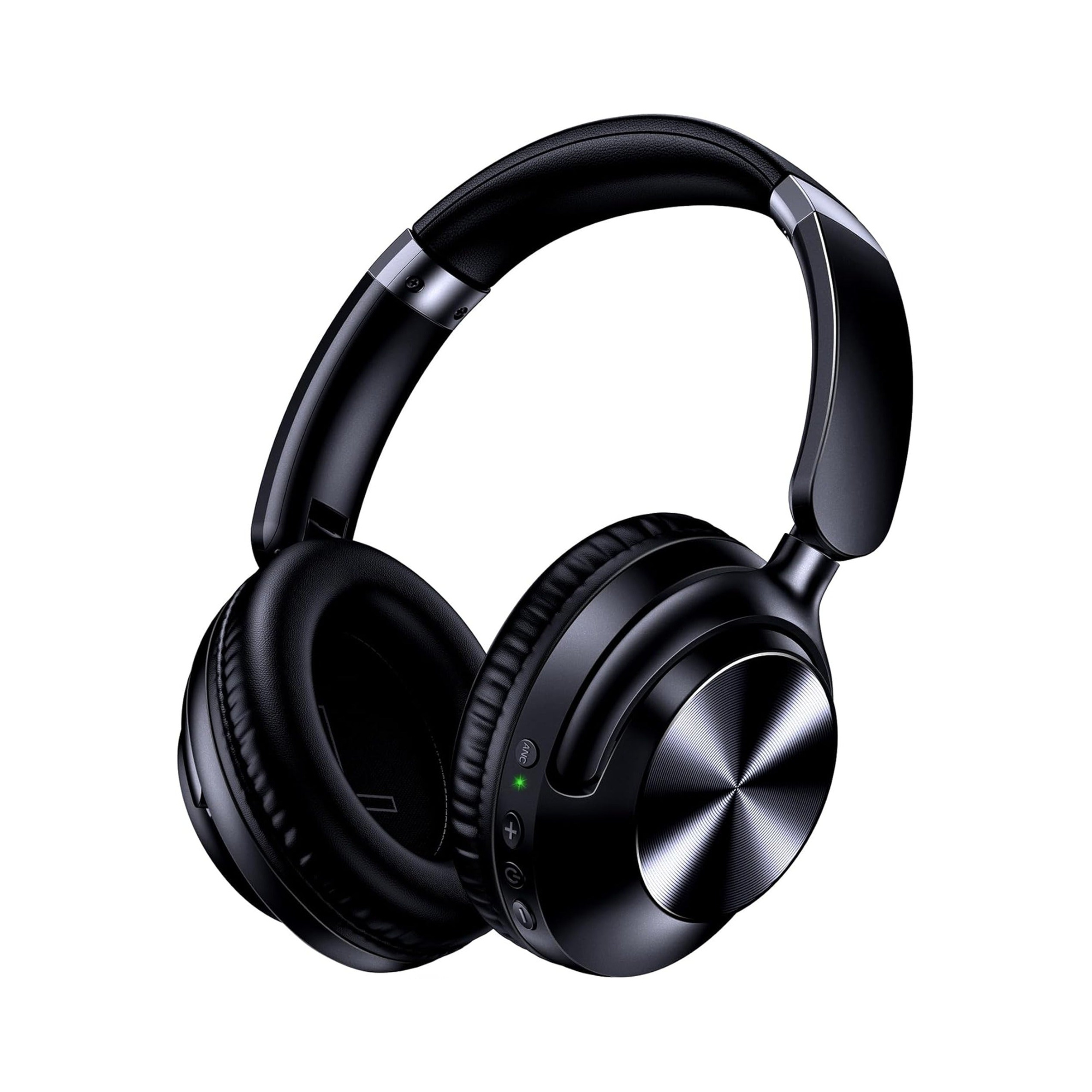
This wired-to-controller approach makes dual-mode Bluetooth headphones especially practical for console players. According to the product listing for the EARSOLE Noise Cancelling Over-Ear Headphones, Wireless & Wired – Series 127, the over-ear headphones switch between wireless Bluetooth connectivity and a 3.5 mm AUX wired connection using the included 47.2-inch audio cable. The EARSOLE Series 127 listing also states Active Noise Cancellation (reducing up to 95% of ambient noise), up to 100 hours of playtime on a single charge (with 10 hours from a 5-minute charge), ultra-soft protein leather ear cups that rotate up to 105 degrees, an adjustable headband, and a travel pouch.
Step-by-Step: Connecting via the Xbox Wireless Controller 3.5 mm Jack
- Locate the 3.5 mm port: Check the bottom edge of your Xbox Wireless Controller for the small circular 3.5 mm stereo headset jack next to the expansion port.
- Plug in your 3.5 mm AUX cable: Connect one end of the 47.2-inch 3.5 mm audio cable into your dual-mode headphones (such as the EARSOLE Series 127) and plug the other end firmly into the controller’s 3.5 mm jack.
- Adjust Xbox audio levels: Press the Xbox button on your controller to open the guide, navigate to the Audio & music speaker icon at the bottom, and set your headset volume and game/chat balance.
- Switch back to Bluetooth after gaming: When you finish playing on your Xbox One, unplug the 3.5 mm cable to return to wireless Bluetooth mode for your phone, laptop, or daily commute.
Workarounds 2, 3 & 4: Smart TV Bluetooth, Xbox Remote Play App, and Bluetooth Transmitters
If you use true wireless Bluetooth earbuds that do not have a 3.5 mm port—such as the EARSOLE Smart Wireless Earbuds with LCD Touchscreen Case—you can still route Xbox One game audio to your ears using one of three wireless workarounds.
Workaround 2: Pair Bluetooth Headphones to Your Smart TV
Many modern smart TVs and streaming monitors include their own built-in Bluetooth transmitter. According to Wantek, TV Bluetooth output may send game audio from the TV to Bluetooth headphones when your TV supports Bluetooth audio output, though players should expect no direct Xbox chat path unless separately configured.
- How to set it up: Open your smart TV’s Sound or Bluetooth Speaker List settings while your Xbox One is connected via HDMI, put your Bluetooth earbuds or headphones into pairing mode, and select them on the TV screen.
- When to use it: Single-player campaigns, late-night TV gaming, and streaming movies on your Xbox One where you only need stereo game audio and do not need Xbox party voice chat.
Workaround 3: Use the Free Xbox Remote Play Mobile App Bridge
If your TV does not have Bluetooth output and you do not want to buy an adapter, Xbox community members use a smartphone or tablet as a wireless audio relay. In an r/xbox thread on connecting Bluetooth headphones to Xbox, a player outlines a free mobile workaround: downloading the Xbox app on a mobile device, starting Remote Play (available through web), connecting Bluetooth headphones to the mobile device with audio unmuted and volume turned up, and leaving the iPad or phone off to the side while watching gameplay on the TV or monitor so the audio comes through the mobile device.
In the same r/xbox thread (1r921ar), fellow Xbox owners point out that using a Bluetooth headset through the app involves extra steps and introduces streaming and Bluetooth latency, noting that they prefer to use wired headphones connected directly to the controller.
Workaround 4: Connect an External 3.5 mm or Optical Bluetooth Transmitter
According to Wantek, a Bluetooth transmitter can be useful when you already own Bluetooth headphones, though it is not a universal substitute for an Xbox headset: some transmitters carry only stereo audio while others use the controller’s 3.5 mm jack and may have different microphone limitations, so players should check where the transmitter connects, codec/latency, microphone path, and power, and verify game/chat support before buying.
Frequently Asked Questions
Can I pair AirPods or other Bluetooth earbuds directly to Xbox One?
According to Wantek, AirPods and other standard Bluetooth earbuds cannot pair directly to an Xbox One for native console Bluetooth audio; instead, players should use an Xbox-compatible headset, a compatible 3.5 mm wired controller connection, TV Bluetooth output, or a Bluetooth transmitter whose limitations fit their setup. If you are using true wireless models like the EARSOLE Smart Wireless Earbuds with LCD Touchscreen Case (which feature Bluetooth 5.4, ANC + ENC noise reduction, and no listed water-resistance rating), pairing them to your smart TV or a mobile device running Xbox Remote Play lets you hear game audio without console modifications.
Will a Bluetooth transmitter or TV Bluetooth connection support Xbox voice chat?
According to Wantek, TV Bluetooth output sends game audio from the TV without a direct Xbox chat path unless separately configured, and Bluetooth transmitters do not necessarily support Xbox voice chat because audio-only transmitters are common and microphone routing varies by adapter. Always confirm whether a specific 3.5 mm controller transmitter supports two-way voice chat before purchasing.
How does the Xbox Remote Play mobile app trick work for Bluetooth headphones?
In r/xbox (thread 1r921ar), a player explains that you can start Xbox Remote Play on a mobile device, pair your Bluetooth headphones to that phone or tablet with the volume turned up, and keep watching your TV screen while listening through the mobile device—though commenters in the same thread note that app streaming adds extra steps and latency compared to plugging a 3.5 mm headphone cable directly into the Xbox controller. If you own dual-mode headphones like the EARSOLE Series 127, plugging the included 47.2-inch 3.5 mm AUX cable straight into the controller avoids mobile streaming lag altogether.