



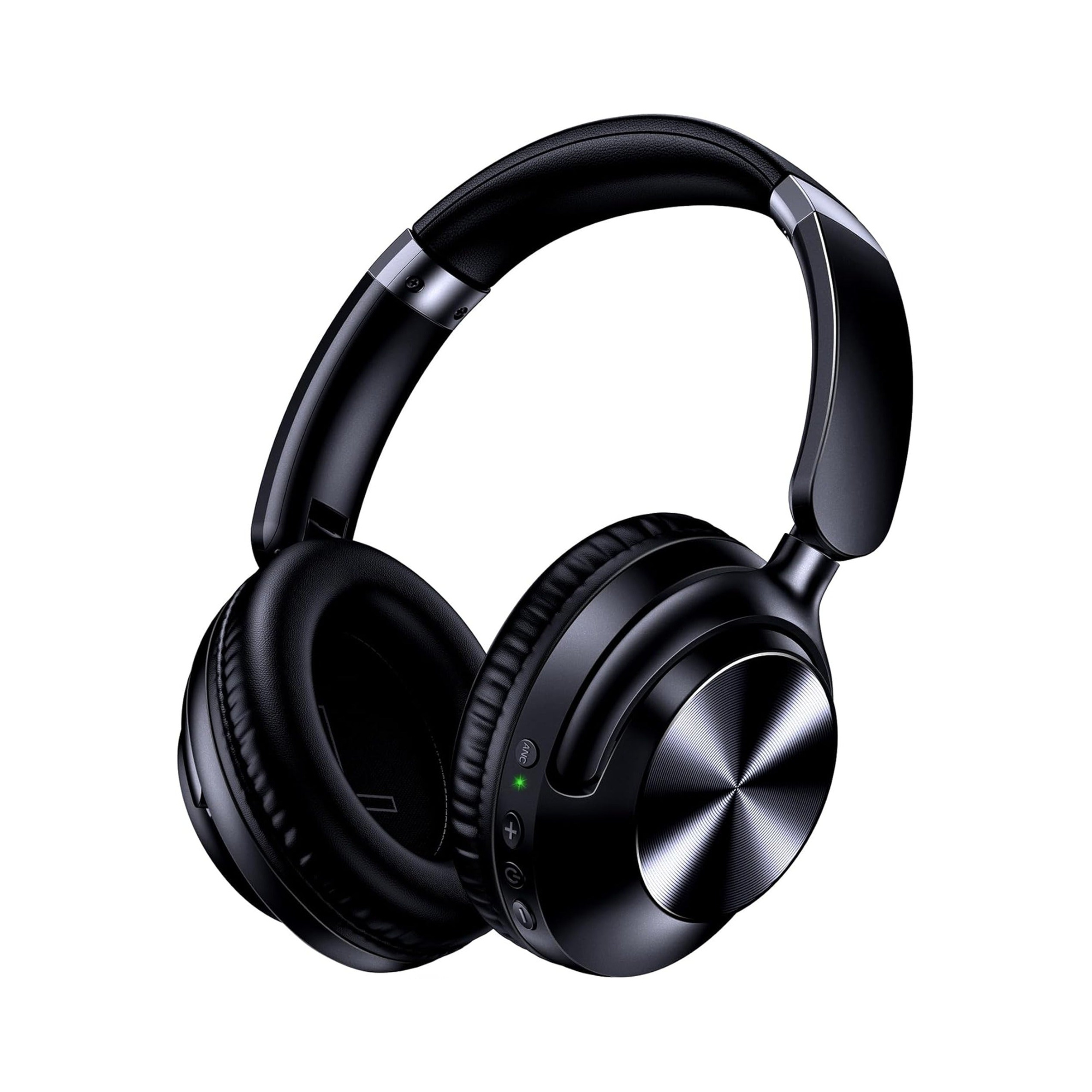
The PlayStation 5 does not support native Bluetooth audio pairing for standard wireless headphones or earbuds because Sony reserves the console’s internal Bluetooth for controllers and select accessories. To connect your headphones to a PS5, you need one of three working setups: plugging a third-party USB Bluetooth audio adapter into the console, routing PS5 audio to your smart TV and pairing your Bluetooth headphones directly to the TV, or plugging dual-mode headphones into the DualSense controller via a 3.5 mm AUX audio cable.
Why Won’t Bluetooth Headphones Pair Directly to PS5?
When players search for how to connect Bluetooth headphones to PS5 or ask can you use Bluetooth headphones on PS5, they usually expect their everyday wireless earbuds or over-ear headphones to show up in the console’s Bluetooth accessories menu. According to Turtle Beach’s guide to connecting a wireless headset to PS5, the PS5 has Bluetooth built in, but Sony does not support standard Bluetooth audio headphones natively—the console’s Bluetooth is reserved for controllers and select accessories, so a regular Bluetooth headset either won’t appear in the menu or won’t connect as an audio device.
That console-level restriction applies to all standard Bluetooth 5.x headphones and true wireless earbuds. For example, according to the product listing for the EARSOLE Smart Wireless Earbuds with LCD Touchscreen Case, the earbuds use a Bluetooth 5.4 connection for music, video, and call playback with compatible devices, pair with a full-color LCD touchscreen charging case that manages music, adjusts volume, handles incoming calls, and navigates settings directly from the case, and include ANC + ENC noise reduction, a built-in microphone, and soft silicone tips (with no water-resistance rating listed for this model). If you are pairing Bluetooth earbuds to a phone, laptop, or tablet first, see our step-by-step guide on how to connect wireless earbuds.
Because the PS5 blocks direct Bluetooth audio in its system menu, you have to choose the workaround that matches how you play:
| PS5 Audio Connection Method | Extra Hardware Required | Audio Latency | Voice Chat / Mic Support | Best Use Case |
|---|---|---|---|---|
| Dedicated 2.4 GHz USB Wireless Headset | Included 2.4 GHz USB transmitter dongle | Near-zero delay | Full microphone support | Multiplayer squad chat with a dedicated console gaming headset |
| Third-Party USB Bluetooth Audio Adapter | USB Bluetooth transmitter plugged into PS5 | Higher latency than a 2.4 GHz transmitter | Often limited microphone support | Using existing Bluetooth-only earbuds or headphones directly on the console |
| Smart TV Bluetooth Passthrough | None (uses your smart TV’s built-in Bluetooth) | Depends on TV Bluetooth processing | Game audio output via TV | Single-player couch gaming with wireless earbuds when you do not own a USB dongle |
| DualSense Controller 3.5 mm AUX Cable | Dual-mode headphones with a 3.5 mm audio cable | Zero wireless delay (wired connection) | Controller or inline wired path | Zero-lag PS5 audio using dual-mode over-ear headphones that still work on Bluetooth elsewhere |
Method 1 & Method 2: USB Bluetooth Audio Dongle vs Smart TV Bluetooth Passthrough
If you want to keep your listening completely cord-free—for instance, when using true wireless earbuds that do not have a 3.5 mm jack—you have two wireless workarounds depending on whether you want to plug an adapter into the PS5 or route audio through your television.
Method 1: Plugging a USB Dongle or USB Bluetooth Adapter into the PS5
As Turtle Beach notes, dedicated 2.4 GHz USB transmitters used by wireless gaming headsets deliver low-latency audio with near-zero delay, full mic support, and a rock-solid connection by plugging the USB transmitter into one of the PS5’s front or back USB ports, powering on the headset, and confirming “USB Headset” is selected under Settings > Sound > Audio Output.
If you want to use standard Bluetooth headphones or earbuds instead of a 2.4 GHz gaming headset, Turtle Beach explains that a third-party USB Bluetooth adapter plugged into the PS5 lets you pair Bluetooth headphones through the adapter instead, though users should expect higher latency than a 2.4 GHz transmitter and microphone support is often limited.
- Insert the USB Bluetooth audio adapter: Plug the third-party USB Bluetooth transmitter into a front or rear USB port on your PS5.
- Pair your Bluetooth headphones to the adapter: Put both the USB Bluetooth adapter and your wireless headphones or earbuds into pairing mode so the headphones link directly to the USB dongle rather than the PS5’s internal Bluetooth menu.
- Confirm PS5 audio output settings: As Turtle Beach outlines, go to Settings > Sound > Audio Output to confirm your headset is the output device, press the PS button and select the Sound icon to adjust volume and game/chat balance on the fly, and optionally toggle 3D Audio on in the audio output menu.
Method 2: Smart TV Bluetooth Passthrough (No USB Dongle Required)
What if you want to play a single-player game tonight with your wireless earbuds and do not have a USB Bluetooth adapter on hand? In an r/PSVR thread asking why the PS5 cannot use standard Bluetooth audio devices, a community commenter pointed out that you can set the PS5 to TV audio and pair your Bluetooth headphones directly with the TV.
- Leave PS5 audio output set to your TV: Keep your PS5 sending sound over HDMI to your television as usual.
- Pair your Bluetooth earbuds or headphones to the smart TV: Open your smart TV’s Bluetooth audio output settings and pair your wireless earbuds—such as the EARSOLE Smart Wireless Earbuds with LCD Touchscreen Case—just as you would on a phone or tablet.
- Control volume easily from the couch: Once paired to a compatible smart TV or media device, the EARSOLE Smart Wireless Earbuds listing notes that you can manage music, adjust volume, handle incoming calls, and navigate settings directly from the full-color LCD touchscreen charging case (in Chinese or English menus), while keeping in mind that no water-resistance rating is listed for this model.
Method 3: The Zero-Lag DualSense Controller 3.5 mm AUX Connection
While a third-party USB Bluetooth adapter or smart TV Bluetooth passthrough works well for casual listening, Bluetooth audio compression and wireless relay steps can introduce noticeable audio delay during fast-paced action games. If you want one pair of over-ear headphones that gives you wireless Bluetooth freedom on your phone and laptop plus instant, zero-lag wired audio on your PS5, dual-mode headphones with a 3.5 mm AUX jack solve both problems without buying a console dongle.
According to the product listing for the EARSOLE Series 127 Noise Cancelling Over-Ear Headphones, the headphones seamlessly switch between wireless Bluetooth connectivity and a 3.5 mm AUX wired connection using the included 47.2-inch audio cable. The EARSOLE Series 127 listing also states Active Noise Cancellation (which reduces up to 95% of ambient noise), up to 100 hours of playtime on a single charge (and 10 hours of music from a 5-minute fast charge), ultra-soft protein leather ear cups that rotate up to 105 degrees with an adjustable headband, and an included travel pouch.
- Plug into the DualSense controller: Connect one end of the included 47.2-inch 3.5 mm audio cable into the EARSOLE Series 127 ear cup and plug the other end directly into the 3.5 mm headphone jack at the bottom of your PS5 DualSense wireless controller.
- Check PS5 sound routing: Open Settings > Sound > Audio Output on your PS5 to confirm audio is routing to the headphones connected to your controller, and press the PS button to adjust headphone volume from the Sound menu.
- Switch back to wireless Bluetooth after gaming: Unplug the 3.5 mm AUX cable when you finish playing and use the same headphones wirelessly over Bluetooth for daily commuting, office work, or travel.
| EARSOLE Model | Form Factor | Stated Connectivity | Key Stated Features | Best PS5 Setup Method |
|---|---|---|---|---|
| EARSOLE Series 127 Over-Ear Headphones | Foldable over-ear headphones (protein leather cups rotating up to 105°) | Dual-mode: Wireless Bluetooth + 3.5 mm AUX wired (47.2-inch cable included) | Up to 95% ANC ambient noise reduction, up to 100 hrs playtime, 5-min fast charge for 10 hrs, travel pouch | Plug the included 47.2-inch 3.5 mm AUX cable directly into the PS5 DualSense controller |
| EARSOLE Smart Wireless Earbuds with LCD Touchscreen Case | In-ear true wireless earbuds with soft silicone tips | Wireless Bluetooth 5.4 (no 3.5 mm jack; no USB PS5 dongle included) | Full-color LCD touchscreen case (music, volume, calls, settings in EN/ZH), ANC + ENC, built-in mic; no water-resistance rating listed | Pair to your smart TV’s Bluetooth audio output or a third-party USB Bluetooth adapter |
Frequently Asked Questions
Does PS5 support Bluetooth headsets natively?
According to Turtle Beach, the PS5 does not support standard Bluetooth audio headphones natively—the console’s built-in Bluetooth is reserved for controllers and select accessories, so regular Bluetooth headphones either will not appear in the menu or will not connect as an audio device. To use wireless audio on a PS5, you need a headset with a dedicated 2.4 GHz USB wireless transmitter, a third-party USB Bluetooth audio adapter, or smart TV Bluetooth passthrough.
Can I connect Bluetooth headphones to PS5 without buying a USB dongle?
Yes, you have two ways to use Bluetooth headphones with a PS5 without buying a USB Bluetooth adapter: as r/PSVR community members note, you can set the PS5 to TV audio and pair your Bluetooth headphones directly with your smart TV, or if your headphones support dual-mode wired and wireless operation—like the EARSOLE Series 127, which includes a 47.2-inch 3.5 mm AUX audio cable—you can plug them straight into the 3.5 mm jack on the PS5 controller.
How do I adjust PS5 audio output once my headset is connected?
According to Turtle Beach, once your headset or USB adapter is connected, go to Settings > Sound > Audio Output on the PS5 to confirm your headset is selected as the output device, press the PS button and select the Sound icon to adjust volume and game/chat balance on the fly, and optionally toggle 3D Audio on in the audio output menu.
