



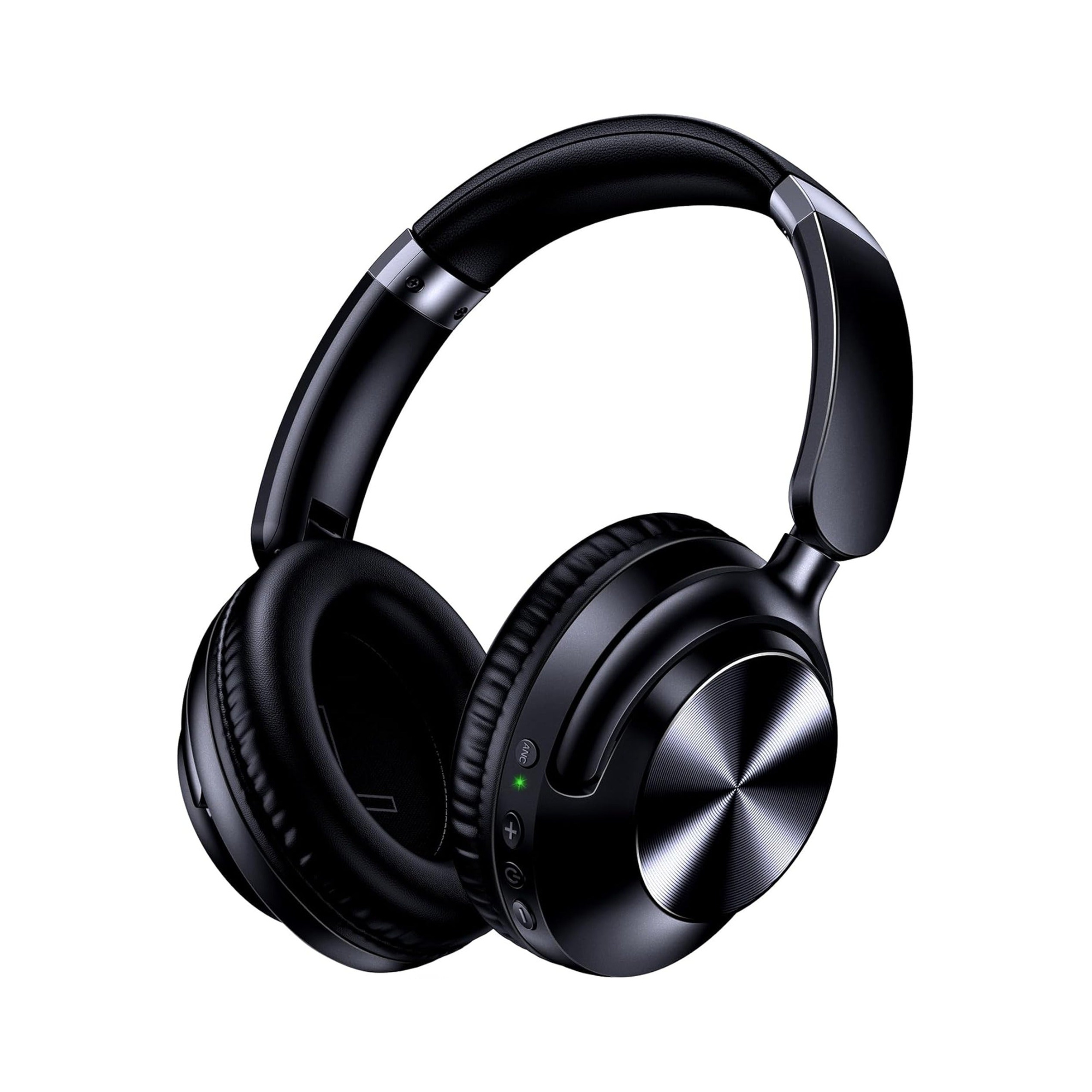
To connect a headset to a PlayStation 5, plug a standard 3.5mm audio cable directly into the port on the bottom of your DualSense controller, or plug a USB cable or 2.4GHz wireless USB-C dongle into the PS5 console itself. Once physically connected, press the PS button on your controller to open the bottom Sound shortcut (or navigate to Settings > Audio > Audio Output from the Home screen) to choose your headset as the Output Device, switch the headset output from Voice Chat Audio to All Audio, and turn on 3D Audio for Headphones (Tempest 3D Audio).
Many PlayStation 5 players plug in a headset for the first time only to find that game sound is still coming out of their living room TV, only party voice chat is audible in their ear cups, or the audio sounds flat. Below, we walk through the physical connection paths documented by SteelSeries and the r/playstation community, how dual-mode wired and wireless headphones like the EARSOLE Series 127 Over-Ear Headphones connect to the DualSense controller via an AUX cord, and every PS5 Audio Output setting you need to dial in clean, immersive sound.
Step 1: Connect Your Headset via the DualSense 3.5mm Jack or Console USB Port
Before opening the PlayStation 5 system menus, match your headset’s connector type to the right port on your controller or console. Because the PlayStation 5 does not support native Bluetooth audio for headsets, wireless Bluetooth headphones cannot pair directly in the console’s Bluetooth accessories menu without either a compatible USB wireless adapter or a 3.5mm AUX cord (for wireless adapter options, see our dedicated guide on how to connect Bluetooth headphones to PS5).
According to SteelSeries and r/playstation users, connecting a headset to PS5 works either by plugging a standard 3.5 mm TRRS plug into the DualSense controller or connecting a USB cable / 2.4 GHz USB-C dongle to the console, then selecting the headset under Settings > Audio > Audio Output (or the PS button Sound shortcut), choosing All Audio versus Voice Chat Audio, and configuring Tempest 3D Audio for Headphones.
Depending on the headset in front of you, use one of these two physical connection paths:
- Path A — Plugging a 3.5mm Audio Cable into the DualSense Controller:
Look at the bottom edge of your PS5 DualSense wireless controller, right next to the expansion port. As community members in
r/playstation(thread195lbib) confirm, you plug wired headphones or earphones directly into your DualSense controller if they use a standard 3.5mm jack. This method also works seamlessly with dual-mode Bluetooth headphones that include a detachable AUX cord. According to the EARSOLE Series 127 listing, the over-ear headphones switch between wireless Bluetooth and a 3.5 mm AUX wired connection using an included 47.2-inch audio cable. That 47.2-inch (nearly 4-foot) cable length easily spans from your head to the DualSense controller in your lap without pulling tight while you sit on the couch, and it does not require a separate 2.4GHz USB-C wireless dongle. - Path B — Plugging a USB Cable, 2.4GHz USB-C Dongle, or Base Station into the PS5 Console: In its PlayStation 5 setup guide (How to Setup Headset on PS5 by Luke Siuty), SteelSeries notes that dedicated gaming headsets connect directly to the console using a small USB-C dongle plugged into the front of the PlayStation 5 for 2.4GHz wireless audio, a direct USB cable, or a wireless base station. Make sure the headset itself is powered on and paired to its USB transceiver so the PS5 recognizes it as an active audio endpoint.
| Headset Connection Type | Where to Plug It In | Supports PS5 All Audio & Tempest 3D Audio? | Key Setup Note |
|---|---|---|---|
| Wired 3.5mm Headset or Earphones | Bottom 3.5mm jack on the DualSense wireless controller (r/playstation thread 195lbib) | Yes — routes stereo and Tempest 3D Audio through the controller | Push the 3.5mm plug firmly into the controller jack until it clicks fully into place |
| Dual-Mode Bluetooth + 3.5mm AUX Headphones (e.g., EARSOLE Series 127) | Bottom 3.5mm jack on the DualSense controller via the included 47.2-inch 3.5mm AUX cable | Yes — operates as a passive/wired headset via the controller port | Uses the included 3.5mm AUX cord on PS5; does not include or require a 2.4GHz USB-C dongle |
| USB Wired or 2.4GHz Wireless Dongle Headset | Front USB-C port or USB-A port on the PS5 console (SteelSeries) | Yes — recognized as a USB headset in Audio Output settings | Ensure the headset power switch is turned on so it appears in the Output Device list |
Step 2: Select Output Device and Fix ‘Voice Chat Audio’ vs ‘All Audio’ in PS5 Settings
While the PlayStation 5 can switch audio output to a newly connected headset automatically, it does not always route the full game mix the way you expect. If your headset is silent—or if you only hear your friends talking in party chat while game explosions still boom out of your television—you need to check two settings in the PS5 audio menu.
In its PS5 headset setup guide, SteelSeries outlines two ways to select your headset and control what audio streams through it:
Method 1: The Quick PS Button Sound Shortcut (Fastest While In-Game)
- Press the PS button once on your DualSense controller to bring up the bottom control center navigation bar.
- Scroll to the Sound icon (shaped like a speaker) and press X.
- Select Output Device and choose your connected headset (either Controller Headset for a 3.5mm cable or the name of your USB headset).
- While in this quick Sound menu, you can also adjust Volume, fine-tune the Game/Chat Audio Balance slider while in-game, or hop over to the adjacent Mic shortcut icon to adjust your microphone level.
Method 2: The Full Audio Output Menu (To Fix ‘Voice Chat Audio’ vs ‘All Audio’)
If you want to view every routing option at once, open the full Settings menu from the PS5 Home screen:
- Select the Settings gear icon in the top-right corner of the PS5 Home screen.
- Navigate to Audio > Audio Output (or Sound > Audio Output depending on your system software label).
- Choose Output Device: Open Output Device and select your headset. As SteelSeries points out, if your USB or wireless dongle headset does not appear on this list, check that the headset is turned on and that the dongle or cable is seated properly.
- Toggle Automatic Headset Switching: Toggle Switch Output Device Automatically on if you want your PS5 to route audio to your headset the moment you plug a 3.5mm cable into the DualSense controller or turn on your USB dongle.
- Set Output to Headphones to ‘All Audio’: Scroll down to the headphone output option. As SteelSeries explains, PS5 lets you choose Voice Chat Audio if you only want party chat in your headset (leaving game audio on your TV speakers) or All Audio if you want both game sound and voice chat in your ear cups. Switching this single setting to All Audio resolves the classic “why is game sound still coming from my TV?” issue.
Step 3: Enable Tempest 3D Audio for Headphones and Troubleshoot Bad Sound
Once your headset is outputting All Audio, you can unlock PlayStation 5’s spatial sound engine and fix common controller audio issues.
How to Enable and Tune Tempest 3D Audio for Headphones
You do not need a proprietary console headset to use spatial audio on PlayStation 5—any stereo wired 3.5mm headphone plugged into the DualSense controller or USB headset plugged into the console can use PS5’s built-in 3D Audio engine:
- In the PS5 Settings menu under Sound / Audio, scroll down to 3D Audio for Headphones.
- Toggle Enable 3D Audio for Headphones on.
- Select Adjust 3D Audio Profile. As SteelSeries notes, the first time you run this setup, the PS5 walks you through a brief listening comparison—make sure to pick 3D Audio over standard Stereo, and then listen closely to select the height/ear-level profile that sounds most natural to your ears.
Troubleshooting Muffled or ‘Horrible’ DualSense 3.5mm Audio
In r/playstation (thread 195lbib), a player asked: “How do you connect your headphones to PS5? Do you basically plug it to dualsense or there is another way? Because I plugged my earbuds to my dualsense yesterday and the sound was horrible. (I am playing on TV)” Community replies confirmed that plugging a standard 3.5mm jack into the DualSense controller is the normal wired method and shouldn’t sound bad unless the earphones or connection are having an issue.
If your headphones sound thin, quiet, echoing, or distorted through the DualSense 3.5mm jack, run through these four checks:
- Seat the 3.5mm plug all the way in: The DualSense controller’s 3.5mm port has a snug internal retention ring. If a 3.5mm plug is even 1 millimeter shy of clicking flush against the controller shell, the left, right, and ground contacts misalign—causing hollow, out-of-phase “underwater” audio.
- Check DualSense Speaker & Mic Mute state: Make sure your TV volume is muted or turned down if All Audio is active; hearing your TV speakers slightly out of sync with your closed-back ear cups creates a jarring echo.
- Test with a freshly adjusted 3D Audio profile (or compare against Stereo): In a few older titles that do not natively mix for spatial audio, an mismatched 3D Audio profile can sound hollow. Toggle 3D Audio for Headphones off and back on, or re-run Adjust 3D Audio Profile to match your ear height.
- Use comfortable over-ear headphones with a reliable 3.5mm AUX cord: Tiny budget earbuds with worn cables often struggle with loose TRRS contact inside a controller jack. Using over-ear headphones designed for both wireless everyday use and wired console play—such as the EARSOLE Series 127 Over-Ear Headphones—gives you a dedicated 47.2-inch 3.5mm AUX cable for the DualSense controller alongside protein leather ear cups that rotate up to 105 degrees, an adjustable headband, and a foldable design with a travel pouch for when you unplug from your PS5 and switch back to Bluetooth on your phone.
Frequently Asked Questions
Do I plug my wired headset into the PS5 console or the DualSense controller?
It depends on your headset’s plug. According to SteelSeries and r/playstation users (thread 195lbib), if your headset or headphones use a standard 3.5mm audio jack (such as the 47.2-inch 3.5mm AUX cable included with the EARSOLE Series 127 Over-Ear Headphones), you plug it directly into the 3.5mm port on the bottom edge of your DualSense wireless controller. If your headset uses a USB cable, 2.4GHz USB-C wireless dongle, or USB base station, you plug that connector directly into the USB ports on the PS5 console.
Why can I only hear voice chat and not game audio in my PS5 headset?
Your PlayStation 5 is currently set to send only party chat to your headphones while keeping game audio on your TV. As SteelSeries explains in its PS5 audio setup guide, go to Settings > Audio > Audio Output on your PS5 Home screen, find the headphone audio output setting, and switch it from Voice Chat Audio to All Audio. You can also press the PS button briefly during gameplay and open the Sound tab to adjust your Game/Chat Audio Balance slider if game sound is turned too far down relative to voice chat.
Can I use dual-mode Bluetooth headphones on PS5 with a 3.5mm cable?
Yes. While the PlayStation 5 does not support native wireless Bluetooth headset connections without an external USB adapter, dual-mode Bluetooth headphones that include a 3.5mm AUX port work right away as a wired headset through the DualSense controller. According to the EARSOLE Series 127 listing, the over-ear headphones switch between wireless Bluetooth and a 3.5 mm AUX wired connection using an included 47.2-inch audio cable—allowing you to plug straight into your DualSense controller for PS5 gaming and switch back to wireless Bluetooth for your phone or laptop afterward.
