



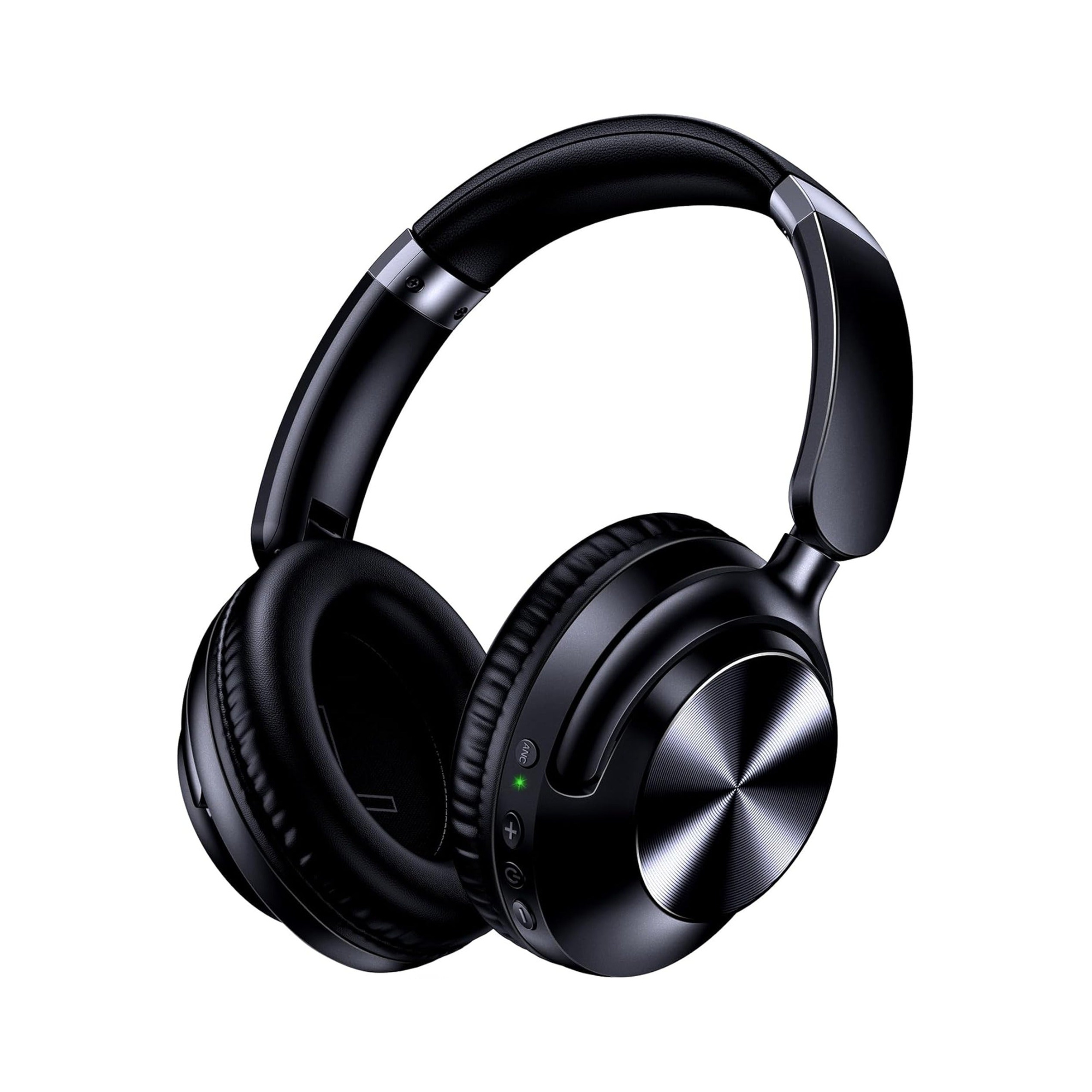
To connect a wired headset to an Xbox One, plug the 3.5mm audio cable directly into the 3.5mm port on the bottom of your Xbox One controller and adjust volume and chat balance under Settings > Audio. You can also use dual-mode wireless headphones in wired 3.5mm mode, where the passive 3.5mm cable provides instant game audio compatibility while bypassing Bluetooth codecs and onboard ANC.
Because the Xbox One console has no front-panel 3.5mm headphone jack and does not accept generic Bluetooth audio, the controller’s bottom 3.5mm port is your main audio bridge. Below, we cover QCY Support’s 3.5mm controller steps, explain what changes with dual-mode headphones like the EARSOLE Series 127 Over-Ear Headphones, and fix xbox headset mic not working or controller sleep issues.
How to Connect a 3.5mm Wired Headset or Dual-Mode Headphones to Your Xbox One Controller
Xbox One consoles use Microsoft’s Xbox Wireless protocol rather than standard Bluetooth. To connect a wired headset or Bluetooth over-ear headphones with a detachable AUX cord, plugging into the controller’s 3.5mm port is the fastest method. (For wireless adapters or phone chat workarounds, see our guide on how to connect Bluetooth headphones to Xbox.)
According to QCY Support, plugging a 3.5 mm cable directly into the Xbox One controller’s 3.5 mm audio jack provides instant wired compatibility for both game audio and microphone chat (configured under Settings > Audio), including for dual-mode Bluetooth headphones used in wired mode, although active features like ANC and Bluetooth codecs (such as LDAC) do not operate over the passive 3.5 mm connection.
Step-by-Step 3.5mm Controller Setup
Follow QCY Support’s three-step sequence:
- Plug the 3.5mm cable into your headset: Insert one end of your 3.5mm auxiliary cable firmly into the ear cup’s AUX port.
- Insert the other end into the Xbox One controller: Push the plug straight into the 3.5mm jack on the bottom edge of your controller until flush.
- Go to Settings > Audio to configure volume and chat options: Press the Xbox button, open Settings > Audio, and set headset volume, chat mixer, and mic monitoring.
Using Dual-Mode Headphones in Wired Mode
According to the EARSOLE Series 127 listing, the over-ear headphones switch between wireless Bluetooth and a 3.5 mm AUX wired connection using an included 47.2-inch audio cable.
In addition, the EARSOLE Series 127 listing notes that the headphones feature ultra-soft protein leather ear cups, an adjustable headband, ear cups that rotate up to 105 degrees, and a foldable frame with a handy travel pouch.
What Works (and What Turns Off) When Using Dual-Mode Headphones via 3.5mm on Xbox One
Connecting wireless headphones to an Xbox One controller with a 3.5mm cord switches them to a passive analog connection.
| Feature | 3.5mm Wired Headset | Dual-Mode Headphones via 3.5mm AUX |
|---|---|---|
| Port | Controller 3.5mm jack | Controller 3.5mm jack via AUX cord |
| Game Audio | Instant analog stereo | Instant analog stereo (QCY Support) |
| ANC & Codecs | Passive drivers | Disabled — ANC and LDAC off via cable (QCY Support) |
| Voice Chat | Via 4-pole TRRS plug | Via TRRS mic cord, or 3.5mm game audio + Xbox mobile app chat (QCY Support) |
Why ANC and Wireless Codecs Turn Off Over a 3.5mm Cable
As QCY Support notes, a 3.5mm connection delivers full wired compatibility and clear sound, but ANC and Bluetooth codecs like LDAC will not work via the cable:
- Uncompressed analog signal: Codecs like SBC, AAC, and LDAC only compress audio over Bluetooth. Over a 3.5mm cord, the controller sends an analog signal directly to the drivers.
- Passive cushion isolation: With electronic ANC off over the passive cord, over-ear cushions—like the protein leather ear cups on the EARSOLE Series 127—provide physical isolation.
- Hybrid chat workaround: Standard 3-pole (TRS) AUX cords carry stereo audio without a mic ring. If your AUX cable lacks an inline mic, QCY Support notes a convenient hybrid pro tip: route game audio via the 3.5mm cable plugged into your controller while joining Xbox party chat via the Xbox mobile app on your smartphone.
Configuring Xbox One Settings > Audio and Troubleshooting Headset Sound
If you hear no sound or face xbox headset mic not working issues, check plug seating, audio sliders, and controller power timeouts.
1. Fix “Xbox Headset Mic Not Working” in Settings > Audio
- Seat the 3.5mm plug flush: Push the 3.5mm plug firmly into the bottom of the controller until no silver barrel shows.
- Check Settings > Audio sliders: Open Settings > Audio, confirm Headset Mic is On, raise Headset Volume, and balance the Headset Chat Mixer.
- Verify TRRS mic path or use the mobile app: Built-in Bluetooth mics turn off in passive wired mode. Use a 4-pole TRRS cable with an inline mic, or pair 3.5mm game audio with party chat on the Xbox mobile app (per QCY Support).
2. Keep Your Controller Powered On With a Racing Wheel or Desk Setup
In r/xboxone (thread fkdsni), a player asks how to connect a wired headset to Xbox One when using a racing wheel with no aux input or when a controller in their lap keeps turning off, and commenters suggest plugging the controller into the console via a USB cable (or USB extension) to keep it powered on or checking the monitor or TV for an audio out.
- USB cable keep-alive: Connect your controller to the console with a USB cable so its 3.5mm port never enters wireless sleep.
- Monitor or TV audio-out: Plug your 3.5mm cord (such as the 47.2-inch cable included with the EARSOLE Series 127 Over-Ear Headphones) into your display’s 3.5mm audio-out jack.
Frequently Asked Questions
How do I connect a wired 3.5mm headset to an Xbox One controller?
According to QCY Support, plug the 3.5mm cable into your headset, insert the other end into the 3.5mm audio jack on your Xbox One controller, and open Settings > Audio to adjust volume and chat options. If you use a racing wheel and the controller turns off, users in r/xboxone (thread fkdsni) recommend connecting the controller to the console via USB so its 3.5mm port stays active.
Do ANC and Bluetooth codecs work when using wireless headphones via a 3.5mm cable on Xbox One?
No. According to QCY Support, while connecting via the controller’s 3.5mm jack provides instant wired compatibility and clear audio, active features like ANC and Bluetooth codecs (such as LDAC) do not work over the passive 3.5mm cable.
Can I use dual-mode Bluetooth headphones as a wired headset on Xbox One?
Yes. As QCY Support explains, although Xbox One uses Xbox Wireless rather than generic Bluetooth audio, wireless headphones with a 3.5mm auxiliary cable work in wired mode through the controller’s 3.5mm jack. According to the EARSOLE Series 127 listing, the over-ear headphones switch between wireless Bluetooth and a 3.5mm AUX wired connection using an included 47.2-inch audio cable.
