



Most Chromebooks include a standard round 3.5 mm headphone jack on the side chassis that accepts wired headphones, earbuds, or headsets for plug-and-play analog audio, while newer slim or premium Chromebooks omit the 3.5 mm port and route audio through USB-C or Bluetooth. If your Chromebook has a 3.5 mm socket that feels loose and plays background music without vocals unless you spin the plug to a specific angle, the internal metal-to-metal contacts have worn down from repeated insertions. When gently cleaning the port does not restore solid contact, you can bypass a worn or missing 3.5 mm jack immediately using an external USB audio adapter, dual-mode wireless/wired headphones, or Bluetooth earbuds.
Does Your Chromebook Have a 3.5mm Headphone Jack or USB-C Only?
When students and remote workers look for the headphone jack on chromebook laptops, the physical port layout depends on the chassis generation and form factor. According to Treblab’s guide to Chromebook headphones, the traditional round 3.5 mm headphone jack is still incorporated on most Chromebooks today, allowing you to plug any off-the-shelf 3.5 mm wired headphones, earbuds, or headset into the Chromebook’s headset port and be up and running in seconds without pairing or batteries.
At the same time, Treblab notes that while wired headphones connect physically to transmit reliable, low-latency analog audio without batteries or wireless interference, newer premium Chromebooks may exclude the 3.5 mm jack entirely and require USB-C wired headphones (which incorporate internal digital-to-analog converters, or DACs, and can draw power through the USB-C connector) or wireless Bluetooth headphones built into modern Chromebooks.
Before buying wired earbuds for chromebook classes or troubleshooting audio routing, inspect both side edges of your laptop and match your ports to the decision matrix below:
| Chromebook Audio Path | Physical Port Symbol / Shape | How the Audio Signal Travels | Key Pros (Per Treblab) | Key Cons / Limitations |
|---|---|---|---|---|
| 3.5 mm Analog Headset Port | Round 3.5 mm socket (often marked with a headphone or headset icon) | Chromebook’s internal DAC converts digital audio to analog and sends it over the wire | Universal compatibility; no pairing or batteries required; consistent low-latency wired connection | Limited by cord length; not compatible with USB-C-only Chromebooks; metal socket contacts can wear loose over time |
| USB-C Digital Audio Port | Oval USB Type-C port on the left or right edge | Digital audio leaves the USB-C port and is converted by an internal DAC inside the USB-C headphone plug or adapter | Works on slim Chromebooks without a 3.5 mm jack; supports internal DACs and power pass-through | More expensive than basic 3.5 mm plugs; occupies a USB-C port unless using a pass-through hub |
| Built-In Bluetooth Wireless | Internal wireless radio (controlled via ChromeOS Quick Settings) | Compressed digital wireless stream sent over Bluetooth to paired earbuds or over-ear headphones | 30+ feet of cord-free mobility; automatic reconnection when powered on nearby; bypasses damaged physical ports | Headphones require battery charging; potential wireless interference compared to a physical cord |
How to Check and Switch Audio Output in ChromeOS Quick Settings
Even when a 3.5 mm plug or USB-C adapter is physically inserted, ChromeOS occasionally keeps routing sound to the internal downward-firing speakers or an old Bluetooth device. You can verify that your Chromebook recognizes the physical jack in three steps:
- Insert your plug firmly: Push your 3.5 mm connector or USB-C audio adapter all the way into the port until it clicks flush against the chassis.
- Open ChromeOS Quick Settings: Click the time, battery, and Wi-Fi status area in the bottom-right corner of your Chromebook screen.
- Open the Audio settings menu: Click the narrow arrow (
>) next to the volume slider. Under Output (and Input if your headset has a built-in microphone), verify that Headphones (for 3.5 mm) or USB Audio Device (for USB-C adapters) is selected with a checkmark.
Why a Loose Chromebook Headphone Jack Plays Music Without Voices (And How to Bypass It)
One of the most frequent frustrations behind chromebook headphone jack not working searches is not total silence—it is distorted, hollow audio where background instruments play clearly but the singer’s voice or teacher’s speech disappears or sounds underwater.
In an r/chromeos troubleshooting thread on a Chromebook headphone jack problem, a Chromebook owner reported that plugging in two different pairs of earbuds produced only background music and no voices, and noticed that the loose headphone jack only worked if the plug was spun around to a specific point—stopping again if overspun. A responder in the same r/chromeos thread explained that with repeated use, the metal-to-metal connections between the plug and socket wear and get loose over time, and advised that when cleaning the port does not help, the practical fix is switching to an inexpensive external USB headset adapter.
Why Loose Metal Contacts Cancel Out Vocals
Understanding why spinning the plug temporarily brings voices back helps you diagnose whether your headphones or your Chromebook socket is at fault:
- What happens electrically: A standard 3.5 mm plug carries Left audio on the tip, Right audio on the first ring, and a shared Ground return on the sleeve (or first sleeve ring on a 4-pole TRRS headset). When the spring-loaded metal leaves inside your Chromebook’s 3.5 mm socket bend outward from repeated tugging, the Ground contact loses solid pressure while the Left and Right tips still touch.
- Why vocals vanish: Without a stable ground reference, your earbuds play the difference between the Left and Right stereo channels ($L - R$). Because studio vocals and spoken dialogue are mixed dead-center (identical in both Left and Right channels), subtracting Right from Left cancels the center voice out while leaving wide stereo guitar, reverb, and background effects audible.
- Why spinning the plug works temporarily: Rotating the 3.5 mm barrel shifts the plug slightly against the worn internal spring tab, briefly restoring ground contact until the cord moves a millimeter and breaks the connection again.
4-Step Diagnostic Checklist for a Worn Chromebook 3.5mm Socket
| Diagnostic Step | What to Test | What the Result Tells You | Recommended Action |
|---|---|---|---|
| 1. Cross-Test a Second Pair of Earbuds | Plug your earbuds into a phone or another laptop, or test a second 3.5 mm pair in the Chromebook | If two different pairs play music without vocals on the Chromebook, the cable is fine and the Chromebook port is the issue | Move to Step 2 rather than replacing working wired headphones |
| 2. Check Insertion Depth & Case Obstructions | Inspect whether a snap-on protective Chromebook shell or lint ball is stopping the last 1 mm of the plug | An incomplete insertion misaligns the tip, ring, and sleeve contacts inside the socket | Power off the Chromebook, clear visible lint gently with a dry wooden toothpick, and seat the plug fully |
| 3. Perform the Spin / Wiggle Test | Gently rotate the 3.5 mm plug without pushing sideways | If audio cuts in and out or vocals only appear at one exact rotational angle, the internal metal spring contacts are worn loose | Avoid forcing the socket; move to Step 4 to bypass the worn 3.5 mm port |
| 4. Bypass the 3.5mm Port via USB-C or Bluetooth | Connect via an external USB-C-to-3.5mm headset adapter or pair over Bluetooth | Routes audio digitally through USB-C or wirelessly through Bluetooth, completely ignoring the worn analog socket | Use a USB-C DAC adapter for existing 3.5 mm cords, or switch to Bluetooth mode |
Choosing Between 3.5mm Wired, Dual-Mode, and Bluetooth Earbuds for a Chromebook
Whether you are equipping a school Chromebook with an intact 3.5 mm port, upgrading to a slim USB-C-only Chromebook, or working around a worn-out 3.5 mm socket that drops vocals, your headphone choice determines how resilient your setup is. Comparing wired vs wireless earbuds comes down to whether you want a dedicated cord, a dual-mode headphone that handles both wired and wireless connections, or compact true wireless earbuds.
Option 1: Dual-Mode Over-Ear Headphones (3.5mm Wired + Wireless Bluetooth)
If you prefer zero-latency, battery-free wired audio at your desk via the 3.5 mm headphone jack—but want an instant wireless fallback if your Chromebook’s 3.5 mm socket ever loosens or you switch to a USB-C-only device—dual-mode over-ear headphones give you both paths in one frame.
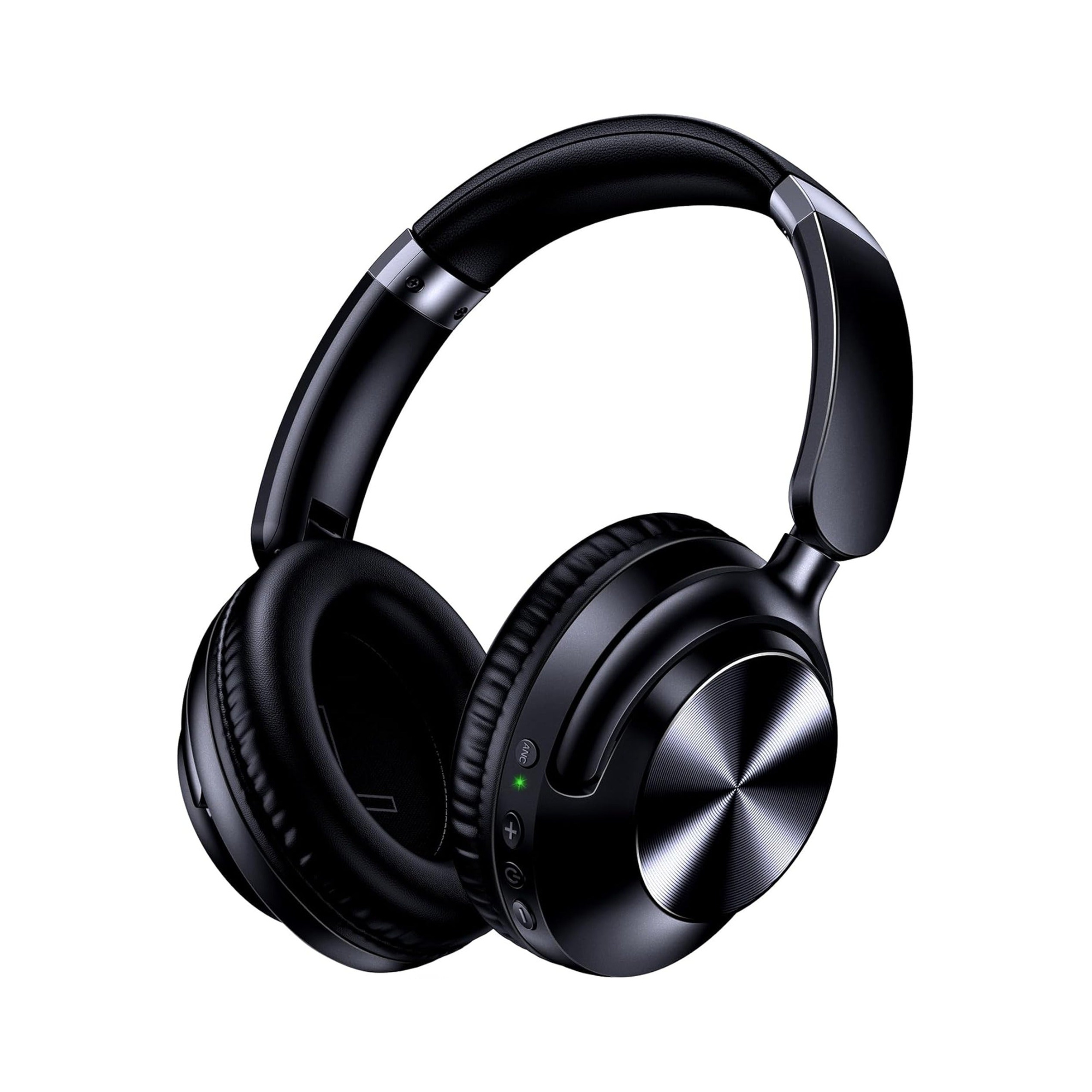
According to the product listing for the EARSOLE Series 127 Noise Cancelling Over-Ear Headphones, the headphones switch between wireless Bluetooth connectivity and a 3.5 mm AUX wired connection using the included 47.2-inch audio cable. The EARSOLE Series 127 listing also states Active Noise Cancellation (stated up to 95% ambient noise reduction), up to 100 hours of playtime on a single charge (with 10 hours of music stated from a 5-minute fast charge), ultra-soft protein leather ear cups that rotate up to 105 degrees, an adjustable headband, and an included travel pouch.
- When your Chromebook’s 3.5 mm jack is healthy: Plug in the included 47.2-inch 3.5 mm AUX cable for direct, battery-free wired listening during exams, language labs, or long study sessions.
- When the 3.5 mm jack is missing or worn loose: Unplug the 3.5 mm cable and pair the Series 127 directly to ChromeOS over Bluetooth—or plug the 47.2-inch 3.5 mm cable into an inexpensive USB-C headset adapter—without buying a new headset.
Option 2: True Wireless Bluetooth 5.4 Earbuds (Bypassing Physical Ports Entirely)
If you use a newer Chromebook without a 3.5 mm jack, commute between classrooms, or want to avoid tugging on side-panel ports altogether, true wireless Bluetooth earbuds connect digitally to every modern Chromebook without cables or dongles.
According to the product listing for the EARSOLE Smart Wireless Earbuds with LCD Touchscreen Case, the earbuds pair a Bluetooth 5.4 wireless connection with a full-color LCD touchscreen charging case that lets you manage music, adjust volume, handle incoming calls, and navigate settings directly from the case in Chinese or English. The listing also specifies ANC + ENC noise reduction (with ANC reducing steady background noise while listening and ENC cleaning up voice calls), a built-in microphone for online meetings, and an in-ear sports design with soft silicone tips, while noting as an honest limitation that no water-resistance rating is listed for this model.
| Chromebook User Scenario | Recommended Audio Setup | Active Connection Path | Why It Fits |
|---|---|---|---|
| Intact 3.5mm Port + Desk & Travel Flexibility | Dual-Mode Over-Ear (EARSOLE Series 127) | 47.2-inch 3.5 mm AUX cable or wireless Bluetooth | Uses the Chromebook’s 3.5 mm jack for zero-battery wired sessions and switches to Bluetooth whenever you unplug |
| USB-C-Only Chromebook or Worn/Loose 3.5mm Jack | True Wireless Earbuds (EARSOLE Smart Wireless Earbuds with LCD Touchscreen Case) | Bluetooth 5.4 wireless + on-case touchscreen controls | Bypasses missing or loose 3.5 mm sockets completely and provides ANC/ENC + built-in mic for video calls |
| Existing 3.5mm Wired Earbuds on a Loose Chromebook Jack | External USB-C-to-3.5mm Audio Adapter + 3.5mm Headphones | USB-C digital output via external DAC adapter | Follows the r/chromeos and Treblab workaround by moving the 3.5 mm connection to a fresh USB port |
Frequently Asked Questions
Does a Chromebook have a 3.5mm headphone or earphone jack?
According to Treblab, most Chromebooks include a traditional round 3.5 mm headphone jack that works with any standard 3.5 mm wired headphones, earbuds, or headset right out of the box without batteries or pairing. However, some newer slim or premium Chromebooks omit the 3.5 mm port and require either USB-C wired headphones/adapters (which use an internal DAC) or wireless Bluetooth headphones.
Why can I only hear background music and no voices through my Chromebook headphone jack?
As documented in r/chromeos (thread 1ejdjjj), hearing background music without vocals—or having audio work only when you spin the 3.5 mm plug to a specific angle—happens when repeated use wears down and loosens the metal-to-metal contacts inside the Chromebook’s 3.5 mm socket. When cleaning the socket does not restore a tight connection, r/chromeos users advise bypassing the worn port with an inexpensive external USB headset adapter or switching to Bluetooth.
How do I connect headphones to a Chromebook if the 3.5mm jack is missing or broken?
If your Chromebook excludes the 3.5 mm port or its 3.5 mm socket is worn loose, Treblab and r/chromeos contributors point to two reliable alternatives: plug your wired 3.5 mm cord into an external USB-C audio adapter, or connect wirelessly over built-in Bluetooth. Dual-mode headphones like the EARSOLE Series 127 let you switch between the included 47.2-inch 3.5 mm AUX cable and wireless Bluetooth, while Bluetooth 5.4 models like the EARSOLE Smart Wireless Earbuds with LCD Touchscreen Case connect wirelessly with ANC/ENC noise reduction and on-case volume and call controls (note that no water-resistance rating is listed for the LCD touchscreen earbud model).
