



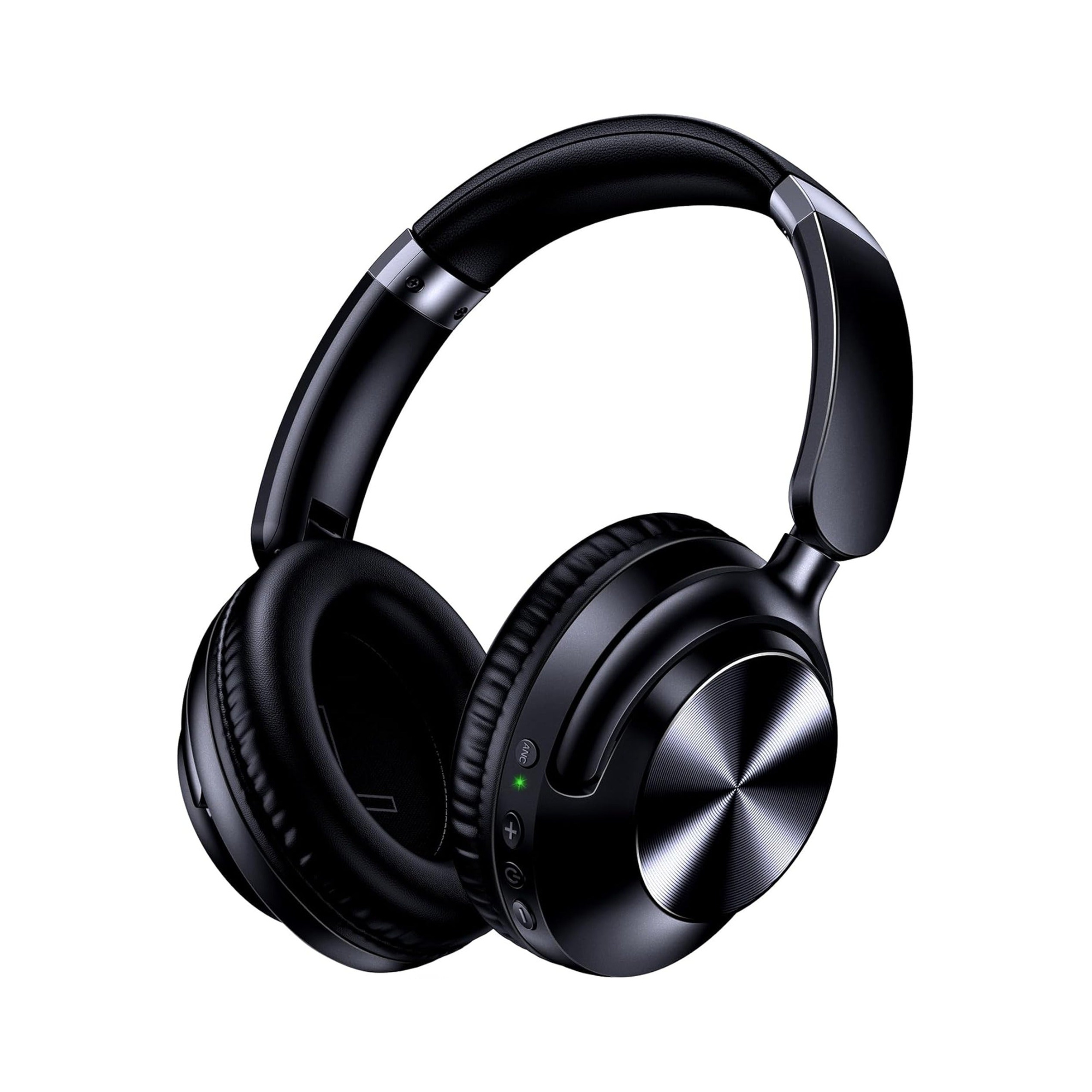
Static or crackling in headphones almost always comes from one of four culprits: a physical connection issue (such as a 3.5 mm plug that is only 90% seated, a dusty jack, or a noisy PC front-panel port), 2.4 GHz wireless or Bluetooth multipoint interference, Windows software processing conflicts (audio enhancements, sample-rate mismatches, or stacked spatial sound), or gain clipping when multiple volume sliders are maxed out. By working from the physical plug and USB port to wireless placement and Windows audio settings—and cross-testing your headphones on a second device—you can pinpoint whether the static lives in the cord, the source port, or the software chain in minutes.
Quick Diagnostic Table: 4 Root Causes of Static Noise in Headphones
When you search for static noise in headphones or wonder why do i hear static in my headphones during a game or call, guessing at random settings wastes time. According to Turtle Beach’s headset static and crackling troubleshooting guide, crackling comes from interrupted or distorted audio signals that fall into four root-cause categories—physical connections, wireless interference, software processing, or hardware damage—and a loose or damaged cable is the single most common cause, where even a 3.5 mm plug that is 90% inserted can create crackling, intermittent drops, or one-sided audio.
Use this four-category diagnostic table to match what you hear to the fastest fix:
| Root-Cause Category | What the Static Sounds Like | Common Triggers (Turtle Beach & r/techsupport) | First Fix to Try |
|---|---|---|---|
| 1. Physical Connections (3.5mm & USB Ports) | Scratchy pops when moving the cord, one-sided audio, or buzzing that changes between front and rear PC jacks | 3.5 mm plug only 90% inserted, dust in the jack, frayed detachable cord, or noisy PC front-panel / USB hub power | Firmly reseat the 3.5 mm plug, clear jack dust with dry compressed air, swap detachable cables, or switch PC rear/front ports |
| 2. Wireless & Bluetooth Interference | Stuttering, rhythmic crackling, or brief dropouts when walking away or using two paired devices | 2.4 GHz Wi-Fi routers, microwave ovens (~2.45 GHz), nearby USB peripherals, low-bitrate SBC compression, or multipoint bandwidth contention | Move wireless USB dongles away from routers/rear clutter, disconnect the second multipoint device, or switch to a wired 3.5 mm fallback |
| 3. Software Processing & Gain Clipping | Crackling that starts only when launching a PC game or during loud explosions and bass hits | Windows audio enhancements (bass boost, virtual surround, loudness equalization), sample-rate mismatch, stacked Spatial Sound, or maxed-out volume sliders | Disable all Windows audio enhancements, set format to 24-bit / 48000 Hz, turn off duplicate Spatial Sound, and set system volume to 70–80% |
| 4. Hardware Damage | Constant static or driver rattle on every phone, tablet, and PC even after swapping cables | Internal cable break, worn speaker driver, or failing wireless module | Cross-test on a second device; if crackling follows the headset everywhere after a reset, replace the cable or headset |
Fix 1 & 2: Check Physical 3.5mm Seating, Detachable Cables, and Noisy PC Front-Panel Ports
Before changing drivers or system settings, start at the physical plug. To fix physical connection static, Turtle Beach recommends unplugging the headset cable and plugging it back in firmly until it seats all the way, inspecting the plug for visible fraying, bent connectors, or corrosion, trying a different cable if the headset uses a detachable cord, clearing built-up dust from the headphone jack with compressed air, and switching USB headsets away from front-panel ports or cheap hubs that deliver inconsistent power. (Never spray liquid cleaners into an audio jack; stick to dry compressed air.) If you are checking connector rings on a 3-pole or 4-pole cord, see our 3.5mm TRS vs TRRS connector guide.
Isolating PC Front-Panel vs Rear Motherboard Electrical Static
Sometimes your headphones play clean audio on your phone or in a lightweight desktop app, but burst into loud static the moment your PC graphics card and power supply ramp up inside a 3D game. In an r/techsupport thread asking why headphones make a static sound, commenters troubleshooting PC headphone static suggest switching to the front port or testing with cheap earbuds or a pair of USB headphones to check whether motherboard capacitor or electrical/impedance noise is the issue, while a Bluetooth headphone user reports fixing the static by moving the USB dongle to another USB port.
Follow this step-by-step physical isolation sequence:
- Seat the 3.5 mm barrel 100% flush: Unplug the connector, inspect the metal tip, ring, and sleeve for lint or oxidation, blow out the jack with dry compressed air, and push the plug back in until it clicks firmly against the housing.
- Swap between PC front-panel and rear motherboard ports: If your 3.5 mm cord is plugged into the rear motherboard jack and picks up GPU/capacitor whine under game load, test the front-panel jack—or vice versa if the unshielded front-panel wire inside your PC case is picking up electrical interference.
- Move USB headsets or Bluetooth dongles to a direct port: Unplug USB headsets or wireless transceivers from unpowered USB hubs or noisy front headers and test multiple direct motherboard USB ports.
- Test with a detachable 3.5 mm AUX cable: According to the product listing for the EARSOLE Series 127 Noise Cancelling Over-Ear Headphones, the headphones switch between wireless Bluetooth connectivity and a 3.5 mm AUX wired connection using the included 47.2-inch audio cable. Having both a detachable 47.2-inch 3.5 mm cable and wireless Bluetooth built into one headset lets you immediately test whether static is coming from a specific 3.5 mm jack or cable without swapping headsets.
Fix 3 & 4: Stop 2.4 GHz Wireless & Bluetooth Crackling (Routers, SBC Codec & Multipoint)
If you hear headset crackling or static on wireless or Bluetooth headphones, the culprit is usually radio congestion or bandwidth sharing rather than a physical wire. Turtle Beach explains that wireless and Bluetooth headsets operate on the shared 2.4 GHz ISM band—where 2.4 GHz Wi-Fi routers, nearby Bluetooth devices, microwave ovens broadcasting around 2.45 GHz, and wireless keyboards or mice can cause interference—while Bluetooth headsets can also crackle from low-bitrate SBC codec compression, distance-related packet loss, or multipoint connections where two paired devices compete for bandwidth.
Use these four adjustments to clean up wireless and Bluetooth audio:
- Reposition your wireless USB dongle: If your headset uses a 2.4 GHz or Bluetooth USB dongle plugged right next to a wireless mouse receiver or Wi-Fi antenna, move it to a different USB port (as recommended in r/techsupport thread 167qrpf) or use a short USB extension cable to give the dongle a clear line of sight away from your router.
- Disconnect competing multipoint devices: When Bluetooth headphones are paired to both a laptop and a phone simultaneously, incoming notifications or background polls on the second device can starve the audio stream of bandwidth and cause stuttering. Temporarily disconnect the second device when gaming or on calls.
- Shorten the distance and clear obstacles: Stay within clean range of your phone or PC so Bluetooth packet loss does not force the codec to drop bitrates.
- Compare Bluetooth 5.4 wireless against a wired connection: According to the product listing for the EARSOLE Smart Wireless Earbuds with LCD Touchscreen Case, the earbuds pair a Bluetooth 5.4 wireless connection with a full-color LCD touchscreen charging case that manages music, volume, incoming calls, and settings directly from the case, alongside ANC + ENC noise reduction and soft silicone tips, while noting that no water-resistance rating is listed for this model. If your environment has heavy 2.4 GHz router congestion at your desk, switching between Bluetooth 5.4 wireless earbuds on the move and the 47.2-inch 3.5 mm wired mode on the EARSOLE Series 127 at your PC gives you an interference-free fallback.
Fix 5, 6 & 7: Disable Windows Audio Enhancements, Match 24-Bit/48000 Hz & Prevent Gain Clipping
When your physical plug and wireless signal are clean but static still appears in Windows games, Discord, or media players, software audio processing or digital gain clipping is almost always to blame. On Windows PCs, Turtle Beach advises disabling Windows audio enhancements (such as bass boost, virtual surround, and loudness equalization), setting the output sample rate to 24-bit, 48000 Hz to prevent resampling pops, turning off Windows Spatial Sound (Windows Sonic, Dolby Atmos, DTS) if your game or headset already handles spatial audio, and keeping system volume around 70–80% with in-game audio at 80–100% so stacked gain does not clip during loud moments.
Work through these final three fixes in order:
- Fix 5 — Disable Windows Audio Enhancements, set 24-bit/48000 Hz, and unstack Spatial Sound: Right-click the speaker icon in your Windows taskbar, open Sound Settings, select your headphones, and open Properties > Advanced / Enhancements. Uncheck all enhancements (or check Disable all enhancements), set the default format to 24-bit, 48000 Hz, and turn off Windows Spatial Sound whenever your game or headset app already runs its own spatializer.
- Fix 6 — Lower stacked volume sliders to stop gain clipping: Running Windows system volume, in-game master volume, and headset volume at 100% simultaneously pushes peaks past 0 dBFS, creating harsh crackling during explosions or bass drops. Set Windows system volume to 70–80% and adjust in-game volume between 80–100%.
- Fix 7 — Cross-test on a second device and reset/re-pair: Plug your wired headphones into a phone or tablet, or pair your Bluetooth headphones with a second device. For wired headsets, unplug for 30 seconds and reconnect; for wireless dongles, power off the headset and unplug the dongle for 30 seconds; for Bluetooth headsets, forget the device in Bluetooth settings and pair again from scratch. If the static disappears on your phone, your headphones are healthy and the issue is isolated to your PC port or settings. If crackling persists across every device after swapping cables and resetting, the internal speaker driver or wiring may be physically damaged.
Frequently Asked Questions
Why do I hear static in my headphones when I launch a game on PC?
In r/techsupport (thread 167qrpf), commenters note that static that ramps up when launching a PC game can come from motherboard capacitor or electrical/impedance noise on a specific audio port—which you can isolate by switching between rear and front ports, testing a USB audio connection, or moving a Bluetooth USB dongle to a different USB port—while Turtle Beach also recommends disabling Windows audio enhancements, setting the format to 24-bit, 48000 Hz, turning off stacked Windows Spatial Sound, and keeping system volume at 70–80% to avoid gain clipping.
Can a partially plugged-in 3.5mm headphone jack cause static or crackling?
Yes—according to Turtle Beach, a loose or damaged cable is the single most common cause of headset static, and even a 3.5 mm plug that is 90% inserted can cause crackling, intermittent audio drops, or one-sided sound. Unplugging and firmly reseating the 3.5 mm connector, clearing dust from the jack with compressed air, or swapping a detachable cord (such as the 47.2-inch 3.5 mm AUX cable included with the dual-mode EARSOLE Series 127 over-ear headphones) quickly isolates whether the cord or jack is at fault.
Why are my Bluetooth headphones crackling when connected to two devices?
According to Turtle Beach, Bluetooth headsets can crackle or stutter due to 2.4 GHz band interference (from Wi-Fi routers, microwave ovens around 2.45 GHz, and nearby wireless peripherals), low-bitrate SBC codec compression, distance packet loss, or multipoint connections where two simultaneously paired devices compete for bandwidth. Disconnecting the second device, moving closer to your audio source, or forgetting and re-pairing your Bluetooth 5.4 earbuds (such as the EARSOLE Smart Wireless Earbuds with LCD Touchscreen Case, which also manage volume, music, calls, and settings from the case; note no water-resistance rating is listed) resolves multipoint and wireless dropouts.
