



To connect wired headphones to a Mac, MacBook Air, or MacBook Pro, plug the 3.5 mm audio connector firmly into your computer’s 3.5 mm headphone jack (or plug a 3.5 mm-to-USB-C adapter into a Thunderbolt/USB-C port) and verify that your headphones are selected under System Settings > Sound > Output. If your headphones are plugged in but sound keeps playing from your Mac’s built-in speakers, disconnecting active Bluetooth audio devices in Control Center and clearing pocket lint from the 3.5 mm port with compressed air resolves the majority of detection hiccups in minutes.
Connecting 3.5mm Wired Headphones to a MacBook Air, MacBook Pro, or Desktop Mac
Because Apple removed the 3.5 mm port from iPhones and iPads years ago, many laptop shoppers searching for how to connect wired headphones to mac or asking does macbook air have headphone jack are surprised to learn that MacBook Air, MacBook Pro, iMac, Mac mini, and Mac Studio models continue to include a dedicated 3.5 mm headphone jack on the side or back of the chassis. You do not need to install third-party audio drivers to use standard 3.5 mm wired earphones or over-ear headphones on macOS.
In an r/macbookpro discussion on using wired earphones with a MacBook, when a user asks whether Apple’s wired earphones will work with a MacBook, commenters confirm that they work if the MacBook has a headphone jack (or through a 3.5 mm to USB-C connector), though if you use really old ones the controls on the cord won’t work.
Step-by-Step: Plugging Wired Headphones Into Your Mac
- Locate your Mac’s 3.5 mm audio port: Check the left or right edge of your MacBook Air or MacBook Pro (or the rear/front I/O panel on an iMac, Mac mini, or Mac Studio) for the circular 3.5 mm headphone jack.
- Seat the 3.5 mm plug completely: Push the 3.5 mm barrel straight into the jack until it clicks flush against the casing. A partially inserted plug can leave the tip and ring contacts misaligned, causing audio to play in only one ear or fail to trigger macOS jack detection.
- Or connect via a 3.5 mm-to-USB-C adapter: If your 3.5 mm port is occupied by external desktop speakers, or if you prefer routing audio through a USB-C port, plug a 3.5 mm-to-USB-C adapter into any available USB-C port on your MacBook.
- Adjust volume from the macOS menu bar or keyboard: If you are using an older pair of wired earphones whose inline cord remote buttons do not register on macOS, use the physical F10 / F11 / F12 volume keys on your MacBook keyboard or the Sound slider in the top-right Control Center menu.
| Wired Connection Path on Mac | Port Used on MacBook / Desktop Mac | macOS Sound Output Label | Inline Cord Remote & Mic Notes | Best Use Case |
|---|---|---|---|---|
| Direct 3.5 mm AUX / Headphone Plug | Built-in 3.5 mm headphone jack | External Headphones | Standard stereo TRS cables carry audio-only (Mac uses its internal mic); really old inline cord controls may not respond | Everyday zero-latency desk listening, video editing, and calls |
| 3.5 mm to USB-C Adapter | USB-C / Thunderbolt port | USB-C Headphone Adapter / USB Audio | Depends on the USB-C adapter’s internal DAC and TRRS wiring | Backup connection when the 3.5 mm jack is occupied or being serviced |
| Dual-Mode Over-Ear Headphones (3.5 mm Cable) | Built-in 3.5 mm headphone jack via included AUX cord | External Headphones | Unplugs to switch back to wireless Bluetooth for mobile use | Switching between wired Mac desk work and wireless travel |
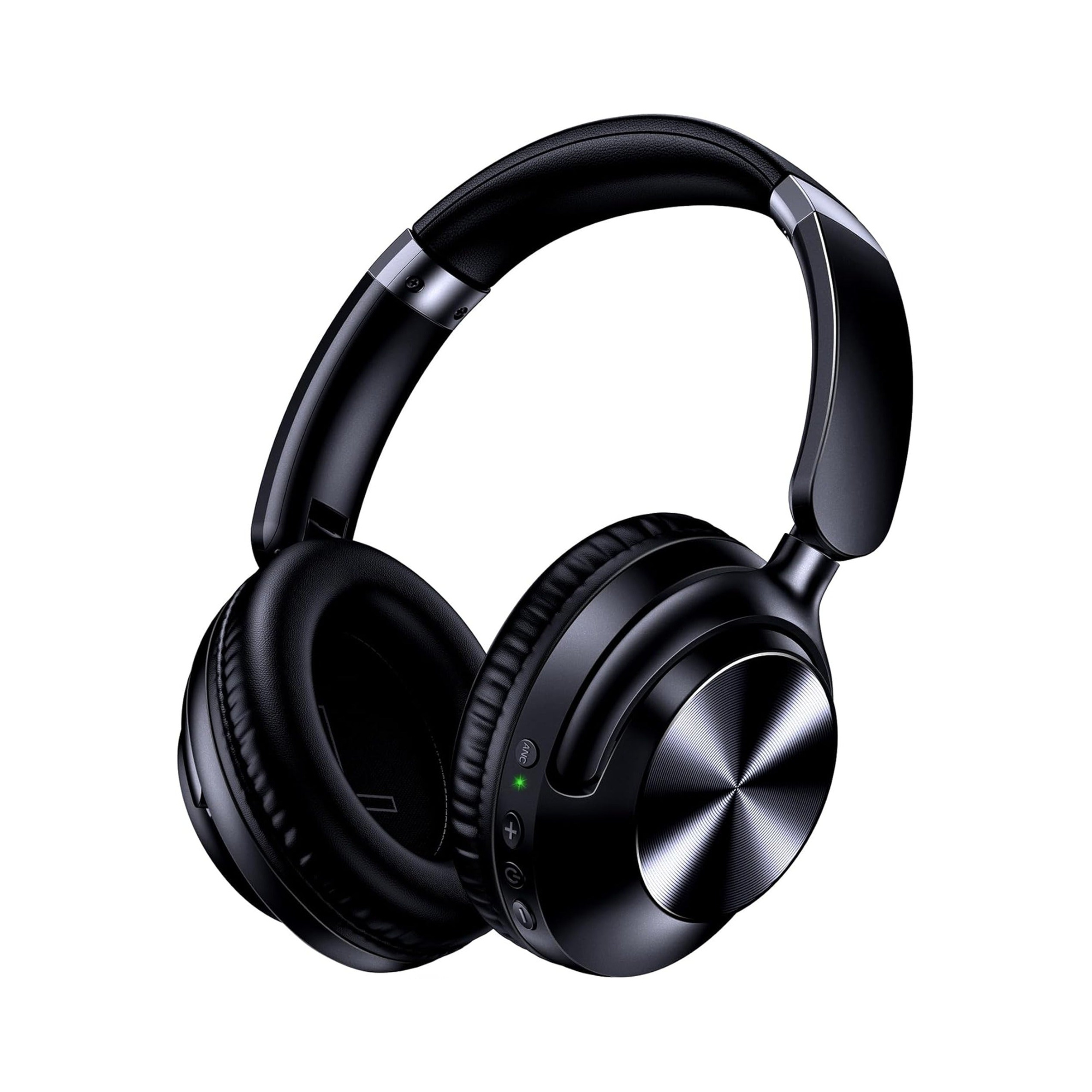
For Mac users who want a single pair of over-ear headphones that plugs straight into a MacBook’s 3.5 mm jack at a desk and converts to wireless Bluetooth when walking away from the computer, dual-mode headphones eliminate adapter clutter. According to the product listing for the EARSOLE Noise Cancelling Over-Ear Headphones, Wireless & Wired – Series 127, the over-ear headphones switch between wireless Bluetooth connectivity and a 3.5 mm AUX wired connection using the included 47.2-inch audio cable. The EARSOLE Series 127 listing also states Active Noise Cancellation (reducing up to 95% of ambient noise), up to 100 hours of playtime on a single charge (with 10 hours of music from a 5-minute charge), ultra-soft protein leather ear cups that rotate up to 105 degrees, an adjustable headband, and a travel pouch.
If you also switch your wired or dual-mode headphones between a Mac and a Windows workstation, see our computer headset and PC audio setup guide for tips on managing separate desktop output and microphone jacks.
Why Sound Still Comes From Your Mac’s Speakers: Sound Output & Bluetooth Priority
One of the most frequent frustrations behind mac headphone jack not working searches happens when you plug a working pair of 3.5 mm headphones into your MacBook, press play on a video or call, and hear the audio booming out of the laptop’s built-in speakers instead.
According to Asurion’s guide on fixing a Mac headphone jack that isn’t working, when your headphones are plugged in but sound is still coming from your Mac’s speakers (or there is no sound at all), common causes include incorrect audio output settings, a stuck Bluetooth connection, debris inside the headphone jack, temporary software glitches, macOS audio settings issues, or hardware damage to the port. Before blaming the Mac’s port, Asurion also recommends trying another pair of headphones first to rule out a fault with the headphones themselves, and unplugging and reconnecting the cable to reset the audio output.
Fix 1 & Fix 2: Check macOS Sound Output and Disconnect Competing Bluetooth Devices
As Asurion explains, sometimes your Mac recognizes the headphones but keeps sending audio to another device: to fix this, open System Settings > Sound, look under Output for your headphones, and select them as the active audio device; additionally, because your Mac may be connected to Bluetooth earbuds, speakers, or a soundbar without you realizing it, open Control Center or Bluetooth Settings to temporarily disconnect any connected audio devices, then unplug and reconnect your headphones.
Here is how to verify both settings in less than thirty seconds on macOS:
- Click the Apple menu () > System Settings: Scroll down the left sidebar and click Sound.
- Inspect the Output device table: Look under the Output & Input section with the Output tab selected. If MacBook Air Speakers (or an external monitor/Bluetooth speaker) is highlighted, click External Headphones (or Headphones) to make your 3.5 mm jack the active output device, and verify that the Output volume slider is turned up and not muted.
- Check Control Center for active Bluetooth audio links: Click the Control Center icon (two toggles) in the top-right menu bar and click Bluetooth or Sound. If a pair of wireless earbuds in another room or a living-room Bluetooth soundbar auto-connected to your Mac, click it to disconnect, then unplug your 3.5 mm headphone cable and plug it back in.
- Verify app-specific audio output menus: If system sounds play through your wired headphones but Zoom, Microsoft Teams, Discord, or digital audio workstations still route audio to your Mac speakers, open that application’s internal Audio Settings menu and set its Speaker/Output dropdown to Same as System or External Headphones.
Cleaning Lint From the Mac 3.5mm Jack & Resetting macOS Audio
If your wired headphones do not show up under System Settings > Sound > Output at all, or if the plug feels spongy rather than clicking crisply into place, physical debris inside the port or a stuck macOS audio state is usually responsible.
Fix 3: Inspect the 3.5 mm Port and Clear Debris Safely
According to Asurion, headphone jacks collect more dust and lint than most people realize, and even a small amount of lint can prevent your headphones from making a proper connection; to inspect and clean the port, shine a flashlight into the headphone jack to look for debris, use compressed air to clear out any buildup, and avoid metal tools that could damage the contacts inside.
Why is avoiding metal pins, paperclips, or needles so important? Inside your Mac’s 3.5 mm socket are delicate spring-loaded contact leaves that detect when a headphone plug is inserted and carry the left, right, ground, and microphone signals. Scraping the port with a metal object can bend or snap those tension contacts permanently. Short bursts of compressed air held just outside the port opening safely dislodge pocket lint without stressing the internal contacts.
Fix 4 & Fix 5: Restart Your Mac or Reset macOS Audio Settings (Apple Silicon vs. Intel)
When the port is clean and your headphones work on another device, a software reset clears stuck audio routing states. According to Asurion, restarting your Mac resets the audio system and clears temporary software glitches that can interfere with headphone detection; if your Mac still is not recognizing headphones, you can reset your Mac’s audio settings on Intel-based Macs by shutting down, turning the Mac back on, and immediately holding Option + Command + P + R for about 20 seconds before releasing, or on Apple silicon Macs (M1, M2, M3, and newer) by shutting down the Mac, waiting 30 seconds, and turning it back on to refresh system settings.
| Symptom When Plugging Wired Headphones Into a Mac | Most Likely Cause | Recommended Fix (Per Asurion & r/macbookpro) |
|---|---|---|
| Headphones appear in Sound settings, but audio plays from Mac speakers | Built-in speakers or another output is still selected | Open System Settings > Sound > Output and select your headphones as the active audio device |
| Audio routes to another room or switches away from the 3.5 mm jack | Stuck or background Bluetooth audio connection | Open Control Center or Bluetooth Settings, disconnect Bluetooth earbuds/speakers/soundbars, then unplug and reconnect |
| Plug feels soft and headphones never appear in Sound > Output | Pocket lint or dust blocking the internal 3.5 mm contacts | Shine a flashlight into the jack and clear buildup with compressed air (never use metal tools) |
| Port is clean, but macOS ignores newly plugged-in headphones | Temporary software or macOS audio settings glitch | Restart the Mac; if needed, wait 30 seconds while shut down on Apple silicon (M1/M2/M3+) or hold Option + Command + P + R for 20 seconds on Intel Macs |
| Audio works, but cord buttons do not change volume | Very old inline remote cord electronics | Normal on really old wired earphones per r/macbookpro; adjust volume using Mac keyboard keys or Control Center |
| Audio cuts in and out or only works when holding the cord at an angle | Worn headphone cable or physical port damage | Test with another pair of headphones (or switch a dual-mode headset like EARSOLE Series 127 to Bluetooth) and inspect for hardware damage |
Fix 6: Spot Signs of Physical Port Damage (And Use a Dual-Mode Backup)
Asurion notes that if you have tried all software and cleaning steps and your Mac still will not recognize headphones, common signs that the port itself may be damaged include audio cutting in and out, sound only working at certain angles, headphones not appearing in Sound settings, or a visibly loose or damaged port.
When a MacBook’s 3.5 mm port has physical wear, having a dual-mode headset like the EARSOLE Series 127 Over-Ear Headphones gives you an immediate backup: you can unplug the 47.2-inch 3.5 mm AUX cable and pair the headphones over wireless Bluetooth while you arrange a port inspection, or plug the 3.5 mm cable into a USB-C audio adapter on another port.
Frequently Asked Questions
Will standard 3.5mm wired headphones or Apple earphones work on a MacBook?
In r/macbookpro (thread u5jfiy), MacBook users confirm that Apple wired earphones and standard 3.5 mm headphones work directly if the MacBook has a headphone jack (or with a 3.5 mm to USB-C connector), though if you use really old earphones the controls on the cord won’t work. You can also connect dual-mode over-ear models such as the EARSOLE Series 127 directly to your Mac’s 3.5 mm port using the included 47.2-inch 3.5 mm AUX audio cable.
Why is my Mac not recognizing my wired headphones when plugged in?
According to Asurion, the most common causes when a Mac won’t recognize headphones or keeps playing sound from the built-in speakers are incorrect sound settings (where the built-in speakers remain selected in System Settings > Sound > Output), Bluetooth conflicts from connected earbuds or speakers, debris in the headphone jack, or temporary software issues. Selecting your headphones under System Settings > Sound > Output, disconnecting active Bluetooth audio devices in Control Center, and restarting the Mac resolves most software routing conflicts.
How do I safely clean dust or lint out of a Mac headphone jack?
According to Asurion, you should shine a flashlight into the headphone port to look for debris and use compressed air to clear out any pocket lint or dust, while avoiding metal tools that could damage the contacts inside. Even a small amount of lint inside the 3.5 mm jack can stop the headphone plug from making a proper connection.
