Figuring out how to use headset mic on pc—or how to use earphone with mic on pc—usually trips people up for one simple reason: desktop PCs and laptops wire their 3.5mm audio jacks differently. If you plug a single-cord headset into a desktop tower’s green headphone port, you will hear game audio perfectly, yet your voice chat microphone won’t register at all. Conversely, if you have a modern laptop with a single 3.5mm port, buying the wrong kind of audio splitter can actually prevent your headset mic from working.
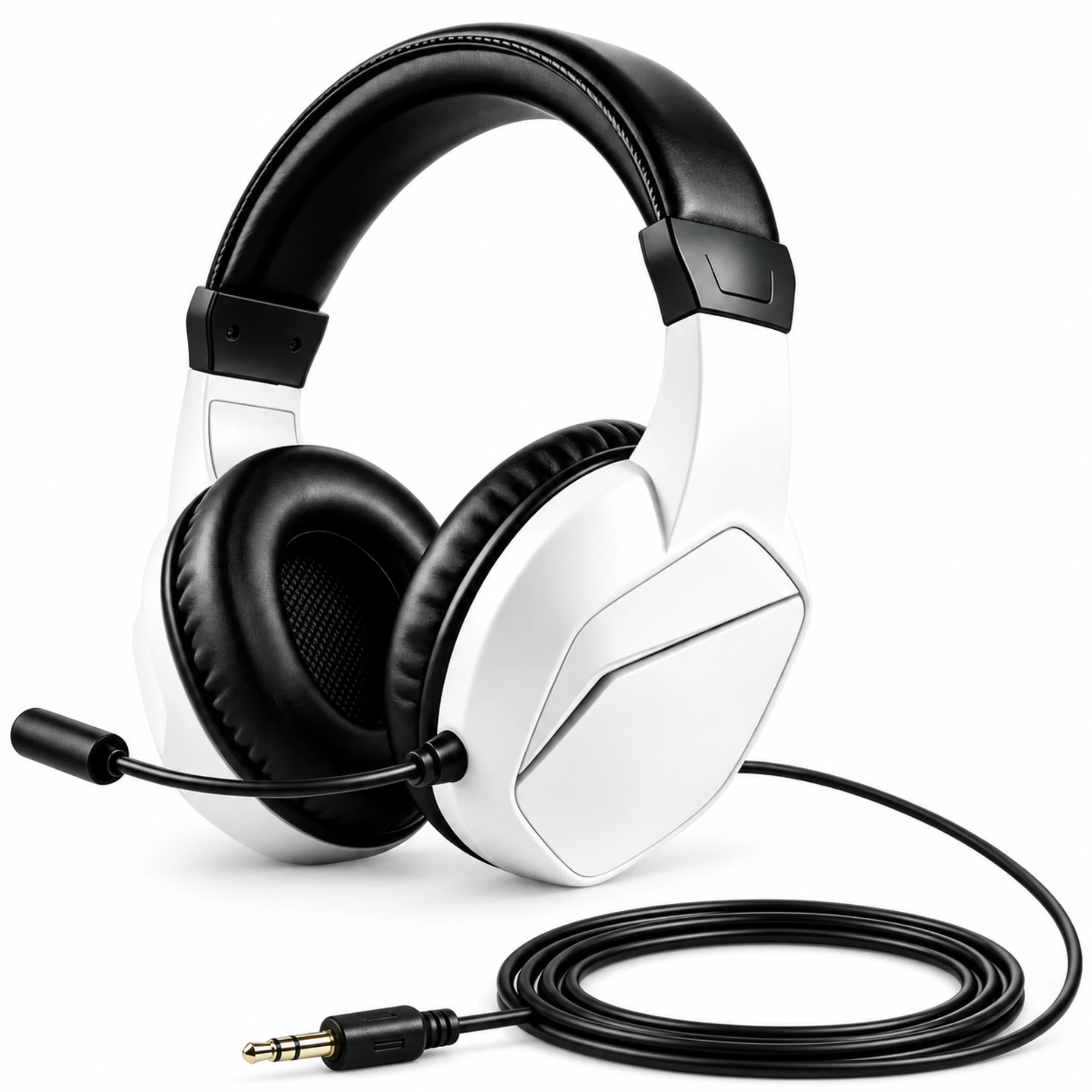
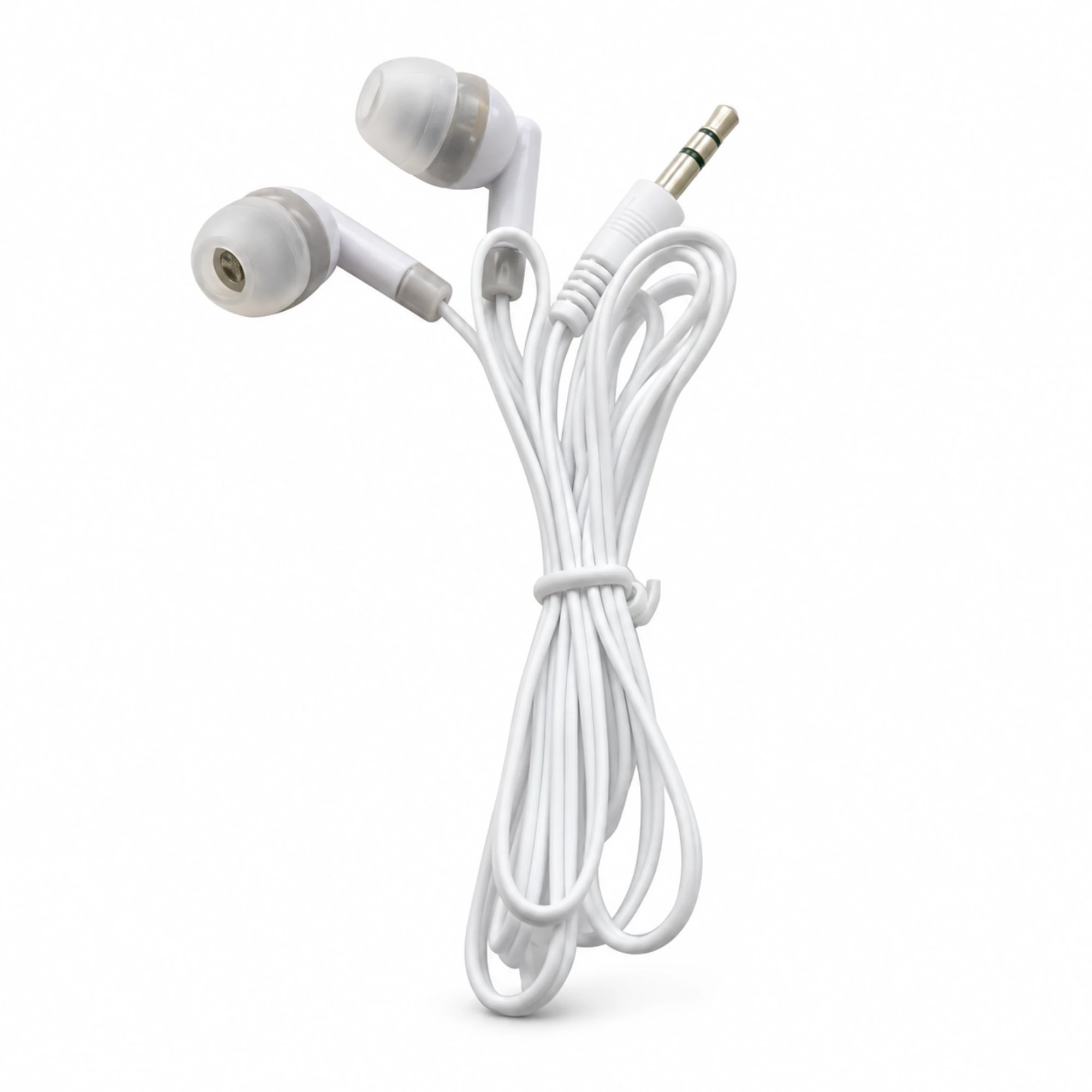
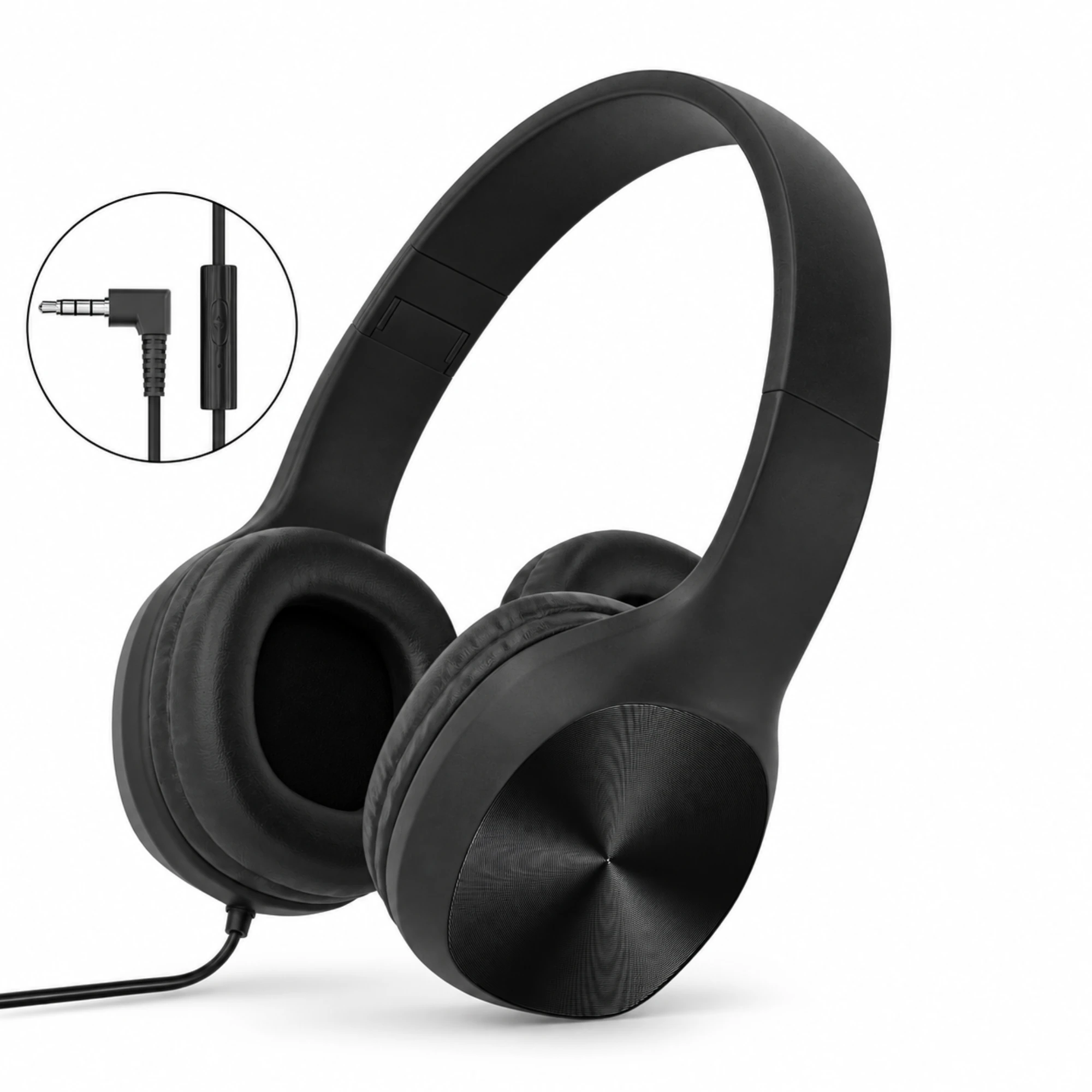
Below, we break down the difference between 3-pole TRS and 4-pole TRRS connectors (which we also explore in our dedicated TRS vs TRRS headphone jack guide), solve the single-jack laptop dilemma from r/PcBuild, and show how wired and dual-mode headsets like the EARSOLE Black Wired Headphones with Inline Control, EARSOLE Wireless Gaming Headset with Boom Microphone, and EARSOLE White 3.5 mm Wired Earbuds connect to your PC setup.
Why Some PCs Have One Combo Audio Jack While Others Have Separate Pink and Green Ports
To understand why your microphone works in one port and not another, look closely at the metal tip of your headphone plug and count the black insulating rings (or shiny metal contact bands). According to Wikipedia’s Phone connector (audio) reference, phone connectors are named by their number of rings and contacts: a 3-contact TRS (tip-ring-sleeve) connector is typically used for stereo audio, whereas a 4-contact TRRS (tip-ring-ring-sleeve) connector is used for a stereo headset with a mono microphone, with the sleeve serving as the common ground reference.
Computer manufacturers use those two connector standards in two distinct port layouts:
- Desktop PC Separate TRS Ports (Green + Pink): Most desktop motherboards and rear I/O panels split audio into two 3-contact TRS sockets—a lime-green stereo output jack (Tip = Left audio, Ring = Right audio, Sleeve = Ground) and a pink microphone input jack (providing low-voltage DC bias power for an electret microphone). Plugging a 4-pole headset plug into the green port alone leaves the microphone contact unconnected.
- Laptop & Front-Panel 4-Pole TRRS Combo Jack (Single Headset Icon): Most modern laptops (and many newer PC case front panels) combine stereo output and mic input into a single 4-conductor TRRS headset socket marked with a tiny headset-with-mic icon.
Will a 3.5mm Audio Splitter Make a Headset Mic Work on a Laptop? (r/PcBuild Breakdown)
Because “audio splitter” is used to describe three completely different cables online, buyers frequently order the wrong adapter. In r/PcBuild (thread 1ryuwzg, “Will this audio splitter make headset mic work on my laptop?”), a gamer asks: “Im a gamer and i want to use headphones for listening and the microphone too. But my laptop only has one audio jack. I saw that Audio splitter thing online but im unsure if it will work with mic because people said that the microphone wont work even if i use that splitter 🥹🥹🥹 apparently i need to buy a USB type splitter like that. But i cant do that as my laptop only had 2 usb ports (already occupied by my mouse and keyboard)”
A responder in r/PcBuild (thread 1ryuwzg) points to the first check every laptop owner must make—“is the audio jack on your laptop even a combo jack?”—while in r/pchelp (thread 1o4148h), a desktop user with a single front combo jack notes that plugging in a cable triggers a Realtek Audio Console pop-up asking what device was plugged in (“Line in,” “Mic in,” “headphone,” or “speaker out”).
Here is how to match your exact PC port to your headset cable without wasting money or USB ports:
| Your Computer’s 3.5mm Port Layout | Your Headset / Earphone Plug | What Adapter (If Any) You Need | Important Windows Setting |
|---|---|---|---|
| Single 3.5mm Combo Jack (Headset Icon on Laptop or Case Front) | Single 4-pole TRRS plug (headset with inline or boom mic) | No splitter needed! Plug directly into the combo jack | In Realtek Audio Console, select “Headset” (not “Headphone”) when the pop-up asks what you plugged in |
| Single 3.5mm Combo Jack (Laptop or Case Front) | Two separate 3-pole TRS plugs (one green headphone + one pink mic, or separate IEM + lapel mic) | TRRS Combiner Adapter (1 male 4-pole TRRS plug to 2 female mic/headphone jacks) | Select “Headset” in Realtek Audio Console and verify Mic Input in Windows Sound Settings |
| Two Separate Desktop Ports (Green Out + Pink Mic In) | Single 4-pole TRRS plug (earphones or headset with mic on one cord) | Headset Y-Splitter Cable (1 female 4-pole TRRS jack to 2 male 3-pole TRS plugs: Pink + Green) | Set Windows Input to Rear/Front Pink Mic In (never use a 2-headphone music-sharing splitter, which drops the mic channel) |
| Single Headphone-Only TRS Jack (Older Laptop) + Full USB Ports | Any headset with microphone | Use a Bluetooth wireless headset or add a compact USB hub + USB audio DAC | Select the Bluetooth Hands-Free or USB Audio device as your Input in Windows Sound Settings |
Crucial Windows Setting: Pick “Headset” Instead of “Headphone” in Realtek Pop-Ups
Even when you plug a 4-pole headset directly into a laptop combo jack without a splitter, Windows will ignore your headset mic if the Realtek Audio Console thinks you plugged in standard 3-pole stereo headphones. Open Realtek Audio Console (or MaxxAudio Pro on Dell laptops), click the connector settings, and change the jack assignment from Headphone to Headset (with microphone).
Setting Up Wired Headsets & Inline-Control Earbuds on PC (3.5mm vs Bluetooth)
When choosing headphones or earbuds for PC calls, gaming, or desk work, always check whether the model uses an inline control cable, a boom microphone with dual Bluetooth/3.5mm connectivity, or a pure stereo audio cord:
- Folding On-Ear Wired Headphones with Inline Control: According to the EARSOLE Black Wired Headphones with Inline Control listing, the folding headphones feature round earcups with concentric surface detailing, an inline control, and a right-angle 3.5 mm plug. The right-angle 3.5mm plug on the EARSOLE Black Wired Headphones with Inline Control sits flush against a laptop’s side combo port without sticking straight out into your mouse hand.
- Dual-Mode Boom-Mic Gaming Headset (Bluetooth + 3.5mm Cable): If your laptop has limited USB ports (like the 2-USB-port laptop in r/PcBuild thread 1ryuwzg) or you want to switch between wireless and 3.5mm connections, look at the EARSOLE Wireless Gaming Headset with Boom Microphone. According to the EARSOLE Wireless Gaming Headset with Boom Microphone listing, the white and black gaming headset includes a boom microphone and padded earcups, with the supplier listing both Bluetooth and wired listening options using a 3.5 mm plug cable.
- Audio-Only 3.5mm Earbuds (When Using a Separate Desk or Laptop Mic): According to the EARSOLE White 3.5 mm Wired Earbuds listing, the wired earbuds use soft in-ear tips and a straight 3.5 mm plug for devices with a compatible headphone output. Because the EARSOLE White 3.5 mm Wired Earbuds listing describes a straightforward 3.5mm stereo audio connection without an inline microphone, pair them with your laptop’s built-in array mic or a standalone desktop microphone while using the earbuds for clean stereo monitoring.
Frequently Asked Questions
Do you need a 3.5mm splitter if your laptop only has one headphone jack?
If your headset has a single 3.5mm cord with a 4-pole TRRS plug and your laptop’s single port is a TRRS combo jack (marked with a headset icon), you do not need a splitter—plug the headset directly into the laptop and select “Headset” in your Realtek Audio Console pop-up (r/PcBuild thread 1ryuwzg; r/pchelp thread 1o4148h). You only need a combiner adapter on a single-jack laptop if your headset terminates in two separate pink and green plugs.
When do you need a 3.5mm Y-splitter to use a headset mic on a desktop PC?
You need a 4-pole TRRS female to dual 3-pole TRS male (Pink Mic + Green Headphone) Y-splitter when your headset or inline-control earphones have a single 4-pole plug (Wikipedia Phone connector) and your desktop PC has separate pink microphone and green headphone sockets.
What if your laptop’s single 3.5mm jack is headphone-only and all USB ports are full?
If your laptop’s 3.5mm port only supports 3-pole stereo output and both USB ports are occupied by your mouse and keyboard (as described in r/PcBuild thread 1ryuwzg), you can either connect a Bluetooth-capable headset like the EARSOLE Wireless Gaming Headset with Boom Microphone wirelessly or plug a simple 4-port USB hub into one USB port to free up space for a USB audio adapter.