When you have a laptop headphone jack not working—or a headphone jack on laptop not working after a recent reboot—your computer usually fails in one of two ways: either you plug in your 3.5mm cord and audio keeps blasting out of the laptop speakers (which we also cover in our guide to headphones plugged in with sound coming from speakers), or the 3.5mm port disappears from Windows sound settings altogether.
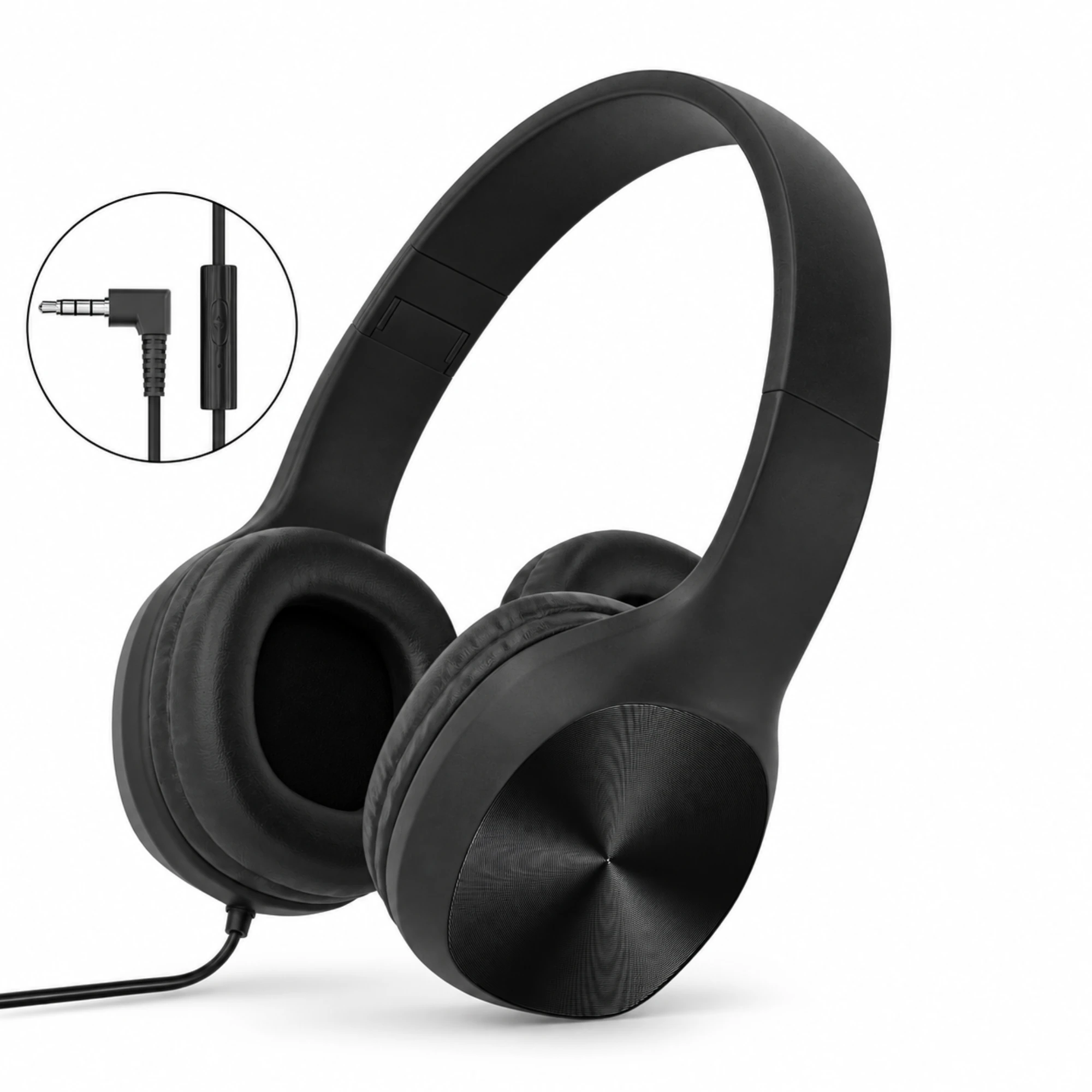
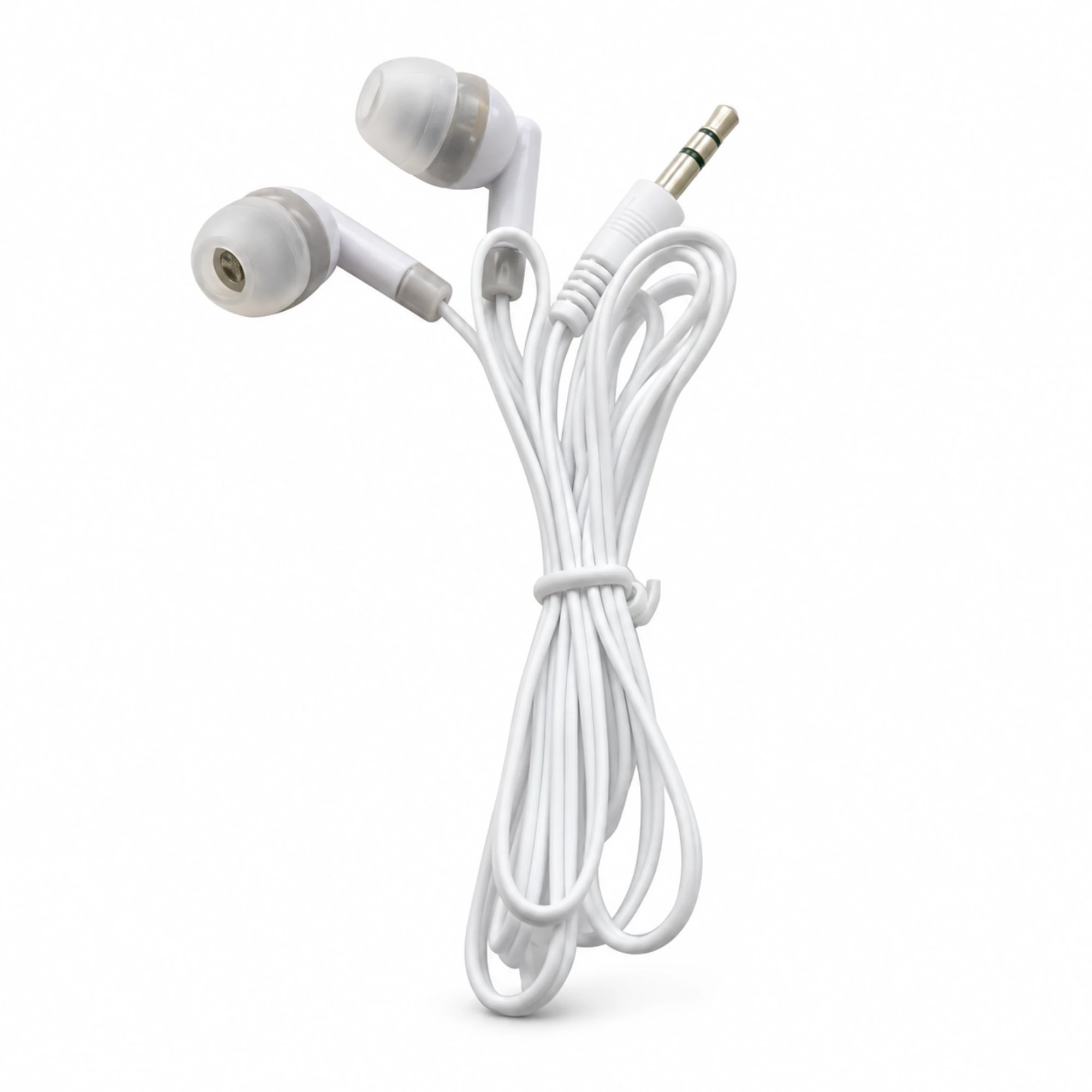
Before assuming the physical 3.5mm socket on your motherboard is broken, you need to separate a mechanical plug-detection issue from a missing Windows audio driver. Below, we explain how a 3.5mm laptop socket detects a headphone plug, walk through the four-step Windows troubleshooting sequence from r/computer, and show how testing with a known-good 3.5mm pair like the EARSOLE White 3.5 mm Wired Earbuds, EARSOLE Black Wired Headphones with Inline Control, or dual-mode EARSOLE Noise Cancelling Over-Ear Headphones – Series 127 pinpoints the fault in minutes.
How Laptop 3.5mm TRS and TRRS Combo Jacks Detect Plugged-In Headphones
Why does a laptop sometimes fail to notice that you just pushed a 3.5mm plug into the side port? According to Wikipedia’s Phone connector (audio) reference, a phone connector is a cylindrical electrical connector for analog audio signals with two to five contacts—including 3-contact TRS (tip-ring-sleeve) plugs for stereo audio and 4-contact TRRS (tip-ring-ring-sleeve) plugs for stereo headsets with a microphone—and when a plug is mated in a socket, the plug’s grooved tip disconnects the socket’s spring tip contact from the flat switch contact used for detecting a plug.
On modern Windows laptops, that physical switch contact inside the 3.5mm socket signals your onboard audio controller (most commonly a Realtek HD Audio chip) that a plug has been inserted. For audio to switch from your internal speakers to your headphones, both steps must succeed:
- Mechanical contact: The 3.5mm tip must seat all the way past the outer plastic case and lift the socket’s internal detection spring.
- Software jack-retasking service: The Windows audio driver (such as Realtek Audio Universal Service) must read that impedance/switch change and route the Windows output stream to the headphone jack.
Step-by-Step Fix When Windows Stops Seeing Your 3.5mm Headphones (r/computer Checklist)
In r/computer (thread 1wm1q2z, “Audio Not working”), a PC user reports: “Hi! All of the sudden, my computer stopped detecting my headphones through the 3.5mm jack, and I don’t know why. The headphones work fine, but I don’t see the normal realtek option anywhere. When I go into device manager and look for the realtek device its not there.”
Contributors in r/computer (thread 1wm1q2z) note that a Windows update can trigger the issue and advise: “Try right-clicking the Sound option and go to Volume Mixer. Test if you can change the output device. You can also sometimes enable it in your motherboard BIOS, it may be disabled there. Also check Device Manager for the audio driver and try reinstalling or updating it if needed.”
Follow that exact four-step diagnostic sequence from fastest to deepest:
Step 1: Right-Click the Speaker Icon and Check Windows Volume Mixer Output Routing
Sometimes the 3.5mm jack works, but Windows routed your browser or game to the wrong endpoint—or combined speakers and headphones under a single Realtek label.
- Right-click the Speaker icon in the bottom-right Windows taskbar and open Open Volume mixer (or Sound settings).
- Click the Output device dropdown at the top and check whether Headphones (Realtek Audio) or Speakers / Headphones is selectable when the 3.5mm plug is seated firmly.
Step 2: Reveal Hidden Devices and Reinstall the Audio Driver in Device Manager
If Realtek Audio vanished after a Windows 10 or Windows 11 update:
- Right-click the Start button, open Device Manager, and click View > Show hidden devices at the top menu.
- Expand Sound, video and game controllers and System devices (look for High Definition Audio Controller).
- If your Realtek driver is greyed out or missing, click Action > Scan for hardware changes, or download the official Realtek Audio driver package from your laptop manufacturer’s support page and run a clean install + reboot.
Step 3: Check Realtek Audio Console Jack Detection (When Unplugging/Replugging Fails)
On many laptops, plugging in headphones works on boot, but unplugging and replugging fails to trigger the pop-up prompt. Open the Realtek Audio Console (or Dell/HP Audio app), click the gear/advanced settings icon, and enable jack detection when a device is plugged in.
Step 4: Verify Onboard HD Audio Is Enabled in Motherboard BIOS / UEFI
If Realtek Audio does not appear in Device Manager even under Hidden Devices, restart your computer, press your BIOS key (F2, F12, or Del) during startup, navigate to Advanced / Integrated Peripherals, and confirm that Onboard Audio / HD Audio Controller is set to Enabled.
| Symptom When Plugging In 3.5mm Headphones | Most Likely Cause | Primary Fix |
|---|---|---|
| Headphones work on phone, but laptop shows no new output device on replug | Realtek jack-detection service stopped after Windows update | Reboot with plug inserted, or re-enable jack detection in Realtek Audio Console |
| Realtek option completely missing from Device Manager (r/computer 1wm1q2z) | Corrupted driver or disabled onboard audio controller | Use View > Show hidden devices in Device Manager, reinstall OEM Realtek driver, and check BIOS Onboard Audio |
| Static or one-ear audio unless you wiggle the 3.5mm plug | Worn cable strain relief or lint inside the 3.5mm socket | Test with a second 3.5mm headphone pair or switch to wireless Bluetooth |
Testing With Known-Good 3.5mm Headphones or Switching to Wireless Bluetooth Backup
Before spending an hour reinstalling drivers, always test the laptop jack with a second 3.5mm plug—and if your laptop’s physical 3.5mm port has a cracked solder joint, a dual-mode wireless/wired headset lets you keep listening over Bluetooth while still having a 3.5mm cord for other gear:
- Simple Straight-Plug 3.5mm Test Earbuds: According to the EARSOLE White 3.5 mm Wired Earbuds listing, the earbuds feature soft in-ear tips and a straight 3.5 mm plug for devices with a compatible headphone output. Keeping an inexpensive pair of EARSOLE White 3.5 mm Wired Earbuds in your laptop bag gives you an instant straight-plug tester to confirm whether a port is alive.
- Right-Angle 3.5mm On-Ear Wired Headphones: If tight desk space keeps bending straight plugs sticking out the side of your laptop, a right-angle connector reduces lateral strain on the laptop socket. According to the EARSOLE Black Wired Headphones with Inline Control listing, the folding design features round earcups with concentric surface detailing, an inline control, and a right-angle 3.5 mm plug. You can view the EARSOLE Black Wired Headphones with Inline Control for everyday wired desk use.
- Dual-Mode Wireless + 3.5mm Over-Ear Backup: What if your laptop’s 3.5mm jack is permanently damaged, or you want one headset that works whether the 3.5mm port is working or not? According to the EARSOLE Noise Cancelling Over-Ear Headphones, Wireless & Wired – Series 127 listing, the headset lets you switch between wireless Bluetooth connectivity and a 3.5 mm AUX wired connection using the included 47.2-inch audio cable, while offering Active Noise Cancellation and up to 100 hours of wireless playtime. With the EARSOLE Series 127 Over-Ear Headphones, you can pair over Bluetooth whenever a laptop jack acts up and use the 47.2-inch 3.5mm cable on desktops or airplane screens.
Frequently Asked Questions
Why did my laptop suddenly stop detecting headphones in the 3.5mm jack?
When a 3.5mm jack stops detecting working headphones overnight, the cause is usually either lint blocking the socket’s internal tip detection switch (Wikipedia Phone connector) or a Windows update disrupting the Realtek audio driver and jack-retasking background service (as reported in r/computer thread 1wm1q2z).
What should I do if Realtek Audio is missing from Windows Device Manager?
First, open Device Manager and click View > Show hidden devices to see if the Realtek driver is listed as disconnected. Next, follow the r/computer (thread 1wm1q2z) checklist: scan for hardware changes, reinstall the official Realtek audio driver from your laptop maker’s support page, and verify that onboard audio is enabled in your BIOS.
Can a motherboard BIOS setting disable the 3.5mm headphone jack?
Yes. As contributors in r/computer (thread 1wm1q2z) point out, if the onboard HD Audio controller is disabled in your motherboard BIOS/UEFI settings, Windows will not detect the Realtek audio chip or the 3.5mm headphone port until you re-enable it in BIOS.