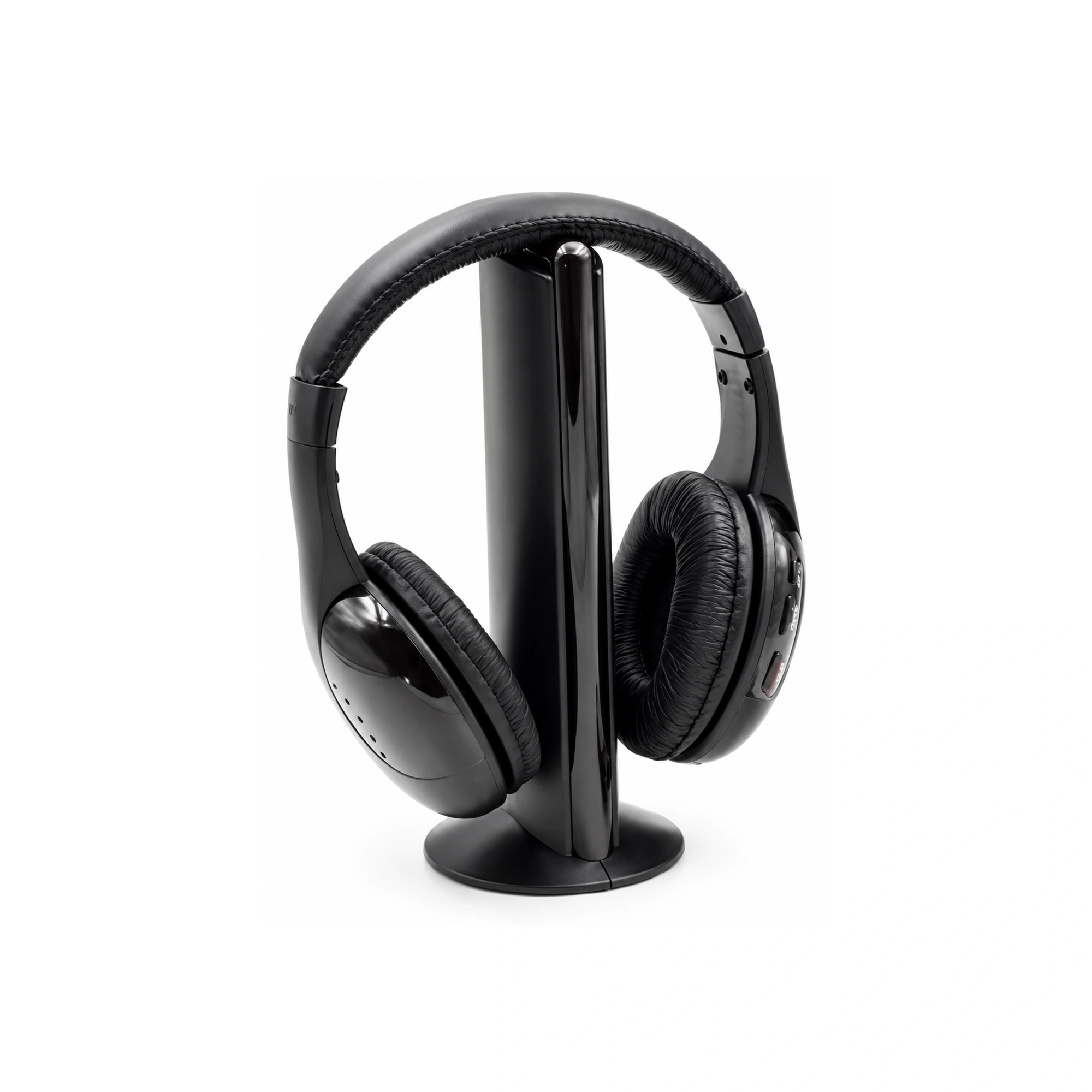
Connecting optical headphones for TV listening requires bridging a fundamental physical divide: a television’s DIGITAL AUDIO OUT (OPTICAL) port emits pulsed red light through a rectangular TOSLINK fiber-optic jack rather than an electrical audio waveform. Because headphone voice coils need an analog voltage to vibrate, you cannot plug a passive headset directly into an optical jack. Instead, tv headphones optical audio setups route that fiber-optic light into a dedicated wireless headphone transmitter dock—such as the OY533TV Wireless Headphone and Transmitter Set—or an external digital-to-analog converter (DAC), and rely on switching the television’s Digital Audio Out menu to PCM so the two-channel dock can decode clean stereo sound instead of silence or clicking static.
Key Takeaways
- TOSLINK is a light pipe, not a headphone amp: A TV’s optical output sends digital light pulses (
0s and1s) that must be converted into analog audio inside a wireless transmitter dock or standalone DAC before reaching your ears.- Digital optical avoids budget TV 3.5mm hiss: Community troubleshooting on
r/audiohighlights that optical transmission carries virtually zero line noise, bypassing the background static and hiss often produced by a television’s low-cost internal 3.5mm headphone DAC.- Stereo docks require PCM output: As Sony Electronics Official Support documents for
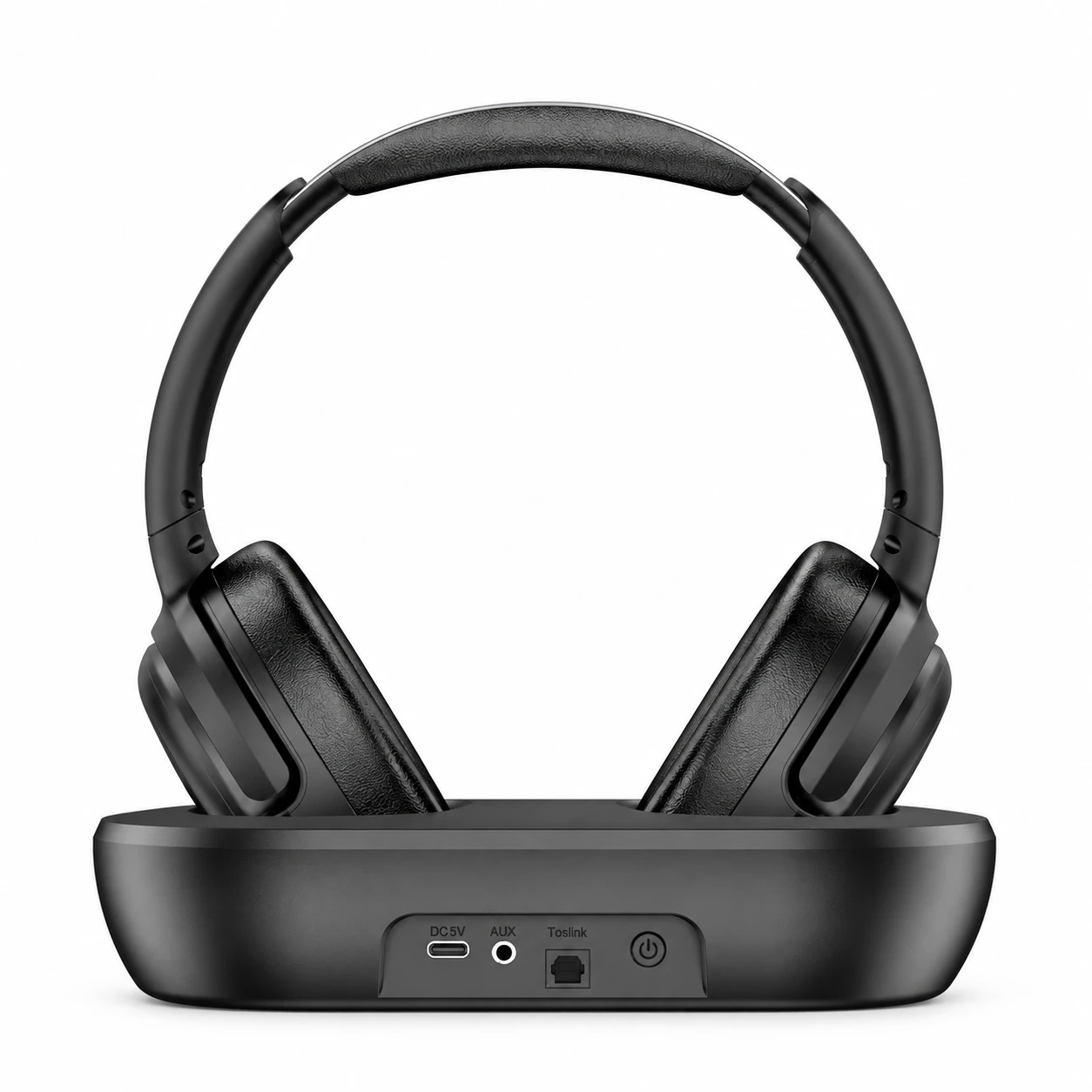
DIGITAL AUDIO (OPTICAL) OUTconnections, if your connected audio system is not compatible with Dolby Digital or DTS surround bitstreams, you must set the TV’s digital audio output format to PCM.- Inspect dock ports before ordering: The OY533TV Wireless Headphone and Transmitter Set ($138.00) includes a transmitter dock with labeled front-panel
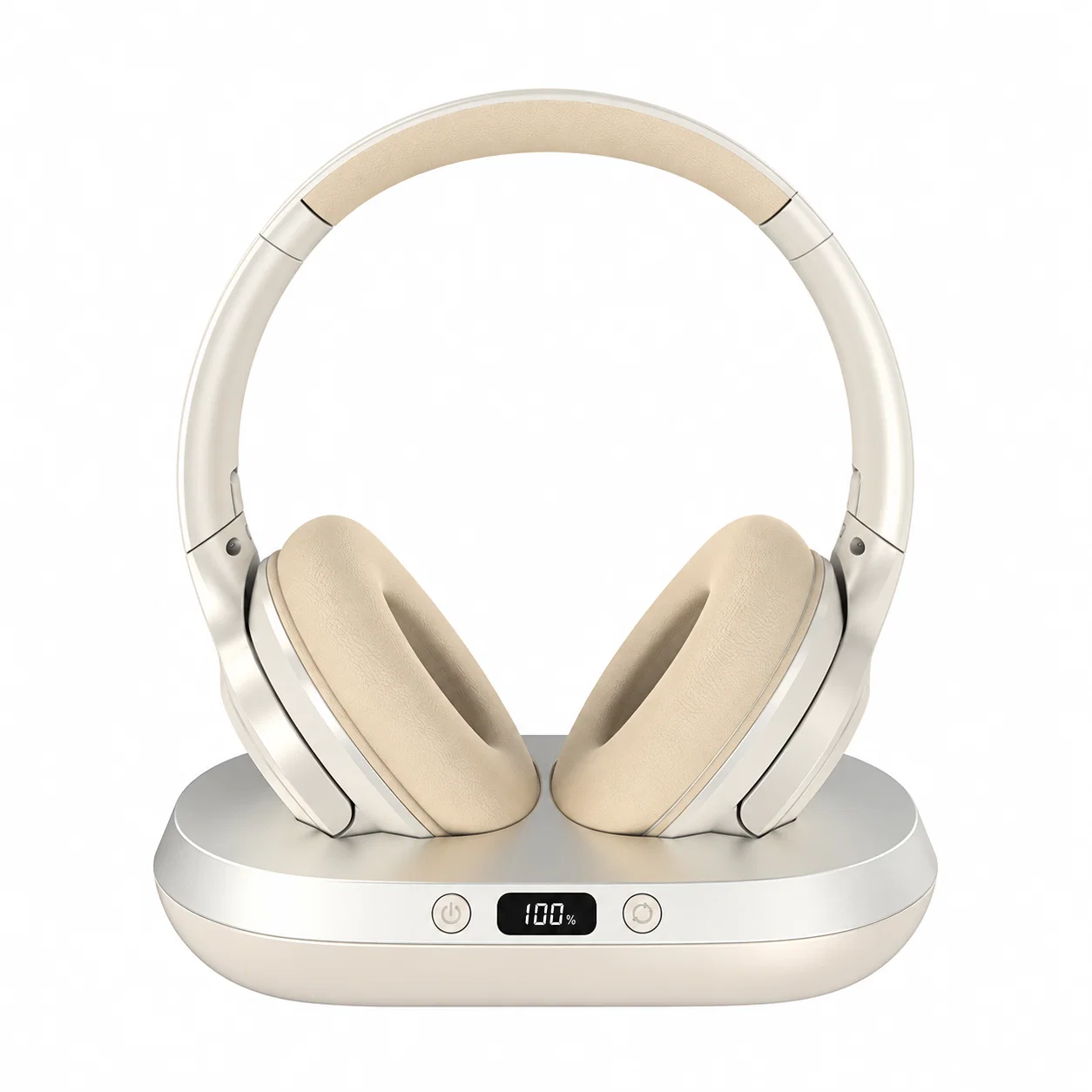
AUX,Toslink(optical), andDC 5Vpower connections, whereas the Wireless TV Headphones with Transmitter Dock - Beige ($39.99) provides a compact charging dock with a front digital display and control buttons whose rear input compatibility should be confirmed against your TV before ordering.
How Optical Headphones for TV Work (And Why TOSLINK Beats Noisy 3.5mm TV Jacks)
When shoppers look for wireless tv headphones optical input solutions, they are rarely looking for a fiber-optic cable that dangles directly from an earcup. In home audio, an optical TV headphone system consists of two separate pieces of hardware:
- A stationary transmitter dock (or optical DAC/amp) wired to the television’s rear panel via a square TOSLINK fiber-optic patch cord.
- An over-ear wireless headset that receives the decoded stereo signal from that dock across the room and recharges on the cradle between viewing sessions.
Why go through the optical port when many televisions still include a 3.5mm analog headphone jack or RCA stereo outputs? Home audio contributors on Reddit’s r/audio point out a recurring hardware flaw in budget and mid-range flat-panel TVs: plugging sensitive headphones into the TV’s built-in 3.5mm jack frequently reveals a constant background white-noise hiss. That static happens because the television’s internal digital-to-analog converter (DAC) and headphone amplifier share a crowded mainboard with high-frequency display power supplies.
Because an optical TOSLINK connection transmits digital pulses of light (01010101) through a non-conductive glass or plastic fiber, no electrical ground loop or power-supply hum can travel down the optical cable. The digital stream stays untouched until it reaches the external transmitter dock, where a dedicated DAC converts the binary stream into analog voltage to drive the headphone transducers.
Why TOSLINK Headphone Docks Require PCM Output Instead of Dolby Bitstream
The single most common complaint after unboxing an optical TV headphone dock is sudden silence—or a loud, rapid clicking noise—the moment a user opens Netflix, Prime Video, or a Blu-ray movie. The hardware is almost never defective; instead, the television is sending a compressed surround format that a stereo headphone dock cannot decipher.
A television’s DIGITAL AUDIO OUT (OPTICAL) port operates over the S/PDIF standard, which can carry two fundamentally different types of digital audio payloads:
- Uncompressed 2-Channel PCM (Pulse-Code Modulation): A straightforward left/right stereo digital waveform that every optical DAC and wireless TV headphone dock can convert immediately.
- Compressed Multi-Channel Bitstreams (Dolby Digital / DTS): Encoded 5.1-channel surround packets designed for multi-speaker AV receivers and soundbars that hold licensed Dolby or DTS decoding chips.
Most two-channel wireless headphone docks contain a stereo PCM converter rather than a multi-channel surround processor. When a TV is left on Auto, Dolby Digital, or Bitstream mode, live broadcast menus may sound normal (because menu clicks are often stereo PCM), but launching a 5.1-channel movie switches the optical port to a Dolby bitstream. Unable to decode the compressed packets, the headphone dock either mutes itself or outputs raw digital framing noise.
According to Sony Electronics Official Support for troubleshooting DIGITAL AUDIO (OPTICAL) OUT ports, when a connected audio system is not compatible with Dolby Digital or DTS, you must manually switch the TV’s digital output format to PCM:
- Sony Google TV / Android TV path: Open Settings → Display & Sound → Audio output → Digital audio out → PCM (or Bravia Settings → Digital audio out → PCM).
- Optical Output Enablement on newer panels: Sony’s support documentation also notes that on select newer television series, the optical port setting can be toggled off in software; if no red light is visible at the port, navigate to Settings → Display & Sound → Audio output → Optical digital audio output settings and enable Optical digital audio output.
- Internal TV Speaker Behavior: Depending on the television model, Sony notes that some TVs require the internal speakers to be turned off (by selecting External Speakers or Audio System in the Sound menu) before outputting the digital audio signal to an external optical device.
| TV Optical Setting / Signal Aspect | Compressed Bitstream (Dolby Digital / DTS / Auto) | Uncompressed Stereo (PCM) |
|---|---|---|
| Audio Channels Carried | Up to 5.1 compressed surround channels | 2-channel uncompressed left/right stereo |
| Required Decoder Hardware | Licensed Dolby Digital or DTS processor (AV receiver / soundbar) | Standard stereo S/PDIF DAC (used in optical TV headphone docks) |
| Symptom on Stereo Headphone Docks | Complete silence during streaming movies, or loud clicking/static | Clean, uninterrupted stereo dialogue and soundtrack playback |
| Resolution Limit over TOSLINK | Compressed surround bitstream | Typically caps at 24-bit / 96kHz stereo (per r/hometheater contributors) |
Comparing TV Headphone Transmitter Docks: OY533TV vs. Beige Transmitter Dock Set
When selecting wireless tv headphones with charging dock hardware, your first check should be the physical input panel on the charging cradle and how it matches your television’s rear ports. Below is how two catalog options in the Earsole lineup compare based on verified catalog disclosures and visual inspection of their dock hardware.
1. OY533TV Wireless Headphone and Transmitter Set ($138.00)
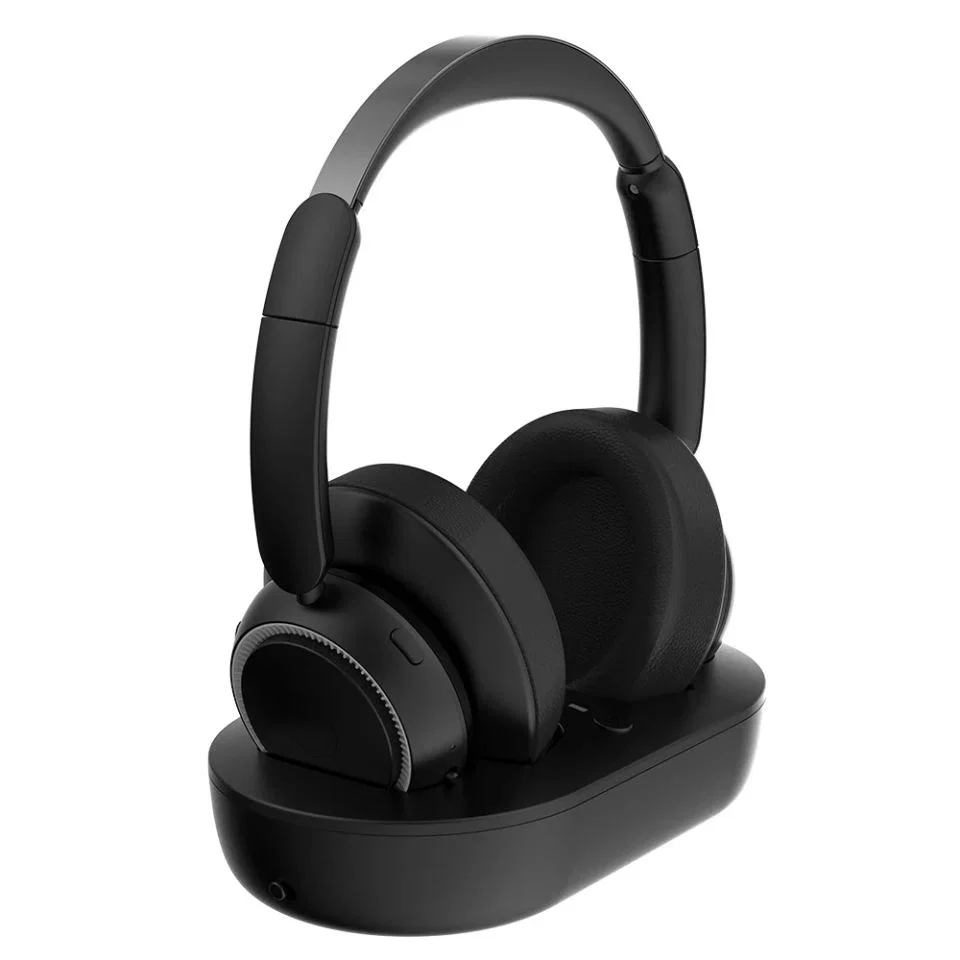
According to the Earsole catalog listing and product imagery, the OY533TV Wireless Headphone and Transmitter Set (SKU EAR-1688-995579890918, $138.00) combines one black over-ear wireless headset with a matching horizontal oval transmitter dock. Looking directly at the dock’s front connection strip, three ports are clearly labeled alongside the power switch:
Toslink(Optical Input): Accepts a digital optical audio connection from a television’sDIGITAL AUDIO OUT (OPTICAL)port when configured for stereo PCM output.AUX(3.5mm Analog Input): Provides a secondary analog connection for televisions, monitors, or receivers where you prefer an analog line-out feed.DC 5V(Power Input): Powers the stationary transmitter base and charges the docked over-ear headset.
Important catalog boundaries to keep in mind: While the pictured OY533TV transmitter clearly shows labeled AUX, Toslink optical, and DC 5V power connections, the Earsole catalog listing advises confirming compatibility with your TV’s audio output before ordering and notes that additional bundled accessories (such as whether a TOSLINK fiber cable is packed in the box) are not specified.
2. Wireless TV Headphones with Transmitter Dock - Beige ($39.99)
For viewers seeking a lower-priced over-ear cradle kit, the Wireless TV Headphones with Transmitter Dock - Beige (SKU EAR-1688-1048219623665, $39.99) pairs padded beige over-ear headphones with a matching beige-and-silver upright transmitter dock.
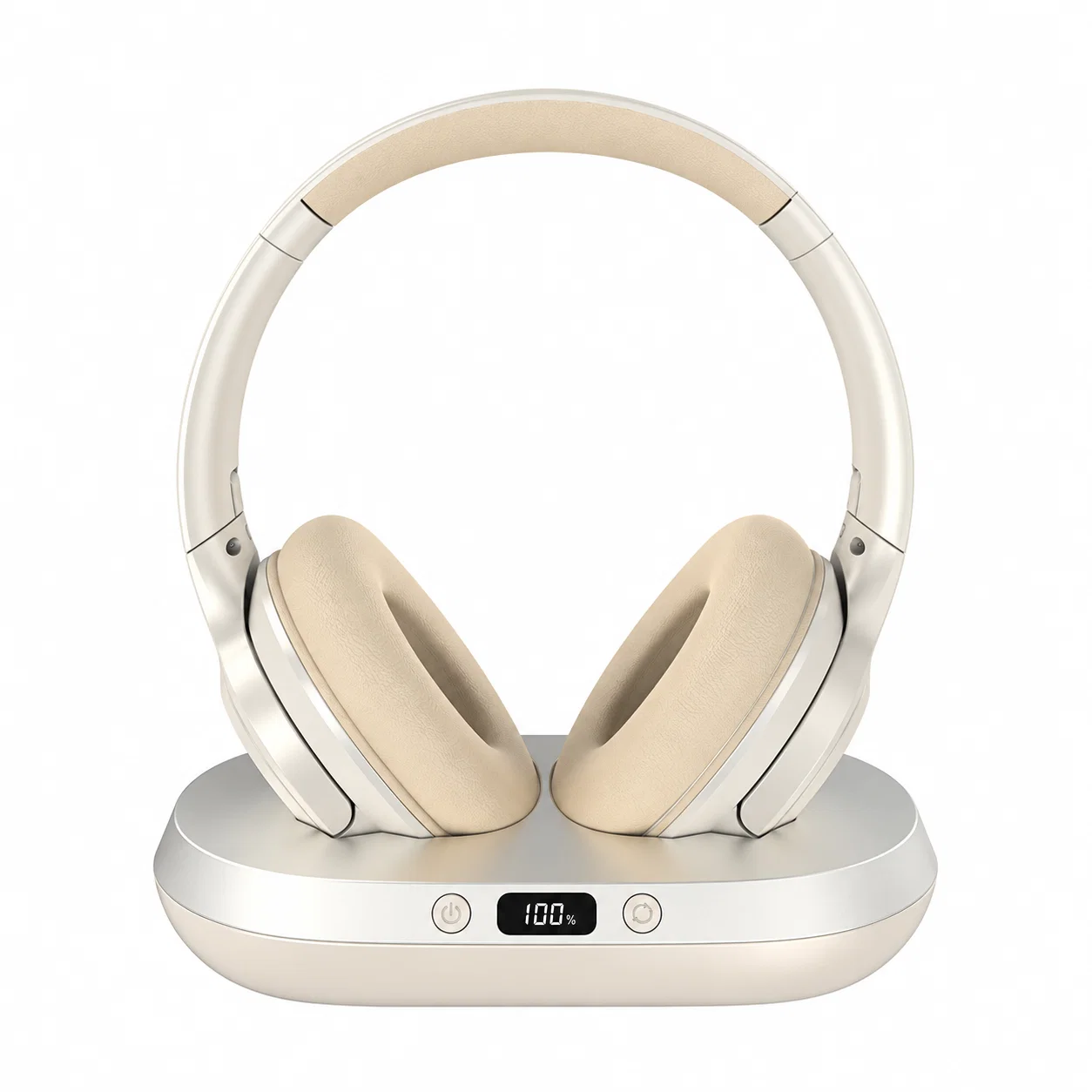
Based on the Earsole catalog listing and product photo inspection, the pictured beige dock features a front digital status screen (showing a 100% charge readout) flanked by dedicated power and mode buttons. However, the catalog listing explicitly advises buyers to confirm their TV’s audio-output compatibility before ordering and notes that no hearing-assistance or latency benefit is guaranteed. If your television only provides a TOSLINK optical jack and a given dock’s rear input relies on 3.5mm AUX, you would need a standalone optical-to-3.5mm DAC conversion box between the TV and the dock.
| Feature / Disclosure Check | OY533TV Wireless Headphone and Transmitter Set | Wireless TV Headphones with Transmitter Dock - Beige |
|---|---|---|
| SKU | EAR-1688-995579890918 | EAR-1688-1048219623665 |
| Catalog Price | $138.00 | $39.99 |
| Headset Form Factor | Black over-ear wireless headset | Beige over-ear wireless headset with padded earcups |
| Pictured Dock Controls & Ports | Labeled DC 5V, AUX, and Toslink (optical) connections + power button | Front digital battery display (100% readout) + front power and mode buttons |
| Catalog Limitations & Disclosures | Confirm TV audio output compatibility before ordering; additional accessories not specified | Confirm TV audio-output compatibility before ordering; no hearing-assistance or latency benefit guaranteed |
Step-by-Step TV Optical Hookup and Multi-Source Routing Tips
Whether you are setting up a dedicated optical dock like the OY533TV or routing an optical DAC into an analog transmitter cradle, following a strict connection sequence prevents no-sound headaches and cable damage. For broader port identification across older televisions, see our companion guide on wireless headphones for a non-Bluetooth TV and our general walkthrough on how to connect headphones to a TV.
Step 1: Connect the Headphone Dock to the TV Optical Port (Not the Blu-ray Player)
Home theater owners on Reddit’s r/hometheater often ask whether they should plug their headphone setup into the optical port on their 4K Blu-ray player or the optical port on the television. Contributors note that while optical audio typically caps at 24-bit/96kHz (rarely 192kHz), wiring directly to the TV’s optical output is far more practical for daily ease of use—because the TV acts as a central hub for every streaming app, game console, and disc player plugged into its HDMI inputs.
Exception for restricted HDMI passthrough: As Sony’s official optical troubleshooting guide points out, on certain televisions, audio sent to the TV through an HDMI input or analog broadcast channel may not pass out of the TV’s optical jack. Only in that specific scenario does Sony advise connecting the optical port from the source device (Blu-ray player, cable box, or satellite receiver) directly to the audio receiver or headphone transmitter.
Step 2: Remove Both Clear Plastic TOSLINK Tip Protectors
Every new TOSLINK fiber-optic cable ships with tiny clear rubber or plastic caps covering the polished ferrule tips on both ends. If you try to push the connector into the TV’s DIGITAL AUDIO OUT (OPTICAL) port or the OY533TV’s Toslink jack without pulling off those transparent caps, the plug will not latch and the light beam will be blocked. Align the keyed D-shaped housing with the socket and press gently until you feel a soft click.
Step 3: Lock the TV Digital Audio Output to PCM
Before putting the headphones on, open a streaming video or broadcast channel (some smart TVs grey out digital audio format menus when no video stream is playing) and set the digital output format to PCM:
- Open your TV Settings → Sound or Display & Sound → Audio Output.
- Set Digital Audio Out (or Digital Output Audio Format) to PCM.
- If your TV mutes its optical jack until internal speakers are disabled, switch the speaker selector to Audio System or External Speakers.
Step 4: Balance Volume on the Headset
Unlike a 3.5mm headphone jack, an optical TOSLINK output sends a fixed-level digital stream—meaning your television remote’s volume buttons usually will not raise or lower the volume inside optical headphones. Instead, adjust listening volume using the controls on the wireless headphones themselves (or on the external DAC/amp if using an analog cradle).
Frequently Asked Questions
Can I connect headphones to my TV’s Digital Audio Out (Optical) port, and what hardware sits between the TOSLINK jack and the headset?
Yes, but you cannot plug passive headphones directly into an optical jack. As users on r/audio explain, a TV’s optical port sends digital light signals that must first be transformed into analog electrical signals before they can move a headphone’s speaker membrane. To bridge that gap, you connect the TV’s optical port to a wireless headphone transmitter dock that has a built-in optical input—such as the OY533TV Wireless Headphone and Transmitter Set, whose pictured transmitter features labeled AUX, optical (Toslink), and power connections—or use an external optical-to-analog DAC box, and set the TV’s Digital audio out menu to PCM per Sony Official Support.
Why do optical TV headphones output silence or clicking static unless the TV’s Digital Audio Out menu is switched to PCM?
A television’s optical port can output digital audio in either uncompressed two-channel PCM or compressed multi-channel Dolby Digital / DTS surround formats. Most two-channel wireless headphone transmitter docks and compact optical DACs do not contain licensed Dolby Digital or DTS surround decoders. As Sony’s official optical troubleshooting documentation explains, when the connected audio device is not compatible with Dolby Digital or DTS, you must open the TV Settings screen (Display & Sound → Audio output → Digital audio out) and select PCM so the transmitter dock can properly decode the stereo signal.