Grabbing a pair of headphones for late-night movies or clearer dialogue sounds simple until you look behind a modern flat-screen television. Many newer 4K TVs have quietly removed the traditional 3.5 mm analog headphone jack, leaving behind a square glowing red Optical (TOSLINK) port, a row of HDMI (ARC/eARC) sockets, or a buried Bluetooth menu.
If you want to know how to connect headphones to a tv without ending up with dead silence, loud static clicks, or out-of-sync dialogue, the secret is matching your headphones to the exact physical or wireless audio output your television actually exposes. Below is a port-by-port wiring and menu configuration guide covering how to connect wireless headphones to tv and how to connect wired headphones to tv across every major television output.
Key Takeaways
- Optical Digital Audio Out (TOSLINK) cannot drive wired 3.5 mm headphones directly; use tv headphones with optical input on a transmitter dock or an external USB-powered Optical-to-3.5 mm DAC, and switch your TV’s Digital Audio Output Format to PCM.
- 3.5 mm AUX Audio Out accepts wired headphones or AUX transmitter docks directly with no converter, though inserting a 3.5 mm plug mutes internal TV speakers on most sets.
- HDMI ARC / eARC works with an HDMI ARC/eARC audio extractor (with HDMI-CEC and PCM enabled) when your TV only has eARC and Optical ports or when you want TV remote volume control.
- Native Google TV Bluetooth pairs via
Settings > Remote & Accessories > Pair remote or accessory, but official Google TV documentation specifies that you can only connect one audio device at a time.
Step 1: Identify Which Audio Output Ports Your TV Actually Has
Before ordering cables or placing a transmitter base on your media console, shine a phone flashlight along the back and side recessed panels of your TV. Look specifically for labels marked AUDIO OUT (never AUDIO IN, which only accepts signals from older DVD players or consoles).
Most televisions built in the last decade offer one or more of these four audio paths:
- Optical Digital Audio Out (TOSLINK / SPDIF): A small square port covered by a hinged grey plastic flap—or glowing with a red LED beam when the TV is powered on. It carries an uncompressed or compressed digital light signal, not an analog headphone signal.
- 3.5 mm AUX / Headphone Out: A round 1/8-inch jack (often labeled with a tiny headphone icon or
AUDIO OUT). It sends a ready-to-play analog stereo signal directly to wired headphones or an AUX wireless transmitter dock. - HDMI ARC or eARC: One specific HDMI port on your TV labeled
ARC(Audio Return Channel) oreARC(Enhanced Audio Return Channel). Unlike regular HDMI inputs, this port can send television audio out to a soundbar or an HDMI audio extractor. - Built-In Smart TV Bluetooth: Found inside the television’s settings menu (such as Google TV, webOS, Tizen, or Fire TV) rather than on the physical back panel.
| TV Audio Output Path | Best Headphone Match | Required Adapter or Dock | Format / Menu Setting Needed | How Volume Is Controlled |
|---|---|---|---|---|
| Optical Out (TOSLINK) | TV headphones with optical input or wired headphones via DAC | Optical wireless transmitter dock or Optical-to-3.5 mm DAC + amp | Set TV Digital Audio Out to PCM (Stereo) | On headphone earcup dial or DAC/amp knob (Optical is fixed-level) |
| 3.5 mm AUX Audio Out | Any 3.5 mm wired headphones or AUX transmitter dock | Direct 3.5 mm stereo cable (no converter required) | Set 3.5 mm jack to Headphone or Variable Audio Out | TV remote volume buttons or headphone inline/earcup dial |
| HDMI ARC / eARC | Wired or wireless headphones when Optical is occupied | HDMI ARC/eARC audio extractor with 3.5 mm or Optical output | Enable HDMI-CEC and set eARC output to PCM | TV remote (if extractor supports HDMI-CEC volume) or headphone dial |
| Native TV Bluetooth | Everyday Bluetooth headphones or earbuds | None (pairs directly to TV OS) | Settings > Remote & Accessories > Pair remote or accessory | TV remote or Bluetooth headphone buttons (1 audio device limit on Google TV) |
Method 1: How to Connect Headphones via Optical Digital Audio Out (TOSLINK)
Optical Digital Audio Out is the most universal physical audio port on modern televisions, appearing on budget and flagship sets alike. However, as home theater users on r/audio frequently point out, you cannot plug analog headphones straight into an optical port—you need either a digital-to-analog converter (DAC) with a headphone amplifier output, or tv headphones with optical input built directly into their charging transmitter dock.
Connecting Wireless Headphones with an Optical Transmitter Dock
If you use wireless headphones for tv with charging dock, the base station acts as both the optical digital converter and the wireless radio transmitter:
- Remove the small clear protective rubber caps from both ends of your TOSLINK fiber-optic cable.
- Plug one end into the TV’s Optical Digital Audio Out port until it clicks, and plug the other end into the OPT or Optical input on the back of the headphone transmitter dock.
- Power the transmitter dock using its USB or AC power cable, and slide the dock’s input selector to the Optical mode.
- Crucial TV Menu Step — Switch Digital Output to PCM: Open your TV’s Sound Settings (
Settings > Sound > Advanced Settings > Digital Audio Out Format) and change the format from Auto, Dolby Digital, or Bitstream to PCM (Pulse-Code Modulation). If the TV sends a compressed 5.1 Dolby bitstream to a two-channel headphone dock or stereo DAC, you will hear either complete silence or rapid ticking static.
Connecting Wired Headphones to an Optical-Only TV
If you want to know how to connect wired headphones to tv when the television only provides an Optical port, community members on r/audio recommend placing a compact USB-powered Optical-to-3.5 mm DAC with a built-in headphone amp between the TV and your headphone cord:
- Run a TOSLINK optical cable from the TV’s Optical Out to the DAC’s Optical In.
- Power the DAC via a USB-C or micro-USB cable plugged into a wall adapter or a spare USB port on the TV.
- Set the TV’s digital output format to PCM.
- Plug your wired headphones into the DAC’s 3.5 mm headphone jack and use the physical volume knob on the DAC (or an inline headphone volume control) to set your listening level, because optical ports output a fixed digital signal that ignores the TV remote’s volume buttons.
Method 2: How to Connect Wired or Wireless Headphones via a 3.5 mm AUX Port
If your television still includes a round 3.5 mm AUDIO OUT or headphone socket, you already have a built-in DAC inside the TV:
- For Wired Headphones: Plug a 3.5 mm stereo extension cable directly from the TV’s headphone jack to your headphones. Measure the distance from your screen to your sofa first so the cord lies flat without pulling on the TV’s circuit board.
- For Wireless TV Headphone Docks: Run a 3.5 mm-to-3.5 mm AUX cable from the TV’s headphone jack into the AUX port on the back of your transmitter dock.
- Check Speaker Mute Behavior: On most TVs, inserting a 3.5 mm plug automatically mutes the internal TV speakers and routes the TV remote’s volume buttons to the headphone jack. Some European and Japanese TV menus provide a separate Headphone Volume slider under the Sound menu so family members can keep the TV speakers active while you listen on headphones.
Method 3: How to Connect Headphones Using HDMI ARC or eARC
A growing number of ultra-thin TVs ship with only two audio-capable port types: HDMI eARC and Optical Out. As r/audio discussions highlight, when your Optical port is already occupied by an older receiver or soundbar—or when you want your TV remote to control analog headphone volume—the HDMI eARC port can bridge the gap through an HDMI ARC/eARC audio extractor:
- Connect a high-speed HDMI cable from the TV’s HDMI (ARC/eARC) port to the HDMI ARC input on a dedicated HDMI audio extractor box, or to an ARC-labeled input on a compatible headphone dock.
- Enable HDMI-CEC (called Anynet+ on Samsung, Simplink on LG, Bravia Sync on Sony, or CEC on Google TV) inside your TV settings.
- Set the TV’s HDMI eARC digital audio format to PCM stereo.
- Plug your wired headphones or wireless transmitter dock into the extractor’s 3.5 mm headphone output. When you use an HDMI ARC extractor that supports CEC volume control, pressing Volume Up/Down on your regular TV remote adjusts the analog output level feeding your headphones.
Method 4: How to Connect Wireless Headphones to a TV via Native Bluetooth
If you already wear everyday Bluetooth headphones or earbuds and your television runs a modern smart OS, you can pair directly without external docks. According to official Google TV Help documentation, here is the exact native pairing workflow and its built-in hardware constraint:
- Put your Bluetooth headphones or earbuds into Pairing Mode (usually by holding the power or pairing button until the indicator LED flashes rapidly).
- On the Google TV home screen, navigate to your profile icon in the top right and open Settings.
- Select Remote & Accessories > Pair remote or accessory.
- Choose your headphones when their name appears on screen, then select Pair on the confirmation prompt.
Native TV Bluetooth Limitations & Troubleshooting
- Single Audio Device Limit: Official Google TV documentation notes that while you can pair multiple Bluetooth accessories (such as game controllers and remotes), you can only connect one audio device at a time. If two people want to watch together on headphones, native Google TV Bluetooth cannot split the stream to two headsets simultaneously.
- Fixing Drops or No-Sound Pairing Bugs: If your Bluetooth headphones show as connected in
Remote & Accessoriesbut produce no sound, Google TV Help recommends turning the Bluetooth headphones off and back on, disconnecting unused paired accessories, or unplugging the TV for 10 seconds before re-pairing.
Dedicated Wireless TV Headphone Docks: Comparing Input Panel Options
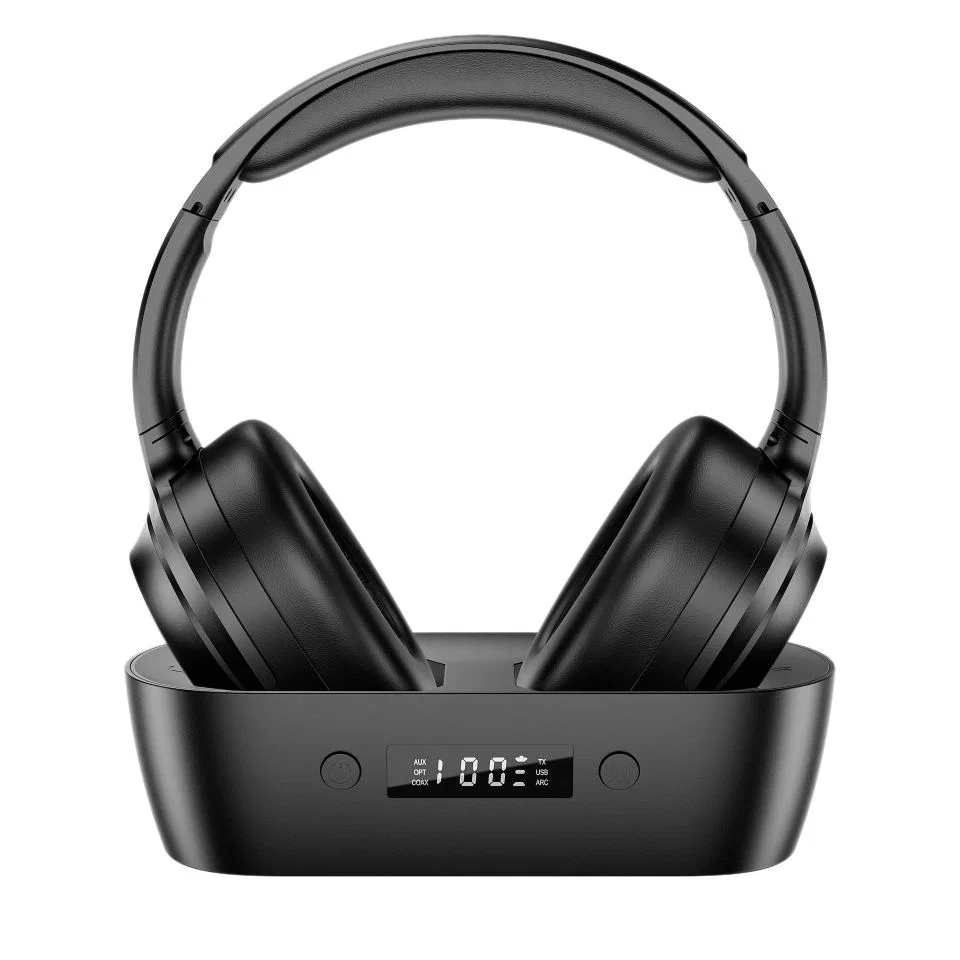
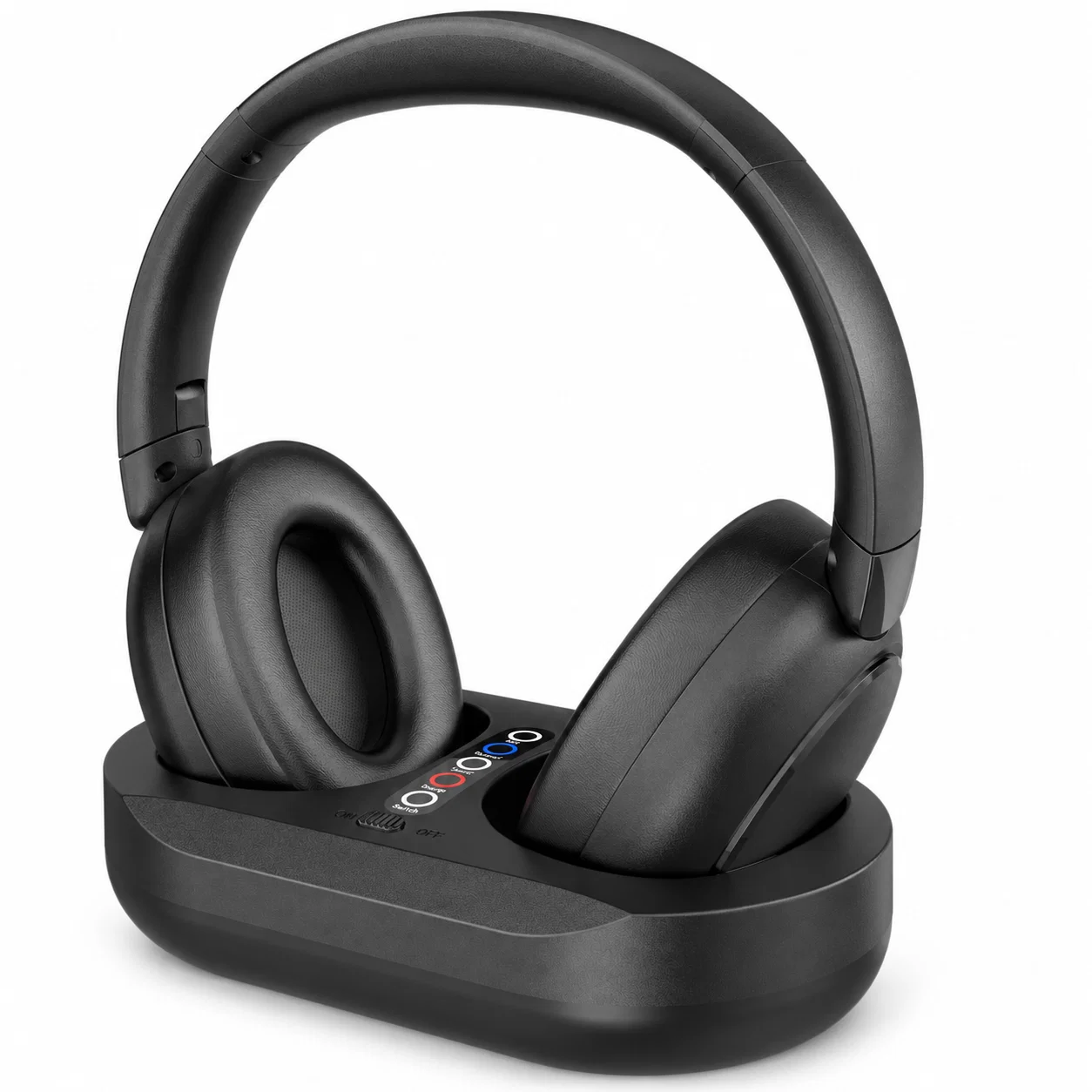
For households that want a permanent “pick up and listen” headphone station next to the TV—without navigating Bluetooth menus every evening—dedicated wireless headphones for tv with charging dock combine a charging stand with a multi-port audio transmitter. In the Earsole catalog, two over-ear sets illustrate how transmitter docks differ by their rear input labels:
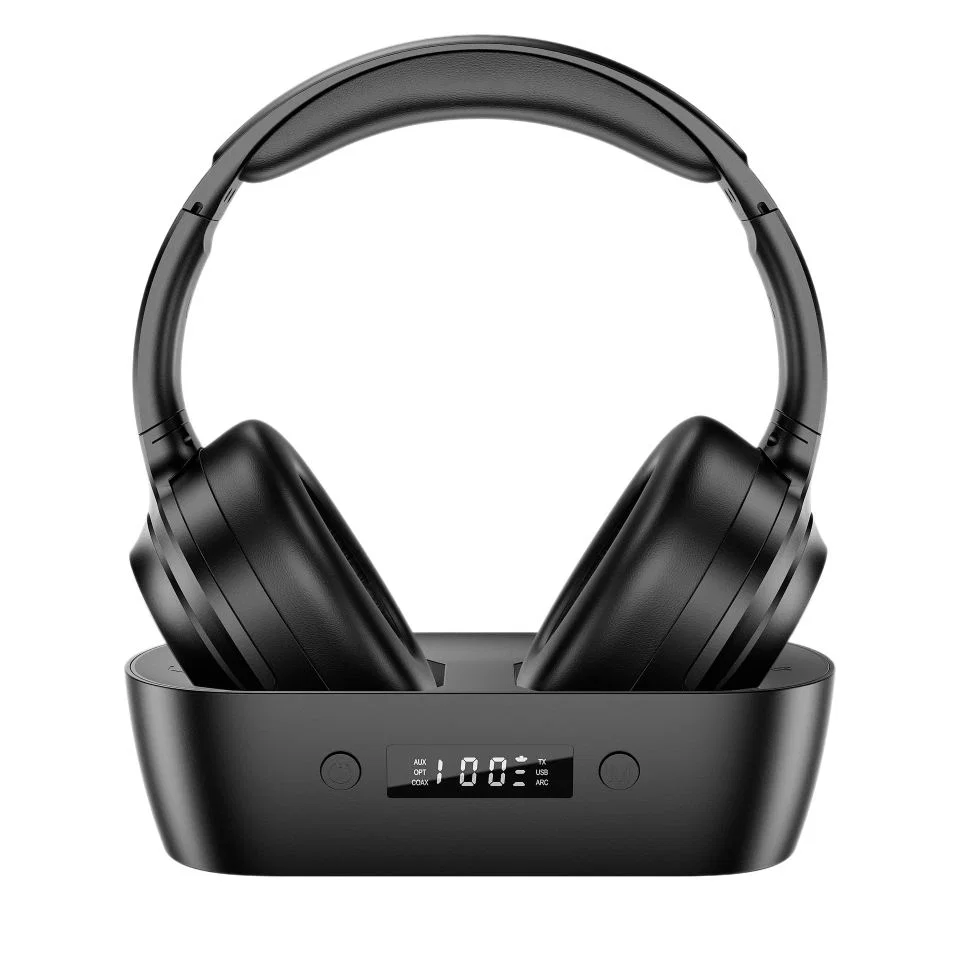
AUX, OPT, COAX, TX, USB, and ARC.
1. Wireless TV Headphones with Display Dock - Black ($39.99)
- What the Catalog & Photos Confirm: This set pairs black wireless over-ear headphones featuring padded earcups and an adjustable headband with a vertical front-display charging dock. The dock’s visible indicator and port labels include AUX, OPT (Optical), COAX (Coaxial), TX, USB, and ARC.
- Best Port Match: Ideal when your media cabinet mixes older coaxial/analog outputs with modern Optical (
OPT) orARClabeling and you want a front-panel status display showing which input mode is active. - Important Limitations to Check: As stated in the product catalog, confirm your specific TV’s audio-output compatibility before wiring; real-world connection stability and wireless latency performance have not been independently verified.
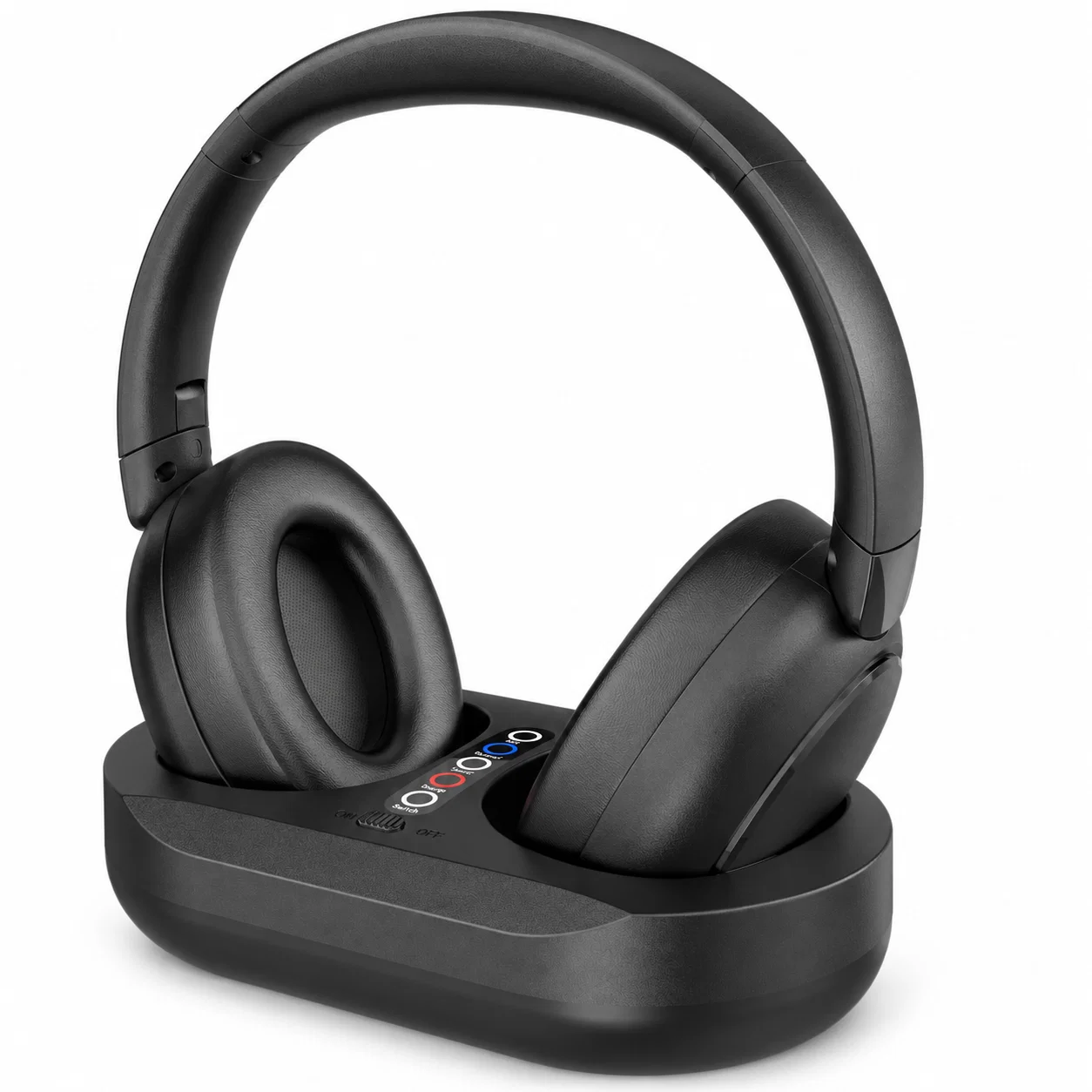
AUX, Optical, Type-C, Charge, and Switch labels.
2. Wireless TV Headphones with Transmitter Dock - Black ($39.99)
- What the Catalog & Photos Confirm: This set includes black over-ear wireless TV headphones with padded earcups and a compact oval transmitter dock. The dock’s visible rear/front labels include AUX, Optical, Type-C, Charge, and Switch.
- Best Port Match: Built for straightforward Optical (
TOSLINK) or 3.5 mm AUX television hookups where a Type-C power connection and a compact oval footprint fit neatly beneath a wall-mounted screen or soundbar. - Important Limitations to Check: As noted in the catalog listing, confirm compatibility with your television’s audio output; included accessory cables and wireless latency performance have not been independently verified.
Frequently Asked Questions
How to connect wired headphones to a TV with only an optical audio output?
Because an Optical (TOSLINK) port transmits digital pulses of light rather than an electrical analog audio signal, you cannot plug a 3.5 mm headphone cord directly into it even with a passive physical adapter. To connect wired headphones to an optical-only TV:
- Purchase a compact USB-powered Optical Digital-to-Analog Converter (DAC) that includes an Optical In port and an amplified 3.5 mm headphone output (preferably with a physical volume knob).
- Connect the TV’s Optical Out to the DAC’s Optical In using a TOSLINK cable, and plug the DAC’s USB power cable into a USB power source.
- Open your TV’s sound settings and switch the Digital Audio Output Format to PCM so the DAC receives an uncompressed stereo signal.
- Plug your wired headphones into the DAC’s 3.5 mm jack and adjust the volume on the DAC knob or your headphone cord.
How do I connect headphones when my TV only has HDMI eARC and optical audio out ports?
When your television eliminates the 3.5 mm headphone jack and leaves only HDMI eARC and Optical Digital Audio Out, you have two reliable hardware routes:
- Route 1 (Optical Port): Connect the TV’s Optical Out to tv headphones with optical input (such as a wireless headphone transmitter dock with an
OPT/Opticalport) or an external optical DAC, and set the TV’s digital output format to PCM. This leaves all of your HDMI ports free and often lets the TV speakers and headphones run independently. - Route 2 (HDMI eARC Port): If your Optical port is already taken—or if you want to control wired headphone volume using your standard TV remote—connect an HDMI ARC/eARC audio extractor to the TV’s HDMI eARC port, enable HDMI-CEC, set the HDMI audio format to PCM, and plug your headphones or transmitter dock into the extractor’s 3.5 mm output.