Connecting samsung tv bluetooth headphones is one of the easiest ways to watch late-night movies, playoffs, or streaming series at full cinematic volume without waking up the rest of the house. Most modern Samsung Smart TVs (running Tizen OS) include a built-in Bluetooth transmitter that pairs directly with wireless over-ear headphones and true wireless earbuds—and many recent Samsung sets even let you stream to two headsets at once or play audio through headphones and the TV speakers simultaneously.
However, two common hurdles trip up living-room listeners: getting headphones that are already paired to your smartphone to show up on the Samsung TV screen, and dealing with tv bluetooth audio delay when switching from Netflix or YouTube to a PlayStation, Xbox, Nintendo Switch, or gaming handheld. Here is how to pair your headset cleanly and eliminate lip-sync or gaming lag.
How Samsung TVs Stream Wireless Audio Over Bluetooth A2DP and AVRCP
Unlike proprietary RF wireless TV headsets that require a bulky charging dock wired to your television’s optical port, modern Samsung Smart TVs communicate directly with standard Bluetooth headphones and earbuds.
According to Wikipedia’s List of Bluetooth profiles, wireless headphones connect to host media devices—such as Smart TVs, computers, and phones—using the Advanced Audio Distribution Profile (A2DP) to stream stereo audio and the Audio/Video Remote Control Profile (AVRCP) to synchronize volume and playback controls.
Step-by-Step: How to Connect Bluetooth Headphones to a Samsung TV
- Disconnect Your Phone’s Bluetooth First: Before touching your TV remote, turn off Bluetooth on your smartphone (or disconnect the headphones in your phone’s Bluetooth menu). If your earbuds or headphones automatically reconnect to your phone the instant you turn them on, they will not broadcast discovery packets to the Samsung TV.
- Put Your Headphones or Earbuds Into Pairing Mode:
- On Over-Ear Headphones: From the powered-off state, press and hold the Power/Bluetooth button for roughly 5 seconds until the indicator LED flashes rapidly (typically alternating red/blue or rapid white/blue).
- On True Wireless Earbuds: Open the charging case, take the earbuds out (or hold the case/stem pairing sensor depending on the model) so they enter active pairing mode without connecting to a phone.
- Open the Samsung TV Bluetooth Speaker List:
- Press the Home or Settings (Gear) button on your Samsung remote.
- Navigate to Settings > Sound > Sound Output and select Bluetooth Speaker List (or on Quick Settings, scroll to Sound Output and press the Up arrow to select Bluetooth Speaker List).
- Select & Pair: Wait 5–10 seconds for your headset name to appear with the message Need Pairing, then highlight it and press Select / Enter on the remote.
Using Samsung “Multi-Output Audio” and Dual Bluetooth
On many 2020-and-newer Samsung QLED, Neo QLED, OLED, and Crystal UHD TVs, you can also enable Multi-Output Audio under Settings > General & Privacy > Accessibility > Multi-output Audio. This lets one person listen through Bluetooth headphones with independent volume control while the rest of the room listens through the TV speakers—or lets two pairs of Bluetooth headphones pair to the TV at the same time.
Why TV Movies Stay in Sync While Gaming Over Bluetooth Shows Audio Delay (r/AynThor Insights)
When you watch a movie or show on a Samsung Smart TV’s built-in streaming apps, dialogue usually looks reasonably lip-synced even though Bluetooth A2DP audio takes 150–250 milliseconds to encode, transmit, and decode. That is because the TV can hold each video frame in memory for a fraction of a second so the picture waits for the wireless audio to reach your ears.
The moment you switch to an interactive video game (or Samsung Game Mode), holding back the video frame by 200 milliseconds would make your controller buttons feel sluggish and unplayable. Because the screen must update immediately when you press a button, you suddenly hear gunshots, footsteps, or menu clicks a split second after they happen on screen.
In r/AynThor (thread 1x1zxp3, “Audio delay occurs when using Bluetooth headphone with games”), a gamer reports experiencing slight audio delay over Bluetooth when gaming, and an audio programmer explains why real-time interactive game audio is much harder to synchronize over Bluetooth than pre-recorded media: “The fact that real-time audio works in an emulator at all is already a miracle. The fact that your laptop can handle Bluetooth audio with no noticeable latency is another miracle. Don’t try to stack two miracles on top of each other. - Someone who does audio programming for living.”
In the same r/AynThor thread (1x1zxp3), other contributors discuss hardware and protocol workarounds—one user notes trying an ultra-slim Bluetooth dongle and checking whether their headphones support “LE Audio,” while another commenter advises: “If your headphones support it (most modern ones do), turn on high effeciency/LE audio in that devices Bluetooth settings… Literally will become unnoticeable.”
| Living-Room Activity | Why Latency Happens (or Doesn’t) | Best Fix on a Samsung TV Setup |
|---|---|---|
| Streaming Movies & Shows (Built-In TV Apps) | TV delays video frames slightly to match A2DP Bluetooth buffer | Adjust Settings > Sound > Expert Settings > Digital Output Audio Delay if lips look slightly off |
| Console Gaming (PS5, Xbox, Switch on TV) | Game Mode prioritizes instant screen response, exposing Bluetooth A2DP buffer lag | Plug a 3.5mm AUX cord from your headphones directly into the wireless game controller jack |
| Samsung Gaming Hub / Handheld Gaming | Real-time game engine audio cannot pre-buffer future frames | Enable low-latency / LE Audio mode if supported by both devices, or use a wired/dongle path |
Choosing Long-Battery Over-Ear Headphones or Wireless Earbuds for Late-Night TV Viewing
Depending on whether you want marathon over-ear comfort that also plugs directly into a console controller for zero-lag gaming, immersive ANC earbuds with spatial audio, or featherlight unsealed earbuds, here is how three EARSOLE models fit a Samsung TV setup:
- For 100-Hour TV Marathons & Zero-Lag Controller Gaming: According to the EARSOLE product catalog, the EARSOLE Noise Cancelling Over-Ear Headphones, Wireless & Wired – Series 127 ($29.40) feature Bluetooth 5.4, up to 100 hours of battery life in standard music mode (with a 5-minute fast charge providing 10 hours of playback), 40mm dynamic drivers, and an included 47.2-inch (1.2 m) 3.5mm AUX cable that plugs directly into a console controller or audio jack. You can pair Series 127 wirelessly to your Samsung TV for weeks of late-night shows without recharging, and plug the 3.5mm cord straight into a PlayStation DualSense or Xbox controller whenever you play fast-paced games.
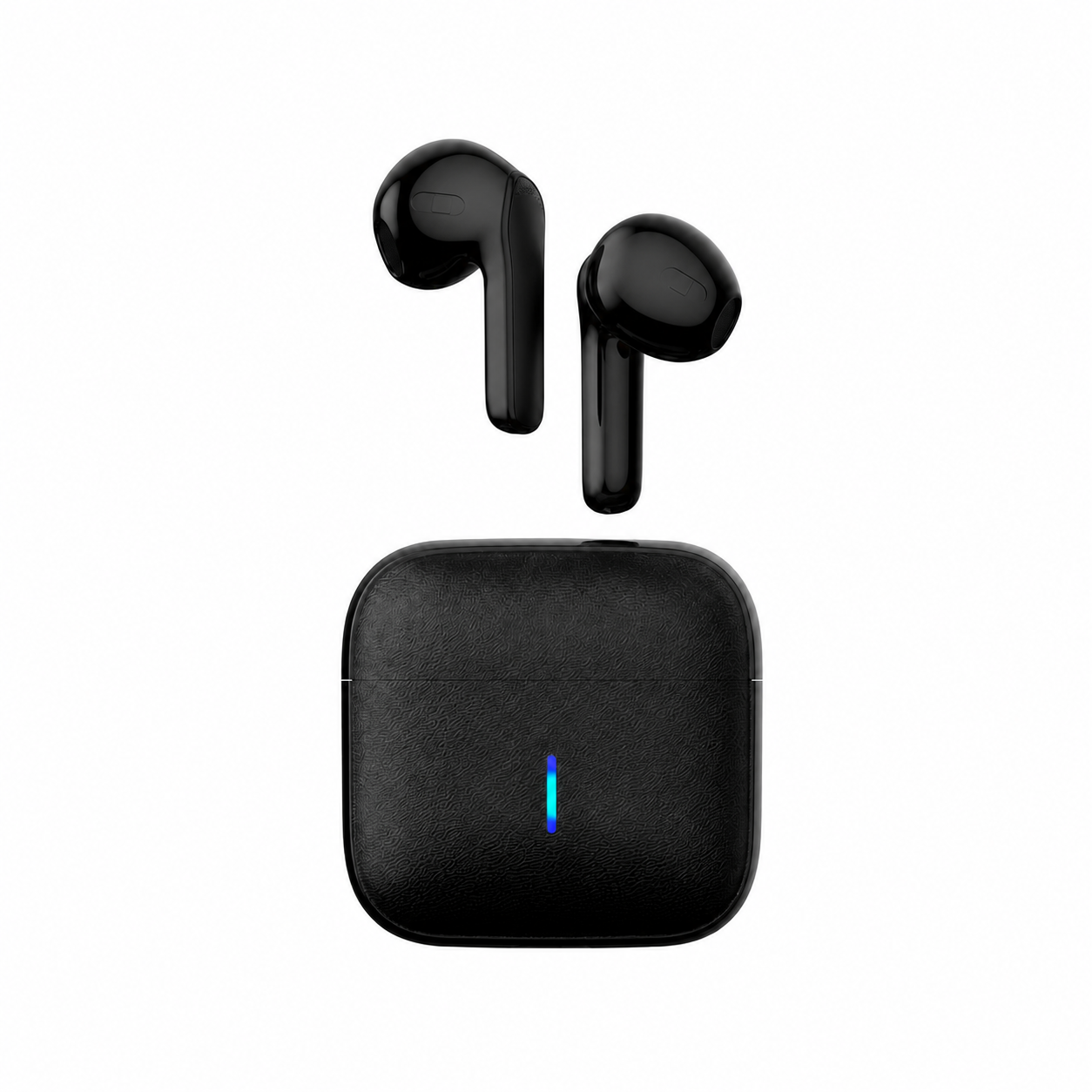
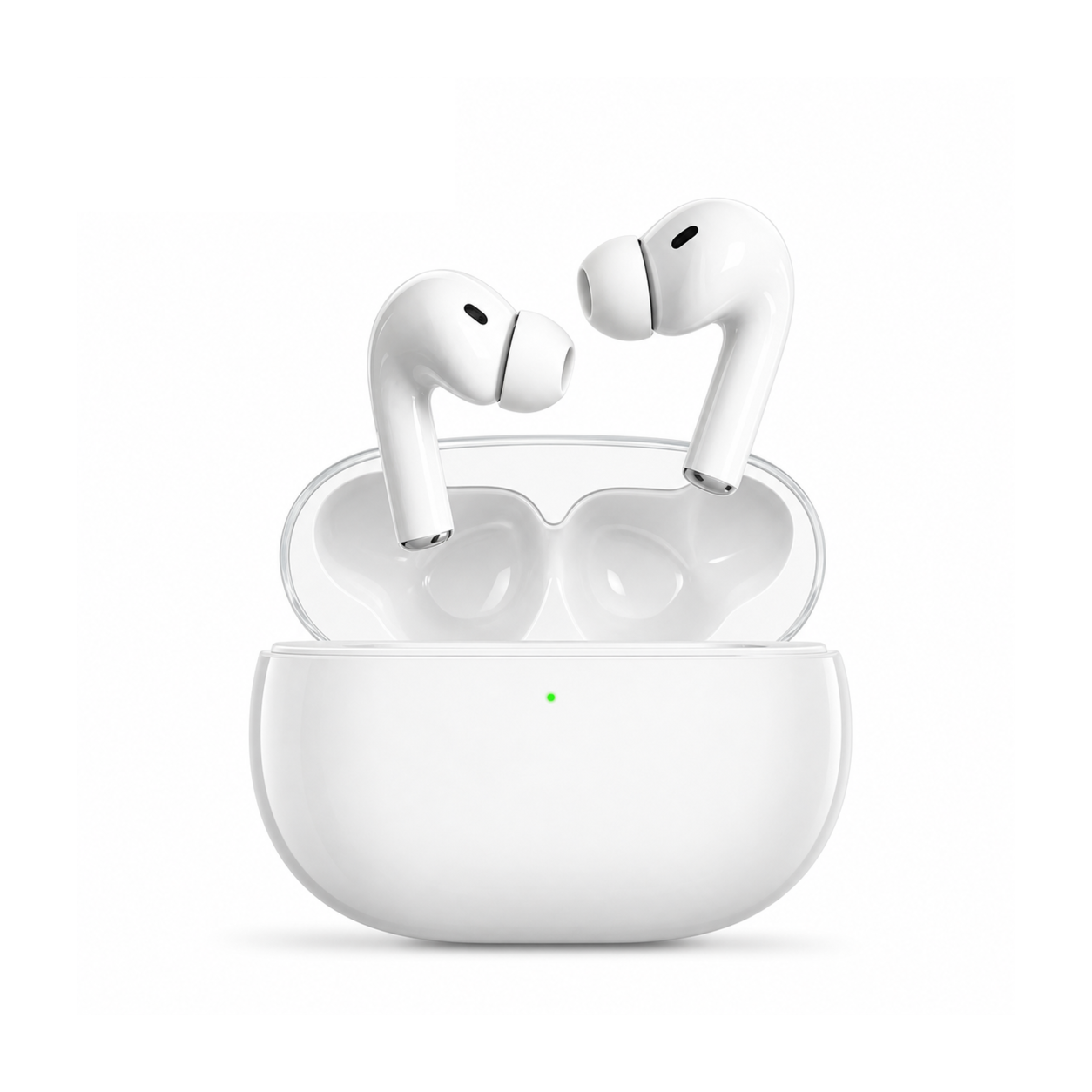
- For Spatial Audio Movie Immersion or Lightweight Semi-In-Ear Comfort: According to the EARSOLE product catalog, the EARSOLE Smart Pro 3 Wireless Earbuds with ANC, Translation & Spatial Audio ($28.43) provide Active Noise Cancellation, spatial audio modes, and Bluetooth connectivity, while the EARSOLE Wireless Earbuds – Semi-In-Ear Bluetooth Earbuds with Charging Case ($17.85) offer an unsealed contoured semi-in-ear fit for lightweight TV listening.
If you also stream TV audio in another room using a Roku streaming player or Roku TV, compare this setup with our guide to Roku TV Bluetooth headphones.
Frequently Asked Questions
How do you put Bluetooth headphones into pairing mode for a Samsung TV?
First, turn off Bluetooth on your smartphone so your headphones do not auto-connect to your phone. Next, power on your headphones and hold the pairing button (or open the earbud case in pairing mode) until the LED flashes rapidly, then open Settings > Sound > Sound Output > Bluetooth Speaker List on your Samsung TV remote.
Why do Bluetooth headphones have more audio delay in video games than when watching TV shows?
When you stream a movie or TV show, the television can delay the video picture by a fraction of a second so it lines up with the Bluetooth A2DP audio buffer. As an audio programmer in r/AynThor (thread 1x1zxp3) explained, real-time video games cannot pre-buffer future audio or delay the screen without making controller inputs feel laggy—so using LE Audio (when supported) or plugging a 3.5mm cord into your console controller is the cleanest fix.
What if my older Samsung TV does not have built-in Bluetooth audio output?
If your older Samsung TV lacks the Bluetooth Speaker List option in Sound Output settings, you can plug a 3.5mm or optical-audio Bluetooth transmitter into the TV’s audio-out port, or use dual-mode headphones (like EARSOLE Series 127) with a 3.5mm extension cable.