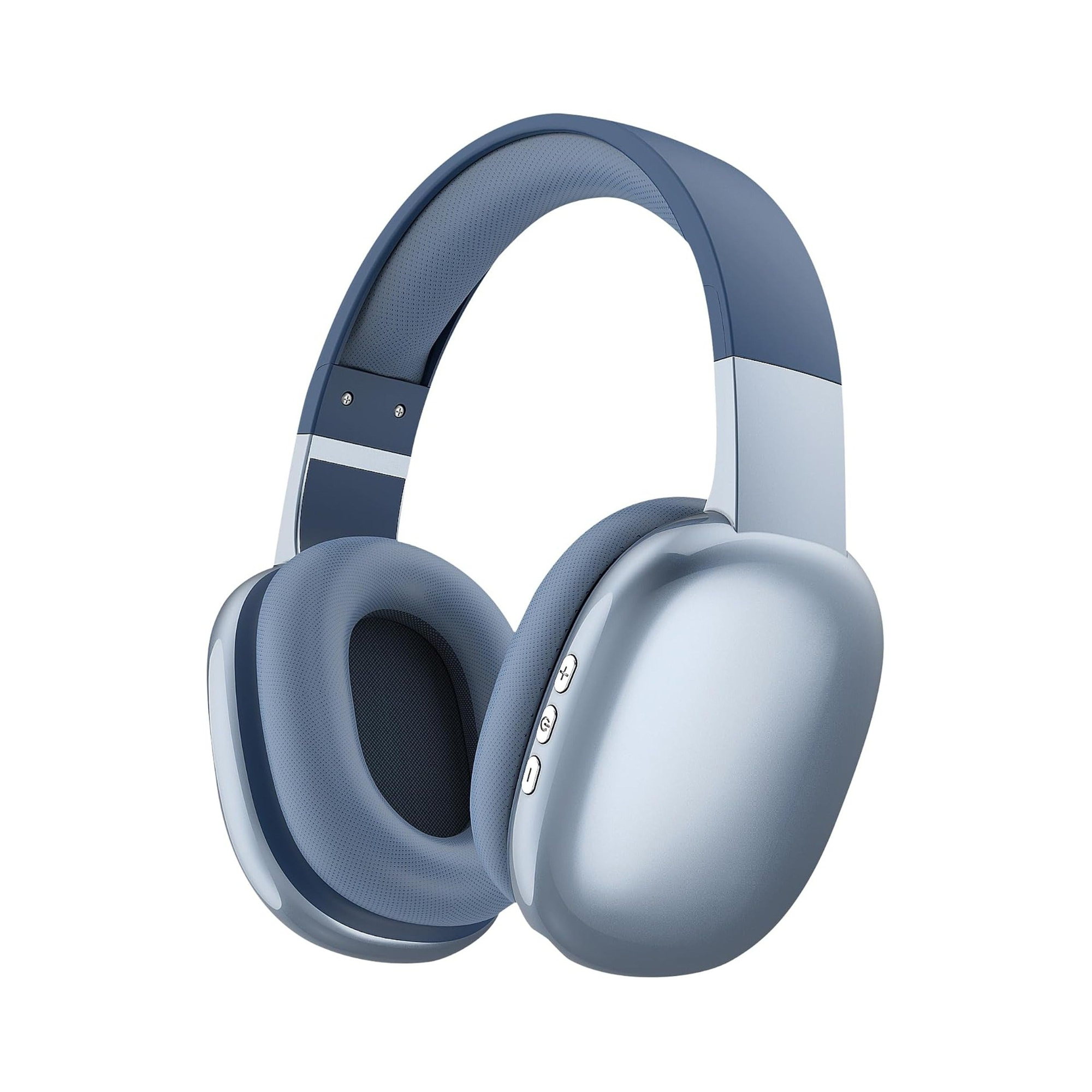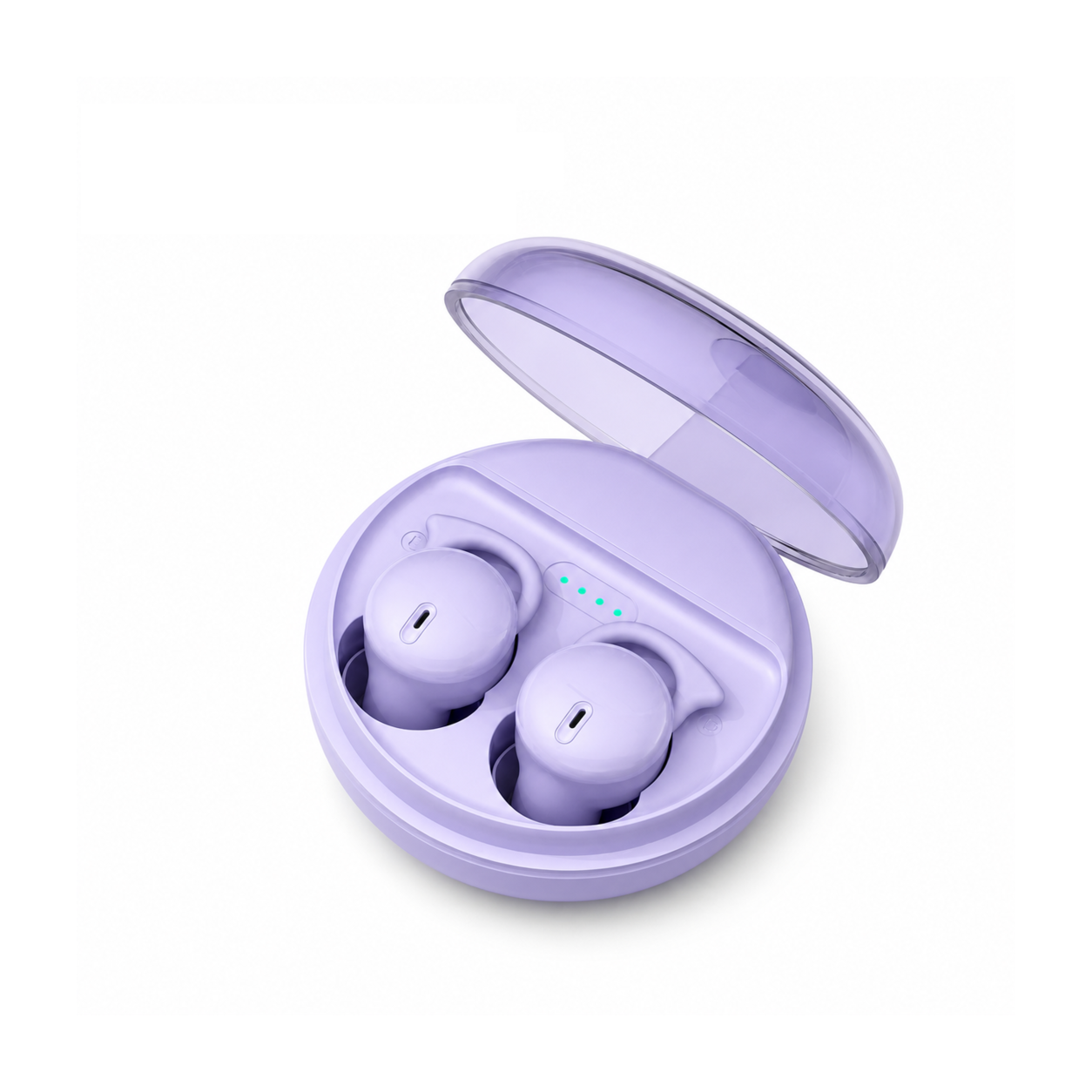
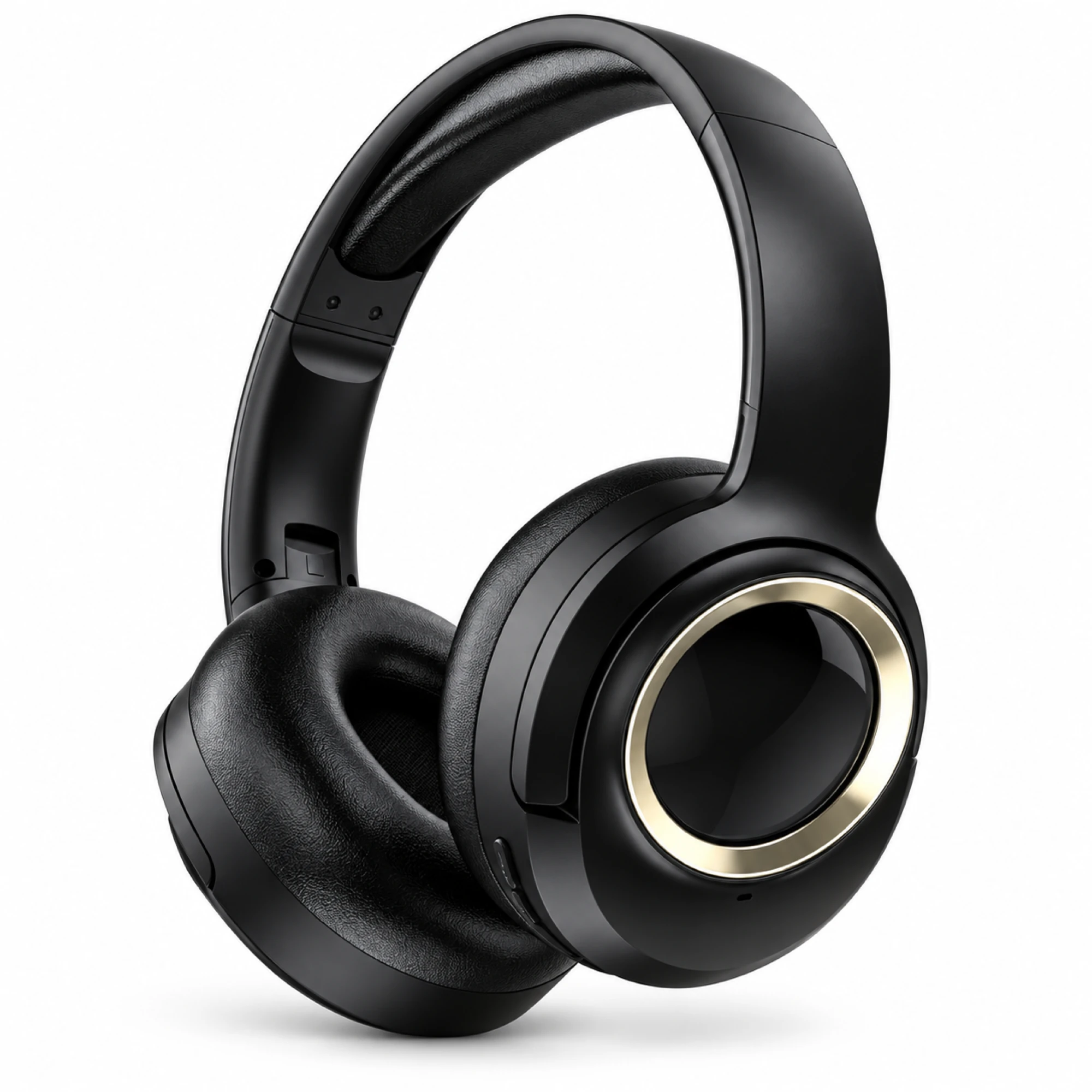
 MX-21 Black and Gold Wireless Headphones
 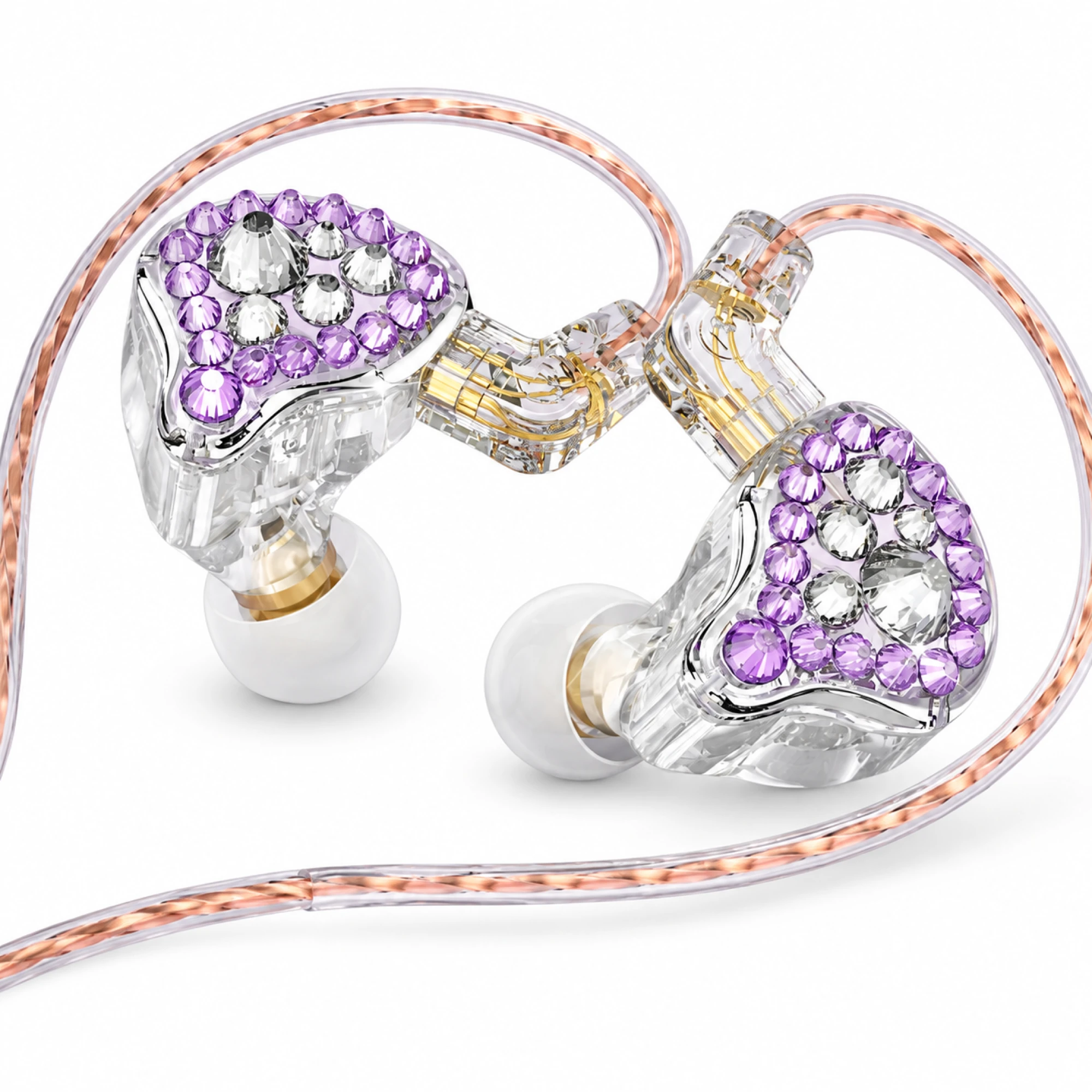 Q2 Pro Purple Crystal In-Ear Monitors
 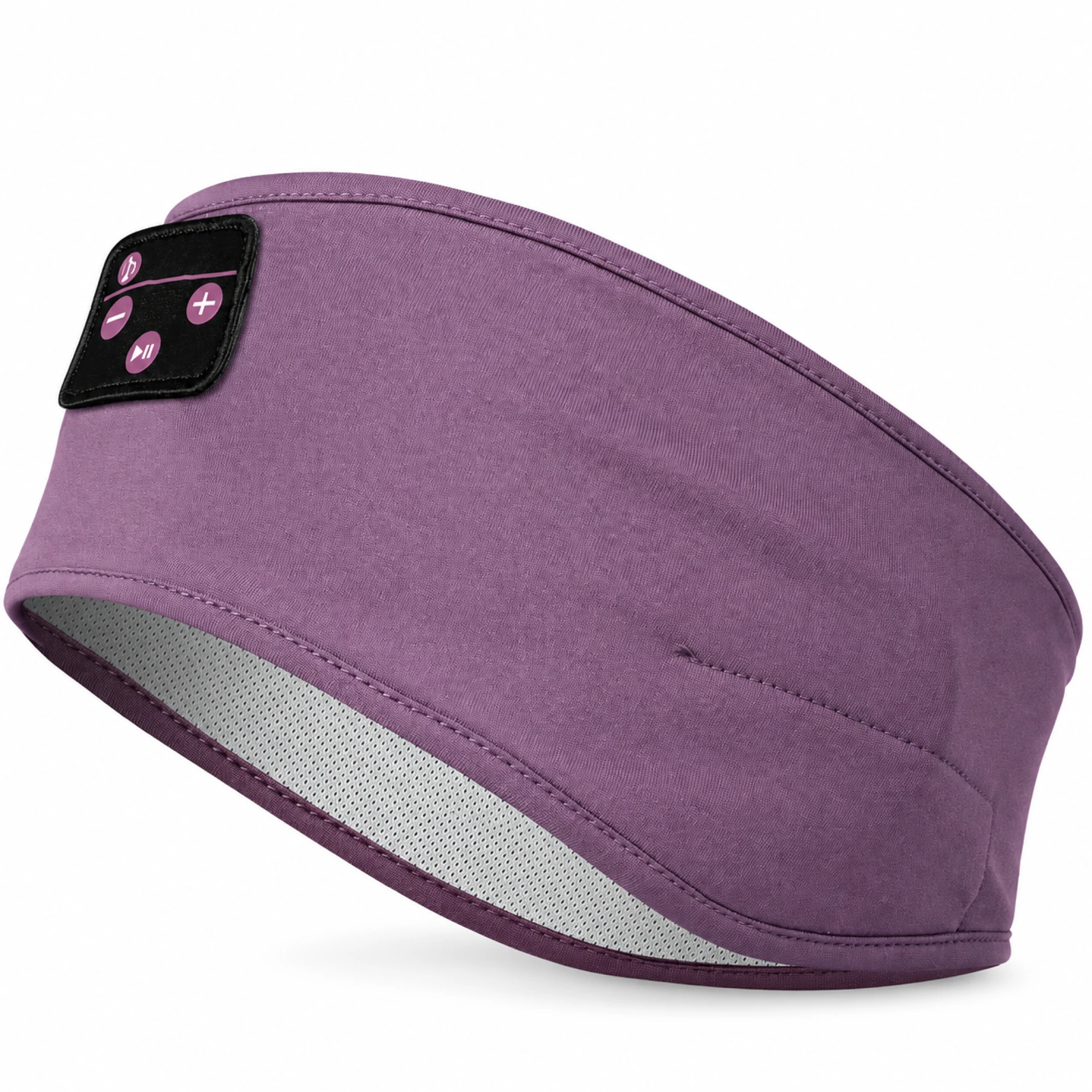 Purple Sleep Headband Headphones with Triangle Controls
 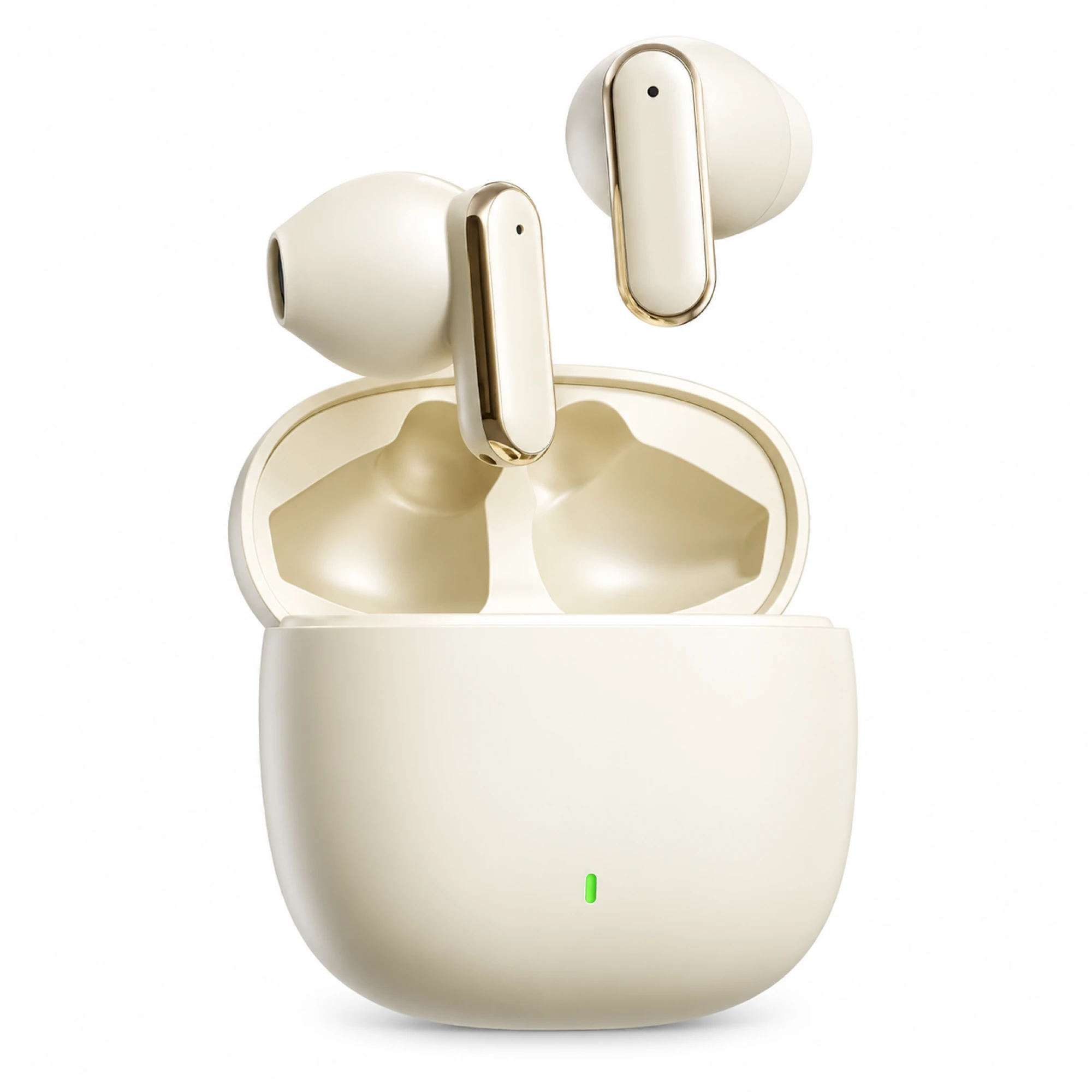 Cream Reflective-Stem Wireless Earbuds
 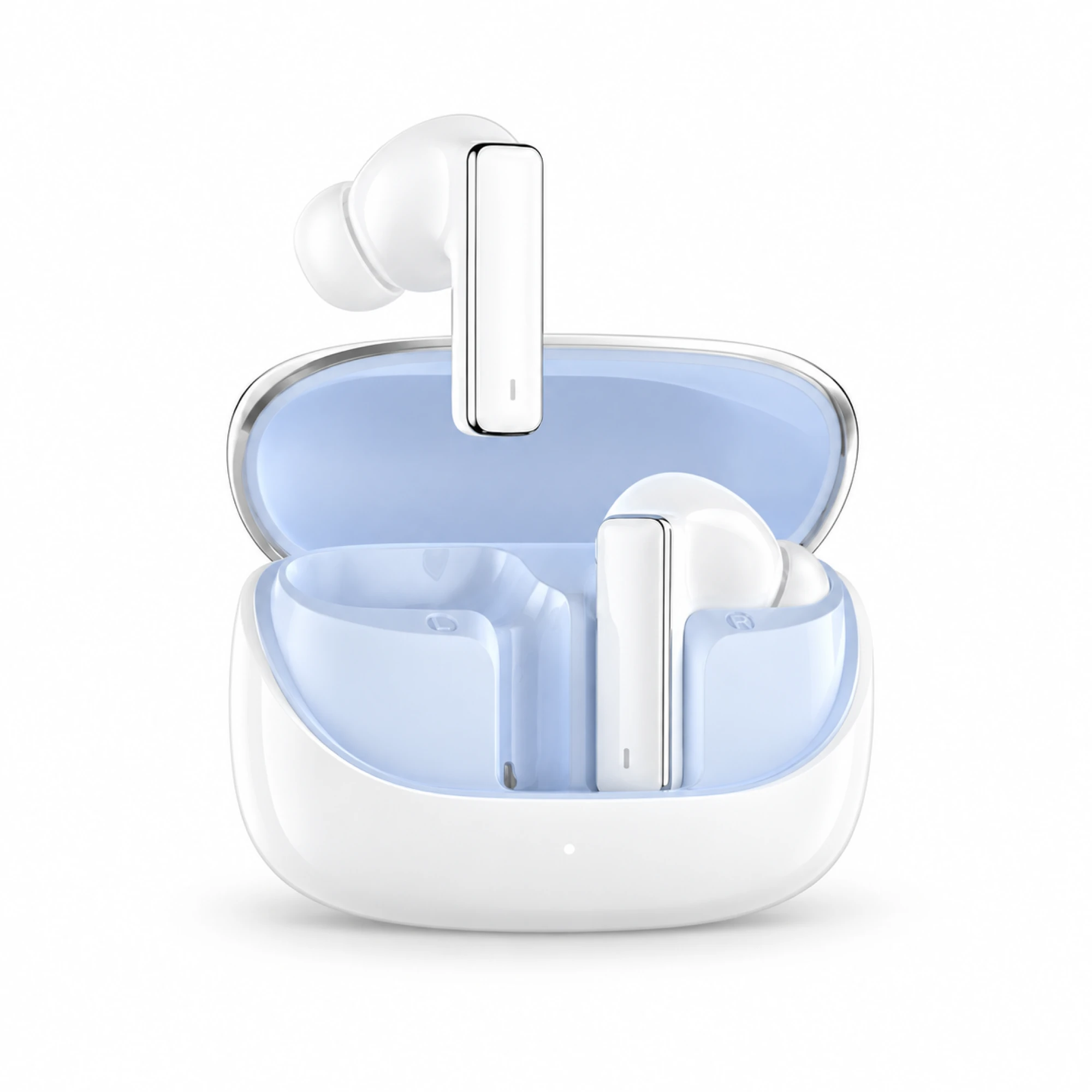 IN-01 White ANC Earbuds with Pale Blue Case Interior
 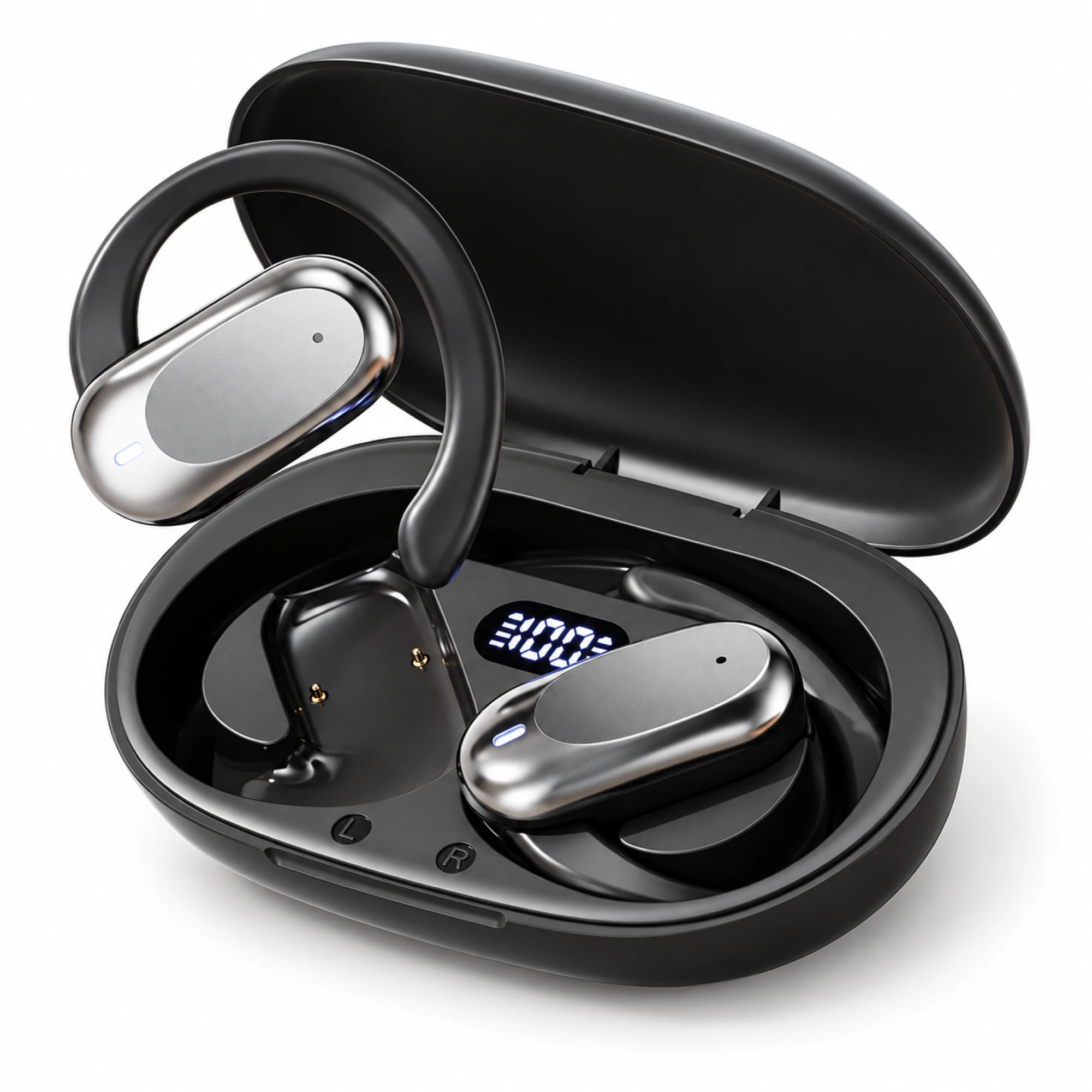 Silver Capsule Open-Ear Earbuds
 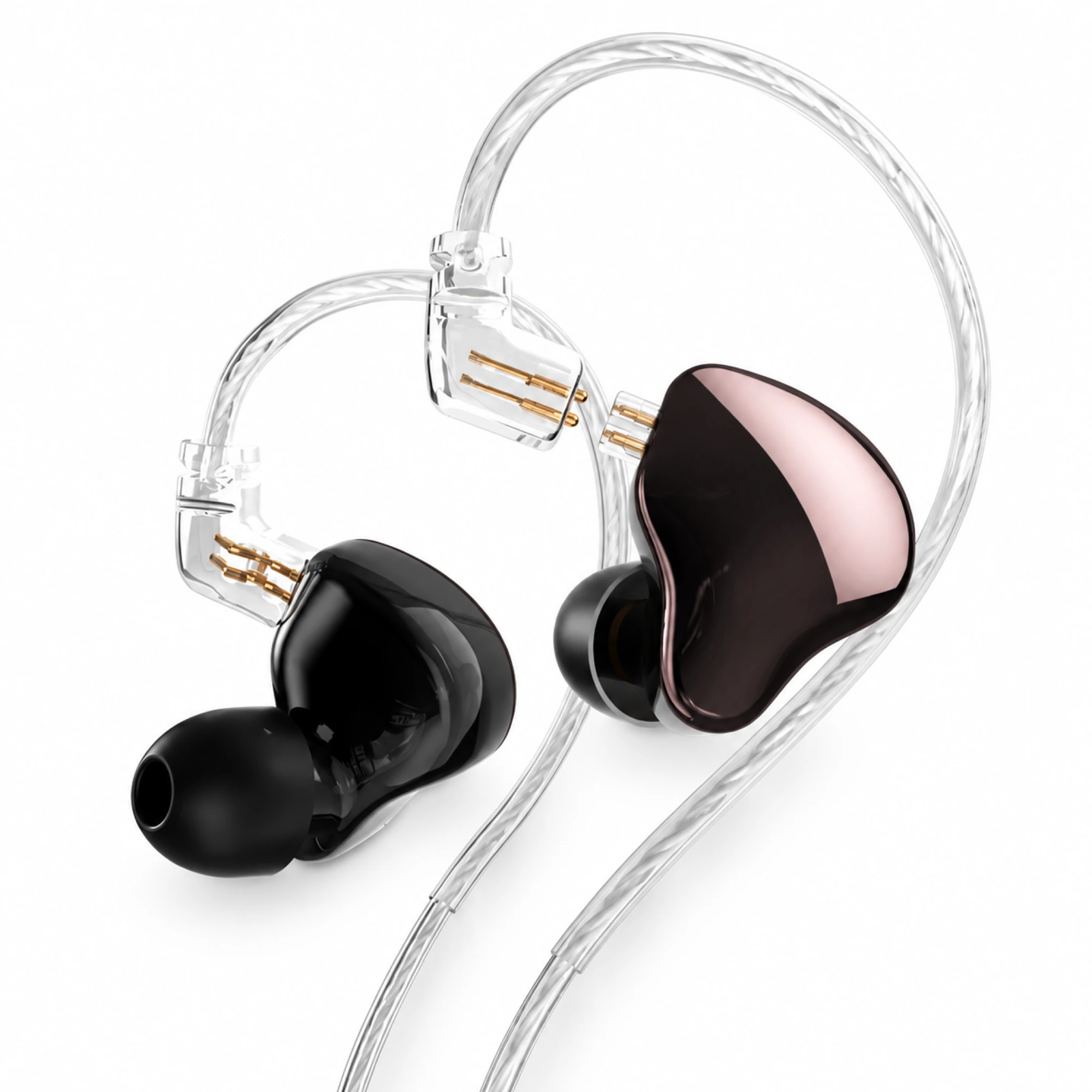 MN Rose-Metallic Detachable In-Ear Monitors
 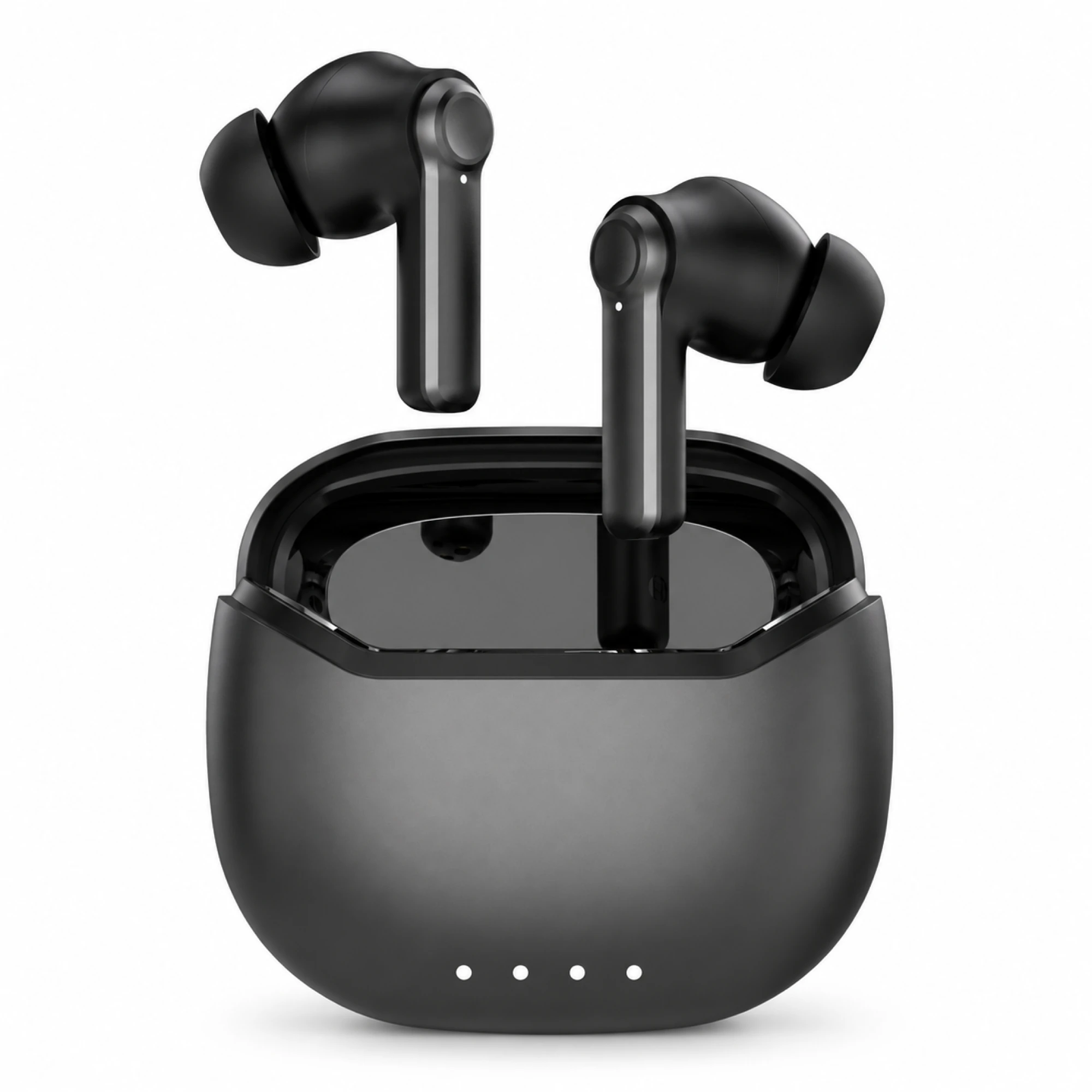 Black ANC Earbuds with Four-Indicator Case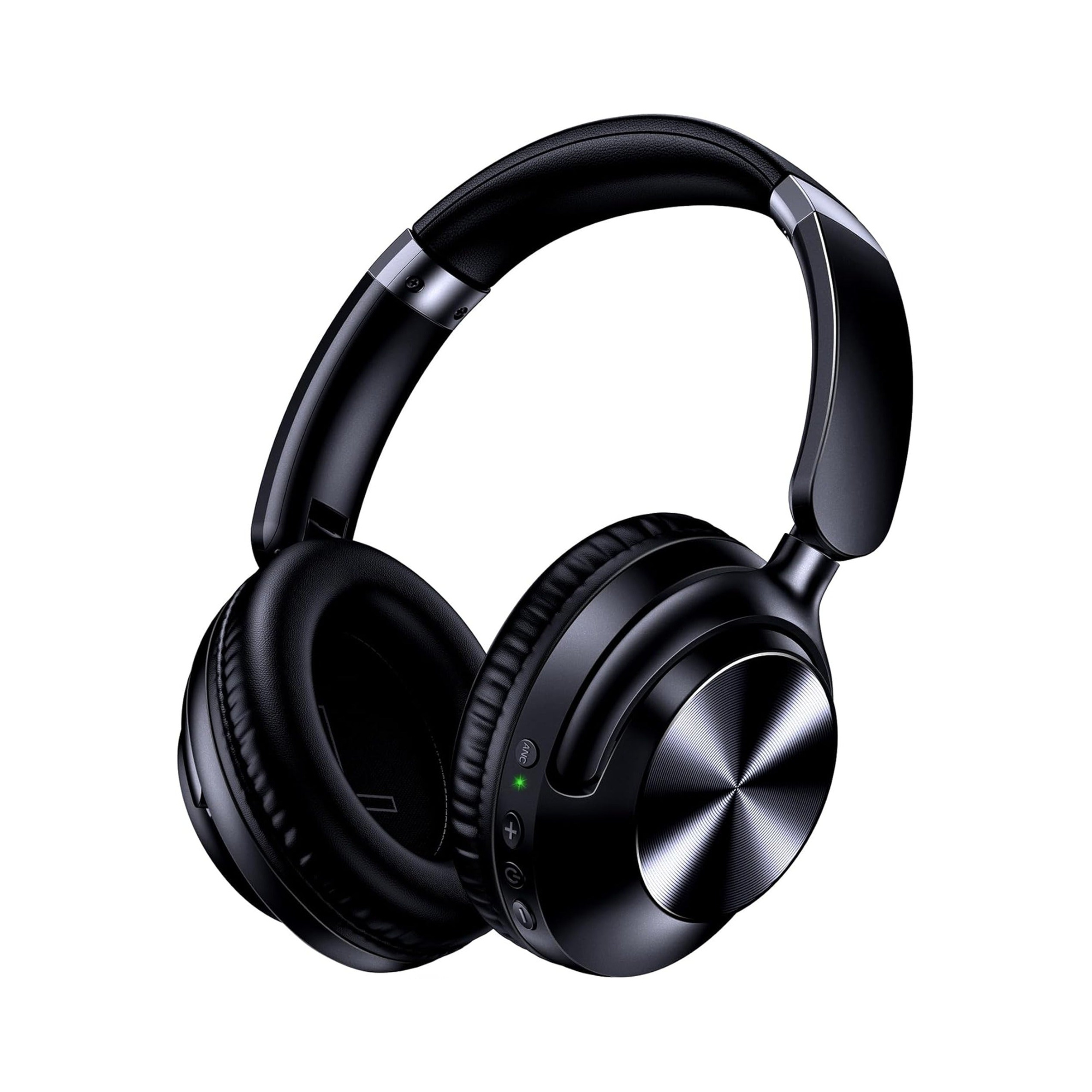
How to pair wireless headphones to a TV comes down to the same five moves on every set: charge them, hold them in pairing mode, open the television's Bluetooth list, select the name, confirm. What changes between brands is where that list is buried, and whether the set can send audio out at all. Every path below comes from the manufacturer's own documentation, read on 2 September 2026.
The five steps, before you touch the menu
Do these in order. Skipping the second one is the most common reason a pairing fails at the last moment.
- Charge the headphones. A pair at low battery will often appear in the list, then drop the link within seconds.
- Disconnect them from your phone. Turn Bluetooth off there, or forget the headphones. Most inexpensive models hold one host and will quietly reclaim the phone the moment it is in range.
- Put them in pairing mode, which is a different state from simply switched on. Usually a long press of the power or multifunction button until the indicator alternates two colours.
- Open the TV's Bluetooth list and let it scan. Roku documents a scan of up to 30 seconds; give any set that long before deciding it cannot see anything.
- Select the device name, then confirm. Apple notes that some accessories ask for a four-digit code or PIN; if yours does, the code is printed in the headphone manual.
Pairing mode times out, usually within a couple of minutes. If the list is still empty once the indicator stops flashing, open the menu first and trigger pairing second.
Where each TV system keeps the Bluetooth list
These are documented paths. Wording shifts between model years, so treat them as the right neighbourhood rather than a guarantee.
| TV system | Documented path to the pairing list | Worth knowing |
|---|---|---|
| Samsung (Tizen) | Menu → Settings → Sound → Sound Output → Bluetooth Speaker List | A better menu exists; see below |
| LG (webOS) | Settings → Advanced Settings → Sound → Sound Out → LG Sound Sync Bluetooth → Detect | LG says audio may take a second or two after switch-on |
| Roku TVs and players | Home → Settings → Remotes & devices → Wireless headphones → Add new wireless headphones | Only some Roku models have this menu |
| VIZIO (2022 V-Series manual) | Menu → Bluetooth Headphones | A top-level item, above the Audio sub-menu |
| Fire TV | Settings → Controllers and Bluetooth Devices → Other Bluetooth Devices | Controllers and remotes have separate sub-lists |
| Google TV / Android TV | Profile icon → Settings → Remote & Accessories → Pair remote or accessory | Google states one audio device at a time |
| Apple TV | Settings → Remotes and Devices → Bluetooth | Paired sets reappear under "My Devices" |
Samsung: the second menu is the one that keeps the room's sound on
The Sound Output route works, but on many sets it hands all audio to the headphones. Samsung documents a separate accessibility feature, Multi-output Audio, that runs the TV speakers and a Bluetooth device together with independent volume. On 2020 and newer models it sits under Menu → Settings → All Settings → General & Privacy → Accessibility; on 2015 to 2019 sets it is under Accessibility inside General or System instead. Samsung states the feature is not available on 2014 and earlier models. Newer sets also offer Multi Connect, which outputs to two Bluetooth audio devices at once.
Roku, if the model supports it
Roku is the brand where the menu may simply not exist. Roku lists Bluetooth Headphone Mode support on the Streambar SE, Streambar, Streambar Pro, Smart Soundbar, Streaming Stick (3840), Streaming Stick Plus (3830), Ultra and Ultra LT, and on Select Series HD and 4K TVs from 2025, Plus Series and Pro Series TVs. It names the Express, Premiere, Streaming Stick 4K and Streaming Stick 4K+ as devices that do not support it.
Once a pair is known you can reconnect mid-programme: press the star button, choose Wireless headphones, pick yours, then Connect. Roku is also blunt about the ceiling: you cannot connect multiple headphones directly to a Roku TV or player.
VIZIO puts it at the top level
VIZIO gives this its own top-level menu item rather than burying it in audio settings. The 2022 V-Series manual documents the sequence: open Menu → Bluetooth Headphones, set the headphones to pairing mode, and they appear under Other Devices; select them and press OK, after which they sit under Paired Devices. The speaker switch is elsewhere, at Menu → Audio → TV Speakers, which turns the built-in speakers on or off.
Why the TV sees your headphones but will not connect
This failure has one of three causes.
- They are still bonded to a phone. The name appears because they are advertising, but the link is taken. Nothing on the TV fixes this; it has to be fixed at the phone.
- The TV already holds another audio device. A soundbar, old earbuds, a forgotten speaker. Many sets allow one audio output and refuse a second silently.
- Pairing mode has lapsed. The name in the list is a cached scan result, and the device itself has gone quiet. Selecting it gives a spinner, then nothing.
Work through it in this order instead of re-pairing repeatedly. Turn Bluetooth off on every phone, tablet and laptop in the room. On the TV, delete the headphones from the paired list, plus any audio device you no longer use. Forget the TV on the headphones, which is usually a reset gesture; our reset ladder covers the sequence. Re-open the TV's Bluetooth list, let it finish scanning, and only then trigger pairing mode. If it connects and then drops within a minute, that is a different fault: see why earbuds keep disconnecting. If it connects and the lips no longer match the sound, see diagnosing audio delay against video.
The one-device-at-a-time limit
Most televisions treat Bluetooth audio as a single slot. Google states that on Google TV you can only connect one audio device at a time, and Roku says the same for its own hardware, offering the mobile app, with up to four phones running Headphone Mode, as the workaround. Samsung is the exception here, through Multi Connect and Multi-output Audio on supported model years. So a second listener usually needs a second route rather than a second pairing. Neither of the two listings named below claims multipoint, so headphones that hold a TV and a phone at once are not something we can promise.
When the TV has no Bluetooth at all
Plenty of sets carry a Bluetooth radio only for the remote, and a voice remote proves nothing about audio output. The reliable check is whether a pairing menu appears at the paths above, backed by the manual for your exact model number. If it is absent, three routes remain:
- Pair to the streaming device instead. If you own an Apple TV, Fire TV stick or a supported Roku player, the pairing menu lives there and the television is just a screen.
- Add a Bluetooth transmitter on the optical or 3.5 mm output. We do not sell transmitters or TV-specific kit, so that part comes from elsewhere.
- Use a cable. No pairing, no codec negotiation, no drift. Unglamorous and reliable.
Two of our headphones with a wired fallback
We have no purpose-built TV headphone system. What our range does have is models with a wired fallback or a physical pairing switch, and both are worth more on a television than any feature badge.
The Wireless Gaming Headset Series 187 ($33.34 on the listing today) is the simpler pairing story: its listing says sliding the on/off button puts the headphones straight into ready-to-pair mode, and it offers Bluetooth or a 3.5 mm cable with 40 mm drivers. The listing publishes no latency figure, so for a film the cable is the predictable path.
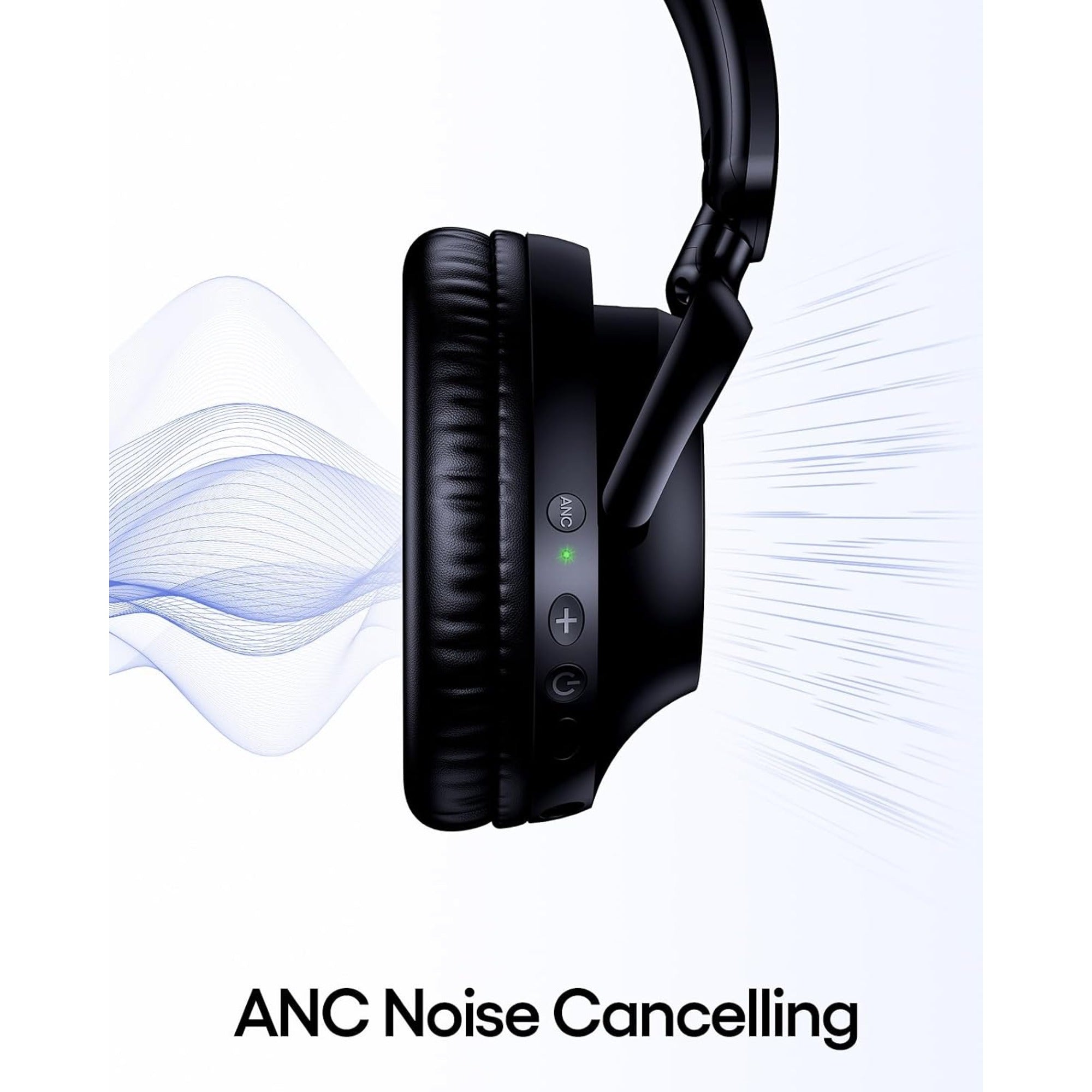
The Over-Ear Wireless Headphones Series 127 ($44.75 on the listing today) lists Bluetooth or a 3.5 mm wired connection with a 47.2-inch cable included, active noise cancellation and up to 100 hours per charge. Under four feet of cable is short for most sofas, so plan on an extension if the wired route is the one you use. Prices are from current listings and can change. Browse the everyday wireless range or the gaming headsets.
Questions we get about TV pairing
Why does my TV not see my Bluetooth headphones?
Open the television's Bluetooth list first and let it scan, then put the headphones into pairing mode while it is still scanning. Recognition fails most often because the headphones are already connected to a phone, or because pairing mode lapsed before the scan finished. Delete stale entries from the TV's paired list before trying again.
Why is there no wireless headphones menu on my Roku?
Because not every Roku device has one. Roku lists Bluetooth Headphone Mode support on specific models and names the Express, Premiere, Streaming Stick 4K and Streaming Stick 4K+ as devices without it. On an unsupported model, Headphone Mode through the Roku mobile app is the documented alternative.
Can every VIZIO TV pair headphones over Bluetooth?
Not necessarily. The 2022 V-Series manual documents a Bluetooth Headphones menu, but VIZIO publishes manuals per model line, so that section's presence in your own model's manual is the check that matters. A working app or voice remote does not prove the set can send audio out.
- Samsung: Pair Bluetooth headphones to your Samsung TV
- LG: Easy Bluetooth connect guide
- Roku: Bluetooth headphones for Headphone Mode
- Roku: Headphone Mode with the mobile app
- VIZIO V-Series user manual (PDF): Bluetooth Headphones
- TCL: Connecting Bluetooth devices to my Fire TV
- Google: Connect Bluetooth devices to Google TV
- Apple: Use Bluetooth accessories with your Apple TV