Pairing bluetooth headphones with smart tv models is one of the easiest ways to watch late-night movies or hear dialogue clearly without raising room volume. Yet many viewers open their television settings only to discover that their earbuds refuse to appear on screen, actors’ lips move a fraction of a second before the voice arrives, or connecting a headset mutes the sound for everyone else on the sofa.
Whether you want to know how to connect bluetooth headphones to smart tv menus directly, calibrate millisecond audio-sync sliders, share a movie across two headsets, or bypass missing Bluetooth hardware with a dedicated transmitter dock, this guide walks through every setup and troubleshooting step.
Key Takeaways
- Smart TV Bluetooth Pairing Path: On most Samsung Smart TVs, official Samsung Support (ANS10006968) states that pairing follows
Menu > Settings > Sound > Sound Output > Bluetooth Speaker List.- Compatibility & Lip-Sync Caveats: Samsung Support notes that some Bluetooth headphones are designed for mobile devices exclusively and won’t pair with a TV, and lip-sync errors or distance disconnects may occur.
- Millisecond Lip-Sync Calibration: As home theater users on
r/LifeProTipspoint out, adjusting your TV’s built-in audio sync setting by plus or minus a few milliseconds corrects dialogue delay across streaming apps.- Dual Listening vs. Shared Room Audio: Newer Samsung Smart TVs offer Multi Connect to output sound to two Bluetooth headphones simultaneously, and Accessibility > Multi-output Audio (on 2015 and newer models) to run the TV speakers and a Bluetooth headset at independent volumes.
- Dedicated Transmitter Docks: When a budget smart TV lacks built-in Bluetooth or suffers from pairing drops, dedicated smart tv wireless headphones with a charging transmitter base—such as the K2 low-profile dock or a twin-slot display base with
AUX,OPT,COAX,TX,USB, andARClabels—connect directly to the TV’s physical audio ports.
How to Pair Bluetooth Headphones With a Smart TV Across Major TV Menus
Before opening your television settings, make sure your bluetooth headphones for smart tv listening are disconnected from your phone or tablet. Most Bluetooth headsets can only advertise a discovery signal when they are not actively streaming from a mobile device.
Step-by-Step Pairing Workflow (Samsung Smart TV & General Smart OS)
According to official Samsung Support (ANS10006968) documentation, pairing Bluetooth headphones on most Samsung Smart TVs follows these exact steps:
- Enter Bluetooth Pairing Mode: Put the headphones into Bluetooth pairing mode and make sure they are discoverable (consult your headphone manual if needed—usually holding the power or pairing button until the indicator LED flashes).
- Open the TV Sound Output Menu: On most Samsung Smart TV models, press Menu on your remote, then select Settings > Sound > Sound Output > Bluetooth Speaker List. (On Google TV sets, navigate to
Settings > Remote & Accessories > Pair remote or accessory; on LG webOS, openSettings > Sound > Sound Out > Use Wireless Speaker > Bluetooth Device.) - Select and Pair: Wait for the television to scan for nearby discoverable devices, highlight your headphone name when it appears (
Needs Pairing), and select Pair and Connect.
Why Some Headphones or Smart TVs Refuse to Pair
Even if your television runs a modern streaming interface, two hardware roadblocks frequently trip up first-time setups:
- Mobile-Only Bluetooth Profiles: Official Samsung Support (ANS10006968) explicitly notes that compatibility issues may occur depending on the Bluetooth device—specifically, some Bluetooth headphones are designed for mobile devices exclusively and won’t pair with a TV.
- Budget Smart TVs Without Built-In Bluetooth Transmitters: As community user
j4v4r10highlighted onr/LifeProTips, built-in Bluetooth headphone output is not on every smart TV (noting that their entry-level Vizio smart TV omitted the feature entirely). If your Sound Output menu only lists TV Speaker and Optical / HDMI ARC with no Bluetooth option, your television does not contain an internal Bluetooth audio transmitter.
| Smart TV Listening Scenario | Native TV Menu Feature / Setting | Hardware Alternative When Unsupported | Independent Volume Control |
|---|---|---|---|
| Single Viewer (Private Listening) | Sound > Sound Output > Bluetooth Speaker List | Wireless TV headphone dock via Optical (OPT) or AUX | Headphone buttons or TV remote |
| Fixing Lip-Sync / Dialogue Delay | TV Sound Settings > Audio Sync / Delay (+/- ms) | Dedicated transmitter base wired to TV Optical or ARC | Controlled on headset or dock |
| Two People Watching on Headphones | Samsung Multi Connect (Bluetooth Speaker List > Multi Connect) | Twin-headphone or splitter-fed wireless transmitter dock | Individual Bluetooth headset volume |
| Headphones + TV Speakers Together | Settings > General & Privacy > Accessibility > Multi-output Audio | Optical (OPT) transmitter dock (keeps TV speakers active) | Independent Bluetooth and TV speaker volume |
Fixing Lip-Sync Drift and Audio Delay on Smart TV Bluetooth Headphones
Official Samsung Support (ANS10006968) warns that lip-sync errors may occur when using Bluetooth headphones with a television, and that a Bluetooth device may hum, malfunction, or disconnect when obstructed by walls or exposed to same-frequency interference from wireless LANs (Wi-Fi routers) or microwave ovens.
Why do Bluetooth headphones often lag behind the actor’s mouth on a television when they feel perfectly synced on a smartphone? Phones automatically delay the video frame on screen by 150–250 milliseconds to match Bluetooth encoding latency, whereas many television video processors prioritize display rendering unless you adjust the audio timing manually.
1. Calibrate the TV’s Millisecond Audio Sync Slider
On r/LifeProTips, user Nibbled92 shared a practical fix for smart tv wireless headphones experiencing dialogue drift: open your TV settings, locate the Audio Sync (or Digital Output Audio Delay) slider, and adjust it by plus or minus a few milliseconds—noting that even midrange 2017 Samsung TVs include this millisecond offset control.
2. Check Dynamic Range (SDR vs. HDR / Dolby Vision) Sync Memory
If your Bluetooth headphones stay in sync during regular cable broadcasts or YouTube clips but drift out of sync as soon as you start an HDR movie, your streaming device may store separate audio timing profiles for each video format. In r/appletv, user Flipslips reported that when dynamic range matching is active, wireless audio sync calibration is saved on a per-format basis—meaning you must run wireless audio sync once in SDR and a second time with Dolby Vision forced on so both standard and HDR streams stay locked to dialogue.
3. Eliminate 2.4 GHz Line-of-Sight Obstructions
Because Bluetooth shares the crowded 2.4 GHz band with home Wi-Fi routers, Samsung Support notes that audio dropouts or humming can happen when a part of your body blocks the receiving antenna on the headset, or when a dual-band Wi-Fi router sits directly beside the television panel. Moving your router at least three feet away from the TV backplate reduces packet retries that widen lip-sync lag.
Listening Together: Multi Connect Dual Headphones vs. Accessibility Multi-Output Audio
Many households search for bluetooth headphones with smart tv support because two people want to watch late at night, or because one viewer wants clearer dialogue in headphones while the rest of the family listens through the room speakers. Official Samsung Support (ANS10006968) documents two separate features that solve these two scenarios:
- Multi Connect (Two Bluetooth Headphones Simultaneously): While standard TV Bluetooth profiles only allow one active audio output at a time, Samsung Support states that on newer Samsung TVs you can pair and connect multiple Bluetooth audio devices and output sound to both at the same time. After pairing the first headset in
Menu > Settings > All Settings > Sound > Sound Output > Bluetooth Speaker List, highlight a second paired Bluetooth headphone and select Multi Connect (instead of Replace). - Multi-Output Audio (Bluetooth Headphones + TV Speakers Simultaneously): For households where one viewer is hard of hearing and needs higher headphone volume without raising the room speaker volume for everyone else, Samsung Smart TVs (2015 J-series models and newer) include Multi-output Audio:
- 2020 and newer Samsung Smart TVs: Select
Menu > Settings > All Settings > General & Privacy > Accessibility > Multi-output Audio. - 2017–2019 Samsung Smart TVs (R, N, and M models): Select
Home > Settings > General > Accessibility > Multi-output Audio. - Note that Samsung Support specifies you cannot use Bluetooth devices simultaneously with Wi-Fi Speaker Surround Setup or TV SoundConnect.
- 2020 and newer Samsung Smart TVs: Select
When Native Smart TV Bluetooth Falls Short: Low-Profile and Twin-Slot Transmitter Docks Compared
When your television lacks built-in Bluetooth, blocks non-mobile headphones from pairing, or forces you to dig through settings menus every evening, a dedicated wireless tv headphones with dock system bypasses the smart TV’s operating system altogether. Instead of relying on the TV’s internal Bluetooth menu, a charging transmitter dock plugs directly into the television’s physical audio ports.
Here is how two black over-ear wireless TV headphone sets in the Earsole catalog compare by their dock construction and labeled input interfaces:
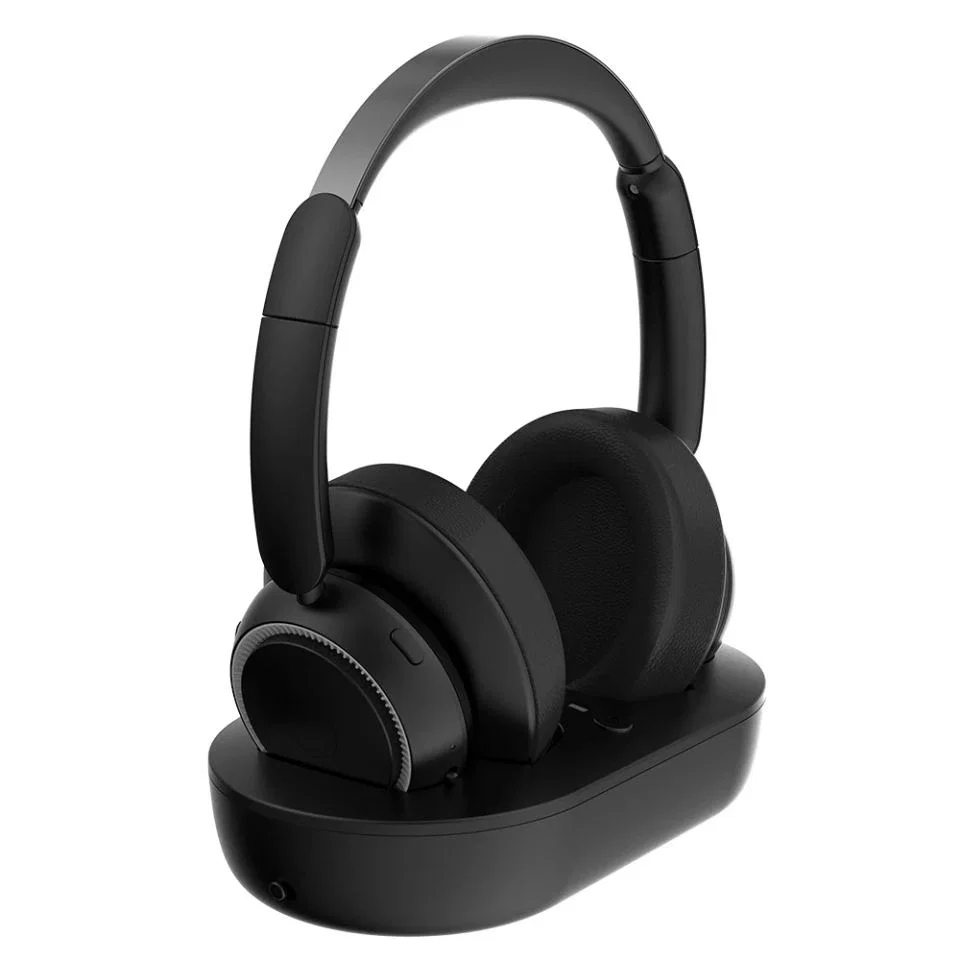
1. K2 Wireless TV Headphones with Dock - Black ($39.99)
- Confirmed Catalog & Visual Details: Black K2 wireless TV headphone set with padded earcups, straight earcup supports and a matching low-profile dock. This listing is for the selected black K2 configuration.
- Best Living-Room Fit: Designed for viewers who want a compact, low-profile cradle that sits neatly on a media shelf without tall vertical towers blocking the bottom edge of the television screen.
- Important Verification Limits: Confirm your TV’s audio-output compatibility; wireless and latency performance have not been independently verified.
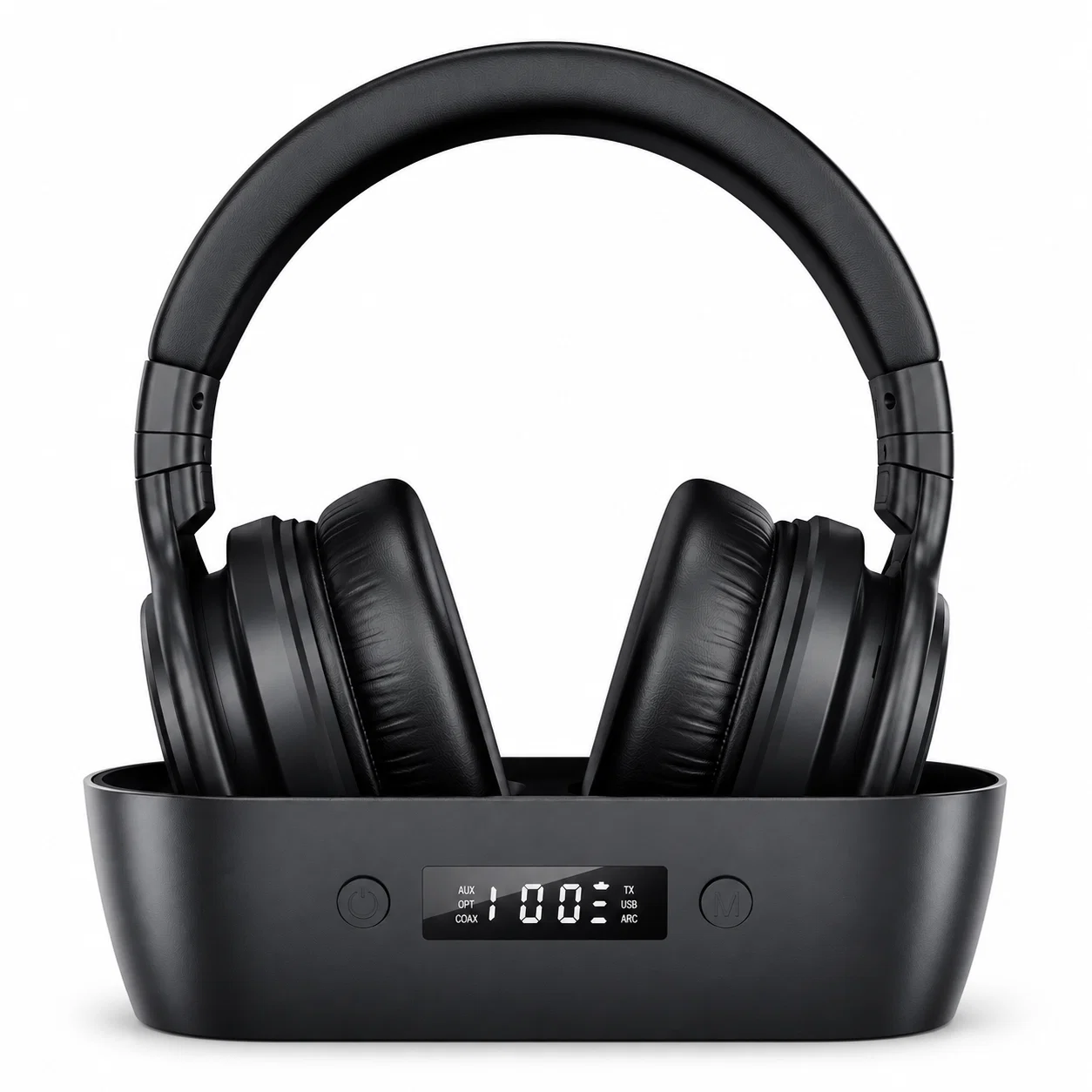
AUX, OPT, COAX, TX, USB, and ARC.
2. Wireless TV Headphones with Display Base - Black ($39.99)
- Confirmed Catalog & Visual Details: Black wireless TV headphone set with a matching twin-slot base and front display. The visible base labels include AUX, OPT, COAX, TX, USB and ARC.
- Best Living-Room Fit: Built for setups where you want a wireless tv headphones with display base that clearly shows active port indicators (
AUX,OPTfor Optical TOSLINK,COAX,TX,USB, andARC) on the front panel while resting the earcups inside a recessed twin-slot cradle. - Important Verification Limits: Confirm your TV’s audio-output compatibility; connection and noise-reduction performance have not been independently verified.
Frequently Asked Questions
Can any Bluetooth headphones work with a smart TV?
Most standard Bluetooth headphones and earbuds that support the Bluetooth A2DP audio profile can pair with a Bluetooth-equipped smart TV, but there are two important exceptions:
- Mobile-Exclusive Headphones: According to official Samsung Support (ANS10006968), compatibility issues may occur depending on the Bluetooth device—specifically, some Bluetooth headphones are designed for mobile devices exclusively and won’t pair with a TV.
- Smart TVs Without Bluetooth Audio Transmitters: As users on
r/LifeProTipspoint out, not every budget smart TV includes built-in Bluetooth audio output. If your smart TV lacks Bluetooth or rejects a mobile-only headset, you can connect a wireless TV headphone transmitter dock (or plug a Bluetooth-capable streaming stick into an HDMI port) to handle wireless audio outside the TV’s native menu.
How do you connect wireless headphones to a smart TV?
You can connect wireless headphones to a smart TV using either native Bluetooth menus or a physical transmitter dock:
- Via Native Smart TV Bluetooth: Put your headphones into pairing mode, then open your TV’s audio output menu—for example, on most Samsung Smart TVs, navigate to
Menu > Settings > Sound > Sound Output > Bluetooth Speaker Listand select Pair and Connect. - Via a Wireless TV Headphone Transmitter Dock: If you use dedicated wireless TV headphones with a charging base (such as a base labeled with
OPT,AUX,COAX, orARC), connect the base to your TV’s matching audio output port, power the dock, and switch your TV’s digital audio format to PCM when using Optical or HDMI ARC.