How to Connect a Bluetooth Headset to a TV Menu and Lock Output Routing
Putting a wireless headset into pairing mode and seeing its name pop up on a television screen is only half of the job. To connect a Bluetooth headset to a TV and hear television audio through your earcups, you must open your television’s specific device or sound submenu—such as Settings > Sound > Sound Output > Bluetooth Speaker List on Samsung TVs, Settings > Sound > Bluetooth Connection > Device Selection on LG TVs, or Settings > Remotes & devices > Wireless headphones on Bluetooth-enabled Roku TVs—and verify that the television’s audio output is actively switched to the headphones. When a television does not include native Bluetooth audio, or when you prefer a stationary dock wired directly to an analog output jack, plugging a transmitter into the television’s 3.5mm headphone jack or RCA audio output routes sound wirelessly to your headset.
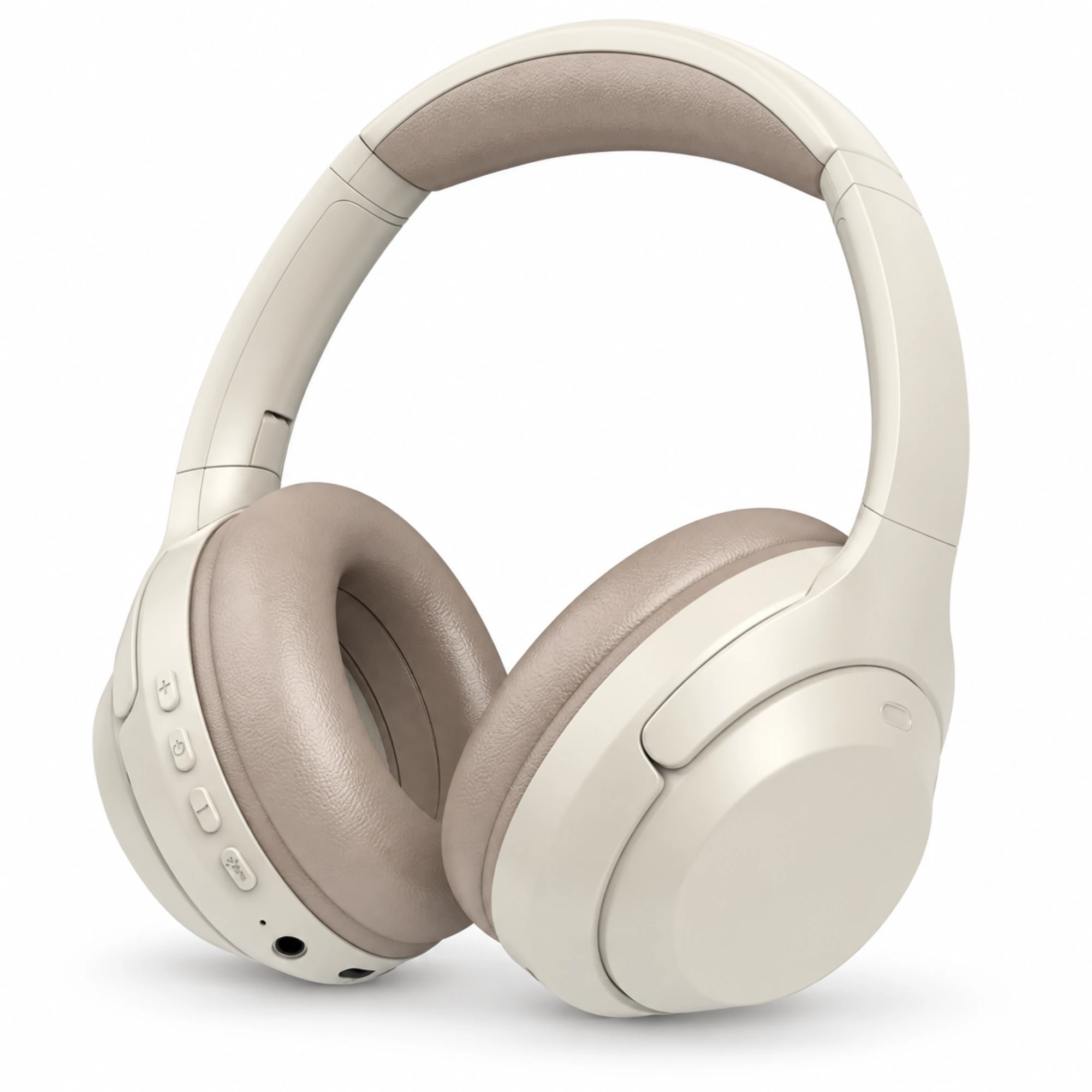
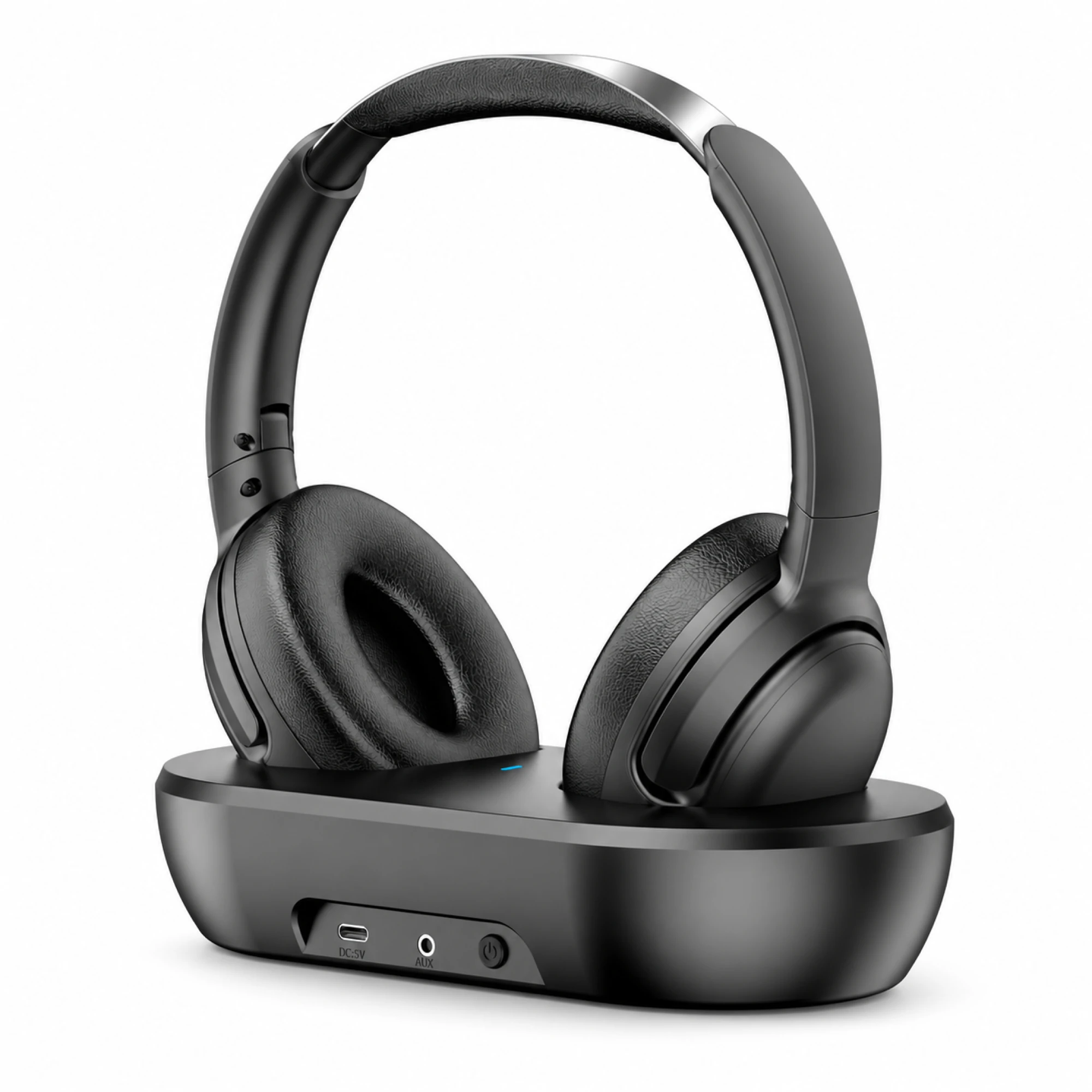
For viewers pairing directly to a smart TV’s on-screen Bluetooth list, the C-2235 Cream Wireless Headphones ($29.99) provide over-ear wireless listening with a padded headband, oval ear cushions, and physical earcup controls. For living rooms where the television lacks built-in Bluetooth or you want a dedicated wired transmitter dock, the Black Wireless TV Headphones with Front-Port Base ($69.99) combine black wireless over-ear headphones (oval cushions, a padded arch, and a silver-toned top) with a matching transmitter base that places its AUX socket and power control on a recessed front panel.
How to Pair a Bluetooth Headset in Samsung, LG, and Roku TV Menus
Before opening any television menu, place your Bluetooth headphones into pairing mode so the headset broadcasts its discovery signal. If the headset is already linked to a nearby smartphone or tablet, it will not appear in the television’s scan results until pairing mode is active.
Once your headset is visible in pairing mode, follow the menu path for your television platform (as documented in SoundGuys’ TV headphone connection guide):
- Samsung Smart TVs: Open Settings on the TV, select Sound, open Sound Output, and choose Bluetooth Speaker List (or a similarly named option depending on the model year) to scan and pair your headphones.
- LG Smart TVs: Put your headphones in pairing mode, open Settings on the LG TV, select Sound, and choose Bluetooth Connection. When Device Selection opens on-screen, highlight your headphones from the discovered list to pair and connect them.
- Roku TVs (Direct On-Device Bluetooth): On Roku models with built-in Bluetooth—such as Roku Ultra, Streambar, or Plus Series TVs—open the Roku home screen, navigate to Settings > Remotes & devices > Wireless headphones, select Add new wireless headphones, and pick your headset once it appears.
- Roku TVs (Smartphone App Private Listening): If your Roku television does not include built-in Bluetooth hardware, pair your Bluetooth headphones with your smartphone or tablet first. Open the Roku mobile app on the same Wi-Fi network, tap Devices, select your Roku device, tap Remote, and tap the headphones icon to activate private listening.
Because menu wording can shift slightly across firmware revisions, check your television manual if a submenu name differs on your specific model.
Locking Your TV’s Sound Output Routing When Connected Headphones Stay Silent
A common frustration after completing the initial Bluetooth handshake is that the television screen confirms the headset is “Connected,” yet dialogue continues playing from the television’s internal speakers or stays completely silent inside the earcups.
As SoundGuys notes in its troubleshooting checklist for TV headphones, some televisions require you to manually switch the TV’s audio output setting to your headphones even after pairing finishes. When sound fails to come through a paired headset, work through four checks in order:
- Verify Audio Output Selection: Return to your television’s Sound Output menu and confirm the active output target is set to your Bluetooth headset rather than internal TV speakers or an external receiver.
- Check Dual Volume Controls: Confirm that volume is turned up both on the television and on the headphones’ own earcup controls.
- Understand Single-Output Routing: Most televisions do not support playing audio through internal TV speakers and wireless headphones simultaneously unless the manufacturer explicitly provides a multi-output setting in the TV manual.
- Avoid Direct TV USB Headsets: While modern smart TVs include USB ports on the side or rear panel, SoundGuys points out that USB soundcard support is uncommon on televisions; standard USB PC headsets rarely route TV audio unless connected through an intermediary soundbar or media center that explicitly advertises USB audio output.
For deeper troubleshooting when digital optical ports stay silent, see our guide on optical headphones for TV audio and PCM output settings.
When Your TV Lacks Bluetooth: Checking Side 3.5mm Jacks vs Rear RCA Ports for a Transmitter Base
If your television does not have a Bluetooth submenu under Sound Output, you do not need to replace the television. As SoundGuys explains, a wireless or Bluetooth transmitter can connect to your television through either its 3.5mm headphone jack or RCA audio output, transmitting the television’s audio signal wirelessly to your headphones.
Before plugging a transmitter cable into the back of the cabinet, inspect the port labels carefully. In user discussions on r/headphones (thread 17ruykc), contributors PolygonBronson and Bugg100 warn that the red-and-white RCA jacks on the back of many modern televisions are component or composite audio inputs rather than audio outputs—plugging a headphone transmitter into an RCA input port produces zero sound. Contributors Bugg100 and chris22783 advise checking the side panel of the television for a 3.5mm headphone output jack first, or linking a transmitter to the television’s active audio output (using an optical Toslink splitter if a soundbar already occupies the optical out, as contributor FlynnsAvatar notes).
In r/hometheater (thread 157gfjg), contributor Bill_Money notes that standard Bluetooth is primarily designed for music and may exhibit lip-sync delay on some televisions compared with dedicated RF-based TV headphones, while contributor Otium-w-dignitate reports using an external transmitter plugged into a display’s headphone-out jack to feed wireless over-ear headphones without noticeable lag. If your television has no native Bluetooth menu, see our dedicated walkthrough on wireless headphones for non-Bluetooth TVs.
Comparing Standalone Wireless Headphones vs a Front-Port AUX Transmitter Base
Choosing between a standalone wireless headset and a transmitter-base TV headphone kit comes down to whether your television already provides a stable Bluetooth Sound Output menu or whether you want a dedicated base wired into an analog 3.5mm AUX port.
| Feature / Verification Dimension | C-2235 Cream Wireless Headphones | Black Wireless TV Headphones with Front-Port Base |
|---|---|---|
| Catalog Price & SKU | $29.99 (EAR-1688-762440572586) | $69.99 (EAR-1688-995198690276) |
| Primary Connection Architecture | Standalone wireless over-ear headphones for direct device pairing | Wireless TV headphones paired with a matching stationary transmitter base |
| Headphone Physical Design (Catalog Verified) | Cream finish, padded headband, oval ear cushions, and physical earcup controls | Black finish, oval ear cushions, padded headband arch, and silver-toned top |
| Transmitter Base & Port Layout (Catalog Verified) | No separate transmitter base included | Matching black transmitter base that places its AUX socket and power control on a recessed front panel |
| Best TV Setup Match | Smart TVs with built-in Bluetooth (Bluetooth Speaker List / Device Selection) or Roku app Private Listening | TVs with a 3.5mm AUX output where you want accessible front-panel AUX wiring and power control on the base |
| Catalog Scope Limitations | Catalog does not specify Bluetooth version, supported codecs, wireless range in meters, or battery runtime hours | Catalog does not specify wireless carrier frequency, range in meters, battery runtime hours, or optical/HDMI ports beyond the front-panel AUX socket |
According to the Earsole product catalog, the C-2235 Cream Wireless Headphones ($29.99) keep setup cable-free when your television includes a native Bluetooth menu: you put the headset into pairing mode, select it in your TV’s Sound Output list, and adjust playback using the physical earcup controls while resting against the padded headband and oval ear cushions.
Conversely, according to the Earsole product catalog, the Black Wireless TV Headphones with Front-Port Base ($69.99) include a matching transmitter base that places both its AUX socket and power control inside a recessed front panel. Instead of fumbling behind a wall-mounted television or digging through submenus every evening, you connect the base’s front AUX socket to your television’s headphone output and toggle the front-panel power control whenever you sit down to watch.
Frequently Asked Questions
Can a Samsung TV connect to Bluetooth headphones?
Yes, on Samsung TVs that include built-in Bluetooth audio support. Put your headphones into pairing mode, open Settings > Sound > Sound Output on the Samsung TV, and select Bluetooth Speaker List (or a similarly named option on your model) to pair and connect your headset. If your Samsung TV does not have built-in Bluetooth, you can connect an external wireless or Bluetooth transmitter to the TV’s audio output port and link your headphones to the transmitter.
How to connect Bluetooth transmitter?
First verify that you are using an actual audio output port on your television—such as a side-panel 3.5mm headphone jack or dedicated RCA audio outputs—rather than rear RCA component video inputs. Plug the transmitter’s audio cable into the TV’s 3.5mm or RCA output port, power on the transmitter, and pair or link your wireless headphones to the transmitter so television sound routes wirelessly to your earcups.
How to connect Bluetooth in smart TV?
Place your Bluetooth headset into pairing mode first so it is discoverable. Next, open your smart TV’s Settings menu and navigate to the audio or device section—such as Sound > Sound Output > Bluetooth Speaker List on Samsung, Sound > Bluetooth Connection > Device Selection on LG, or Remotes & devices > Wireless headphones on Bluetooth-equipped Roku TVs. Select your headset when it appears on-screen, and confirm that the TV’s audio output setting is switched to the headphones.