Headphone Jack Not Working on Windows 11 When Realtek Retasking Disables Front Panel Detection
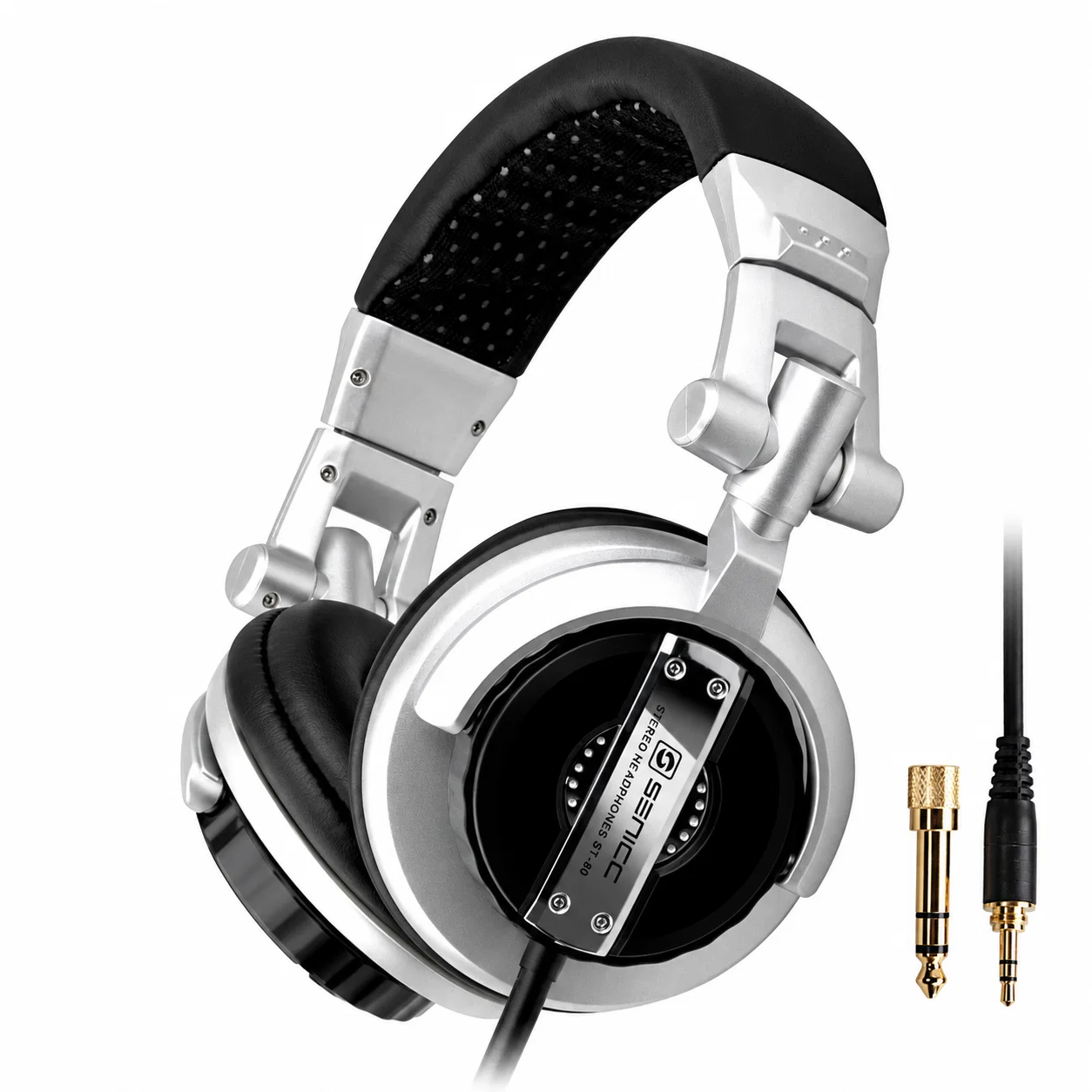
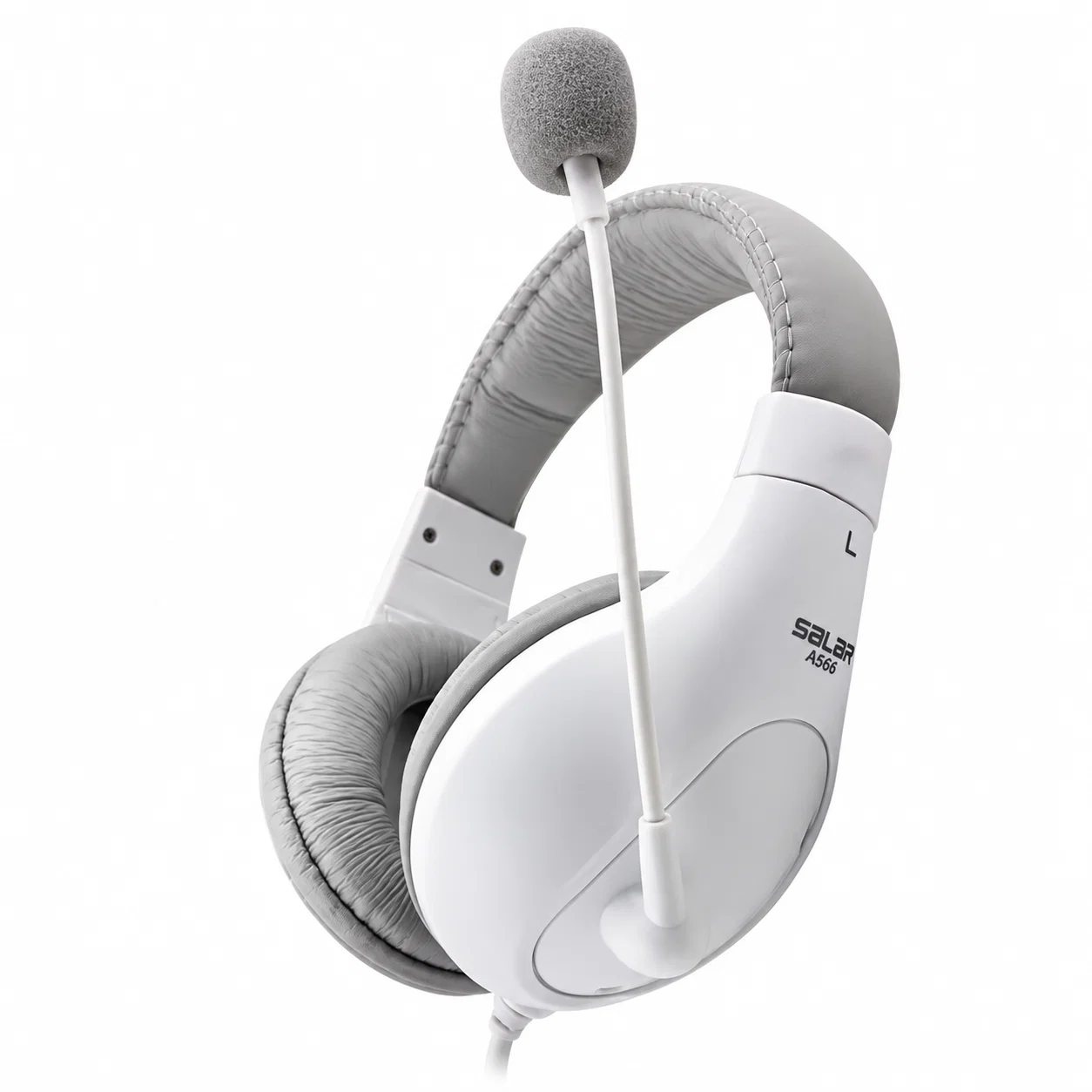
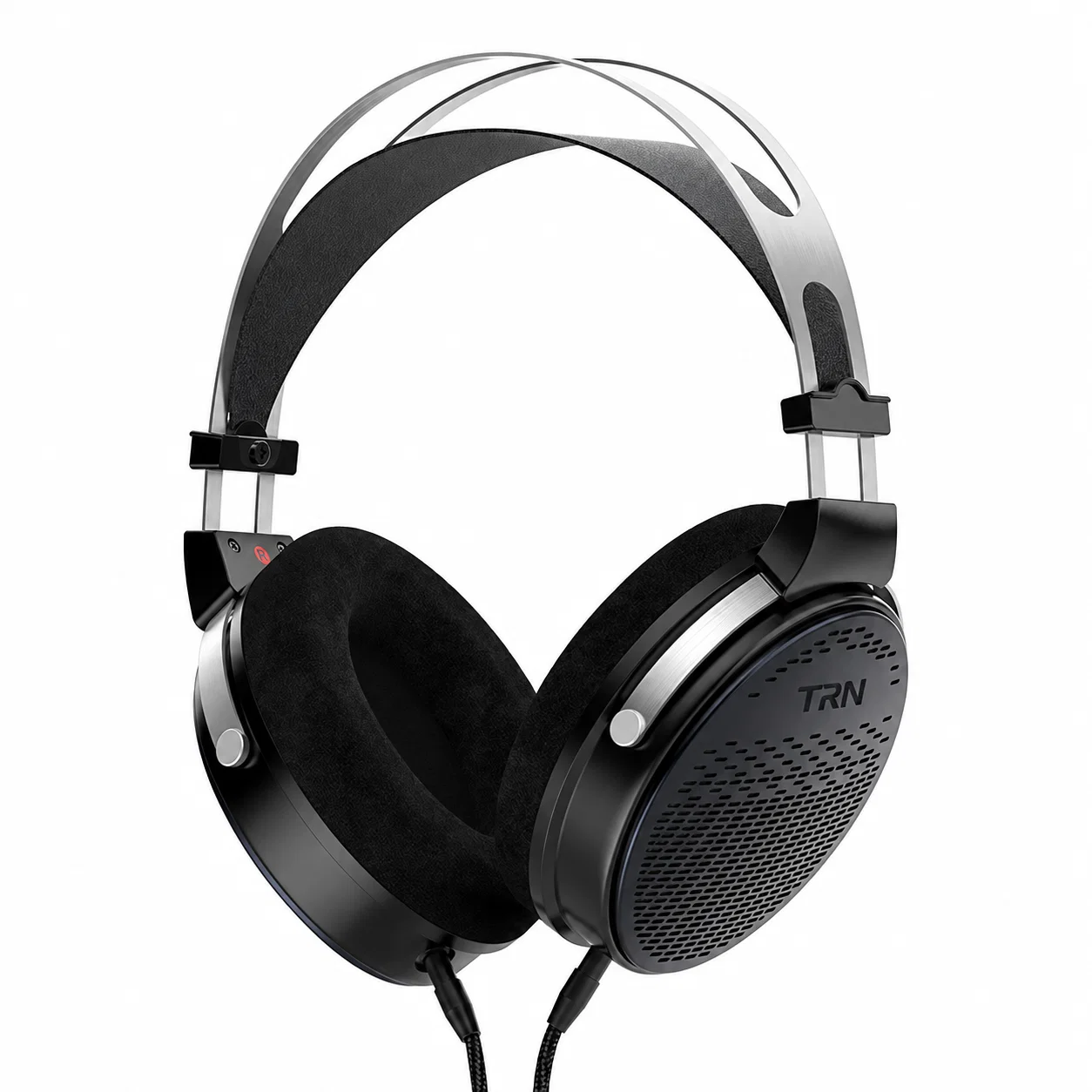
Plugging wired headphones into a desktop or laptop 3.5 mm port only to hear audio keep blasting from the external speakers is one of the most common Windows 11 driver headaches. In the vast majority of cases, the physical TRS spring contacts inside the jack are completely intact; instead, a cumulative Windows Update has overwritten your motherboard’s OEM Realtek Audio Console settings and disabled automatic front-panel impedance sensing.
When jack retasking or impedance sensing is turned off in the registry, the Realtek codec chip ignores the mechanical presence switch inside the 3.5 mm barrel. Restoring automatic headphone switching requires re-enabling front-panel detection inside the vendor control panel or rolling the driver back to Microsoft’s generic High Definition Audio class driver.
Why Realtek Impedance Sensing Ignores Newly Plugged Headphones
Motherboard audio codecs—such as the Realtek ALC897, ALC1220, and ALC4080—detect a 3.5 mm plug by measuring an impedance drop across a dedicated sense pin on the HD Audio header. When you insert a plug, the isolated switch terminal closes, signaling the driver to mute the rear line-out amplifier and route the stereo DAC stream to the front headphone amplifier.
If your PC case uses an older AC’97 front-panel ribbon cable—or if the “Disable front panel jack detection” toggle is checked inside Realtek Audio Console—the codec stops polling that sense pin entirely. On laptops with a single combo TRRS jack, dismissing the “Which device did you plug in?” pop-up dialog even once with “Don’t ask again” selected permanently locks the port as a passive line-in or ignores subsequent insertions.
| Symptom on Windows 11 | Underlying Software / Hardware Cause | Target Menu or Component | Exact Configuration Fix | Verification Result |
|---|---|---|---|---|
| Plugging in 3.5mm does nothing; speakers stay on | Realtek front-panel sense pin polling disabled | Realtek Audio Console → Device Advanced Settings | Enable jack detection (or toggle Disable Front Panel Detection) | Headphones appear as separate output endpoint |
| Jack works on rear motherboard port, dead on front | Case HD Audio 9-pin header loose or BIOS set to AC97 | Motherboard AAFP header & UEFI BIOS Onboard Devices | Reseat 9-pin HD_AUDIO plug; set BIOS Front Panel to HD Audio | Front impedance sensing triggers on plug-in |
| Headphones play sound, inline mic not detected | Combo jack retasked as Stereo Headphone (TRS) only | Realtek Audio Console → Connector Retasking | Change jack assignment from Headphone to Headset ( with Mic) | Both playback and recording meters respond |
| Red X on speaker icon after Windows 11 update | OEM Realtek UAD/HDA driver conflict with OS build | Device Manager → Sound, Video and Game Controllers | Update Driver → Browse my computer → High Definition Audio Device | Native Microsoft class driver restores output |
Step-by-Step Driver Rollback and Jack Retasking Walkthrough
Start by opening the Windows Start menu and searching for Realtek Audio Console (or MaxxAudio Pro on Dell systems, B&O Audio Control on HP). Click the gear icon for Device advanced settings in the top-right corner, locate the front-panel jack detection toggle, and flip its state; if your headphones are currently plugged in, they should immediately appear in the playback list.
If the OEM control app refuses to open or crashes with an RPC service error, right-click the Start button, open Device Manager, and expand Sound, video and game controllers. Right-click Realtek(R) Audio, choose Update driver → Browse my computer for drivers → Let me pick from a list of available drivers on my computer, select the generic High Definition Audio Device, and reboot to bypass the broken vendor retasking layer completely.
Escaping Desktop Cable Tethers When You Head to Bed
Crawling under a desktop tower to reach the rear motherboard line-out jack—or stretching a short 1.2-meter headphone cord across your desk—locks your posture in place all afternoon. When you finish work or late-night gaming and move to bed, wired 3.5 mm plugs and protruding plastic earbud shells become a physical hazard against your pillow.
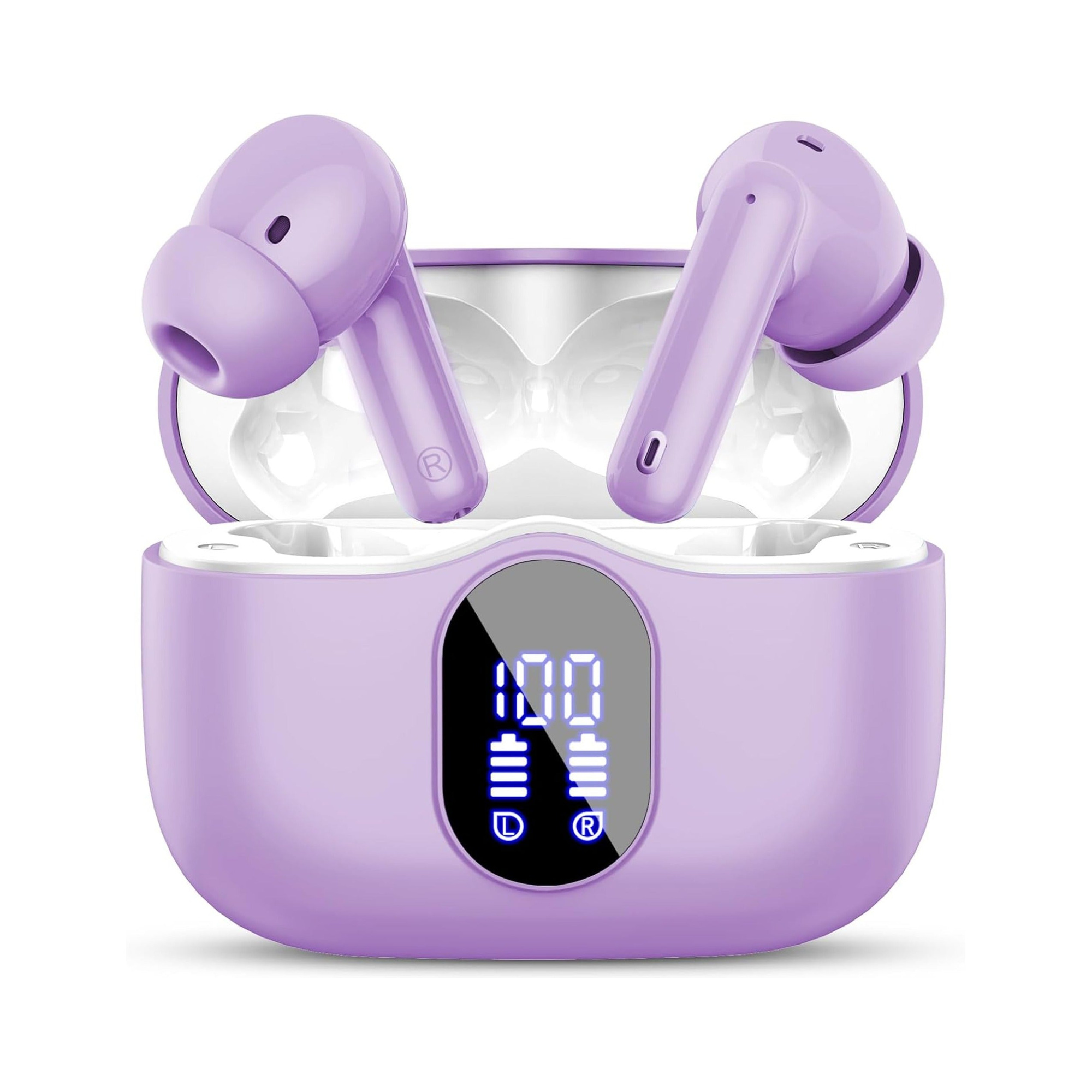
Flat, stemless earbuds for sleeping on your side, with a dynamic sleep-support mode and a starlight glow charging case. See the three colors at EARSOLE.
Leaving desktop audio jacks behind at night and slipping in a wireless, flush-profile sleep earbud gives your ears complete freedom on the mattress. The recessed silicone body eliminates lateral cartilage pressure when sleeping on your side while masking household noise softly until morning.
Checking Motherboard HD Audio Headers and Windows Services
On custom-built desktop PCs where the front-panel 3.5 mm jack has never worked since day one, shut down the system and inspect the bottom-left corner of the motherboard labeled AAFP or JAUD1. Make sure the 9-pin HD AUDIO connector from the case is fully seated over every pin—sliding that plug one row to the left is an easy assembly mistake that leaves the sense pin disconnected.
Finally, press Win + R, type mmsys.cpl, right-click inside the Playback list, and verify that both Show Disabled Devices and Show Disconnected Devices are checked. If you use a USB-C audio adapter instead of the 3.5 mm barrel and hear static pops on Windows 11, read our guide on fixing USB-C headphones crackling noise.
Frequently Asked Questions
Why did my front headphone jack stop working right after a Windows 11 cumulative update?
Windows Update frequently replaces custom motherboard Realtek HDA drivers with generic UAD packages that reset connector retasking rules or fail to communicate with your PC case’s front-panel impedance sensor.
Why does checking “Disable front panel jack detection” sometimes fix a dead 3.5 mm port?
If your PC case has a worn mechanical sense switch inside the 3.5 mm jack or uses an older AC’97 cable, disabling jack detection forces the Realtek codec to output audio to the front header continuously without waiting for a plug-sense signal.